Configure role-based SSO with Microsoft Entra ID (formerly Azure AD) as the identity provider (IdP). After setup, users sign in with their Microsoft Entra ID credentials to assume a RAM role and temporarily access Alibaba Cloud resources.
Before you begin, verify that the Alibaba Cloud services you plan to access support Security Token Service (STS).
Prerequisites
-
You have a RAM administrator with the
AliyunRAMFullAccesspermission for operations in the RAM console. For information about how to create a RAM user and grant permissions, see Create a RAM user and Manage RAM user permissions. -
You have a Microsoft Entra ID administrator with the Global Administrator role for operations in Microsoft Entra ID. For information about how to create a user and grant permissions in Microsoft Entra ID, see the Microsoft Entra ID documentation.
Procedure
In this example, Microsoft Entra ID is the IdP and Alibaba Cloud is the service provider (SP). The following steps establish trust between the IdP and SP, and map a Microsoft Entra ID app role to an Alibaba Cloud RAM role.
-
Step 1: Create an enterprise application in Microsoft Entra ID: Create an enterprise application from the Microsoft Entra App Gallery by using the Alibaba Cloud Service (Role-based SSO) template.
-
Step 2: Configure SAML in Microsoft Entra ID: Configure Alibaba Cloud role-based SSO as a trusted SAML SP in Microsoft Entra ID.
-
Step 3: Create an identity provider in Alibaba Cloud: Configure Microsoft Entra ID as a trusted SAML IdP in Alibaba Cloud RAM.
-
Step 4: Create a RAM role in Alibaba Cloud: Create a RAM role in Alibaba Cloud RAM and set its principal type to Identity Provider.
-
Step 5: Create app roles and assign users: Create an app role for the enterprise application and assign users.
-
Verify the SSO logon: Verify that role-based SSO works as expected.
Step 1: Create an enterprise application in Microsoft Entra ID
-
Log on to the Azure portal as the global administrator of Microsoft Entra ID.
-
In the upper-left corner of the homepage, click the
 icon.
icon. -
In the left-side navigation pane, choose .
-
Click New application.
-
Search for and select Alibaba Cloud Service (Role-based SSO).
-
Enter a name for the application, then click Create.
This example uses the default name
Alibaba Cloud Service (Role-based SSO). You can specify a custom name.
Step 2: Configure SAML in Microsoft Entra ID
-
On the Alibaba Cloud Service (Role-based SSO) details page, in the left-side navigation pane, choose .
-
Click SAML.
-
Configure SSO settings.
-
In the upper-left corner, click Upload metadata file, select the metadata file for Alibaba Cloud role-based SSO, then click Add.
NoteDownload the metadata file from
https://signin.alibabacloud.com/saml-role/sp-metadata.xmland save it to your computer. -
On the Basic SAML Configuration page, configure the following parameters, then click Save.
-
Identifier (Entity ID): The system automatically reads this value from the
entityIDattribute in the metadata file. -
Reply URL (Assertion Consumer Service URL): The system automatically reads this value from the
Locationattribute in the metadata file.
-
-
In the Attributes & Claims section, click the
 icon to verify that the following two claims exist.
If they do not exist, click Add new claim and add them with the values in the following table.
Name
Namespace
Source
Source attribute
Rolehttps://www.aliyun.com/SAML-Role/AttributesAttribute
user.assignedroles
RoleSessionNamehttps://www.aliyun.com/SAML-Role/AttributesAttribute
user.userprincipalname
-
In the SAML Certificates section, click Download on the right of Federation Metadata XML to download the IdP metadata file.
-
Step 3: Create an IdP in Alibaba Cloud
-
Log on to the RAM console as a RAM administrator.
-
In the left-side navigation pane, choose .
-
On the Role-based SSO tab, click the SAML subtab and click Create IdP.
-
On the Create IdP page, enter
AADfor IdP Name. -
Click Upload Metadata File and select the Federation Metadata XML file that you downloaded in Step 2.
-
Click Create IdP.
-
Click the
AADIdP you created. In the Basic Information section, copy the IdP's ARN for later use.
Step 4: Create a RAM role in Alibaba Cloud
-
Log on to the RAM console. In the left-side navigation pane, choose .
-
On the Roles page, click Create Role.
-
In the upper-right corner of the Create Role page, click Switch to Policy Editor.
-
Specify a SAML IdP in the editor.
The editor provides both a visual editor and a JSON script editor. This example uses the visual editor. For Principal, select Identity Provider and click Edit. Then, specify AAD as the IdP and select SAML for Identity Provider Type.
-
In the Create Role dialog box, enter a role name (such as AADrole), then click OK.
-
Click the RAM role you created. In the Basic Information section, copy the role's ARN for later use.
You can grant permissions to the RAM role as needed. For more information, see Manage permissions for a RAM role.
Step 5: Create an app role and assign users in Microsoft Entra ID
-
Create an app role in Microsoft Entra ID.
-
Log on to the Azure portal as an administrator.
-
In the left-side navigation pane, choose .
-
Click the All applications tab, then click Alibaba Cloud Service (Role-based SSO).
-
In the left-side navigation pane, choose .
-
On the page that appears, click Create app role.
-
In the Create app role panel, configure the following parameters and click Apply.
-
Display name: In this example, enter
Admin. -
Allowed member types: In this example, select Both (Users/Groups + Applications).
-
Value: Enter the ARN of the RAM role and the ARN of the IdP. Separate the ARNs with commas (,). In this example, enter
acs:ram::187125022722****:role/aadrole,acs:ram::187125022722****:saml-provider/AAD.NoteThe value must use the format
RAM role ARN,IdP ARN. Reversing the order causes SSO to fail. -
Description: Enter a description for the app role.
-
Select Do you want to enable this app role?
-
NoteTo create multiple app roles, repeat the preceding steps with different display names and values.
-
-
Assign a user to the enterprise application and specify an app role.
-
In the left-side navigation pane, choose .
-
In the Name column, click Alibaba Cloud Service (Role-based SSO).
-
In the left-side navigation pane, choose .
-
On the page that appears, click Add user/group.
-
On the Add Assignment page, select a user and click Select.
-
Check whether the selected role is Admin. If not, change the role to Admin. Then, click Assign.
-
Verify SSO
Role-based SSO supports only IdP-initiated SSO, so you must sign in from Microsoft Entra ID to verify the configuration.
-
Obtain the user access URL.
-
Log on to the Azure portal as an administrator.
-
In the left-side navigation pane, choose .
-
In the Name column, click Alibaba Cloud Service (Role-based SSO).
-
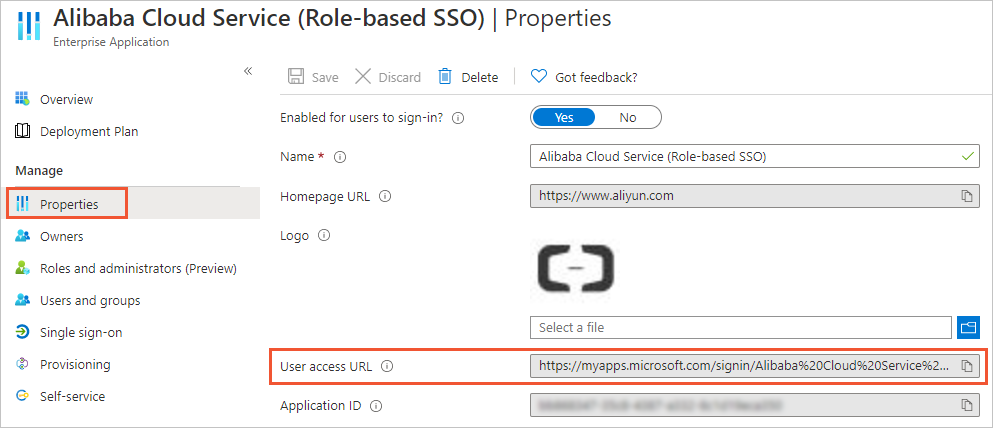
In the left-side navigation pane of the page that appears, choose and obtain the value of User access URL.
-
-
The user (ssotest01@example.onmicrosoft.com) obtains the User access URL from the administrator, opens it in a browser, and signs in. After successful authentication, the user is redirected to the Alibaba Cloud Management Console by default. The RAM role (
aadrole) appears before the account name.