Push instrumentation data collected in Quick Tracking to a destination address in real time.
1. Overview
The data distribution module pushes instrumentation data collected in Quick Tracking to a destination in real time.
-
This feature is available only in the private deployment version. To use data subscription in the SaaS version, see SaaS Data Log Redemption.
-
Only real-time instrumentation data can be pushed. Historical data is not supported. If you restart a stopped task, data from the period when the task was stopped cannot be backfilled.
2. Instructions
2.1 Accessing the feature
Go to the Quick Tracking console. In the navigation menu or from the nut icon in the upper-right corner, click Management Console. Then, click Data Distribution to open the feature page.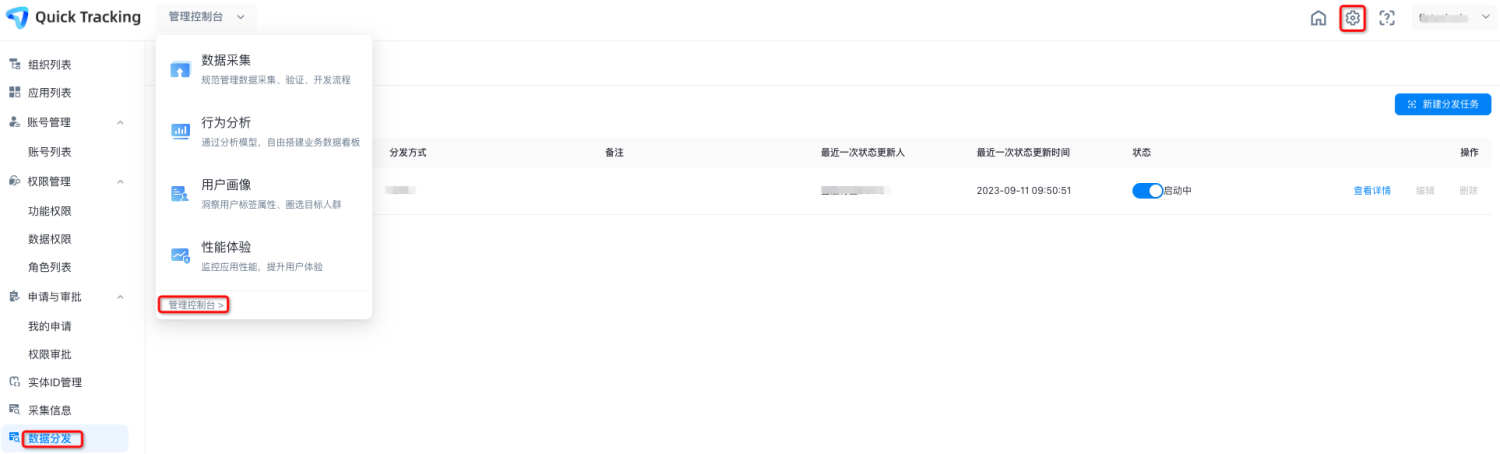
2.2 Feature components
The Data Distribution feature consists of the following components:
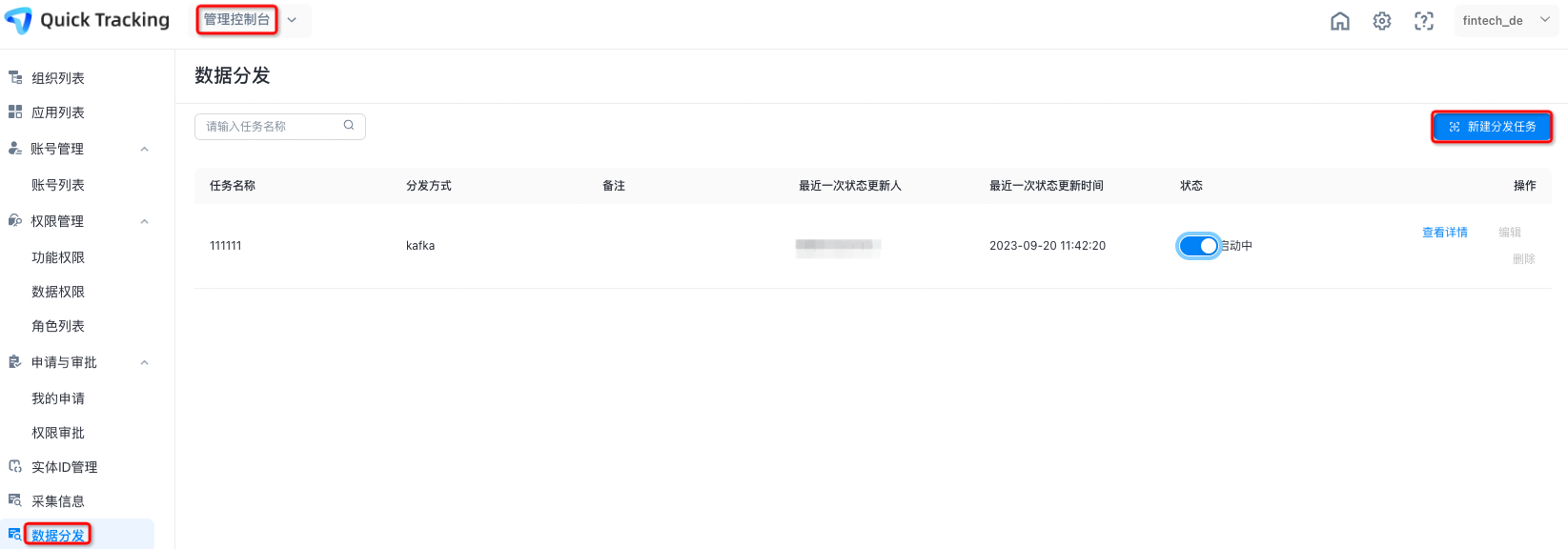
Task List: The task list includes Task Name, Distribution Method, Remarks, Last Status Updater, Last Status Update Time, Status, and Operations.
-
Task Name: A custom name for the task that you set when you create it.
-
Distribution Method: The channel selected when the task was created, either Simple Log Service (SLS) or Kafka.
-
Remarks: An optional field for adding a description when you create the task.
-
Last Status Updater: The account name of the user who last started or stopped the task.
-
Last Status Update Time: The time when the task was last started or stopped.
-
Status: The current running status of the task, which is either `Running` or `Stopped`. You can change the task status in this column. This column also indicates if a task is abnormal.
-
Operations: When a task's status is `Running`, all operation buttons are disabled. To perform operations on the task, you must first change its status to `Stopped`.
i. Edit: Edit the task information.
ii. Delete: A task in `Running` status cannot be deleted. Change the status to `Stopped` first. Deleted tasks cannot be recovered.
2.3 Create a distribution task
Go to the Management Console > Data Distribution page. In the upper-right corner, click Create Distribution Task to open the task creation page. You must have the Management Console - Data Distribution permission to view and use this module.
2.4 Information for a new distribution task
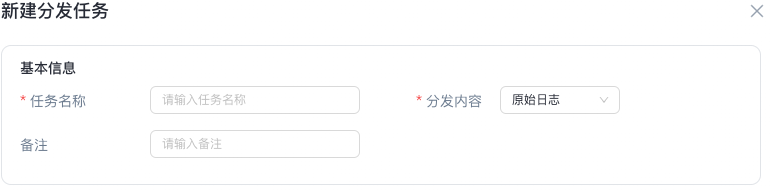
Basic Information
-
Task Name: A custom name for the task. The name can be up to 500 characters long.
-
Content to Distribute: Select the content to distribute from the drop-down list. Currently, only Raw Logs is available.
-
Remarks: This field is optional. You can add a custom description.
Channel Configuration
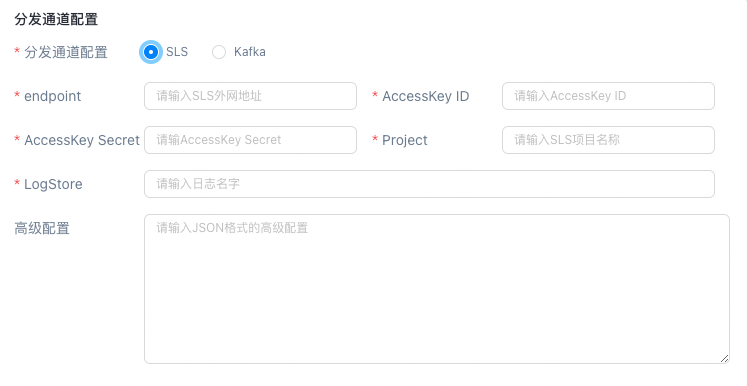
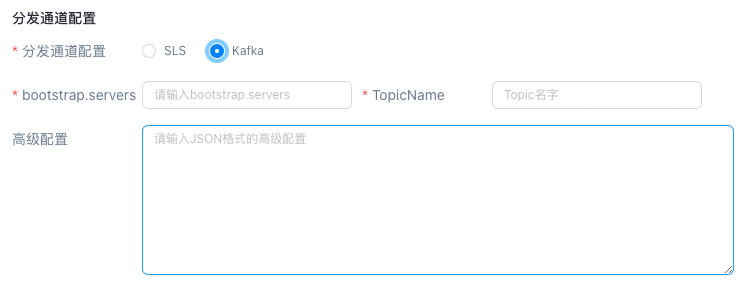
Select either SLS or Kafka as the distribution channel.
i. If you select SLS, configure the following parameters:
1) endpoint: Required. Enter your public SLS endpoint.
2) AccessKey ID: Required. Enter your AccessKey ID.
3) AccessKey Secret: Required. Enter your AccessKey secret.
4) Project: Required. Enter your SLS project name.
5) LogStore: Required. Enter the name of the Logstore.
6) Advanced Configuration: Optional. Enter advanced configurations in JSON format. The following table describes the parameters.
|
Name |
Value (numbers only) |
|
memory.queue.size (number of memory queues) |
Default value: 20000. This value is user-configurable. |
|
batchbytesize (size of each batch) |
Default value: 2097152. This value is user-configurable. |
|
batch.count (number of logs per batch) |
Default value: 40000. This value is user-configurable. |
|
queue.timeout (queue wait time) |
Default value: 5000. This value is user-configurable. |
ii. If you select Kafka, configure the following parameters:
1) bootstrap.servers: Required. Enter the address of your Kafka broker servers.
2) TopicName: Required. Enter the name of the topic.
3) Advanced Configuration: Optional. Enter advanced configurations in JSON format. The following table describes the parameters.
|
Name |
Description |
|
kafka.acks |
The number of replicas that must acknowledge a message before the producer considers the send successful. |
|
kafka.retries |
The number of times the producer retries sending a message if it fails. |
|
kafka.batch.size |
The size of a batch of messages sent by the producer. The unit is bytes. The default value is 16384 (16 KB). |
|
kafka.linger.ms |
The maximum time in milliseconds that the producer waits for more messages to join the current batch before sending. |
|
kafka.buffer.memory |
The amount of available memory in bytes that the producer uses to cache messages waiting to be sent. The default value is 33554432 (32 MB). |
|
kafka.max.in.flight.requests.per.connection |
The maximum number of unacknowledged messages that a producer can send before receiving an acknowledgment from the server. The default value is 5. |
|
Number of threads (processes) |
The default number of processes is 2. |
|
batchbytesize |
The size of each batch. |
|
batch.count |
The number of logs in each batch. |
|
queue.timeout |
The queue wait time. |
Distribution Rules
-
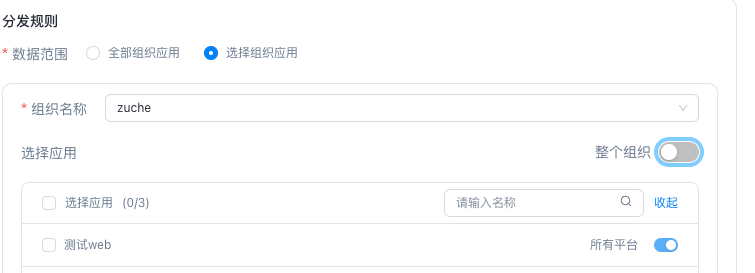
Distribution Rule: Select either All organizations and applications or Select organizations to define the scope. If you select All organizations and applications, the rule applies to all applications across all organizations. If you select organizations and applications, the rule applies only to the specified organizations and applications.
-
Select Events: Choose the events to forward. All Events is enabled by default. Turn off this toggle to select specific events from the drop-down list.
-
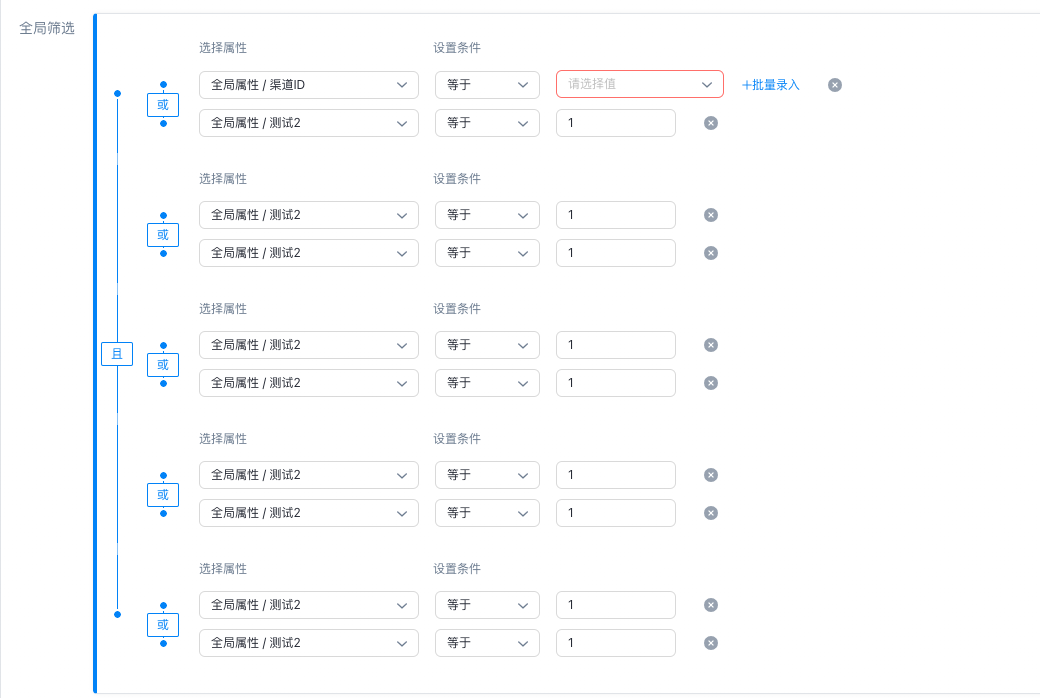
Global Filter: Define global property rules for forwarding data. The filter condition supports only "equals". You can select multiple values, set up to five groups with up to two values each, and import values in batches.
-
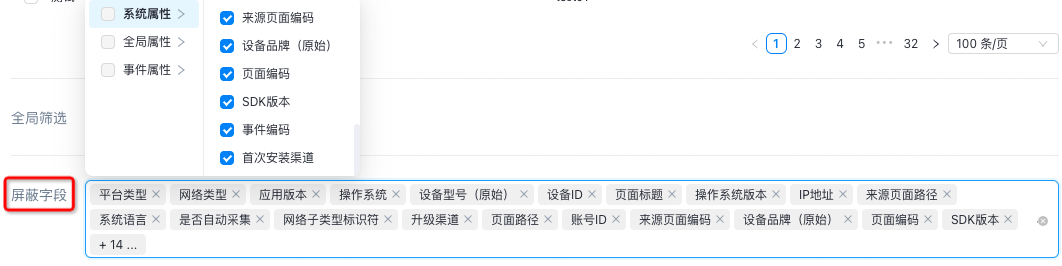
Blocked Fields: Click the input box to open the property selection window. Select the system, global, or event properties to exclude from forwarding. You can select up to 20 properties.
-
After you complete these steps, click OK. Quick Tracking automatically tests the connection. If the test succeeds, the task is created and started. The distribution task takes approximately 15 minutes to take effect.
2.5 Start or stop a distribution task
By default, a task is in `Running` status after creation, and data is distributed normally. To stop data distribution, click the Start/Stop toggle. The status change takes approximately 15 minutes to take effect.
2.6 Edit or delete a task
You cannot edit or delete a task while it is in `Running` status. Change the status to `Stopped` first using the Start/Stop toggle, then click Edit to modify the task or delete it. Confirm that a task is obsolete or invalid before deleting it, because deleted tasks cannot be recovered. Task changes take approximately 15 minutes to take effect.