Grant developers edit permission or use permission on a dataset to control who can modify or analyze data.
Background information
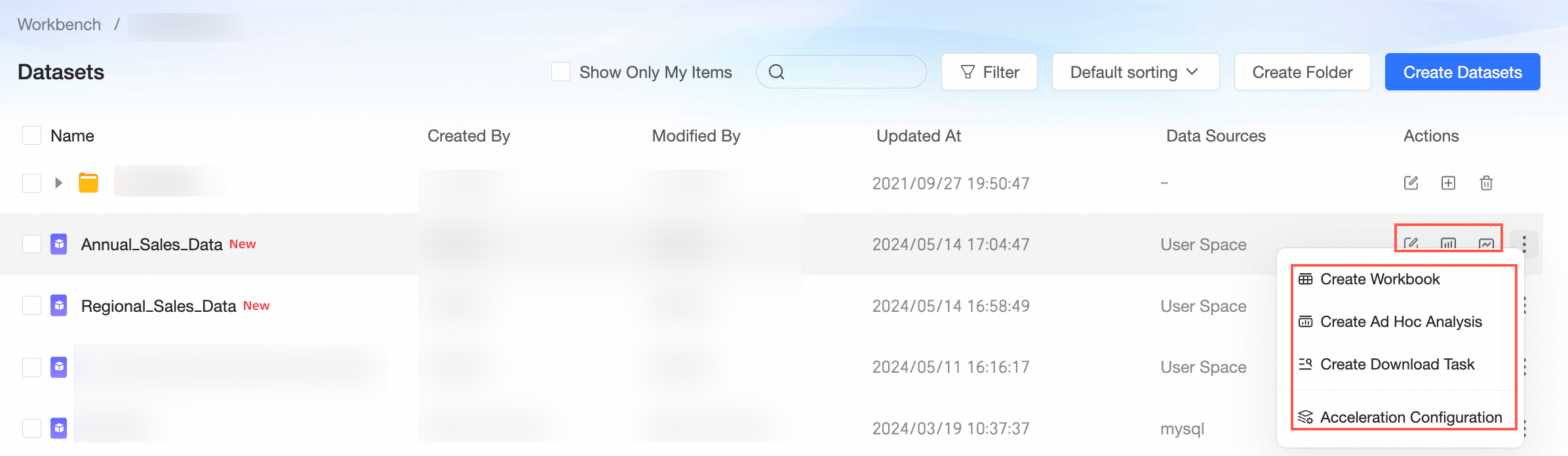
The available permission attributes differ between collaboration mode and private mode, as shown in the following figure.

The collaborative permissions include:
-
Edit permission: Users with this permission can create, edit, replace, and delete datasets.
-
Use permission: If a user's
workspaceororganizationrole includes the "Use Datasets" functional permission, the user can be granteduse permissionon a specific dataset fordata analysis.
Use cases
|
Scenario |
Expected outcome |
|
Developer B can edit the dataset and perform
|
|
|
Developer B can perform
|

Scenario 1: Grant edit permission
In private mode, only the resource owner and workspace administrators have edit permission. To grant edit permission to specific members, you must first switch to collaboration mode.
-
When you select Specified members, you can grant
edit permissionon the dataset to developers in thisworkspace. -
When you select All Workspace Members (only members with dataset edit permission), all members in the
workspacecan edit the dataset.
-
On the centralized authorization page, select the target
workspaceand thedatasetresource.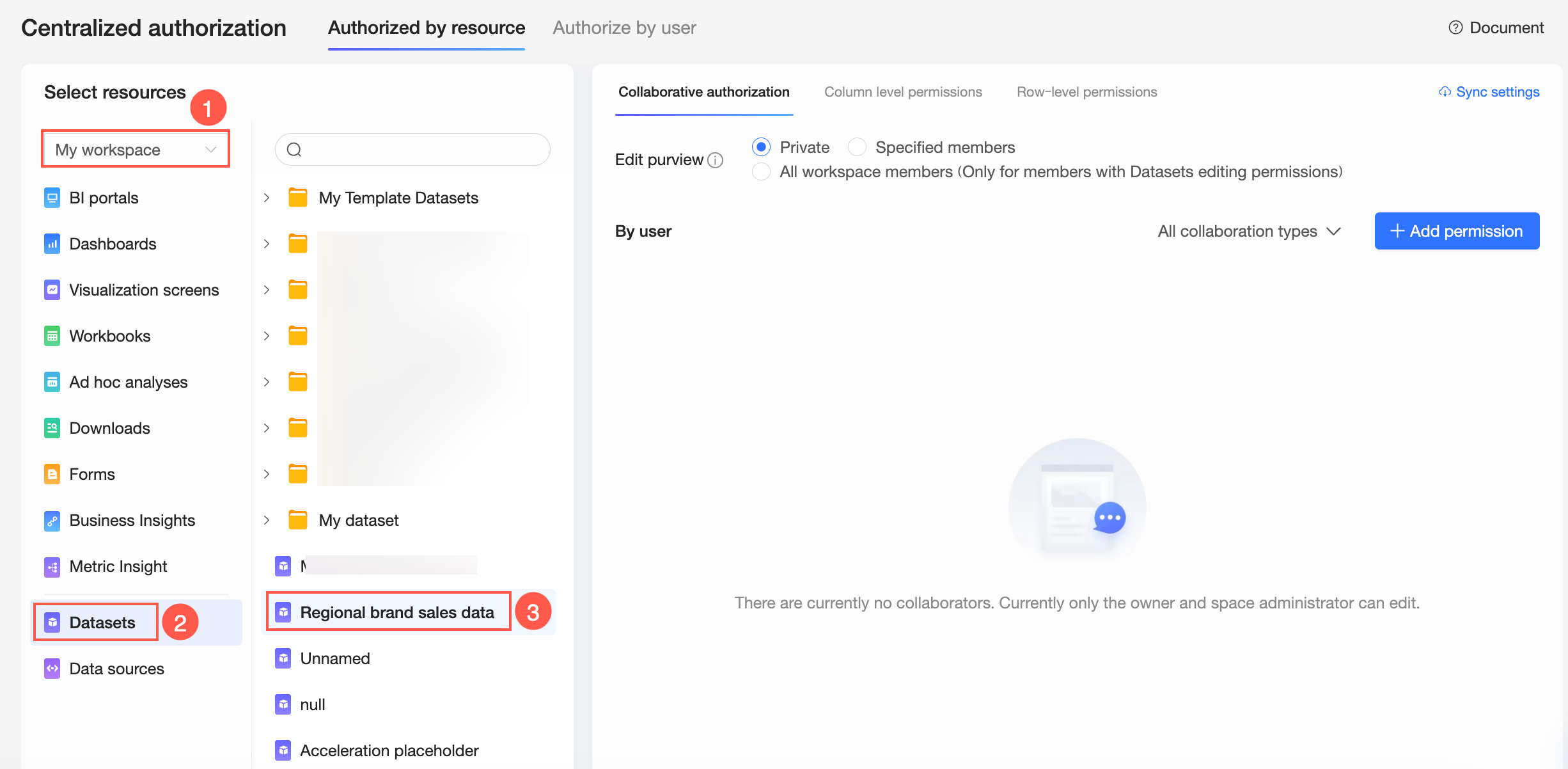
-
In the Collaborative Authorization pane on the right, configure the edit permission property and grant the permission.
The following figure shows an example of granting
edit permissionto Developer B by setting the Edit Permission property to Specified members.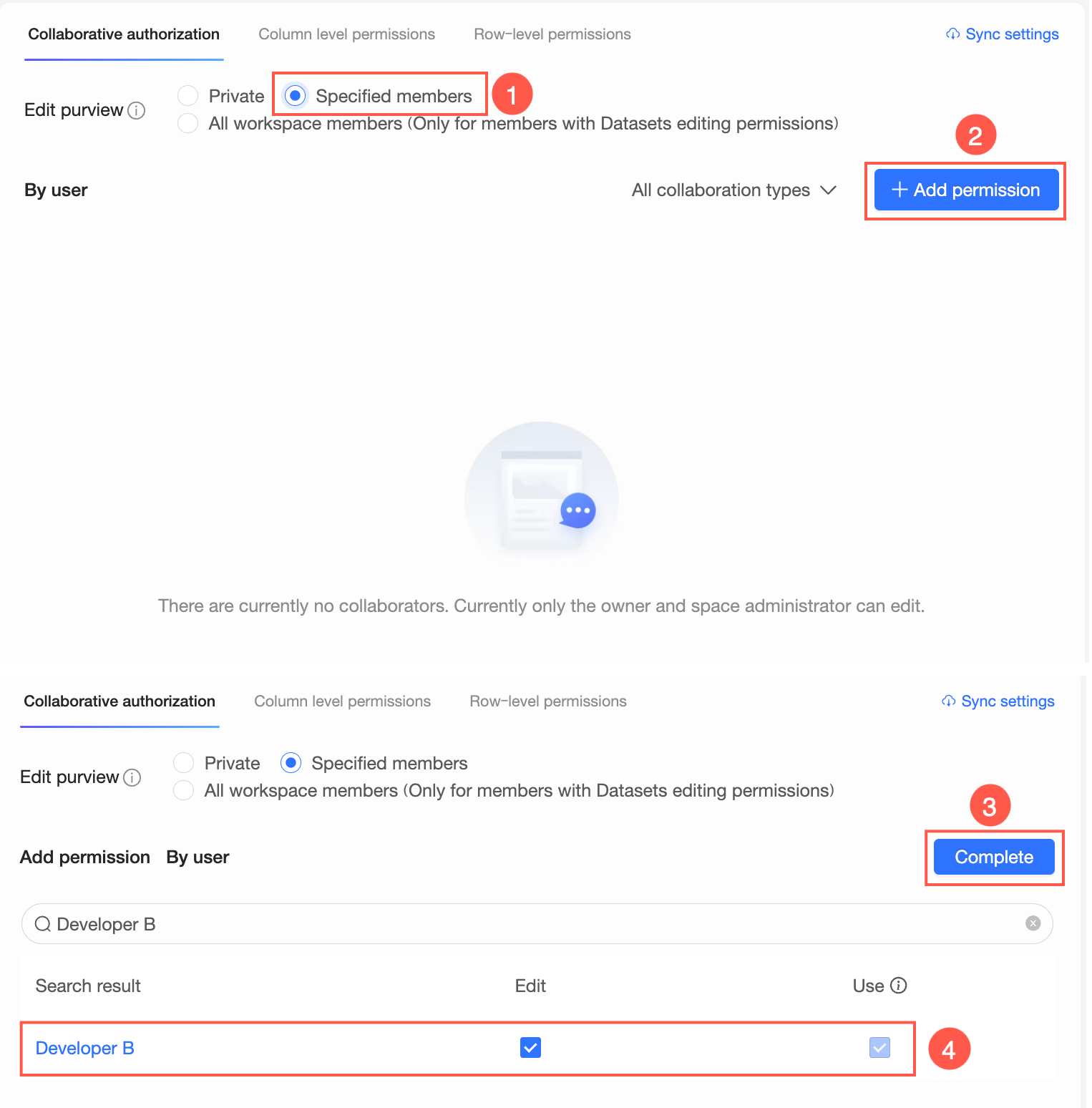 Note
NoteAfter you select the Edit permission, Developer B can edit or use the dataset. You can later modify the permissions and select only Use to grant Developer B
use permission. -
Optional: Set up
permission synchronization.If Developer B also needs to collaboratively edit other datasets in this
workspace, click Synchronization Settings, select the target datasets, and then click Sync.For example, if Developer B is granted
edit permissionfor the Regional Brand Sales Data dataset, afterpermission synchronization, Developer B can also edit the Annual Sales Dataset.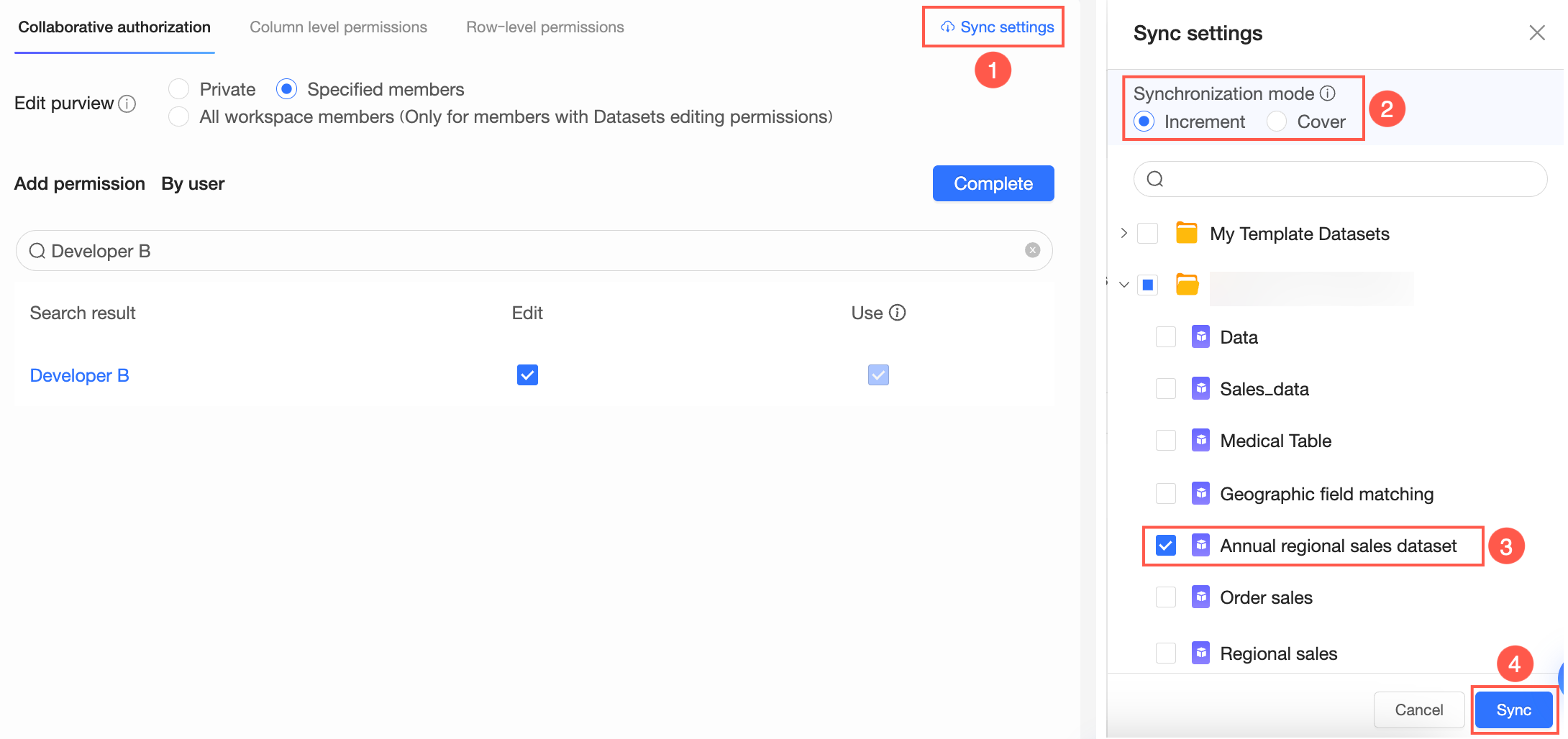 Note
NoteSynchronization mode supports incremental synchronization and overwrite synchronization.
-
Incremental synchronization: Adds new permissions to the target resources without affecting their existing permissions.
-
Overwrite synchronization: Clears all existing permissions on the target resources and replaces them with the permissions from the source resource.
-
Scenario 2: Grant use permission
You can grant use permission to all users in the organization who have the "Use Datasets" permission. This covers two types of users:
-
Workspace members: Members whose
workspacerole supports granting datasetuse permission. -
Organization members: Members whose
organizationrole supports granting datasetuse permission.
Scope of use after authorization:
After a user is granted the permission, the available operations depend on their workspace:
-
Members of the dataset's
workspace: Can create items such as dashboards and spreadsheets using the dataset. -
Members of other workspaces: Can perform exploratory analysis on the dataset.
-
On the centralized authorization page, select the target
workspaceand thedatasetresource. -
In the Collaborative Authorization pane on the right, select the use permission property and grant the permission.
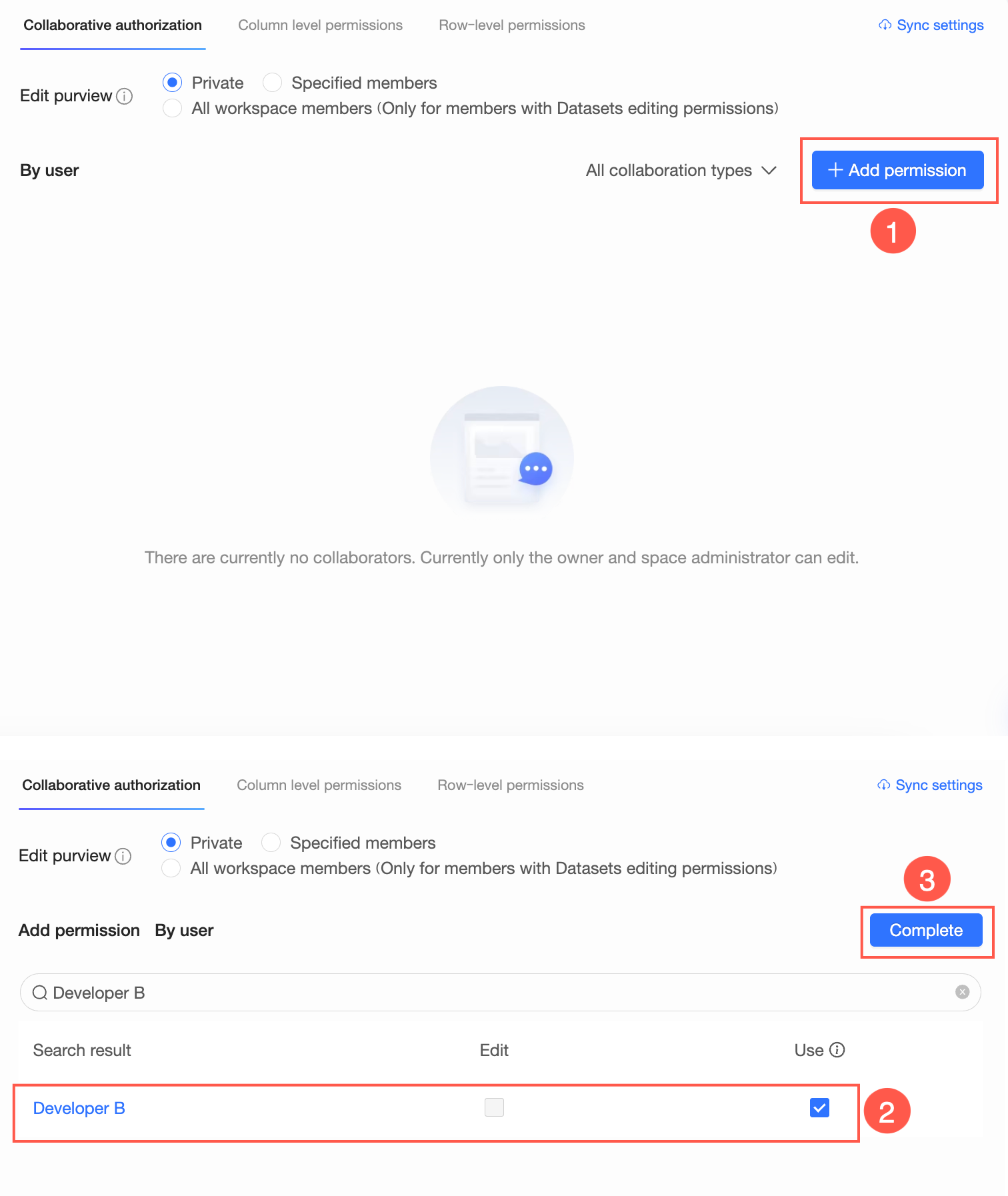
-
Optional: Set up
permission synchronization.If Developer B also needs to use other datasets in this
workspace, click Synchronization Settings, select the target datasets, and then click Sync.
Other dataset permissions
You can also configure more granular permissions for a dataset.
-
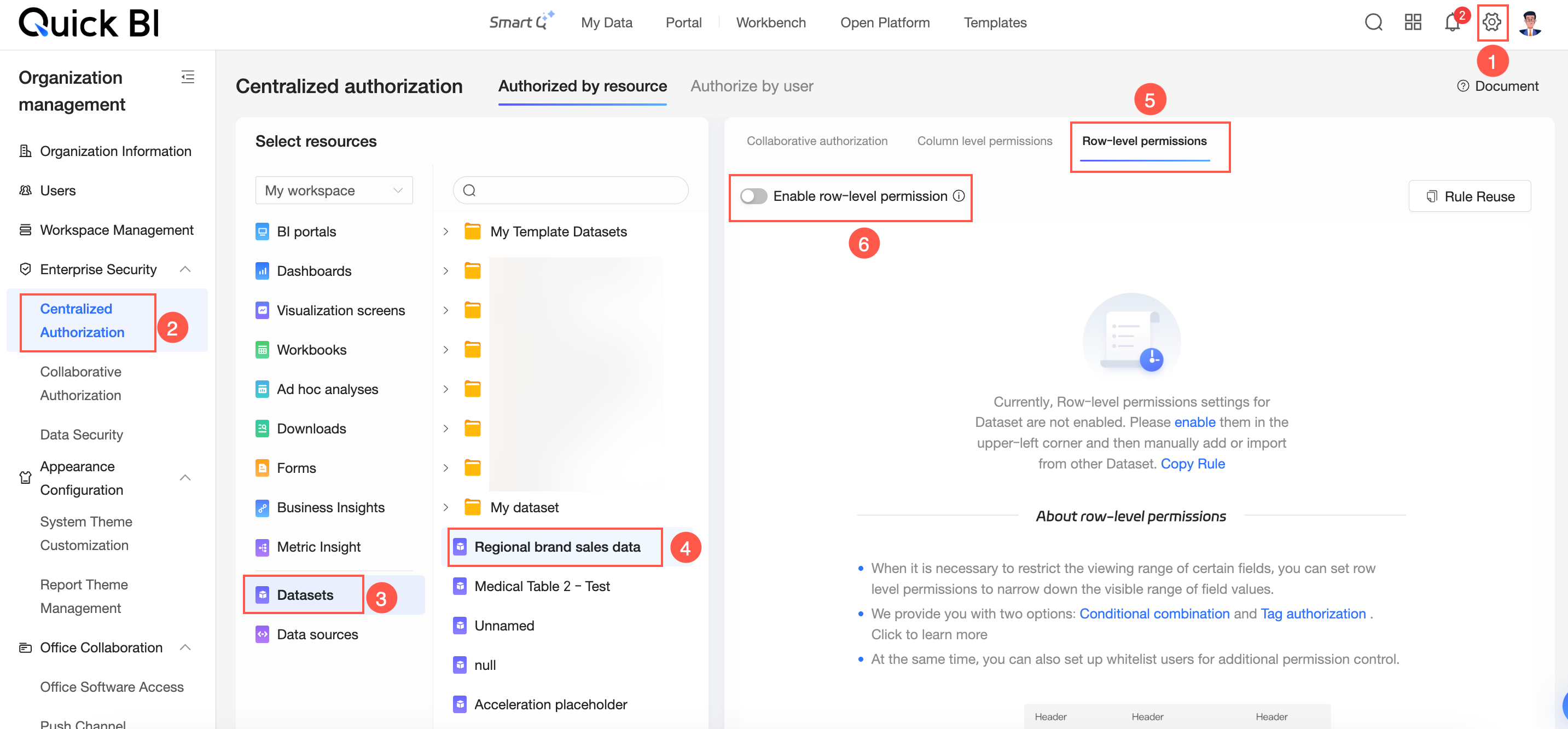
Row-level permission: Restricts the visible range of field values. When users query fields in a
dashboard, they can only view field values permitted by the rule, which ensures data security.On the centralized authorization page, select the dataset and click Enable row-level permissions as shown in the figure. For authorization instructions, see Row-level permission.
-
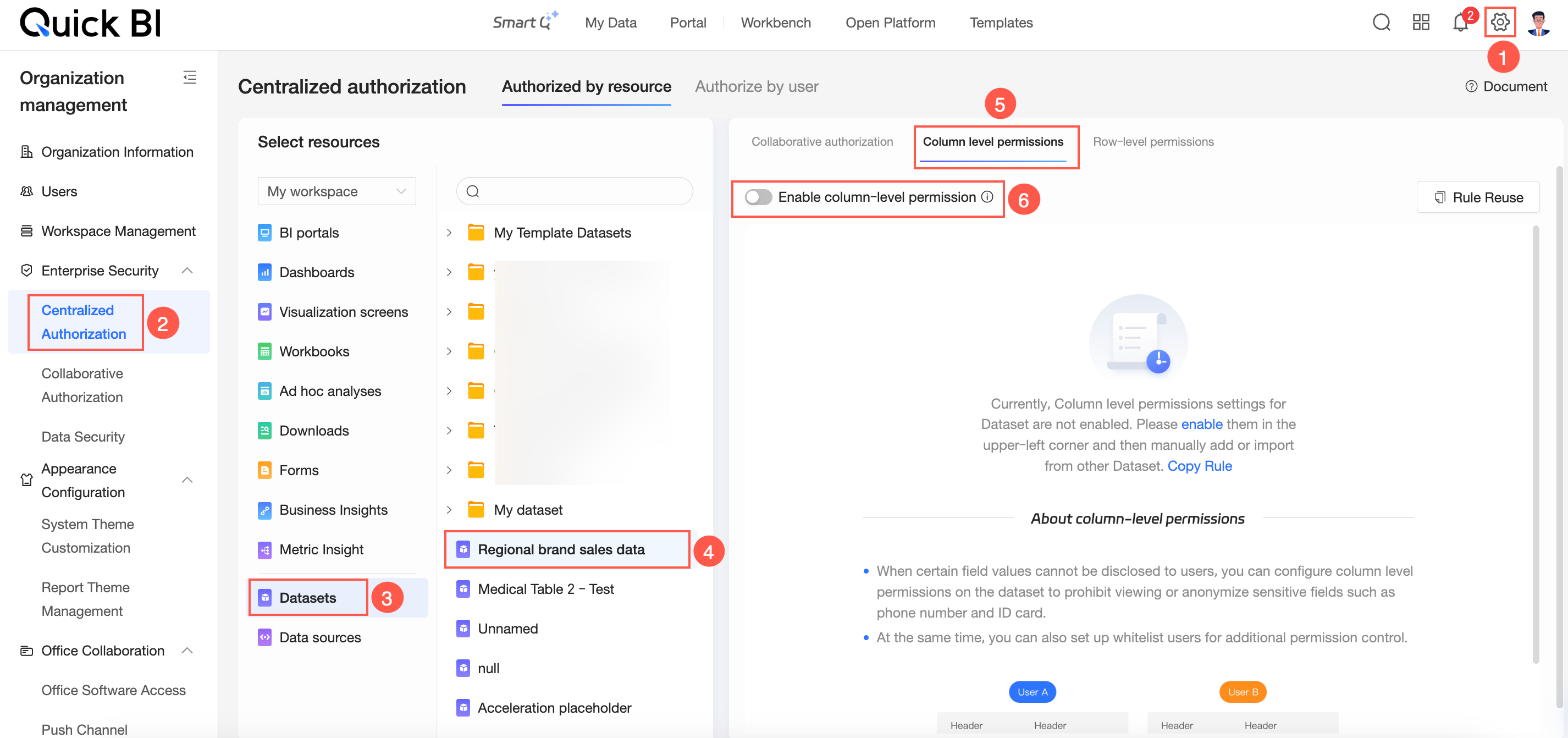
Column-level permission: Hides or masks specific fields. When users query fields in a
dashboard, they can only view field values permitted by the rule, which ensures data security.On the centralized authorization page, select the dataset and click Enable column-level permissions as shown in the figure. For authorization instructions, see Column-level permission.