Right-click measures, dimension values, or column headers in an ad hoc query table to sort, filter, calculate, and format data. The available operations depend on what you select.
Right-click a Measure
Right-click one or more measures in an ad hoc query table to perform the following operations. The available operations vary by the number of measures you select.
|
Operation |
One measure |
Two measures |
Three or more measures |
|
Sort |
Supported |
Not supported |
Not supported |
|
Retain only |
Supported |
Supported |
Supported |
|
Suppress |
Supported |
Supported |
Supported |
|
Calculate |
Supported (numerical value ranking, ratio of numerical value, and custom calculation) |
Supported (percentage, percentage difference, basic operations, and custom calculation) |
Supported (sum, average, maximum/minimum, and custom calculation) |
|
Display format |
Supported |
Supported |
Supported |
|
Remove measure |
Supported |
Supported |
Supported |
-
Sort
Ad hoc queries support sorting by a single measure.
-
In-group sorting is supported. For example, the following figure shows the profit amount measure sorted in ascending order within the
Otherregion group.
-
Global sorting is also supported.

After you set a sort order and click Save or Save and Publish, the settings persist the next time you open the ad hoc query.
-
-
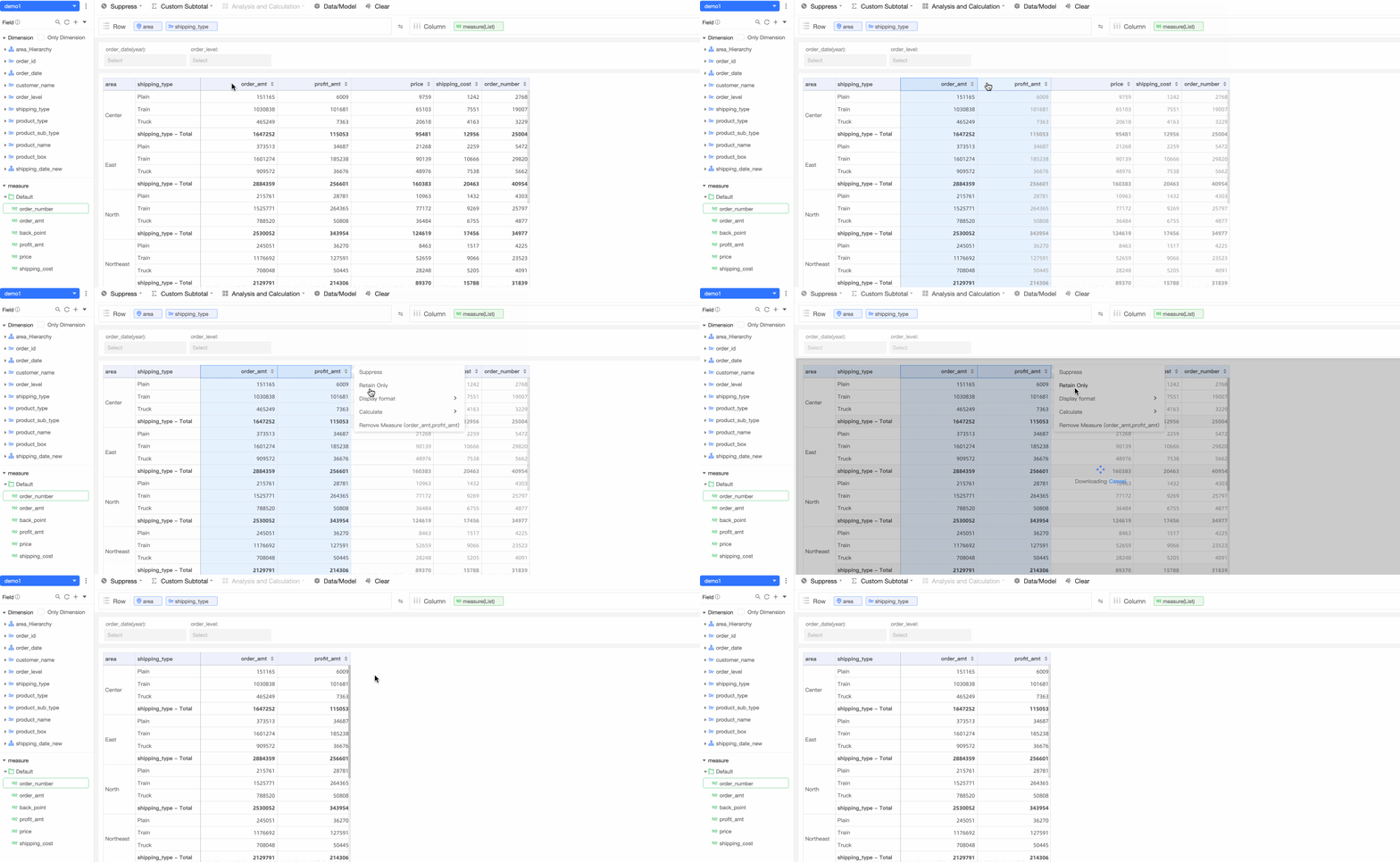
Retain only
Keeps the selected measures and removes all others from the table.
For example, if a table has many measures and you want to view only the order quantity and order amount, select these two measures and choose Retain only.
-
Suppress
To learn about suppressing selected measures, see Suppress.
-
Calculate
-
Numerical value ranking and ratio of numerical value
When you right-click a single measure, you can perform Numerical value ranking and Ratio of numerical value operations.

-
Percentage and basic operations
When you right-click two measures, you can calculate the Percentage, Percentage difference, or perform Basic operations. The calculation is based on the order in which you select the measures.

-
Sum, average, and maximum/minimum
When you right-click three or more dimension values or measures, you can quickly calculate the Sum, Average, Maximum, or Minimum.

-
Custom calculation
In addition to quick calculations, you can write your own expressions to create a custom calculation.
ImportantIn a custom calculation, you can reference only measures already in the table.

-
-
Display format
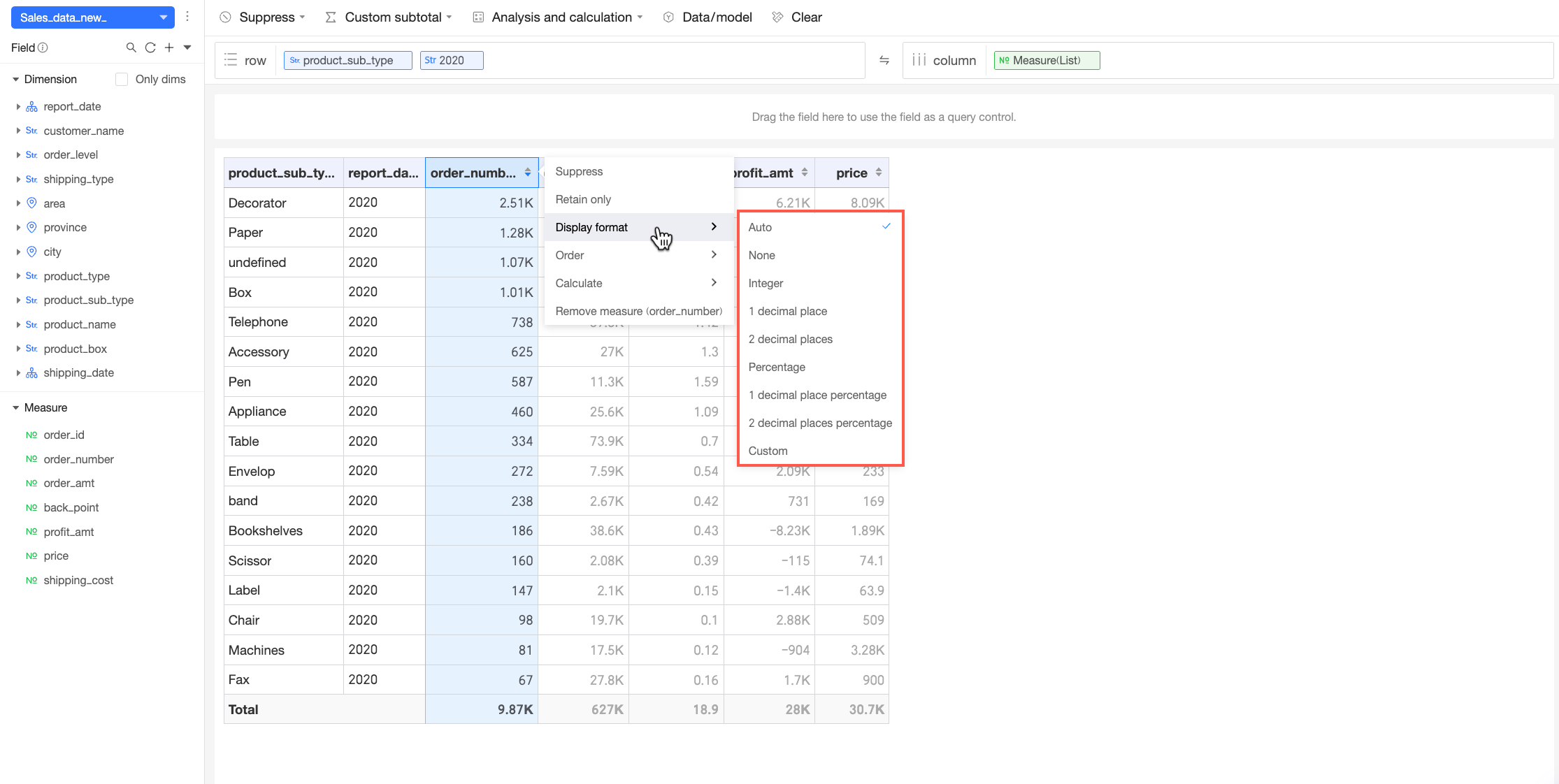
Right-click a measure to adjust its display format.
Several predefined formats are available from a drop-down list.
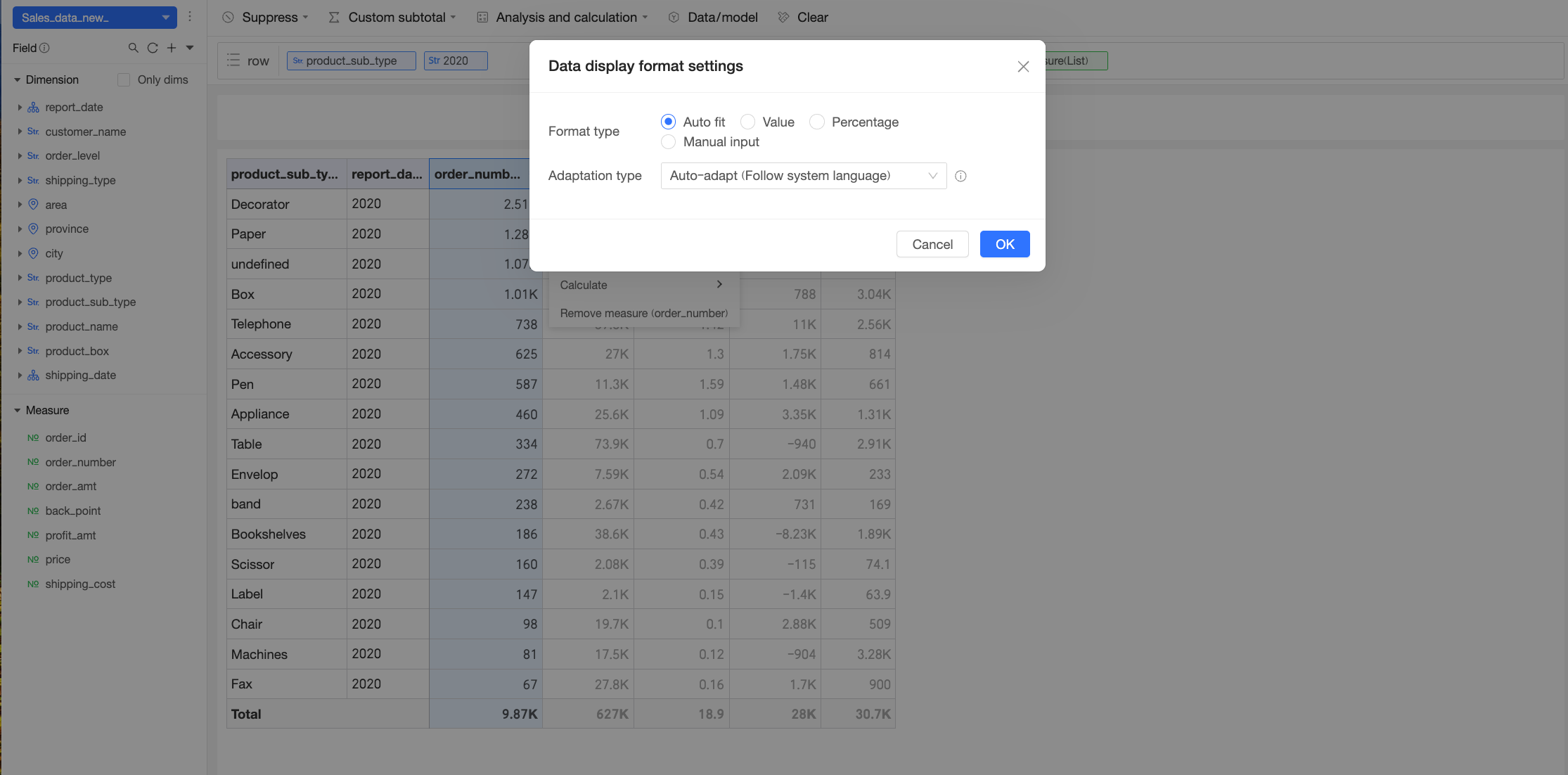
You can also define a custom format. After you select the custom option, the Data display format settings dialog box appears, where you can configure the format type. Supported types include Auto adaption, Numerical, Percentage, and Manual input.
 Note
NoteFor more information about configuring custom display formats, see Custom data display format.
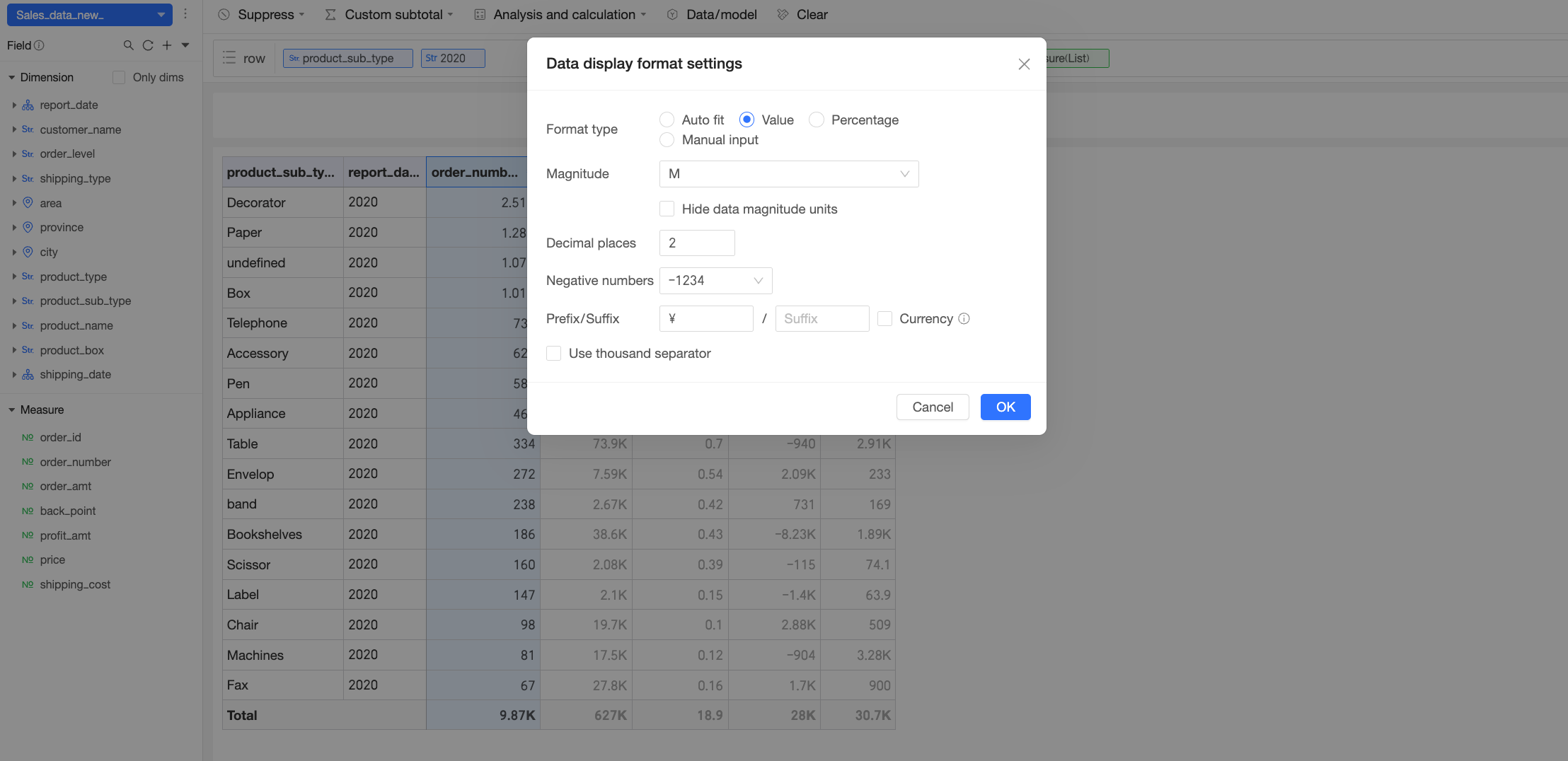
For example, to format the unit price measure with two decimal places, a magnitude of ten thousand, and a ¥ prefix, configure these options in the custom display format dialog box.
After the custom format is applied:

-
Remove measure
Removes the selected measures from the table.
Right-click a Dimension Value
|
Operation |
One dimension value |
Two dimension values |
Three or more dimension values |
|
Hide |
Supported |
Not supported |
Not supported |
|
Retain only |
Supported |
Supported |
Supported |
|
Exclude |
Supported |
Supported |
Supported |
|
Suppress |
Supported |
Supported |
Supported |
|
Calculate |
Supported (custom calculation) |
Supported (percentage, percentage difference, and basic operations) |
Supported (sum, average, and maximum/minimum) |
|
Remove dimension value |
Supported |
Supported |
Supported |
Right-click one or more dimension values in an ad hoc query table to perform the following operations. The available operations vary by the number of dimension values you select.
-
Hide
Temporarily hides dimension values you do not want to see. This action is reversible.
After you hide a value, a blue line appears in its place. Hover over the line to see a tooltip with the message Data in xx rows/columns is hidden. Click the line to unhide the data.
For example, in the following figure, three dimension values under the
Advancedproduct sub-category are hidden. You can click the blue line to unhide them.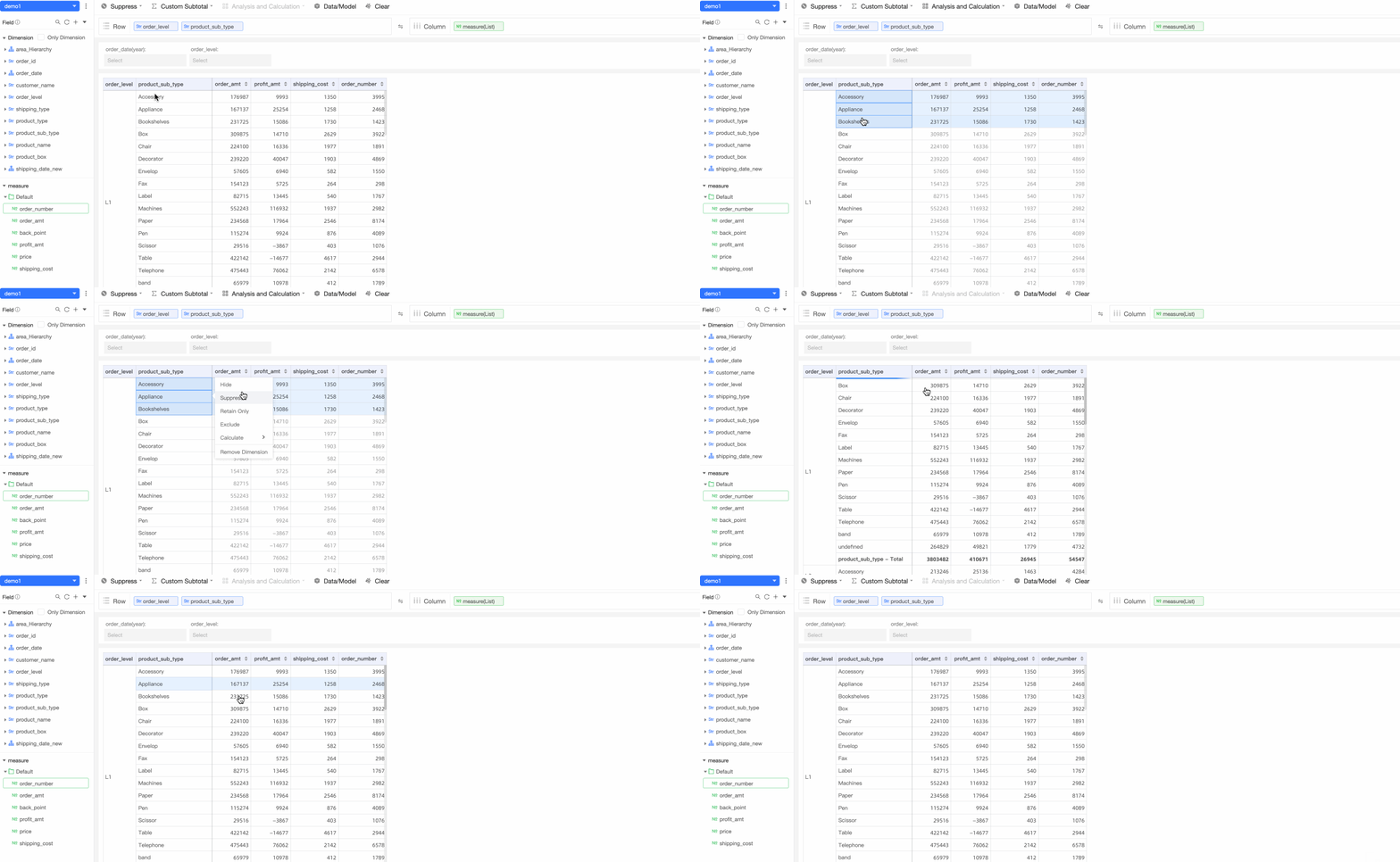
-
Retain only
Retaining only some dimension values removes the others. The grand total is recalculated based on the remaining values.
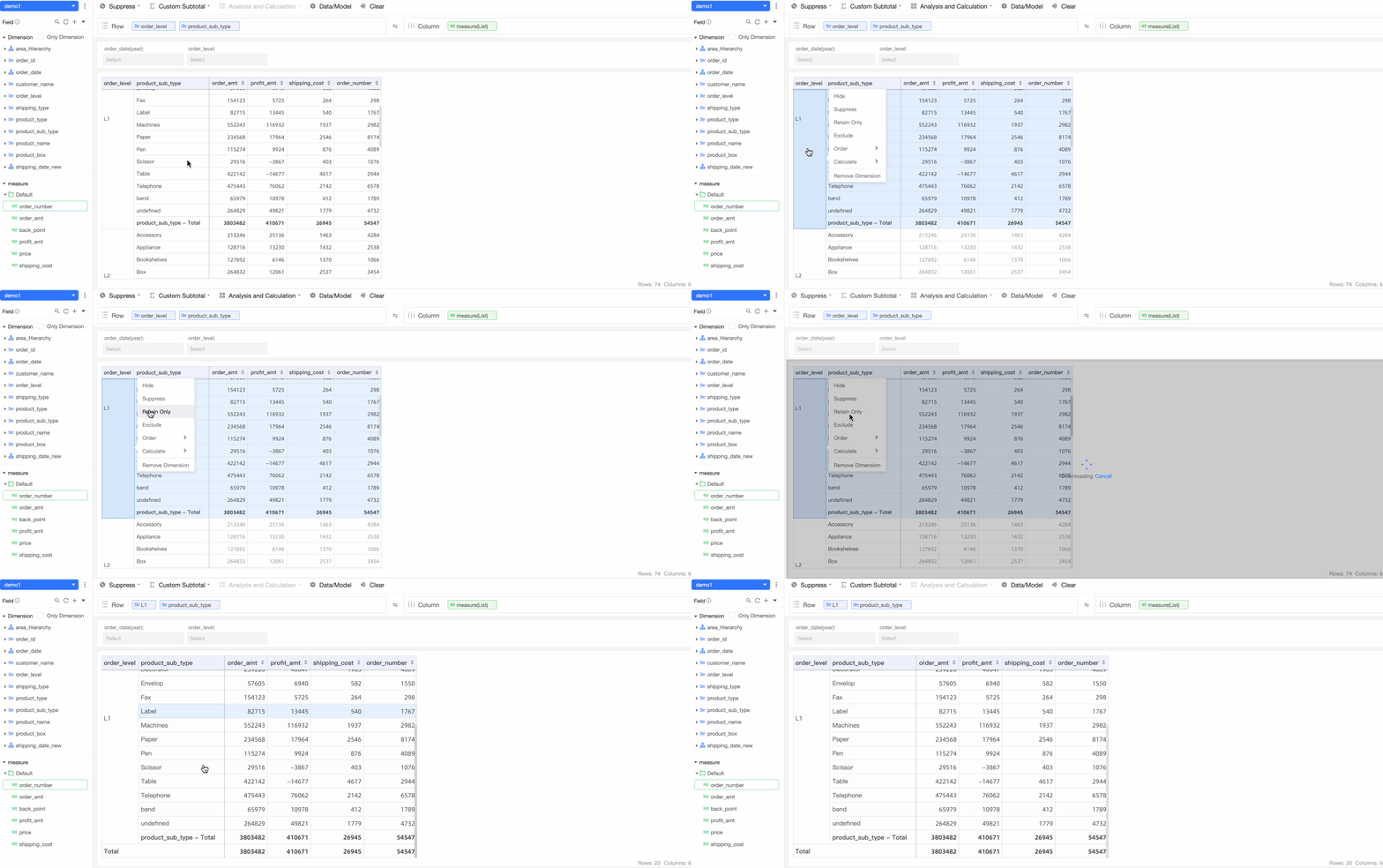
-
Exclude
Excluding a value automatically adds Subtotal (included) and Subtotal (excluded) rows to the table.
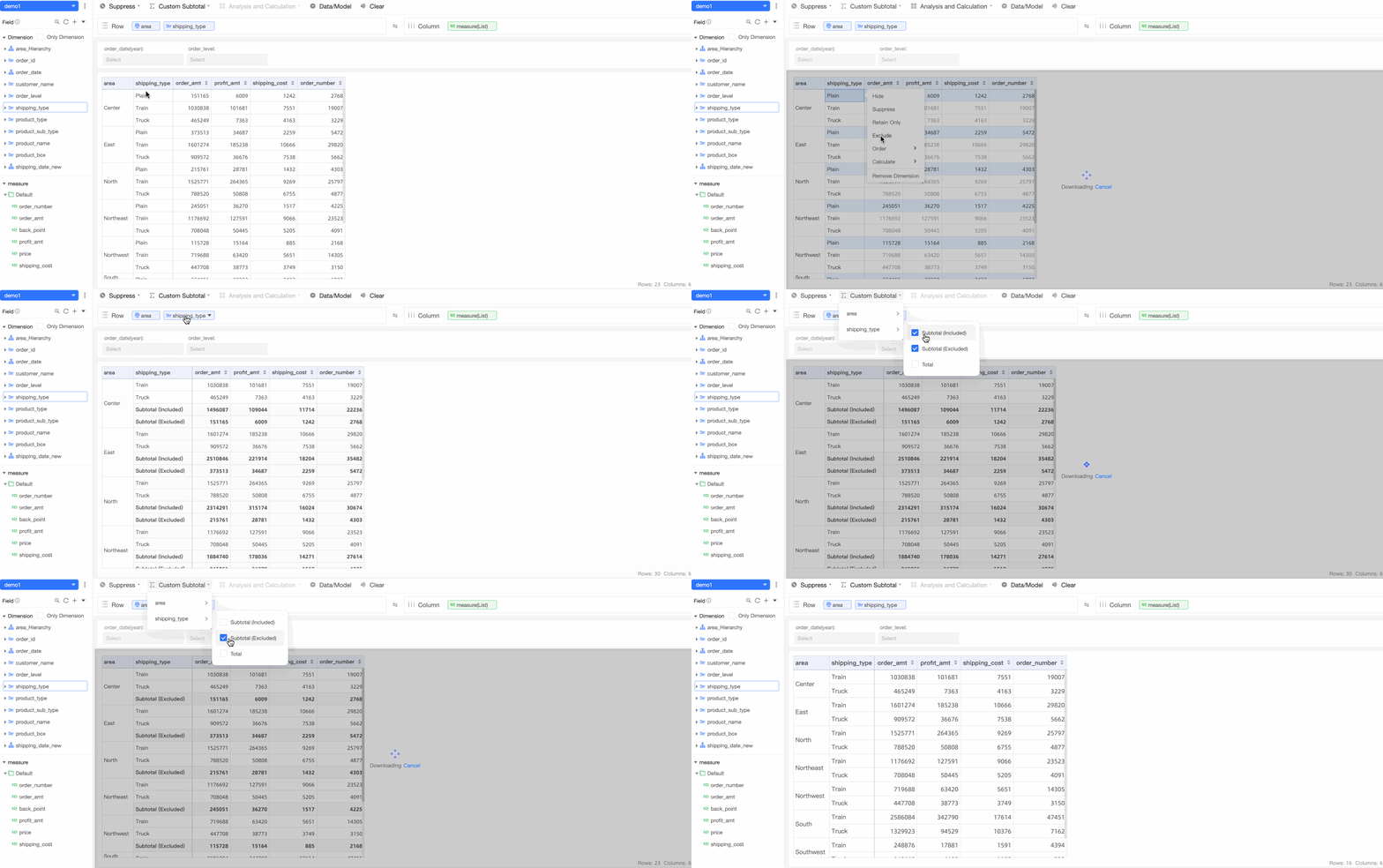
For example, if you exclude the
Air Freightdimension value, the table shows Subtotal (included) and Subtotal (excluded). These represent the sum of the remaining values (TruckandTrain) and the sum of the excluded value (Air Freight), respectively. To hide these subtotals, adjust the custom subtotal settings. -
Suppress
To learn about suppressing rows or columns for selected dimension values, see Suppress.
-
Calculate
Calculations can also be performed between dimension values. The result appears below the selected values.
-
Percentage and basic operations
When you right-click two dimension values, you can calculate the Percentage, Percentage difference, or perform Basic operations. The calculation is based on the order in which you select the values.
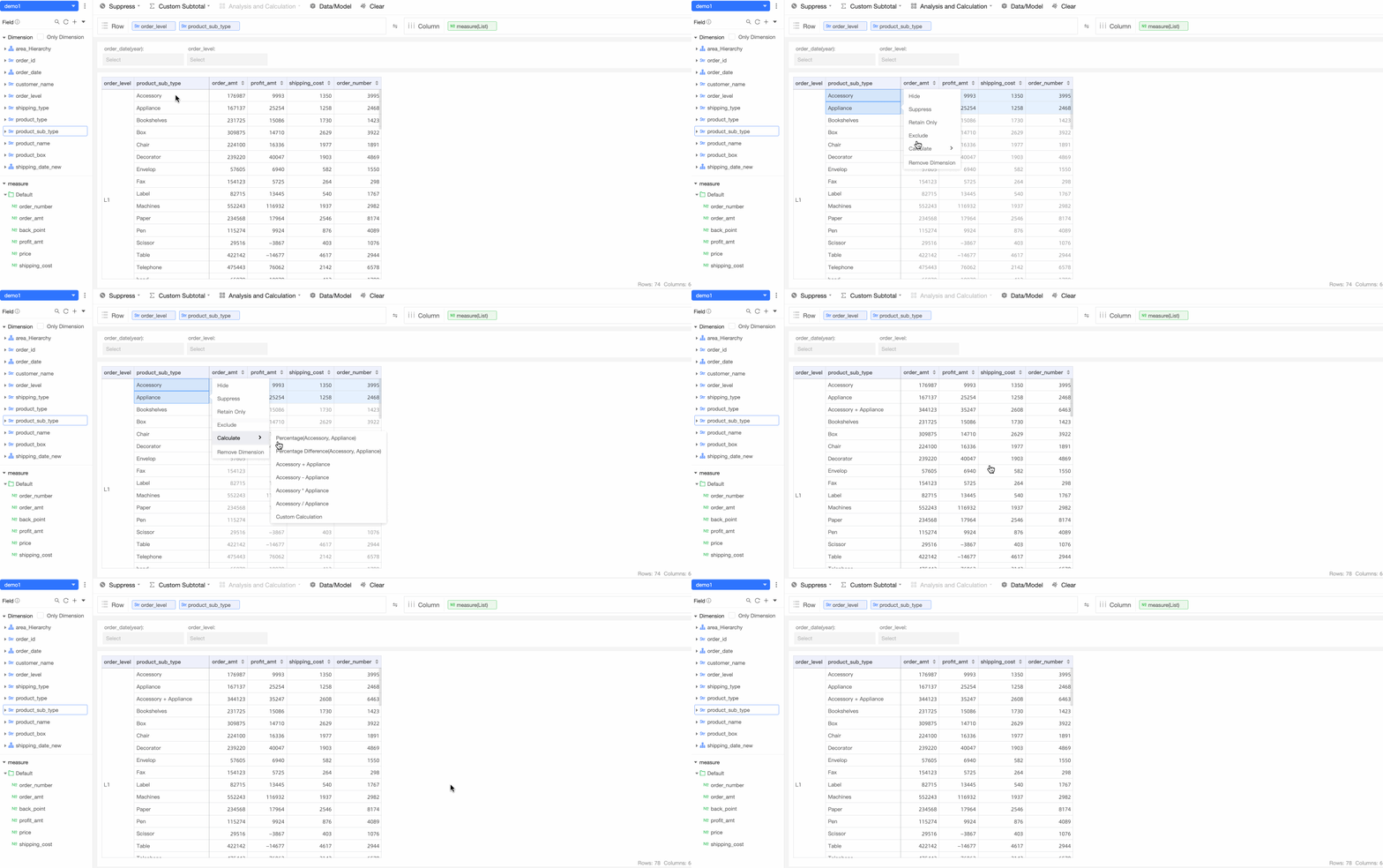
-
Sum, average, and maximum/minimum
When you right-click three or more dimension values, you can quickly calculate the Sum, Average, Maximum, or Minimum.
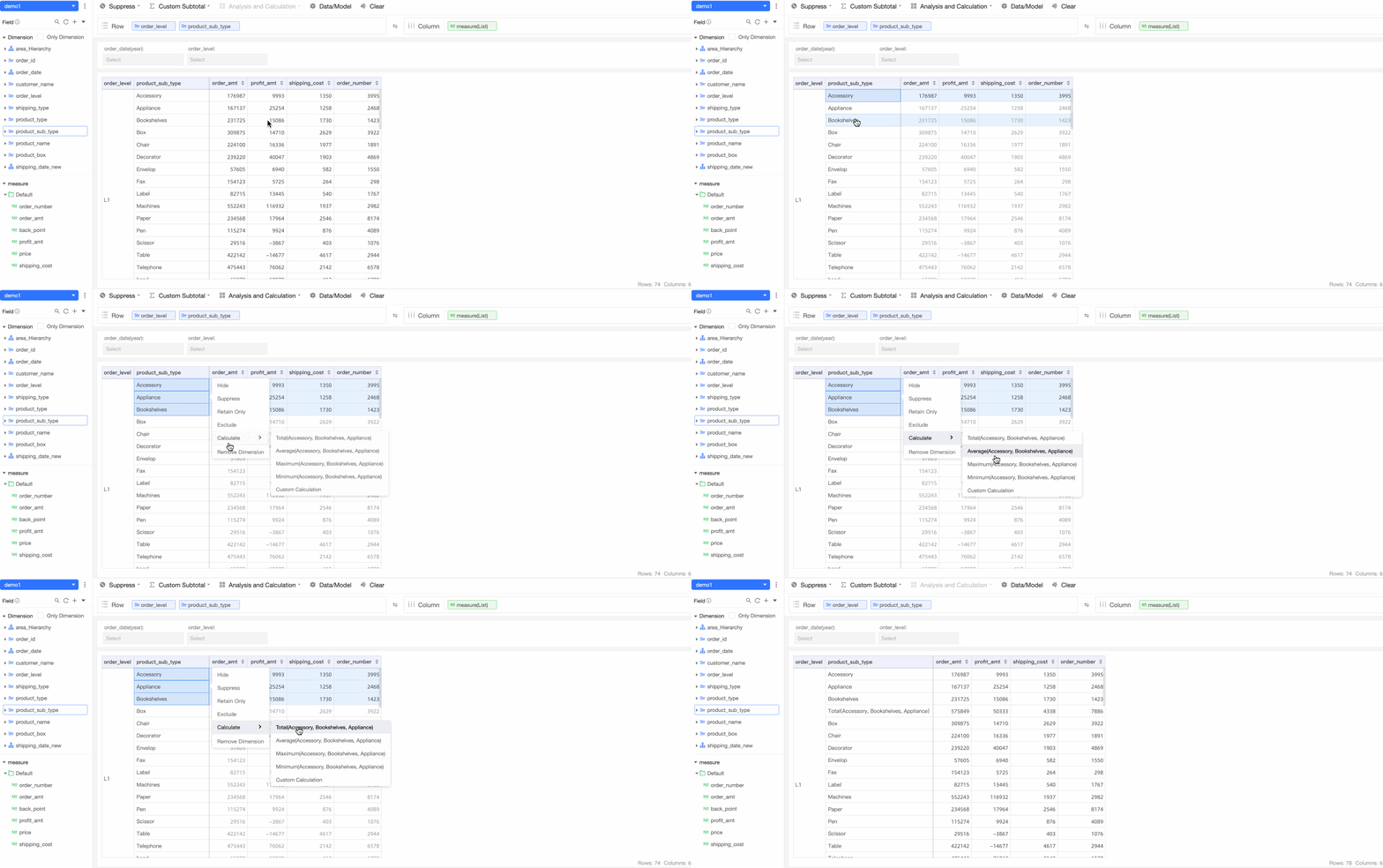
-
Custom calculation
In addition to quick calculations, you can write your own expressions to create a custom calculation.
ImportantThe dimension values that you reference in a custom calculation must belong to the same dimension field as the selected values.

-
-
Remove dimension value
You can remove selected dimension values or an entire dimension field from the table.
Table Header Operations
Click a column header to sort the entire table by that column.
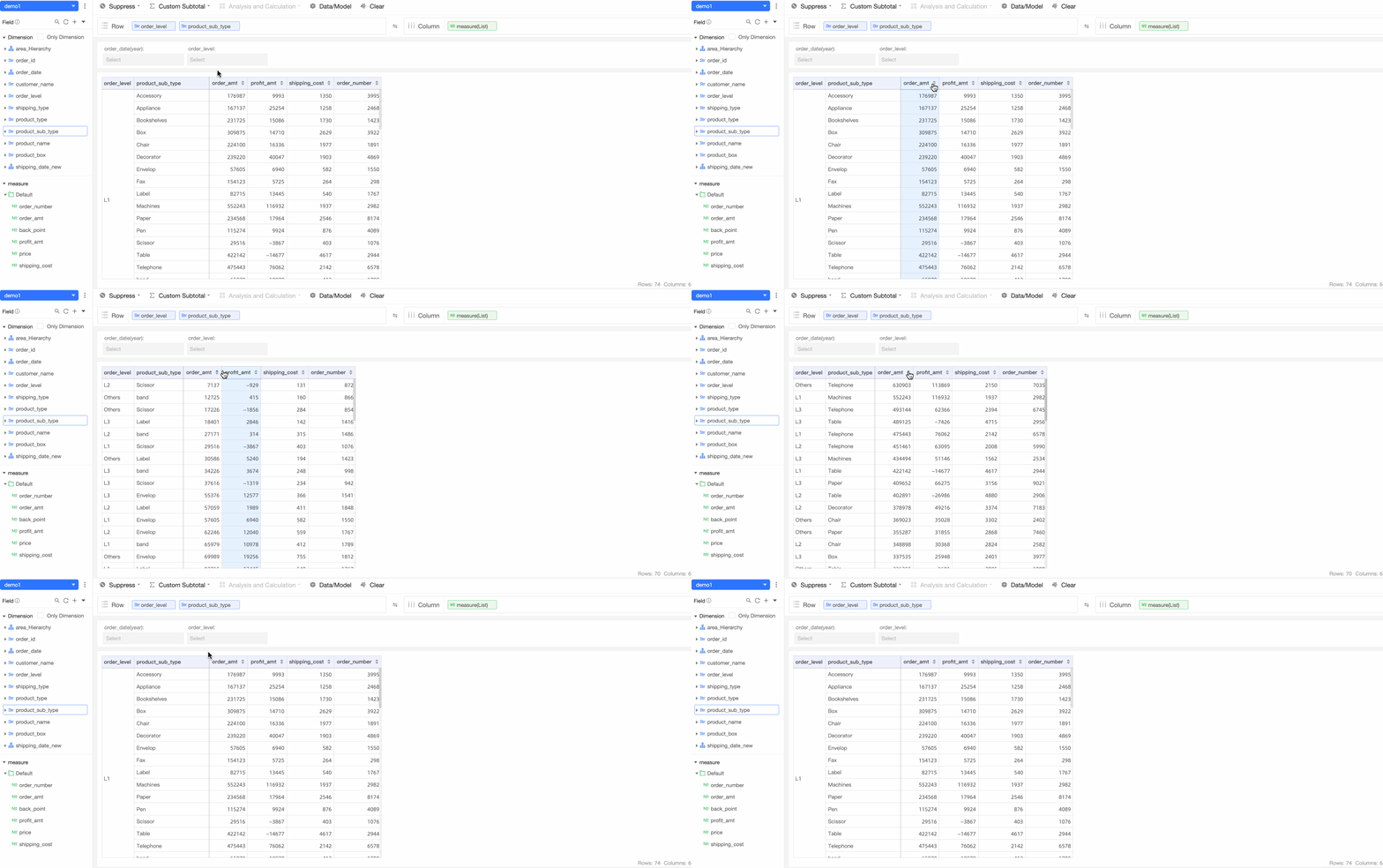
The first click sorts the column in ascending order globally. The second click sorts it in descending order. The third click removes the sort. Subsequent clicks repeat this cycle.