The feature navigation bar in ad hoc analysis works like the Excel ribbon, providing quick access to the features shown in the red box in the figure below.

Suppress
Suppression removes rows or columns whose values are all 0, null, or empty text, helping you filter out irrelevant data.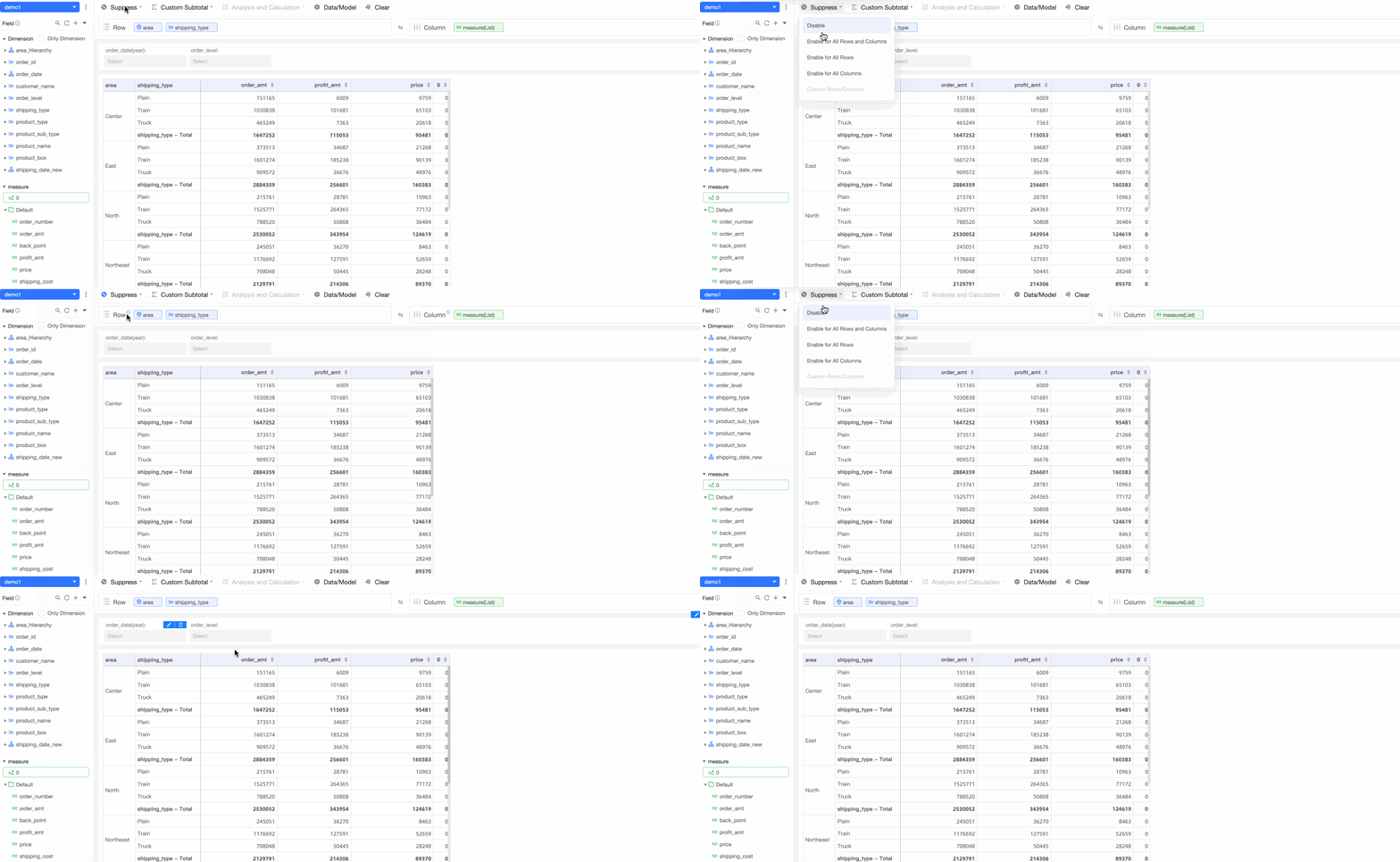
-
Enable the suppression feature for all rows and columns
When suppression is enabled for all rows and columns, every row and column whose data is entirely 0, null, or empty text is removed from the table. A container icon indicates that suppression is active, and the navigation bar icon turns blue. Click the icon again to cancel suppression.

-
Enable the suppression feature for all rows
When suppression is enabled for all rows, rows whose data is entirely 0, null, or empty text are removed from the table.
-
Enable the suppression feature for all columns
When suppression is enabled for all columns, columns whose data is entirely 0, null, or empty text are removed from the table.
-
Enable the suppression feature for specific rows or columns
Select specific rows or columns in the table, then click Custom Rows /Columns in the navigation bar or right-click the selection to suppress them.

Custom subtotal
-
You can specify whether to display Total, Subtotal (Excluded), and Subtotal (Included) for dimensions in the table.
For example, if you remove the total for the transportation mode dimension, that total no longer appears in each group of the table.
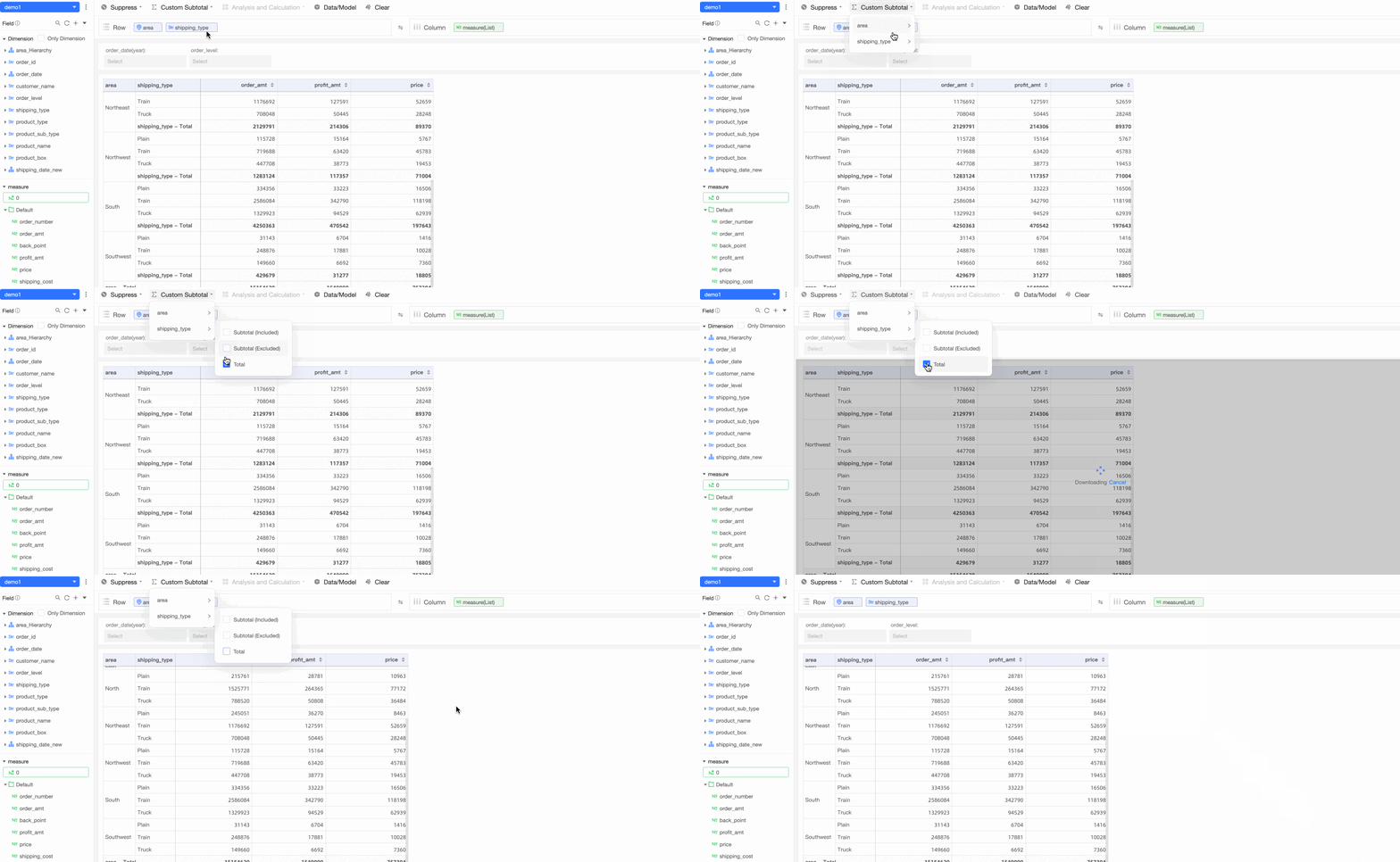
-
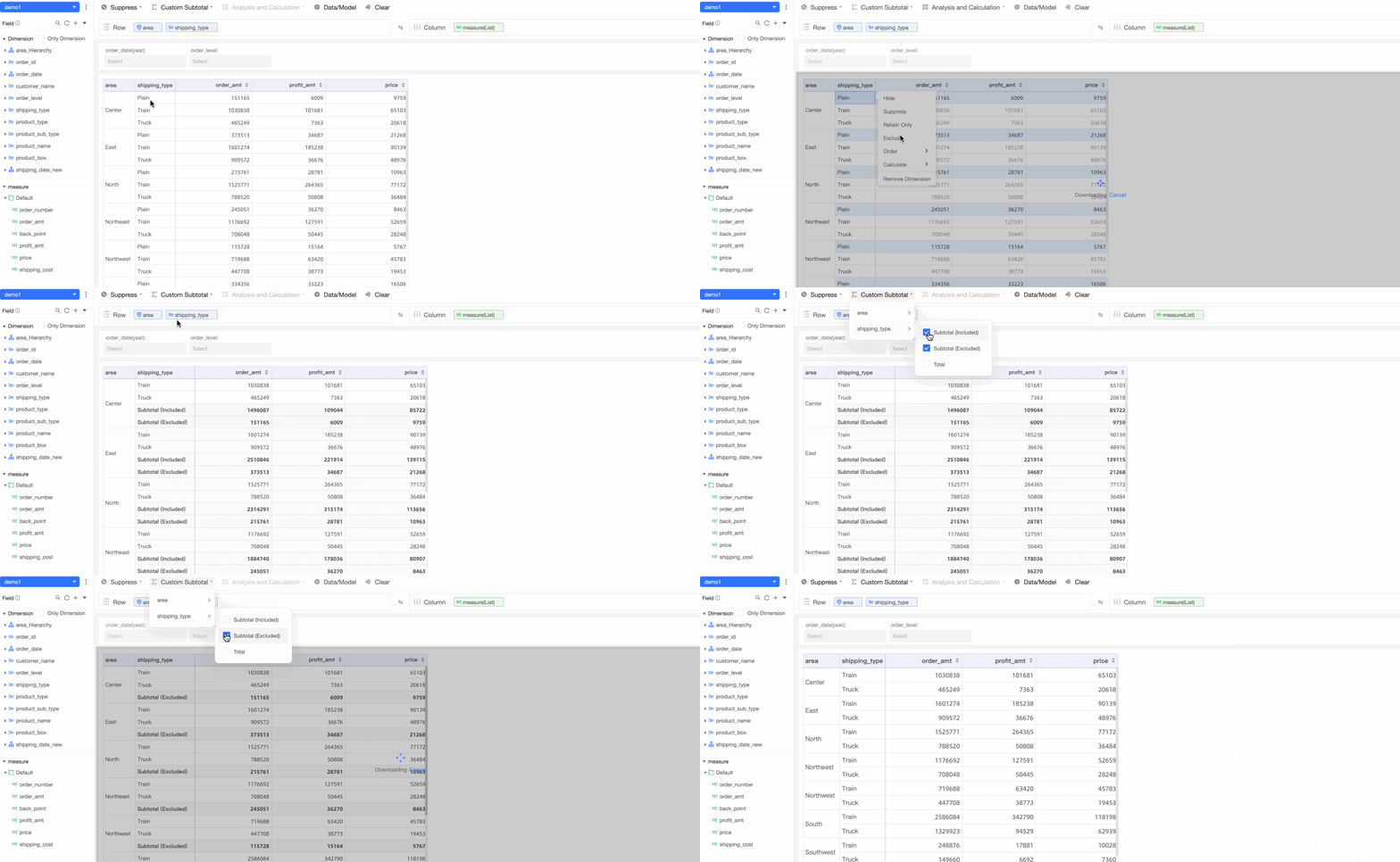
When you select Exclude from the shortcut menu, Subtotal (Included) and Subtotal (Excluded) rows are automatically added to the table. Subtotal (Included) is the sum of the remaining dimension values, and Subtotal (Excluded) is the sum of the excluded dimension values.
For example, if you exclude the air freight dimension value, the table shows the subtotal (included) for the remaining values and the subtotal (excluded) for air freight. To hide these rows, clear the corresponding options in the custom subtotal settings.
Analysis and calculation
This feature provides the same calculation options available when you right-click dimension or measure fields in the table.
-
Ratio of numerical value and ranking of numerical values
Right-click a measure to access numeric proportion and ranking operations.

-
Percentage and four arithmetic operations
Right-click and select two dimensions or measures to perform Percentage, Variance Percentage, and Quadruple operations. The calculation formulas follow the selected order.

-
Total, average, maximum, and minimum
Right-click and select three or more dimensions or measures to calculate the sum, average, maximum, and minimum values.

-
Custom Calculation
Beyond the built-in calculations, you can write custom expressions.
 Important
Custom calculations can only reference measure fields that are already added to the table.

Data/Model
Click Data/Model to switch the table to model mode, which reflects the current data content.
To avoid multiple data fetches, use model mode to arrange field names first, then switch to data mode to fetch all data at once.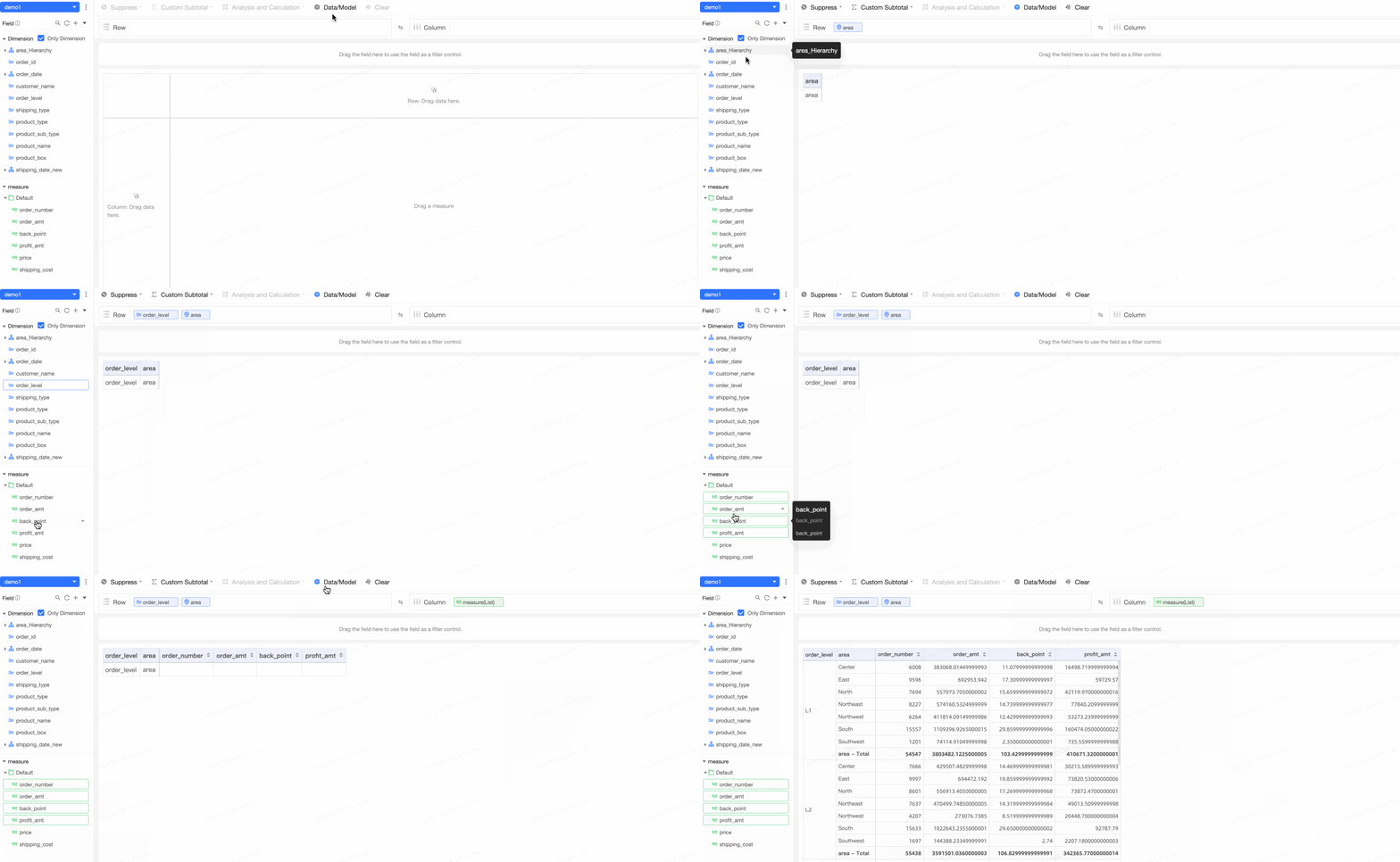
Download
Click the Page Settings icon. In the Page Settings panel, Allow Download is selected by default. To export the ad hoc analysis with filter conditions, select Export with Filter Conditions.

Follow the steps shown in the figure to export data.
Data can be exported in Excel or image format.
If the ad hoc query results include filter conditions, the exported Excel file also contains those filter conditions.
Clear
Click Clear to remove all data and filters from the current ad hoc analysis page, restoring it to an empty state.