After adding user tags, organization administrators can either manually manage tag values or configure a user tag table to manage them automatically.
Prerequisites
You have added user tags. For more information, see Set user tags.
Background information
Manual management of tag values: enables you to manage user tag values configured in the Quick BI console.
You can add a user tag on the User Tag Management page and specify a value for the user tag on the Manually Manage Tag Tables tab of the Manage Tags page.
Configuration of a user tag table: enables you to manage user tag values stored in the source table.
After connecting to a data source and attaching a user tag table stored in the data source, you can read the latest member tag information in real-time without manual maintenance.
Manually manage the values of user tags in the Quick BI console
Log on to the Quick BI console.
On the Quick BI homepage, follow the instructions in the following figure to go to the User Tags page.
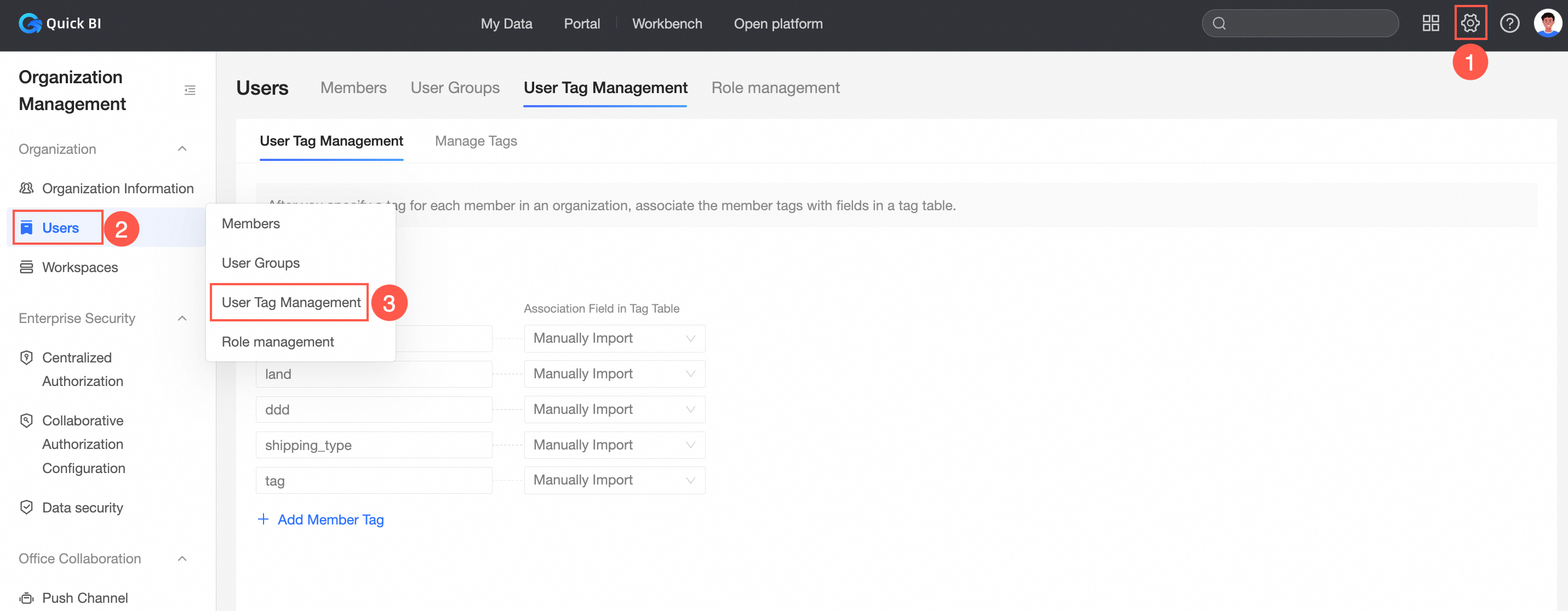
Click the Tag Management tab.
In the left-side navigation pane, click Manual Management, and set tag values for the target user.
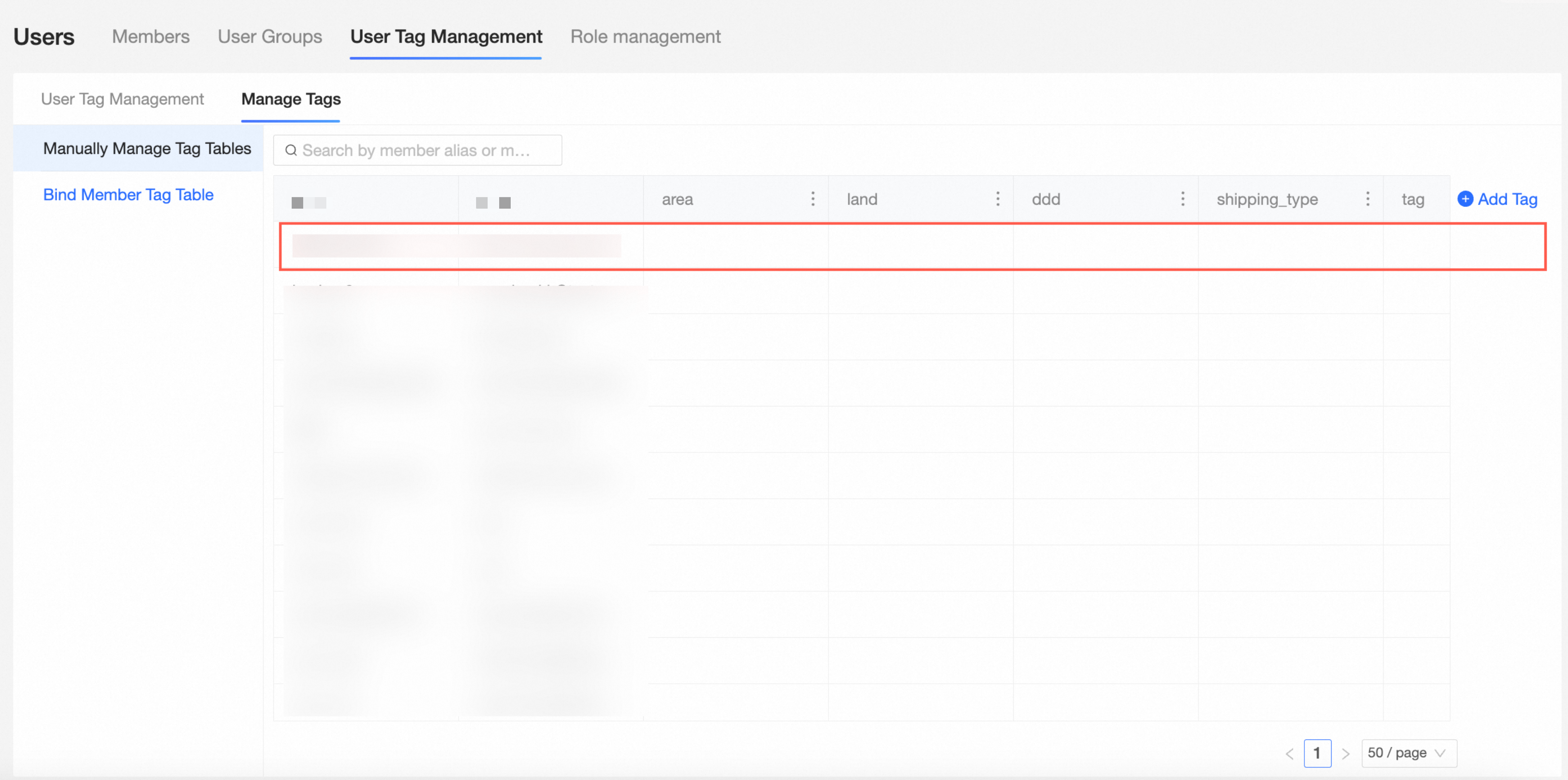
You can also add a tag to the user, modify a tag of the user, and remove a tag from the user on the Manage Tags page.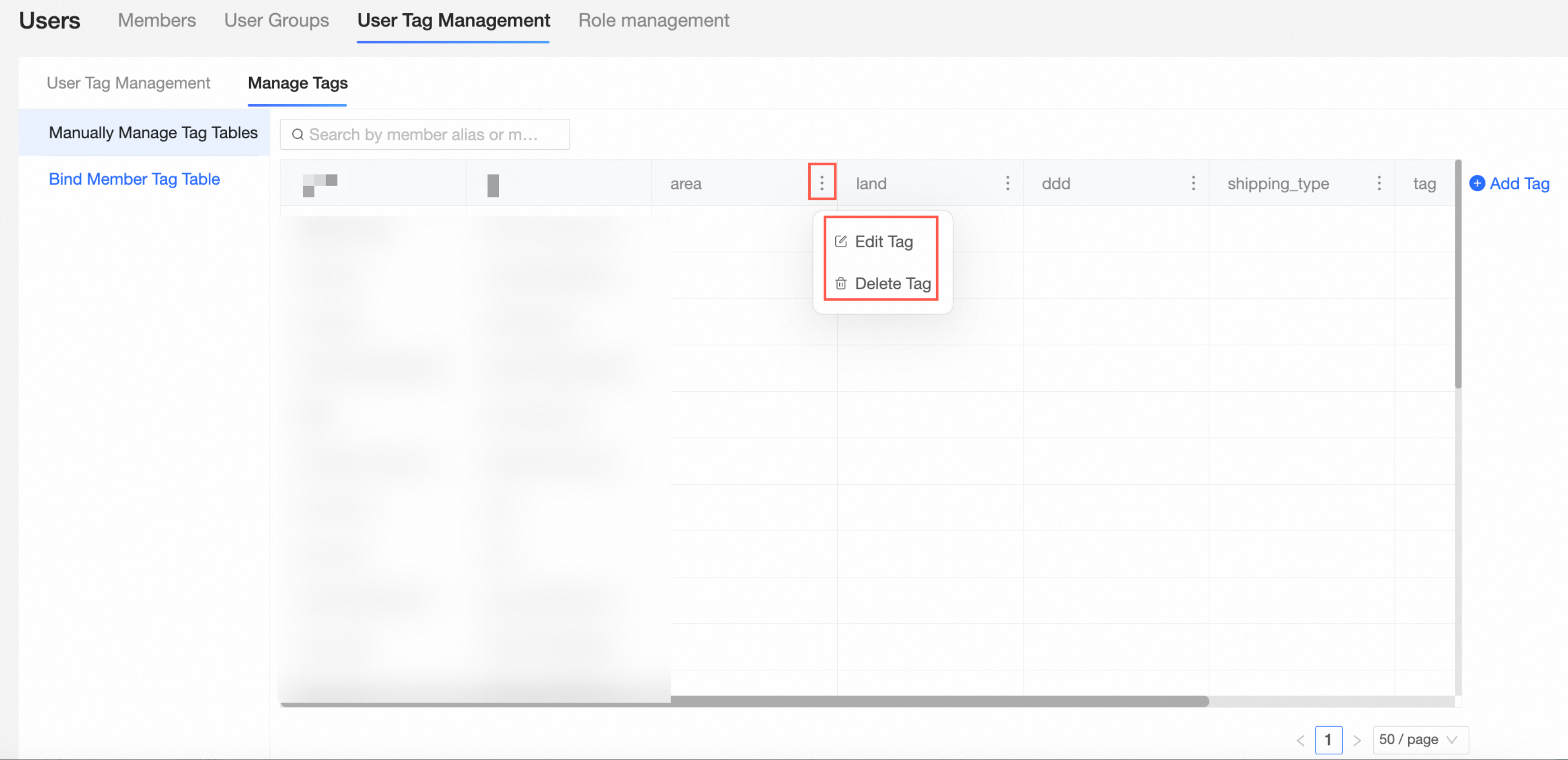 After the operation, the tag list on the User Tag Management page is automatically refreshed.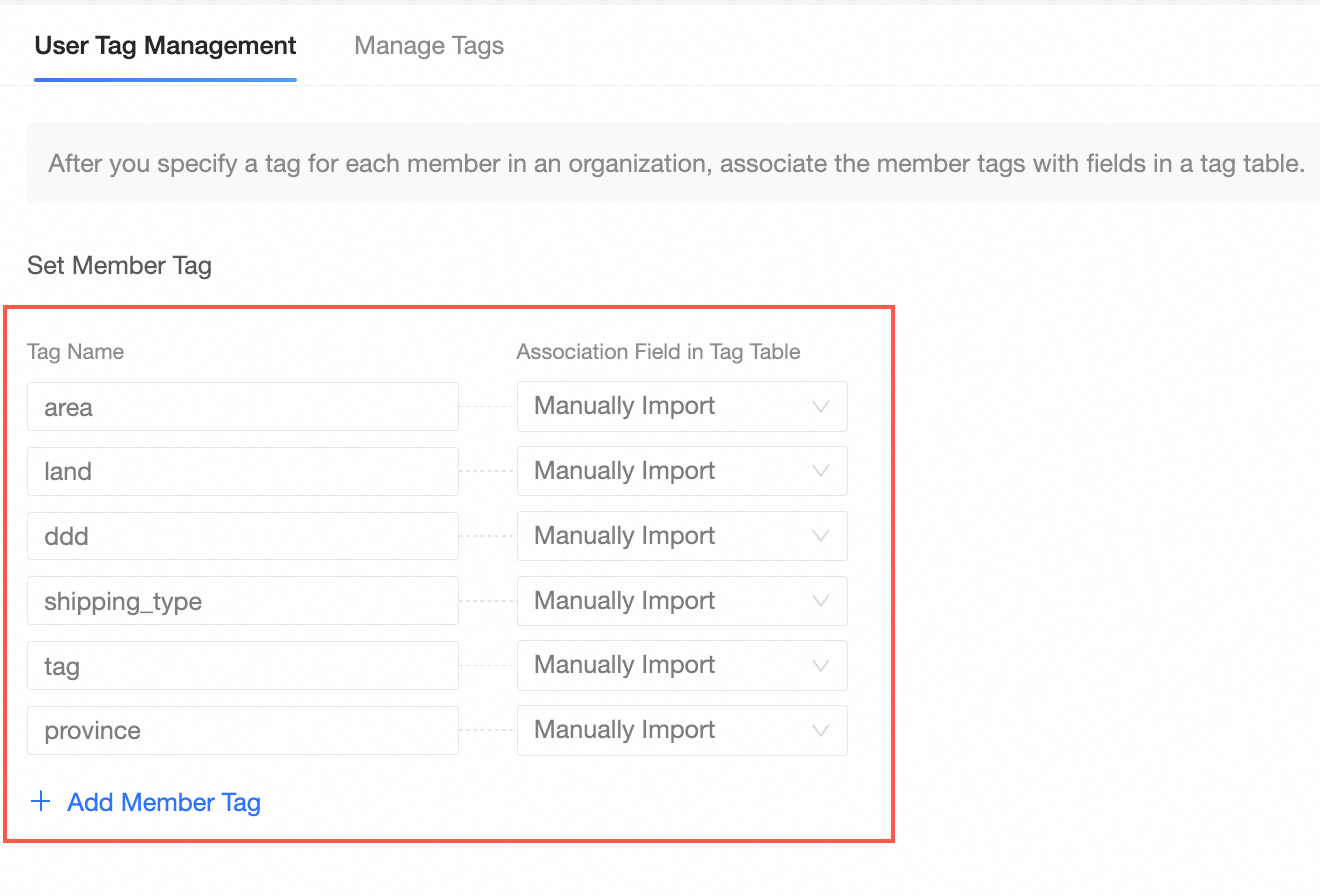
Manage tags that are associated with fields in a user tag table stored in a data source
After you attach a user tag table stored in a data source, you can read the latest user tag information in real-time without manual maintenance.
Configure a user tag table.
When you configure a user tag table, make sure that the user tag table meets the following requirements:
The table contains at least one of the following fields: account_id, account_name, or nick_name. The users that correspond to the field values must be added to the organization.
The table contains at least one tag field, such as area.
NoteIf the table contains multiple tags, separate the tags with commas (,) or allow the tags to be displayed in multiple rows.
$ALL_VALUES$ indicates that the user has all tag values. In all scenarios, this value is replaced with "BI=BI", which indicates that the user has all permissions for the tag.
Note: The original $ALL_MEMBERS$ also indicates that the user has all tag values. However, in row-level permissions, this condition is removed. In tag placeholder scenarios, this value indicates "BI=BI".
Attach a custom user tag table.
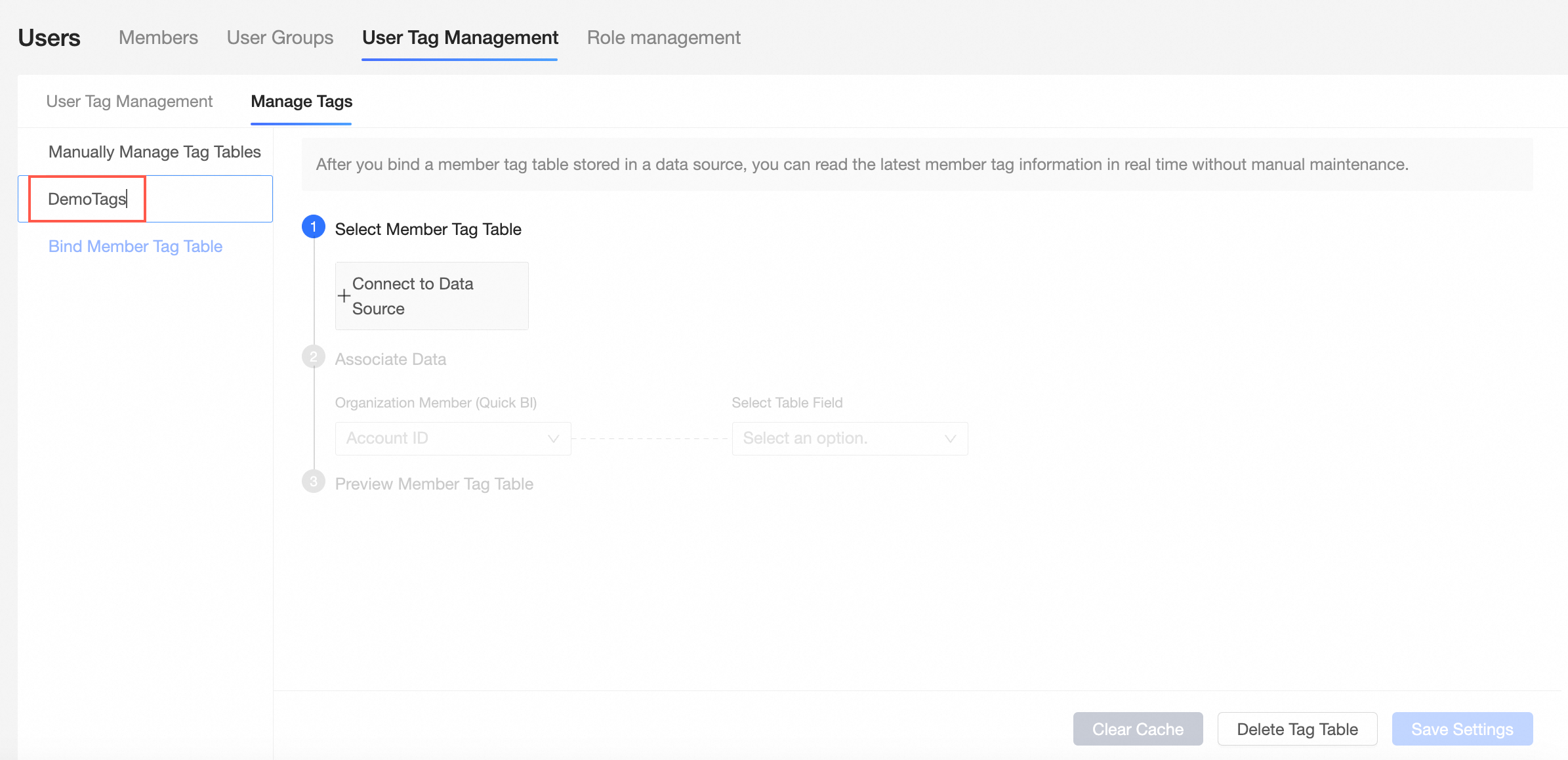
Configure the tag table.
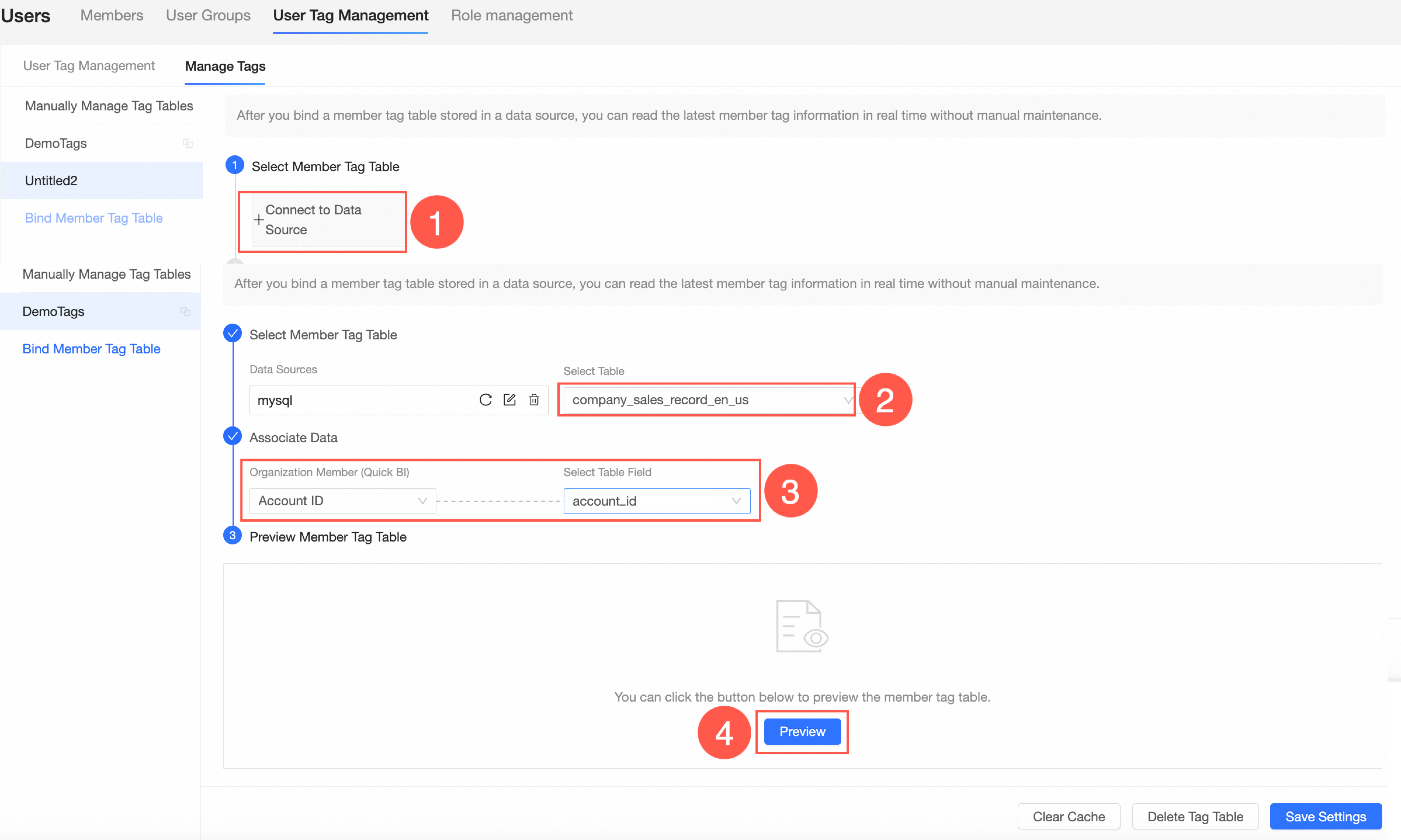
After you preview the configuration and confirm that the configuration is correct, click Save Settings in the lower-right corner of the page.
Delete a tag table.
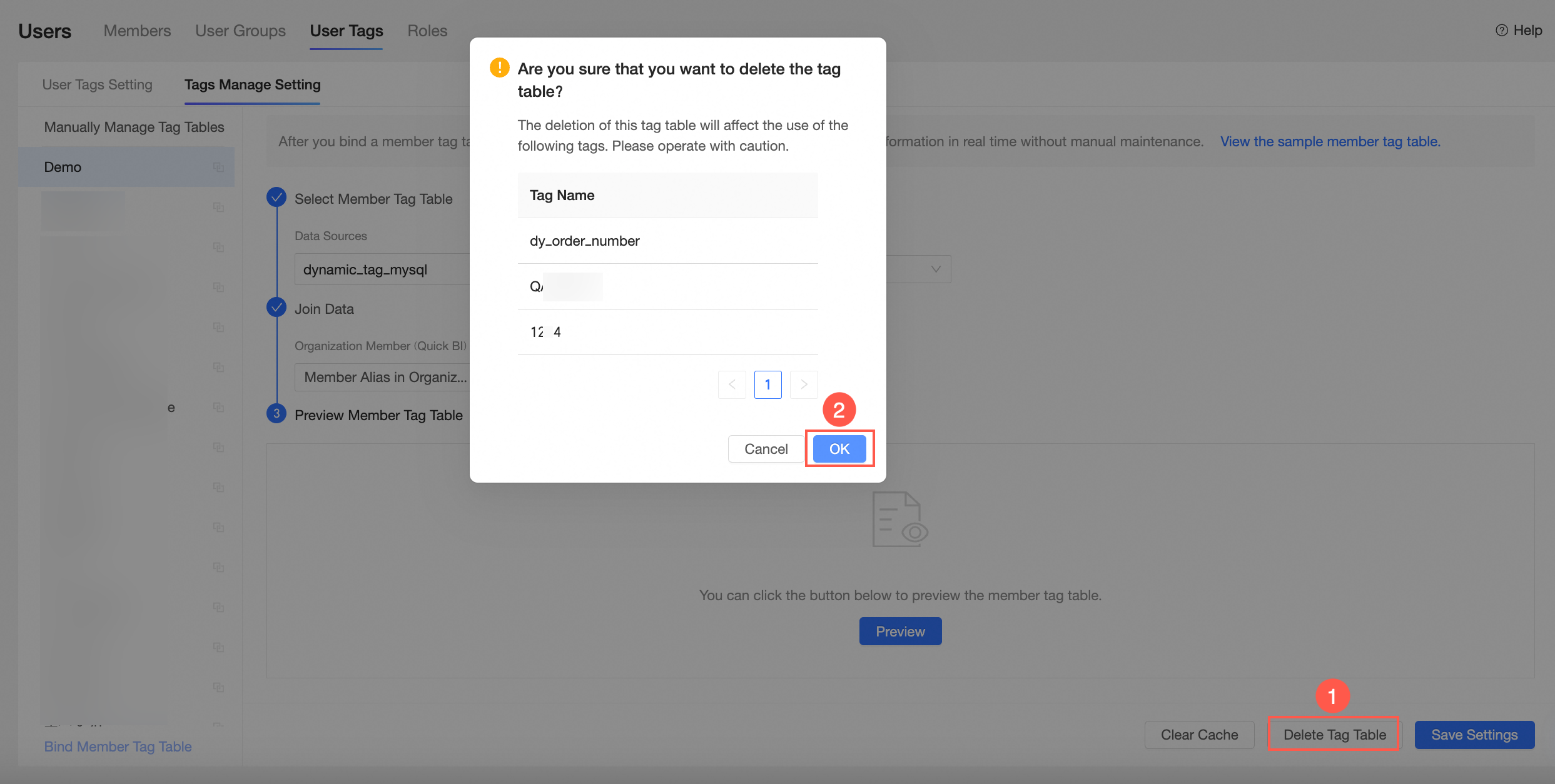
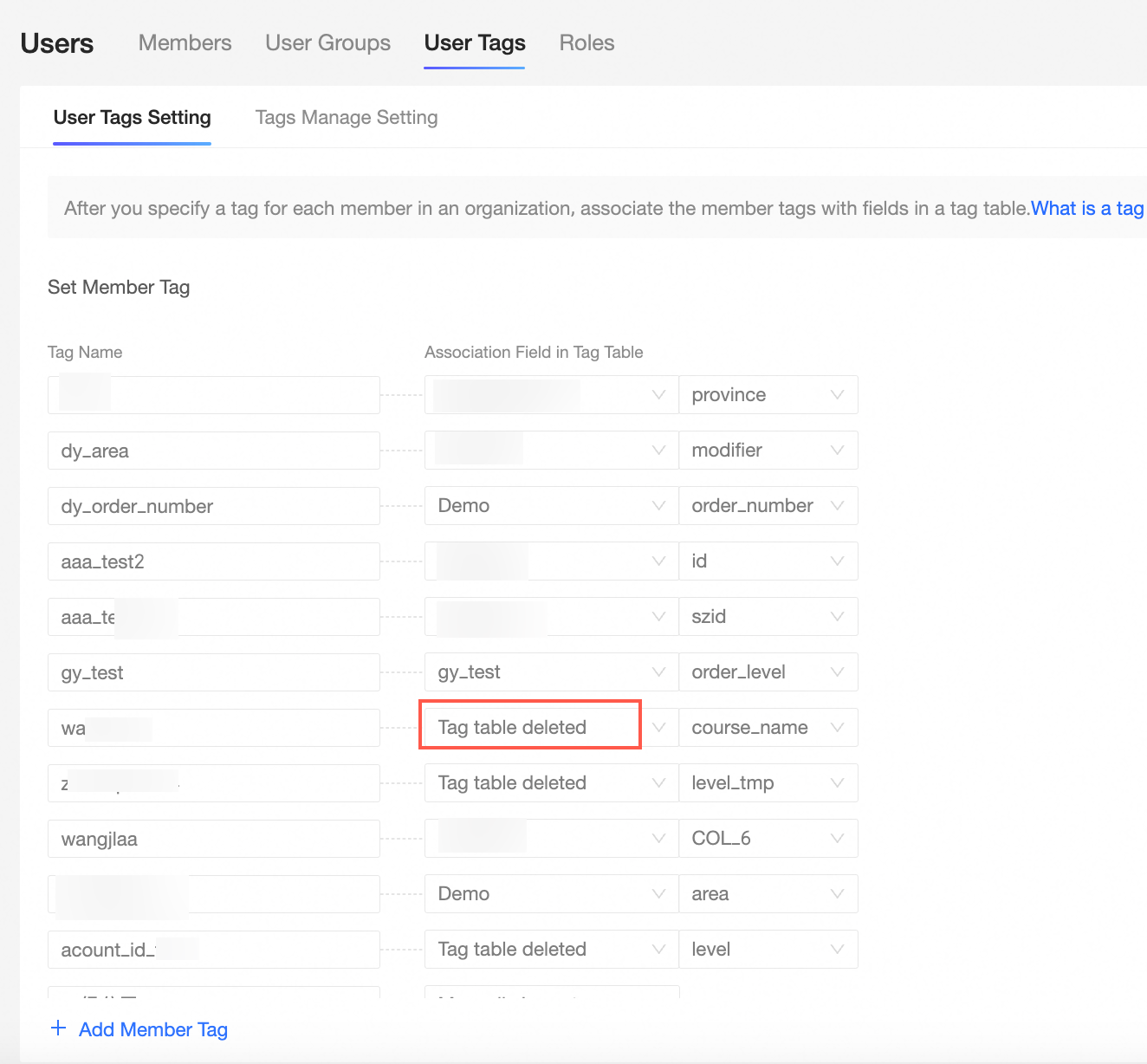
After you delete a tag table, the use of related tags is affected. The field that is associated with the tag table in the tag displays that the tag table is deleted.
What to do next
After you complete the configuration, you can set tag-based row-level permissions. For more information, see Mode 2: Tag-based authorization.