After creating an ad hoc analysis, you can perform actions such as editing, querying, sharing, moving, or deleting it on the ad hoc analysis management page. This feature is available exclusively in the Professional Edition of group space.
Access the ad hoc analysis page
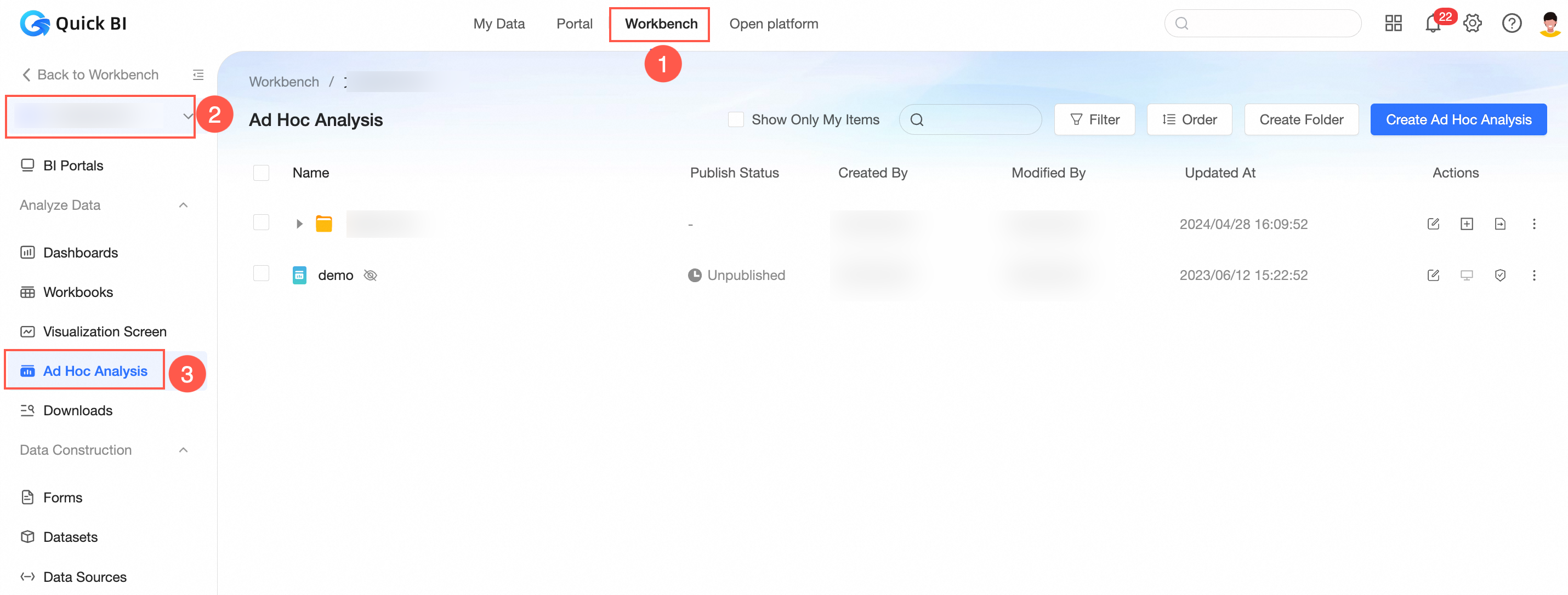
Log on to the or the Quick BI console, and use the instructions in the figure below to navigate to the ad hoc analysis management page.
Preview ad hoc analysis
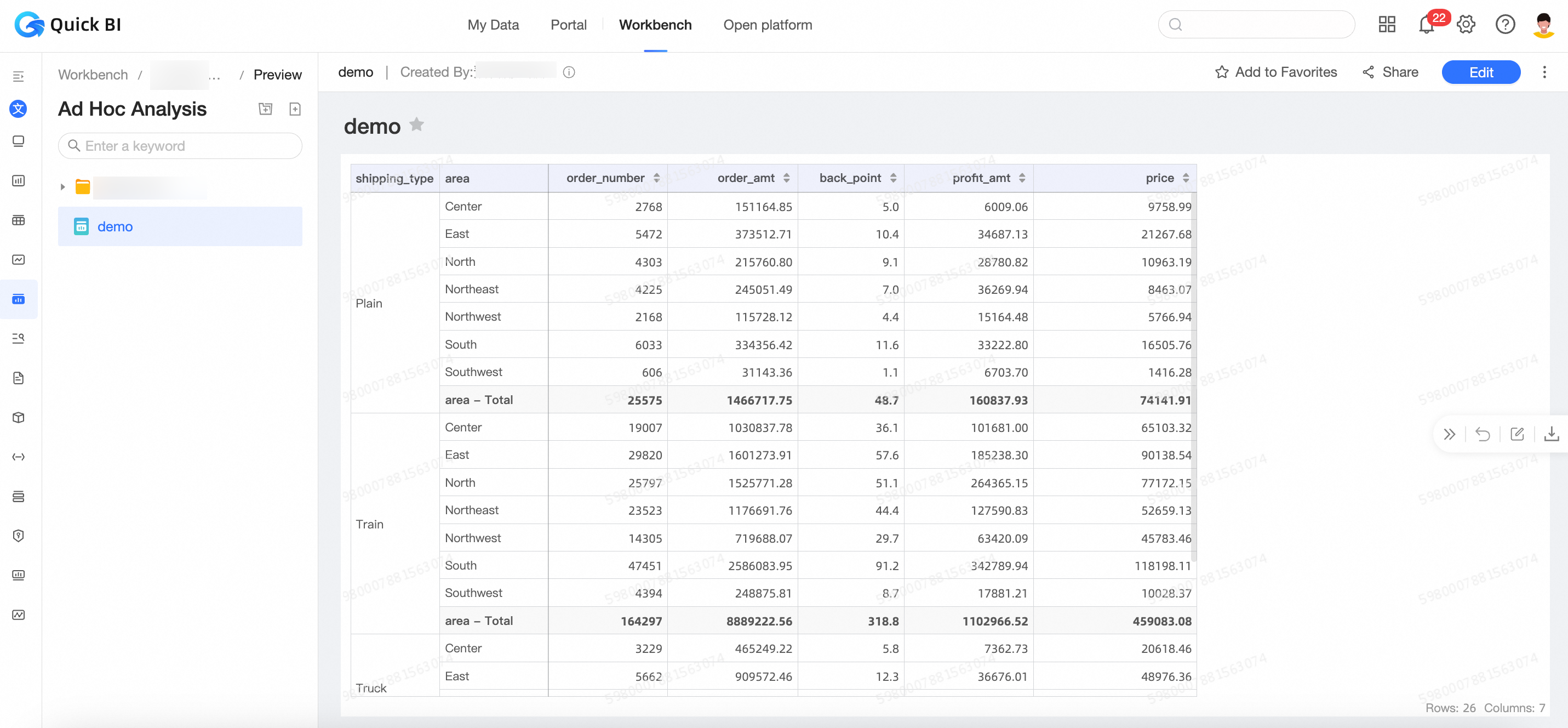
On the ad hoc analysis management page, locate the desired ad hoc analysis and click the
 icon to access the preview page.
Navigate to the ad hoc analysis preview page.
Edit ad hoc analysis
In the Ad Hoc Analysis list, locate the desired ad hoc analysis, right-click it, and choose Edit.
You can click the
 icon corresponding to the ad hoc analysis you want to edit.
On the ad hoc analysis edit page, make your changes.

Query ad hoc analysis
In the Ad Hoc Analysis list, perform a query for the desired ad hoc analysis.
Search Query
Query directly by name.

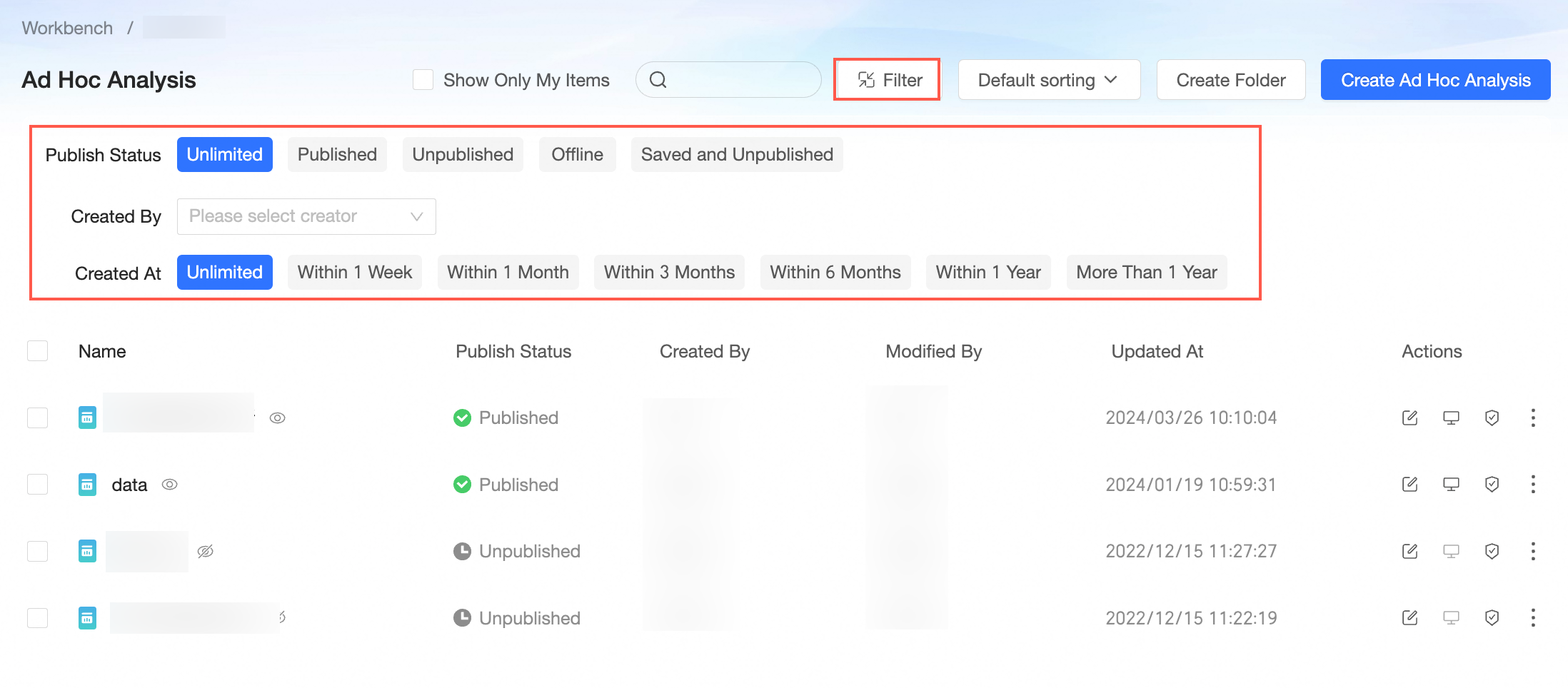
Filtered Query
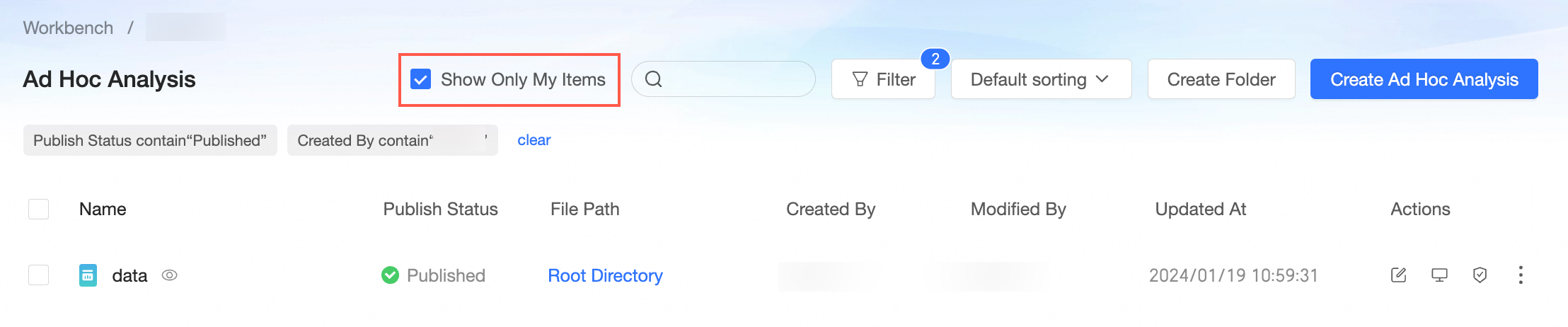
Click the filter button to display the filter area, where you can filter by publication status, creator, and creation time.
Click the
 icon to hide the filter area, view the filter conditions, and delete or clear them as needed.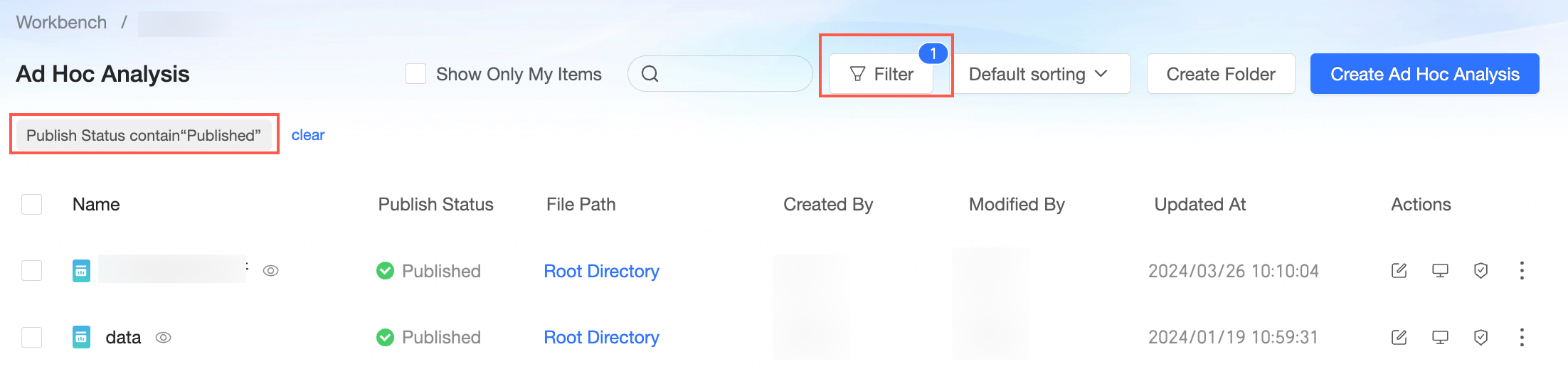
Select "Display only mine" to quickly locate ad hoc analyses you've created.
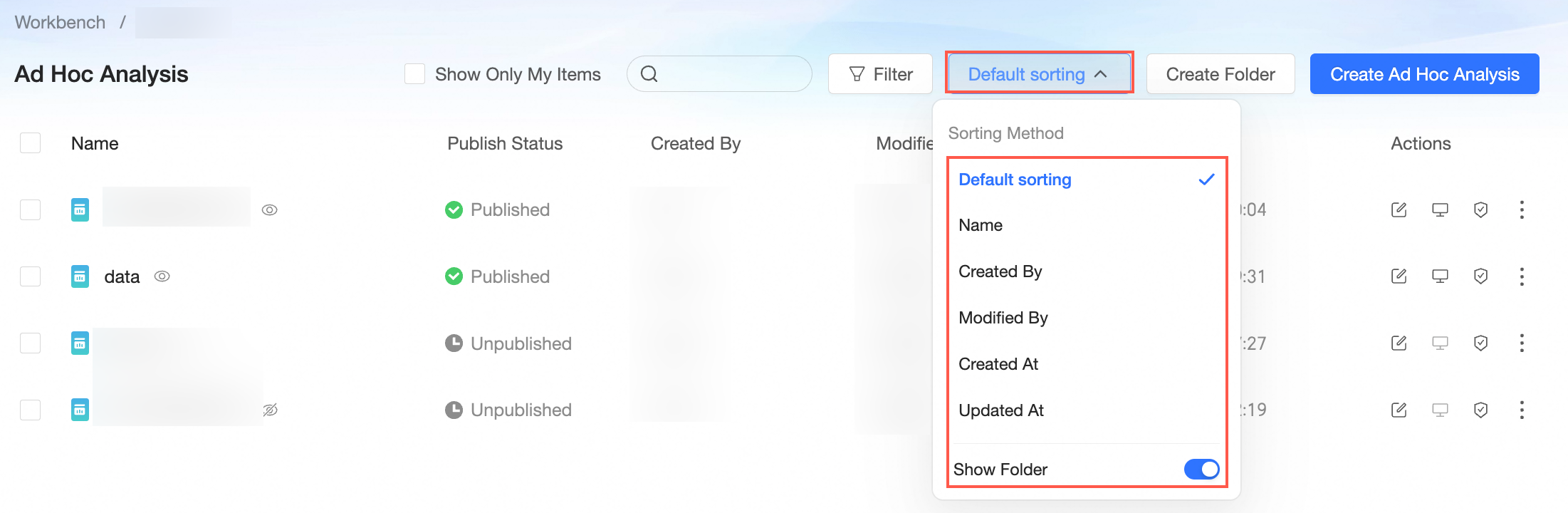
Sort
Sorting for ad hoc analysis is supported by name, creator, modifier, creation time, and modification time. The option to retain the folder structure is selected by default. When selected, folders are excluded from sorting.
Collaborative authorization
In the Ad Hoc Analysis list, locate the desired ad hoc analysis, right-click it, and choose Collaborative Authorization.
Additionally, you can click the
 icon corresponding to the ad hoc analysis you want to edit.
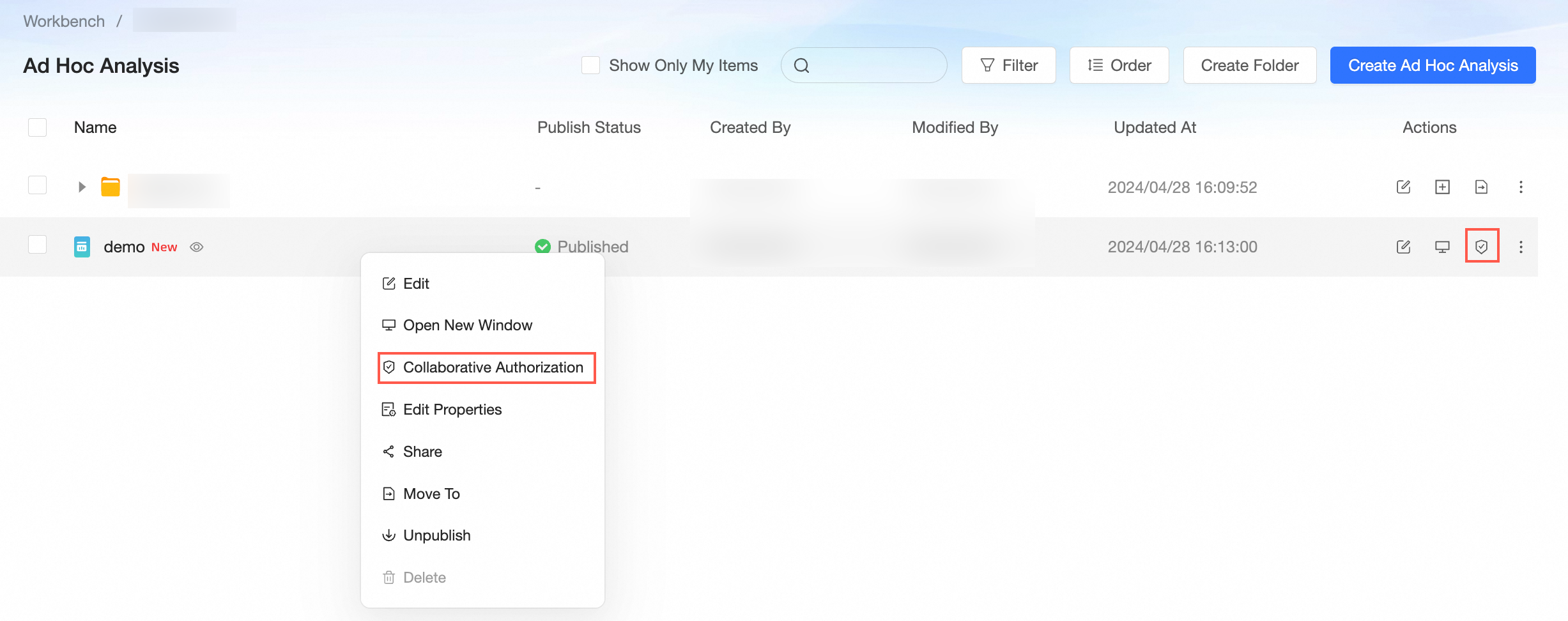 For more information, see Grant Users the Permissions on Data Works.
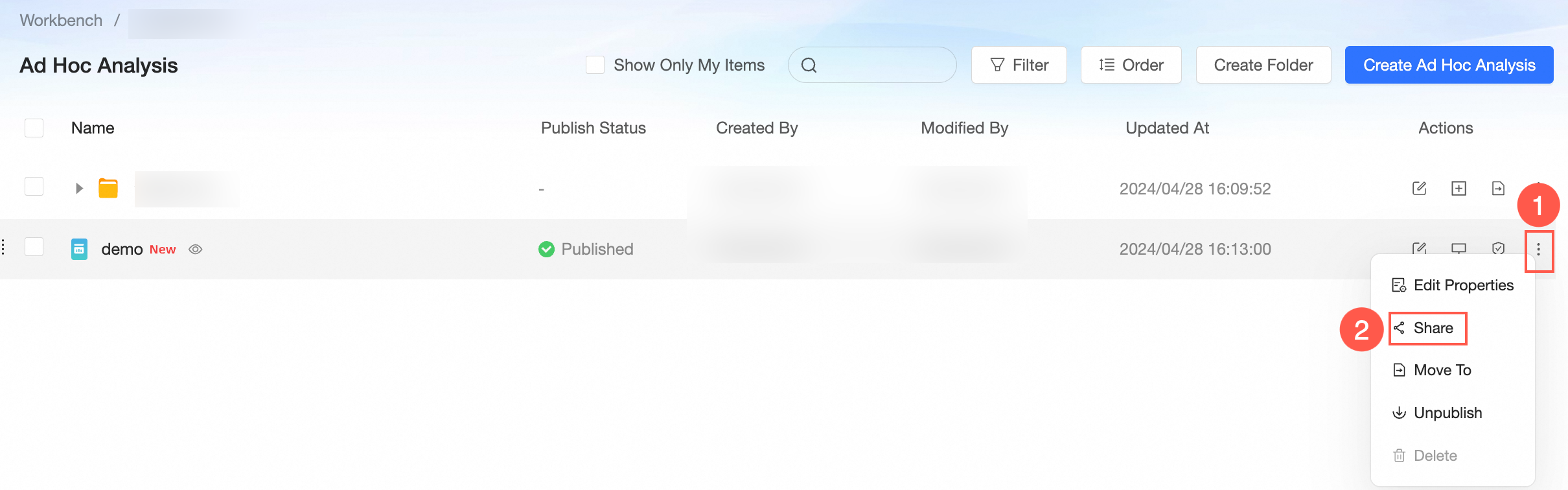
Share ad hoc analysis
In the Ad Hoc Analysis list, use the instructions in the figure below to navigate to the share page.
Link Sharing Method
Private Link Sharing
On the Link Share page, click on the Private Link button.
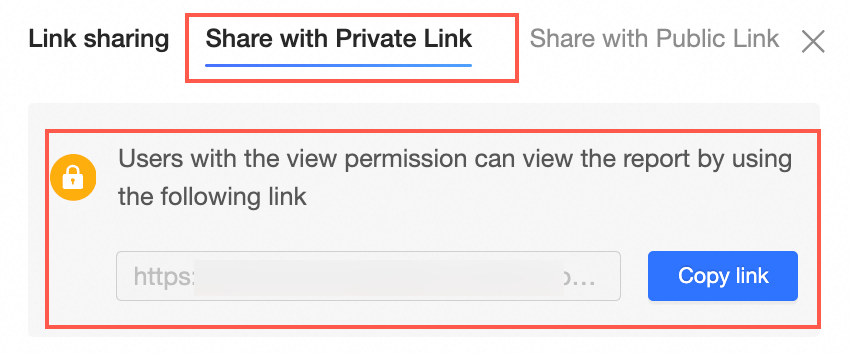
You can click the button labeled Copy Link on the right side of the link box to share the link with users who have viewing permissions.
Public Link Sharing
Publicly sharing a dashboard generates an accessible link for all users, even without logging on to an Alibaba Cloud account.
On the Link Share page, you can click the Public Link button.
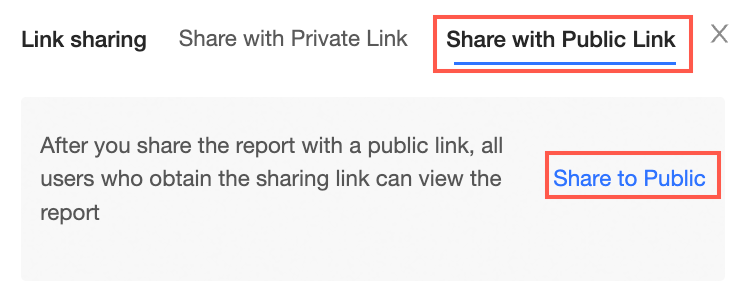
You can click Public Share to view the link URL, expiration date, and to determine if it is no longer public.
Set the expiration date or select Long-term for an extended period. To stop public access to the report, click No Longer Public.
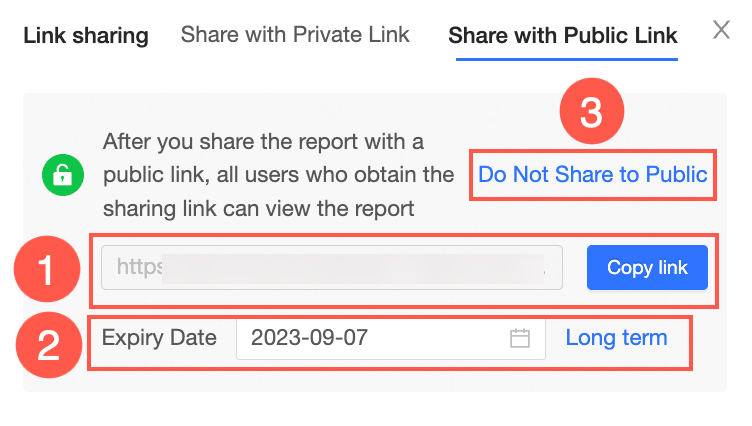
Click Copy Link to share the link with others.
Copy ad hoc analysis
Copy the current ad hoc analysis using the save as operation.
On the ad hoc analysis management page, select the ad hoc analysis you want to copy.
On the ad hoc analysis edit page, click the
 icon and choose Save As.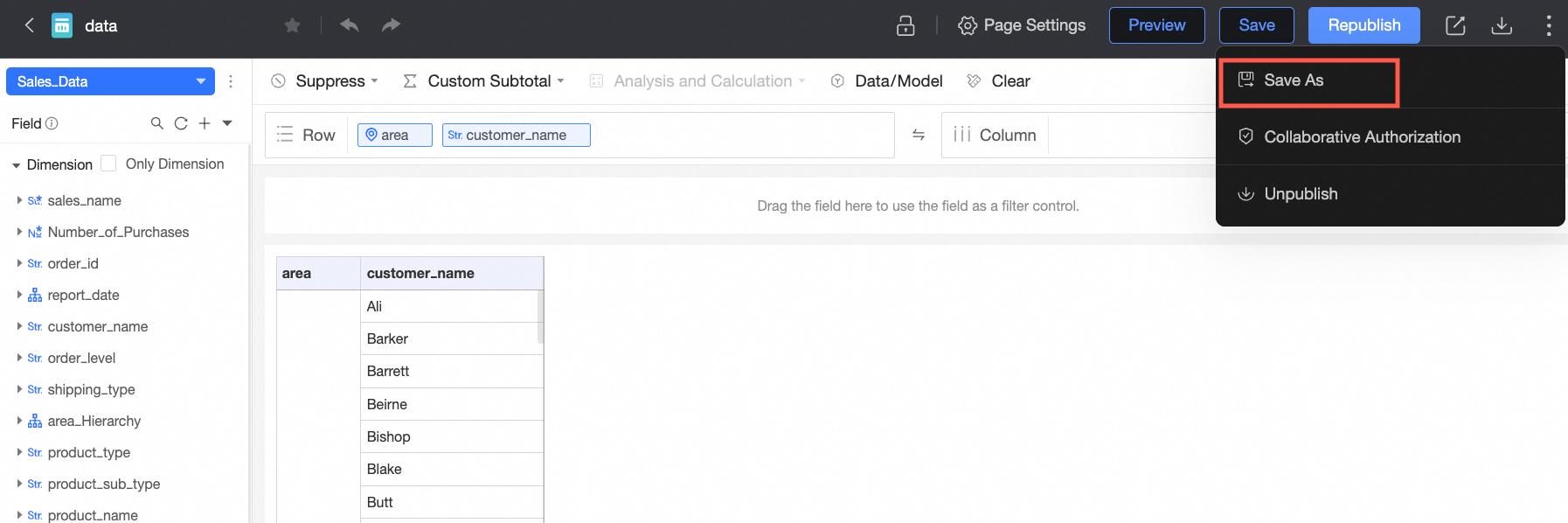
In the Save Ad Hoc Analysis dialog box, enter the name and storage location for the ad hoc analysis, then click Confirm.
Rename and transfer
In the Ad Hoc Analysis list, find the ad hoc analysis you want to rename or transfer, right-click and select Properties.
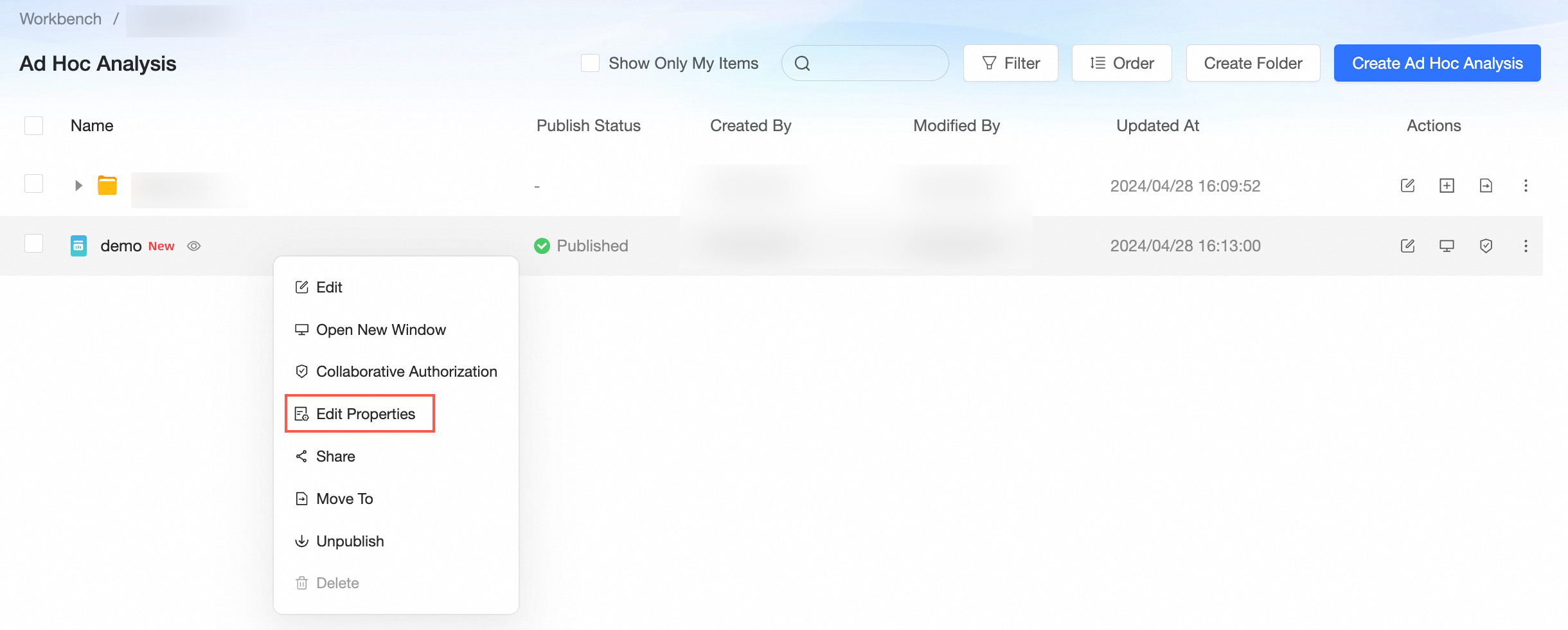
In the properties panel, configure the necessary parameters.
Parameter Name
Description
Name
You can modify the ad hoc analysis name to complete the renaming.
NoteThe ad hoc analysis name cannot be the same within the same folder, but it can be the same in different folders.
Owner
Click the drop-down icon to select the owner to complete the transfer of the ad hoc analysis.
Description
Add a description to the ad hoc analysis.
To proceed, click the Confirm button.
Move to
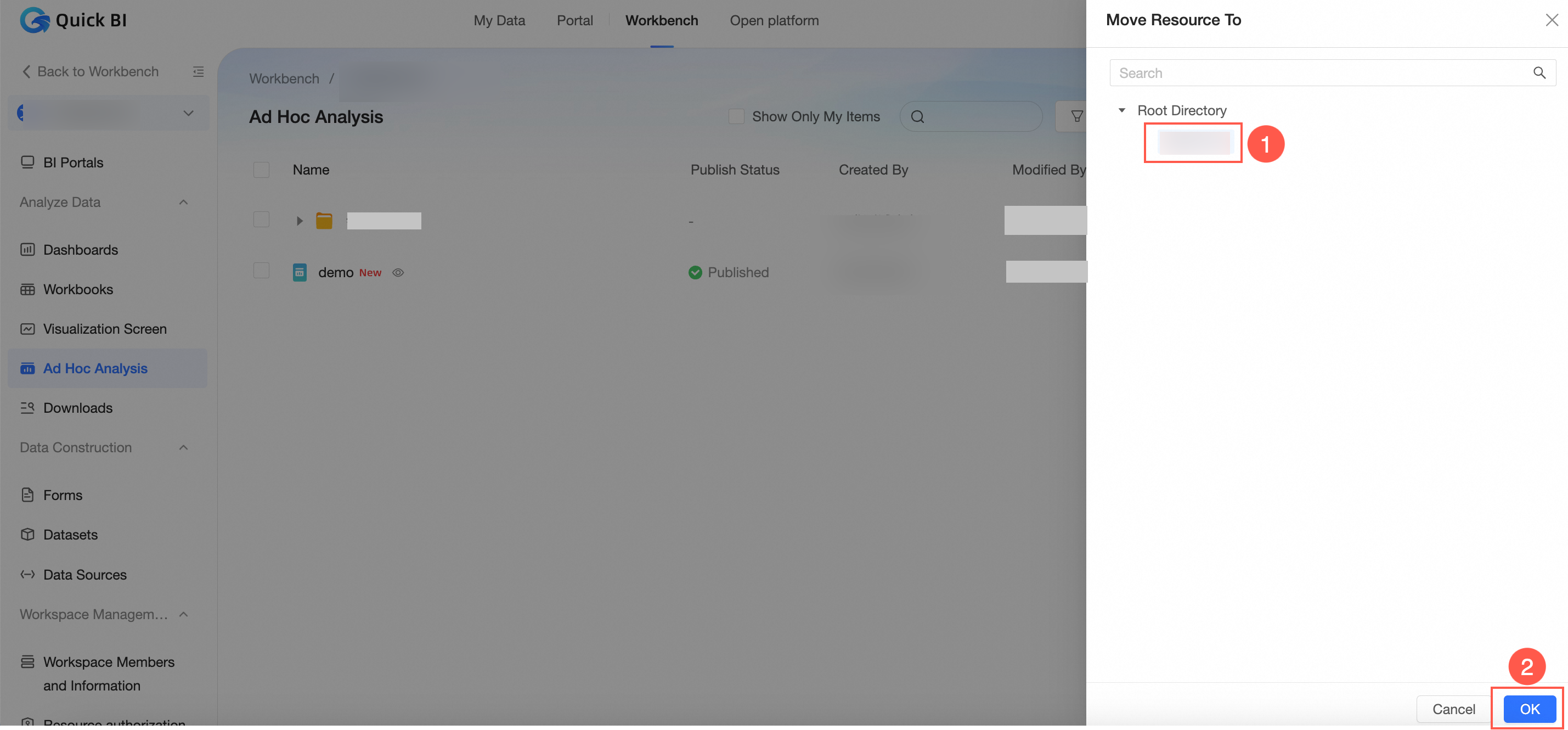
In the Ad Hoc Analysis list, use the instructions in the figure below to access the resource move page.
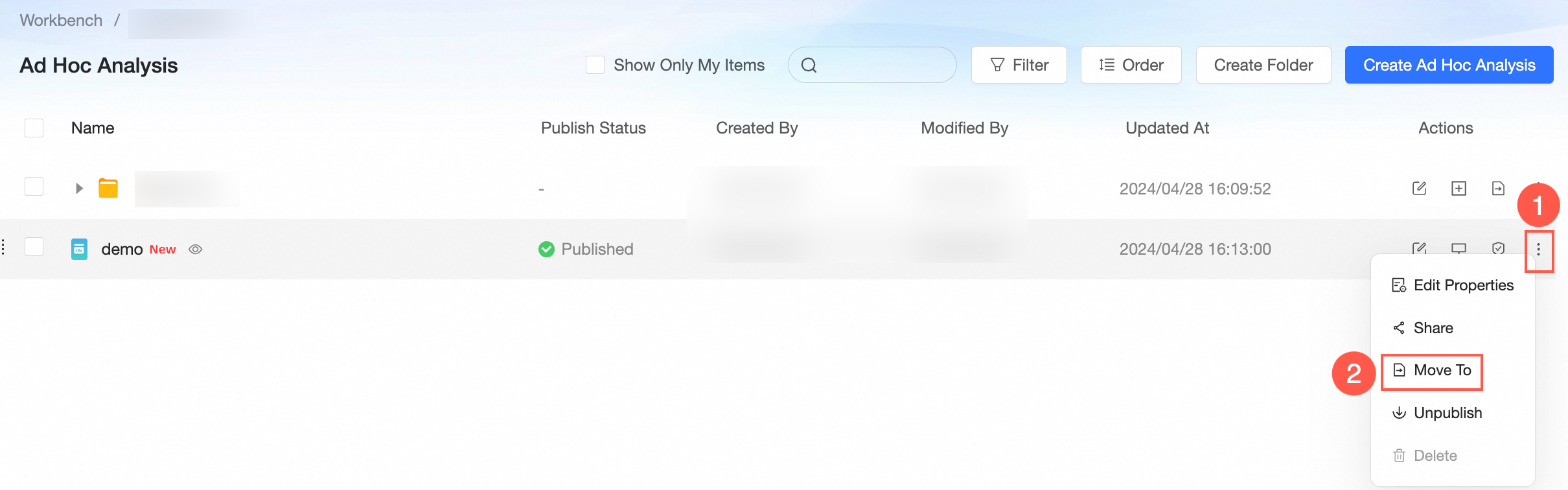
In the Resource Move To panel, choose the desired folder and then click Confirm.
Unpublish
To make an ad hoc analysis invisible to users, use the unpublish feature to revoke its published status.
To access the ad hoc analysis edit page, click
 and select Unpublish.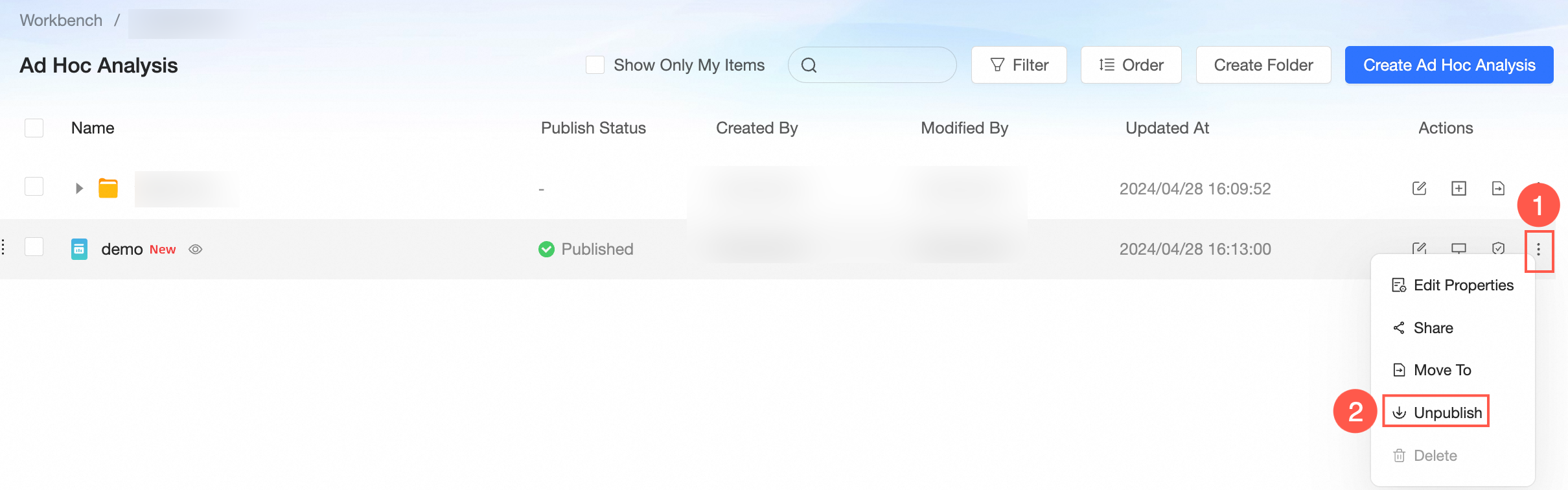
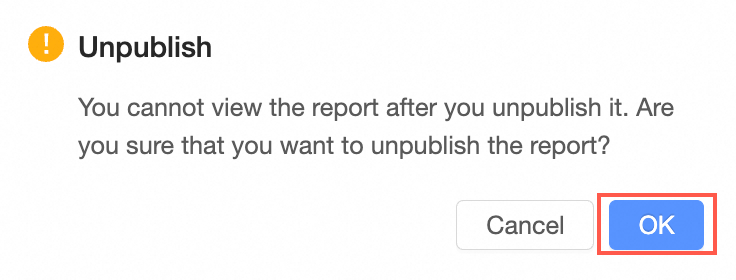
To confirm the unpublishing, click the Confirm button in the dialog box.
Delete
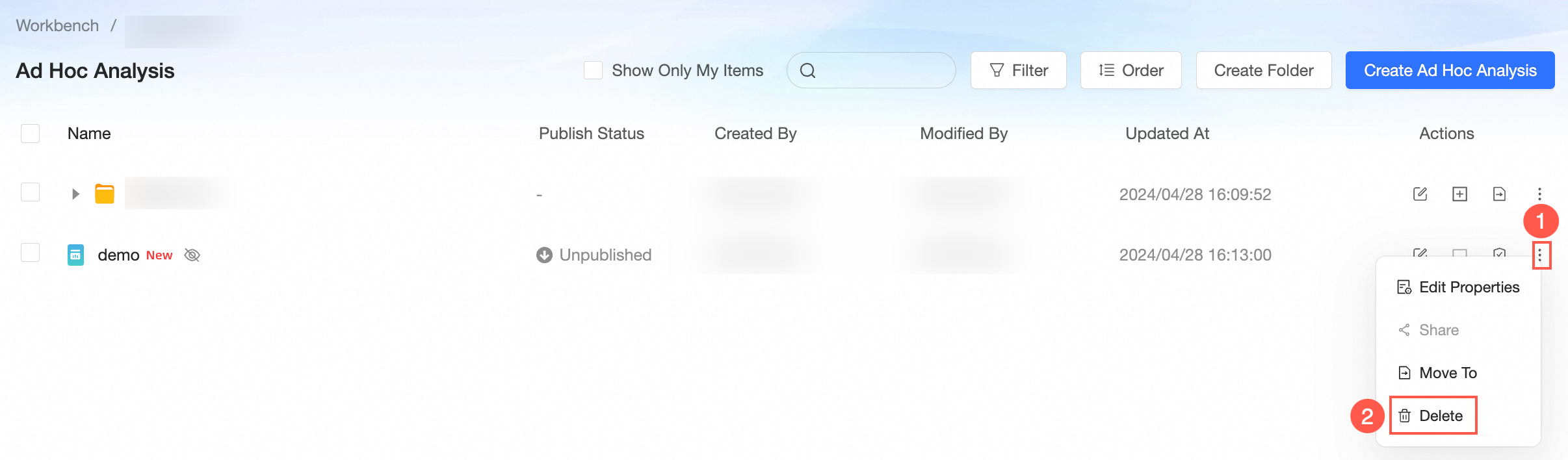
In the Ad Hoc Analysis list, follow the instructions in the figure below to navigate to the resource deletion page.
If a BI portal has been created from this ad hoc analysis, you will receive a prompt detailing the names, owners, modifiers, and modification times of the affected published resources when attempting to delete.
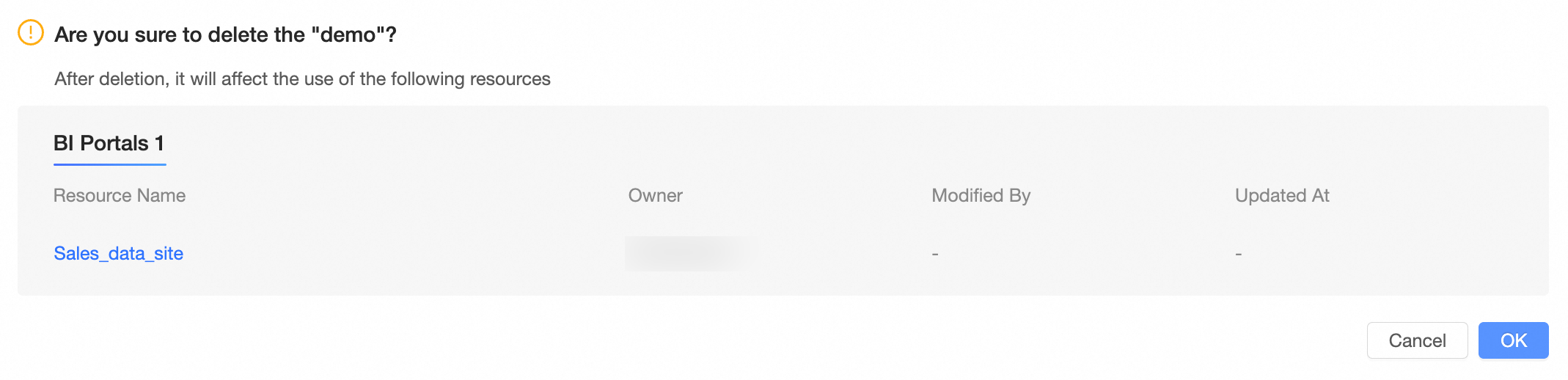
In the confirmation dialog box, click Confirm to proceed with the deletion.