Create custom templates from existing dashboards, data dashboards, workbooks, and data entry forms. You can list templates for internal use to standardize data analysis and reduce report-building effort, or publish high-quality templates to the template marketplace for other Quick BI users.
Create a Template
-
Log on to the Quick BI console.
-
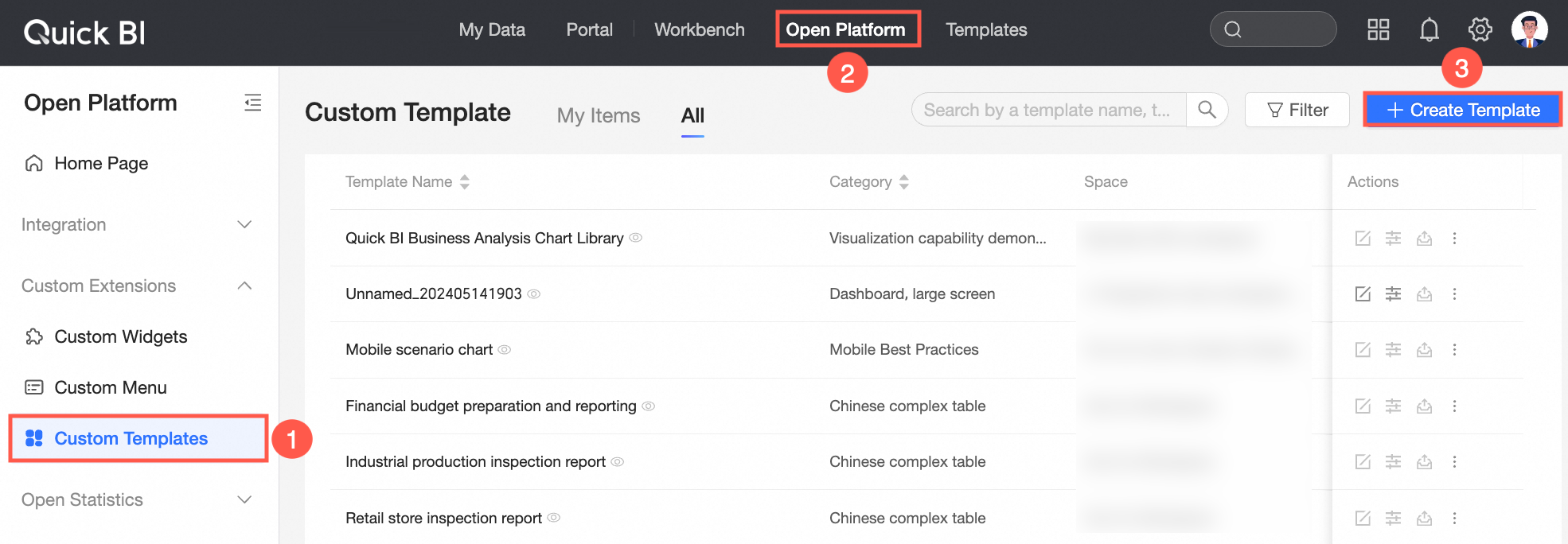
Navigate to the Quick BI home page and follow the instructions shown in the figure below to create a template.
-
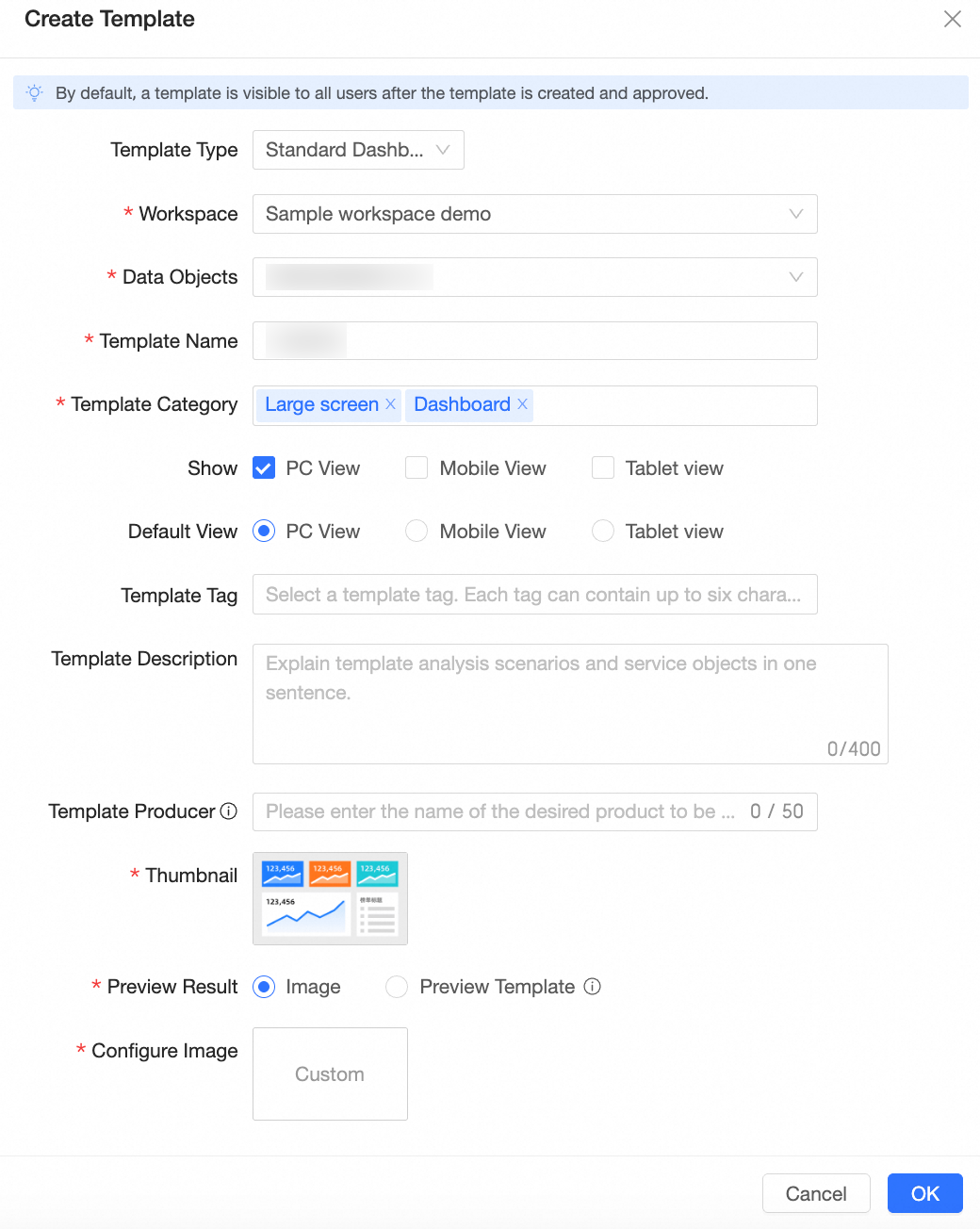
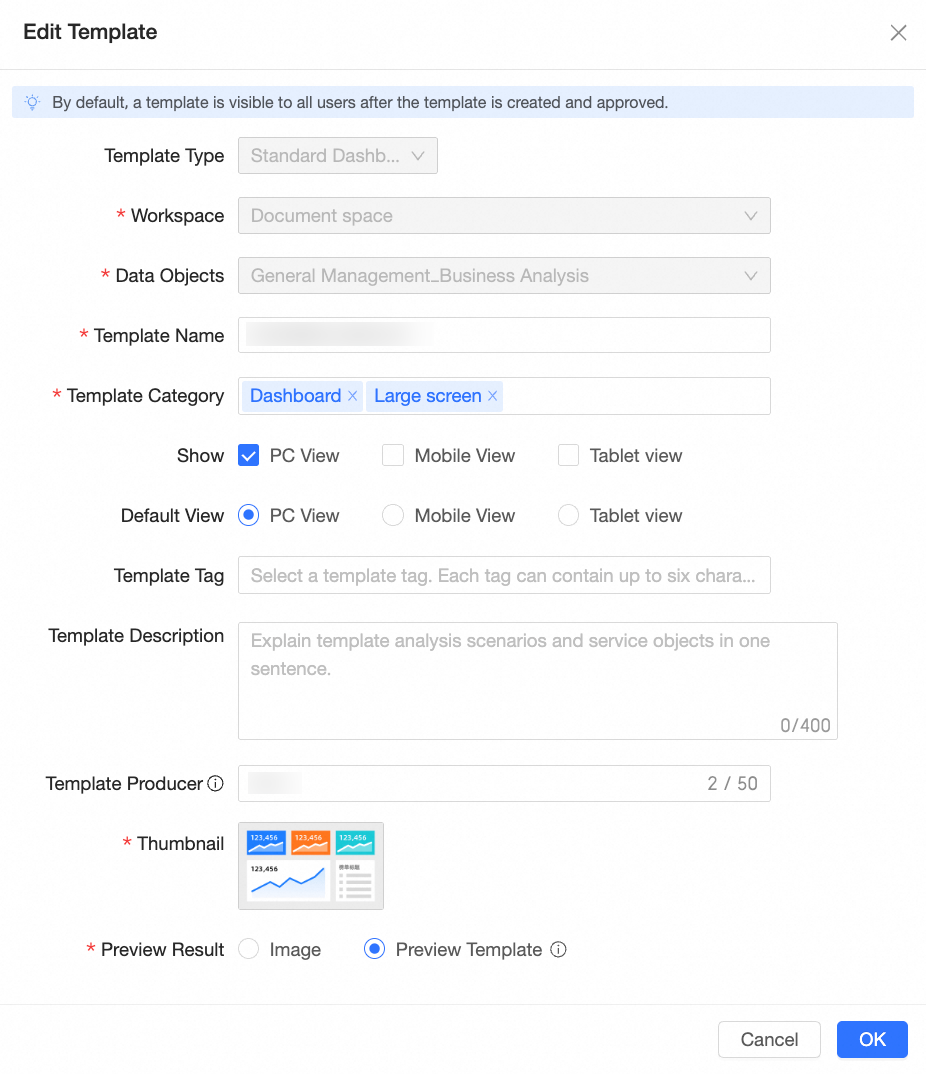
In the Create Template dialog box, set the following parameters.
Parameter
Description
Template Type
Supports creating Regular Dashboards, Data Dashboards, Workbooks, and Data Reporting types of Templates.
Workspace
Select the workspace that contains the data object you want to use as the template.
Data Object
Select the data object to use as the template, such as a dashboard, data dashboard, or workbook.
Template Name
Enter the name of the template.
When a Data object is selected, its name is automatically used as the template name. You can customize the name as needed.
Template Category
Template categories include form entry, complex Chinese-style tables, Internet industry cases, and best practices for data dashboards.
Select a category that matches the template's use case. After the template is listed in the marketplace, users can filter by category to find it.
Display view
Select one or more display views: PC, mobile, and tablet.
Default view
Select the default view type. PC view is selected by default.
Template Tags
Add custom tags to label and manage templates flexibly.
Each tag can contain up to six characters. You can add multiple tags to the same template.
Template Description
Add a brief description of the template, including its use cases and target audience, to help users choose the right template.
Template Producer
Enter the name of the template producer, such as a company or department name. The name must not exceed 50 characters.
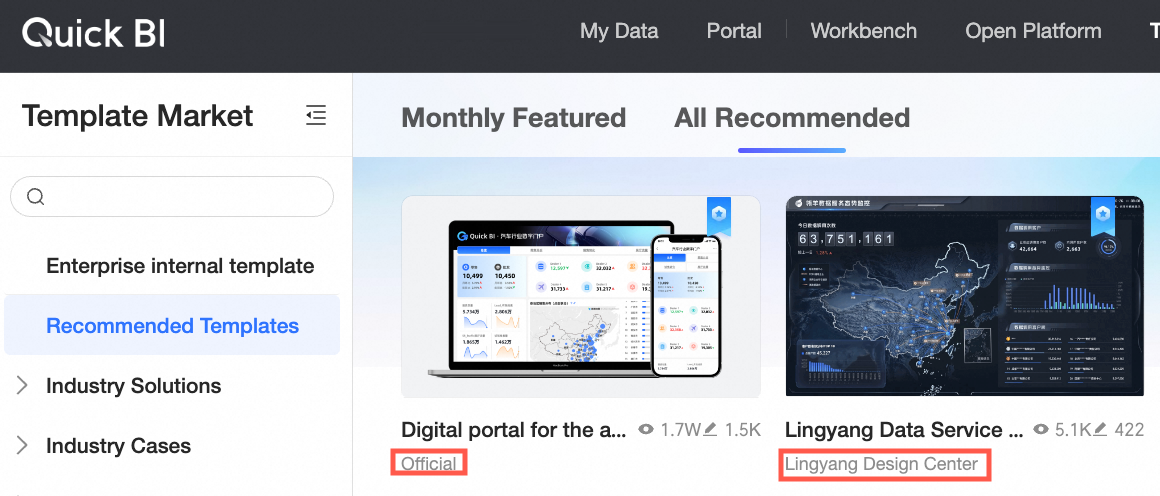
The producer name is displayed when the template is listed in the marketplace (as shown in the figure below). If left blank, the producer is displayed as "Official".
Thumbnail
Use official materials, upload a local image, or provide an image link as the template cover.
Preview Effect
Preview the template as an image or as a live template.
If you select Preview Template, the report will be publicly viewable. Pay attention to data security and use DEMO data if necessary.
Set Image
This option is available only when Preview Effect is set to Image.
Upload a local image or provide an image link as the template cover.
Note-
The image resolution must be greater than 60 pixels × 60 pixels and less than 180 pixels × 60 pixels.
-
The size of a single image must not exceed 1 MB.
-
-
Click Confirm.
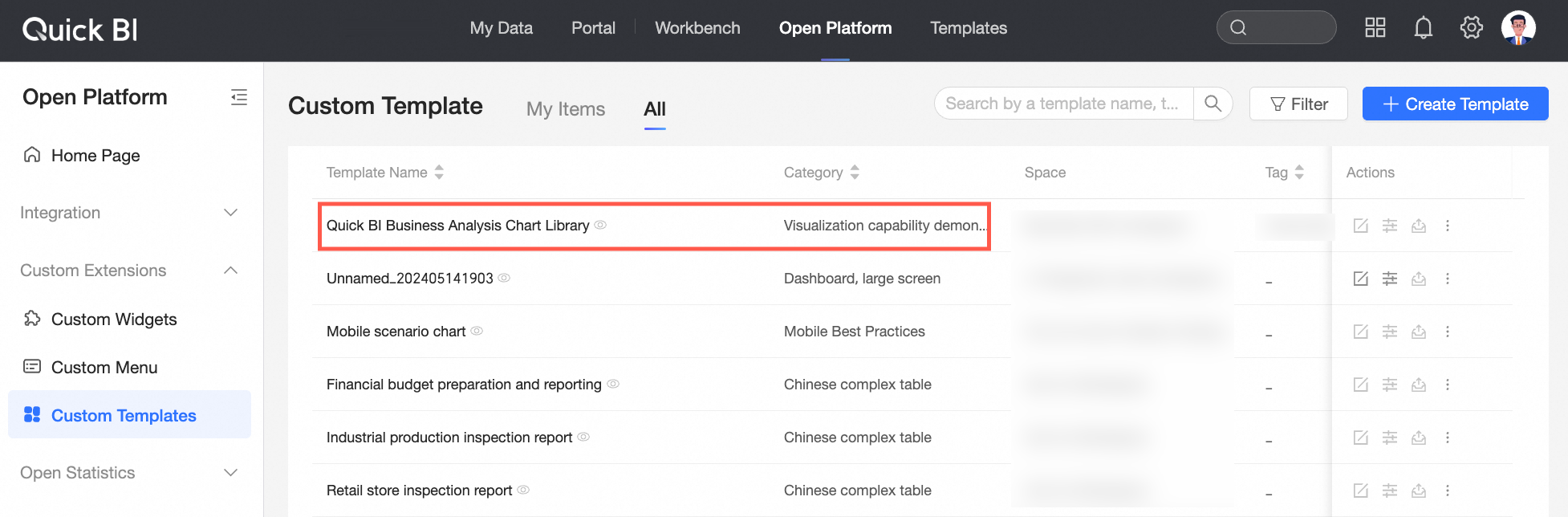
The new template will now appear on the custom templates page.
List a Template
To make a custom template available for internal use, list it in your organization's internal template category in the marketplace. Organization members can then access and use the template directly.
-
Locate the desired template in the Custom templates list on the open platform and click the
 icon in its operation column.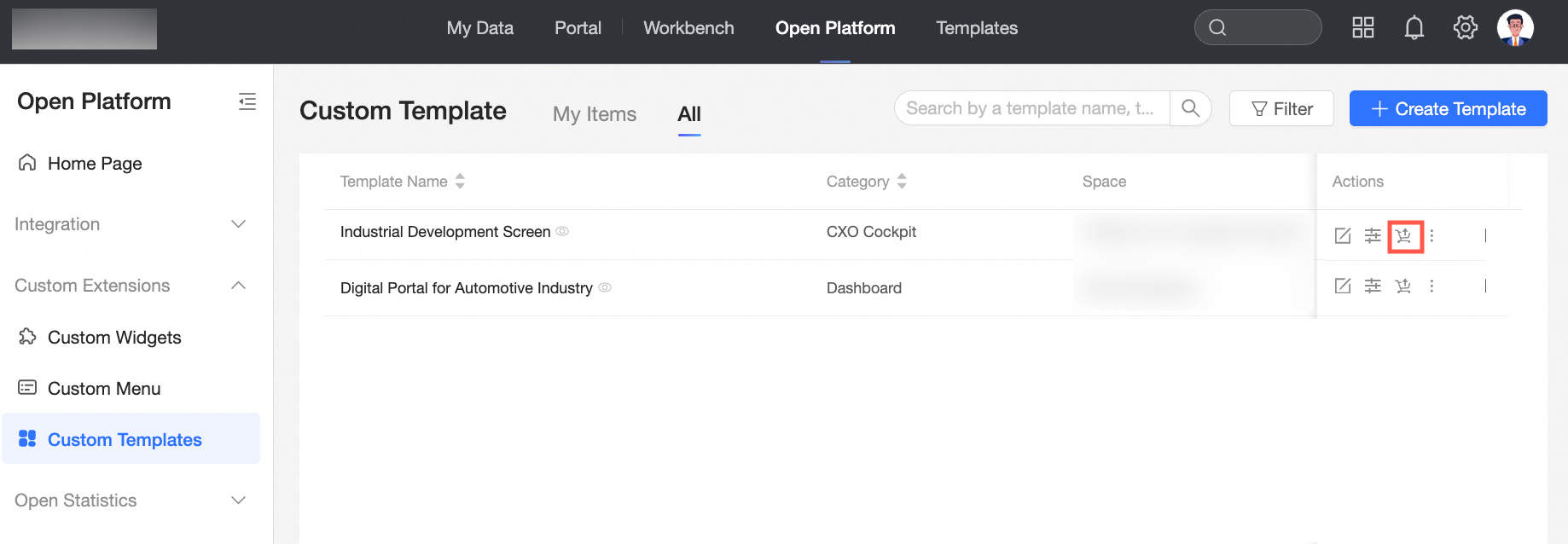
-
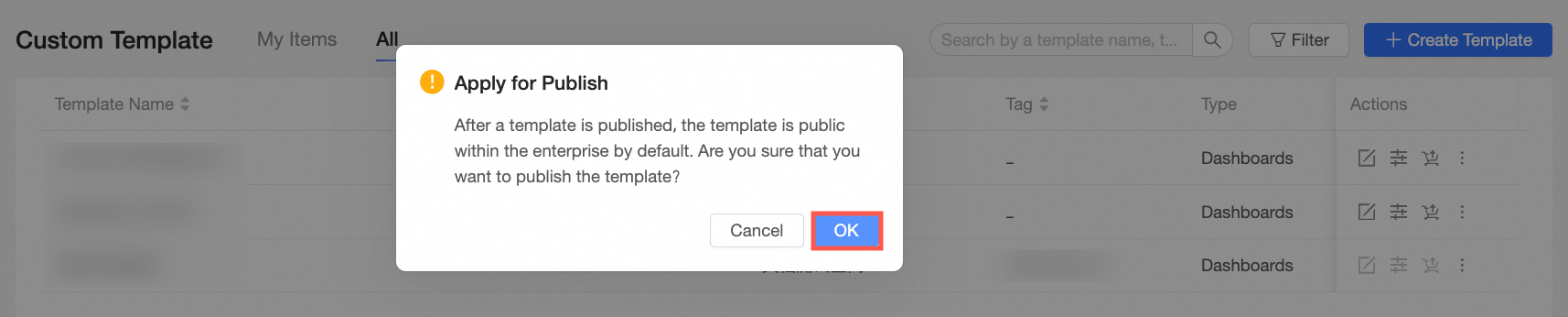
In the Request listing pop-up window, click the Confirm button.
-
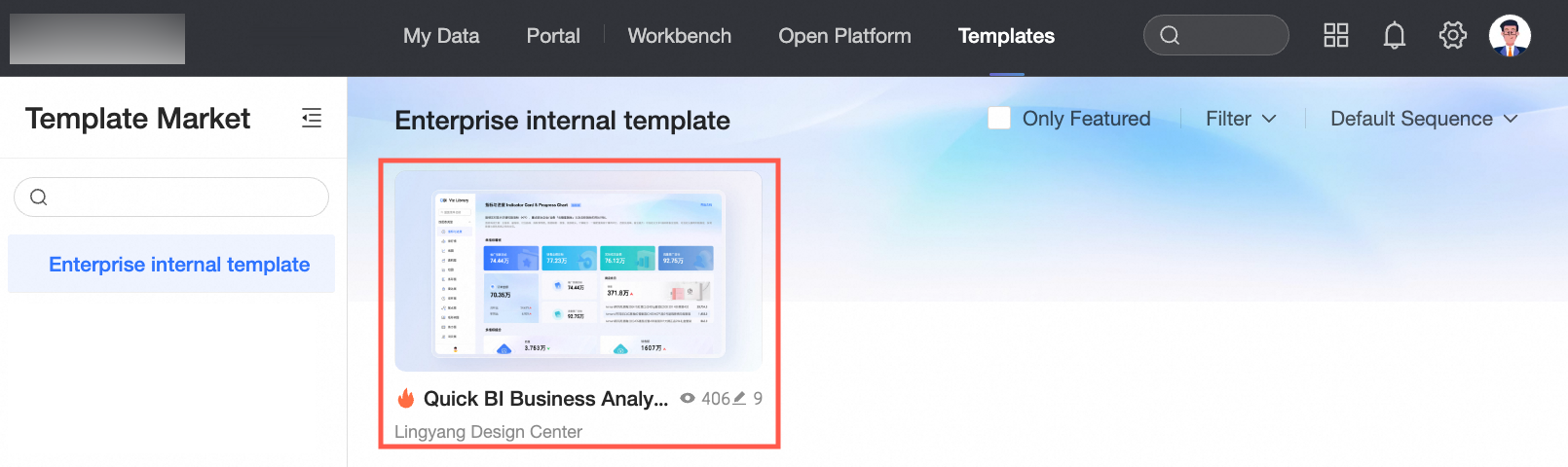
After confirmation, the template is listed in the Internal templates category of the marketplace without further approval.
Edit a Template
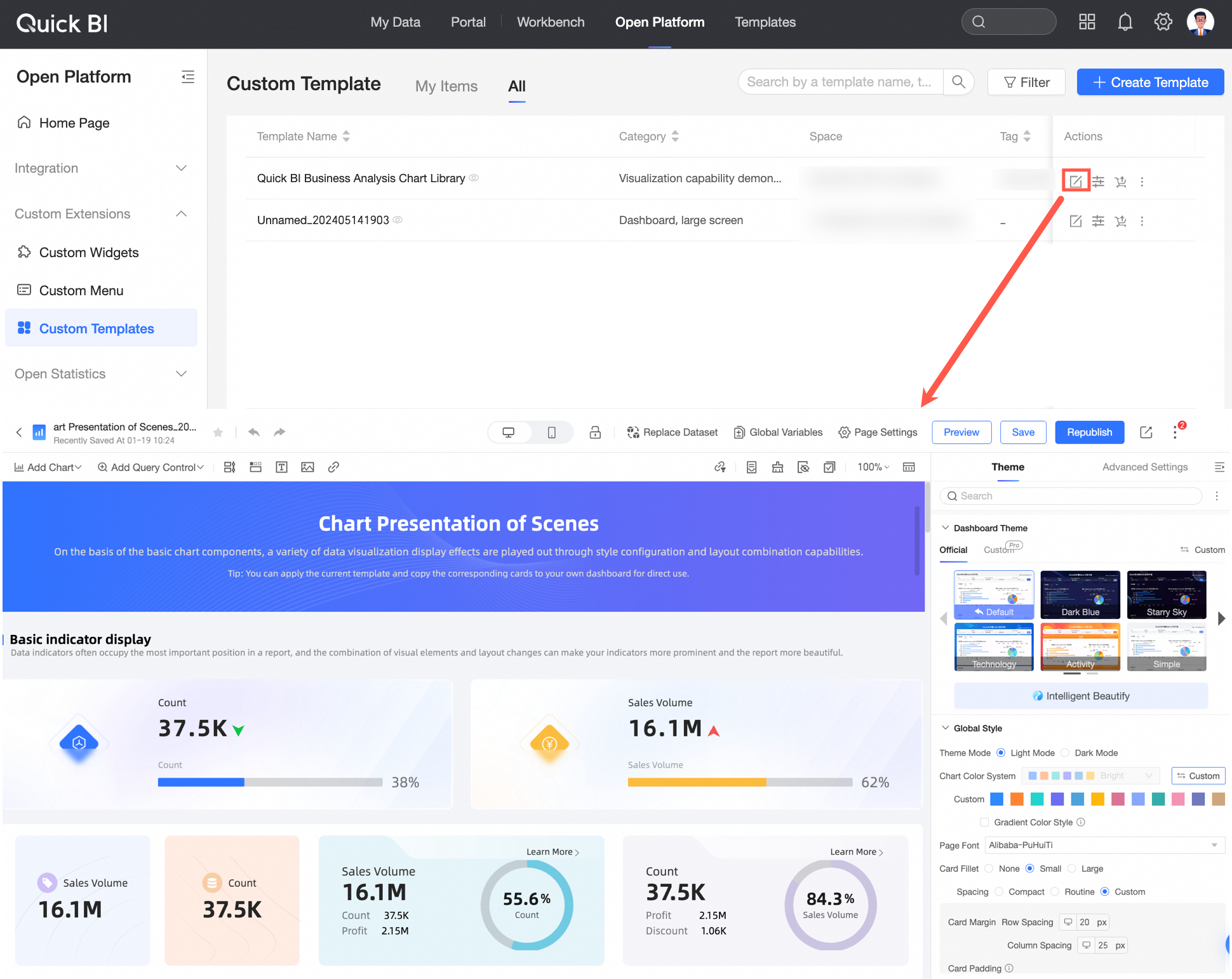
To modify the styles or data of chart components in a template, edit the template.
Edit Template Properties
To change the parameter settings of a template, click the  icon in the operation column and modify the properties in the Edit template pop-up window.
Related Operations
Browse and apply professional, visually appealing templates from the template marketplace. For more information, see the referenced document.