Quick BI supports exporting reports such as dashboards and workbooks. When the export feature is enabled at the organization level, workspace administrators can configure export settings for the current workspace to tailor export policies per workspace. For example, if a workspace contains sensitive data that should not be downloaded by anyone, you can disable the export feature for that workspace. This topic describes how to enable and configure the export feature.
Prerequisites
Workspace export settings depend on the organization-level export settings. You can define whether to disable the export feature for a specific workspace only when exports are enabled at the organization level. Otherwise, the export configuration in the workspace is non-editable, as shown in the following figure. Ensure that the relevant export settings are enabled for the organization to which the workspace belongs. For more information, see the referenced document.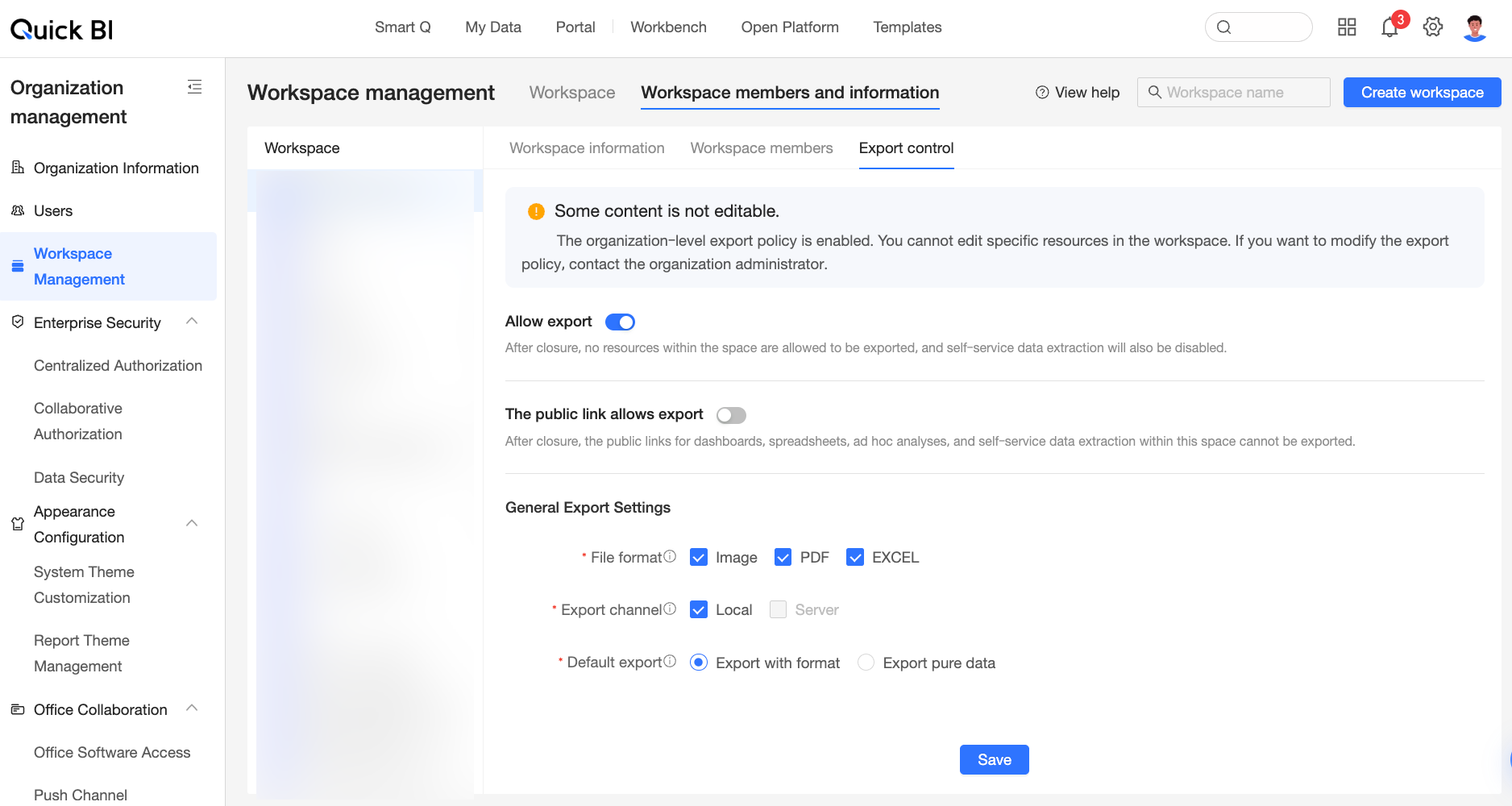
Procedure
-
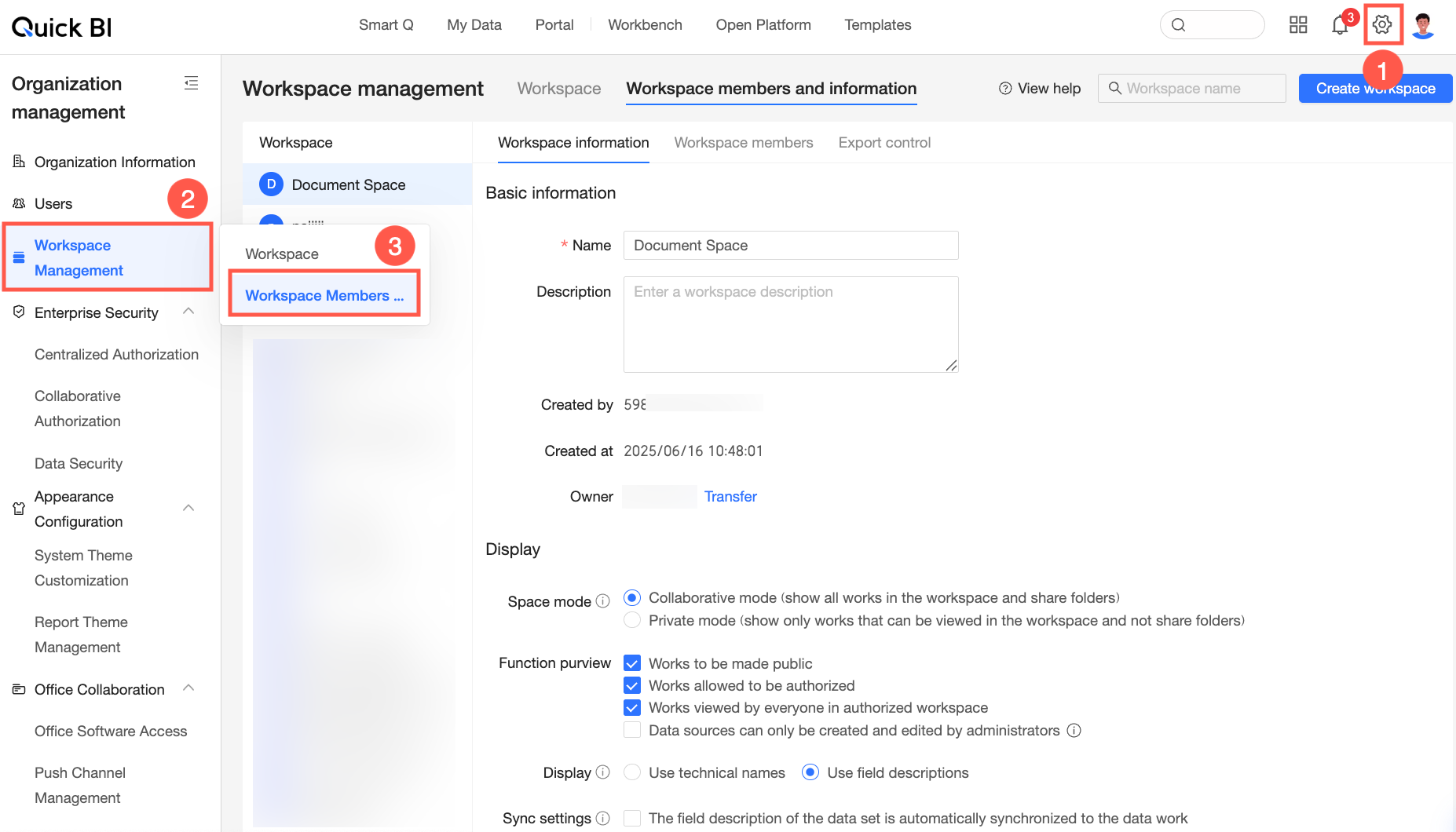
Navigate to the workspace management page from the Quick BI home page, following the instructions in the figure below.
-
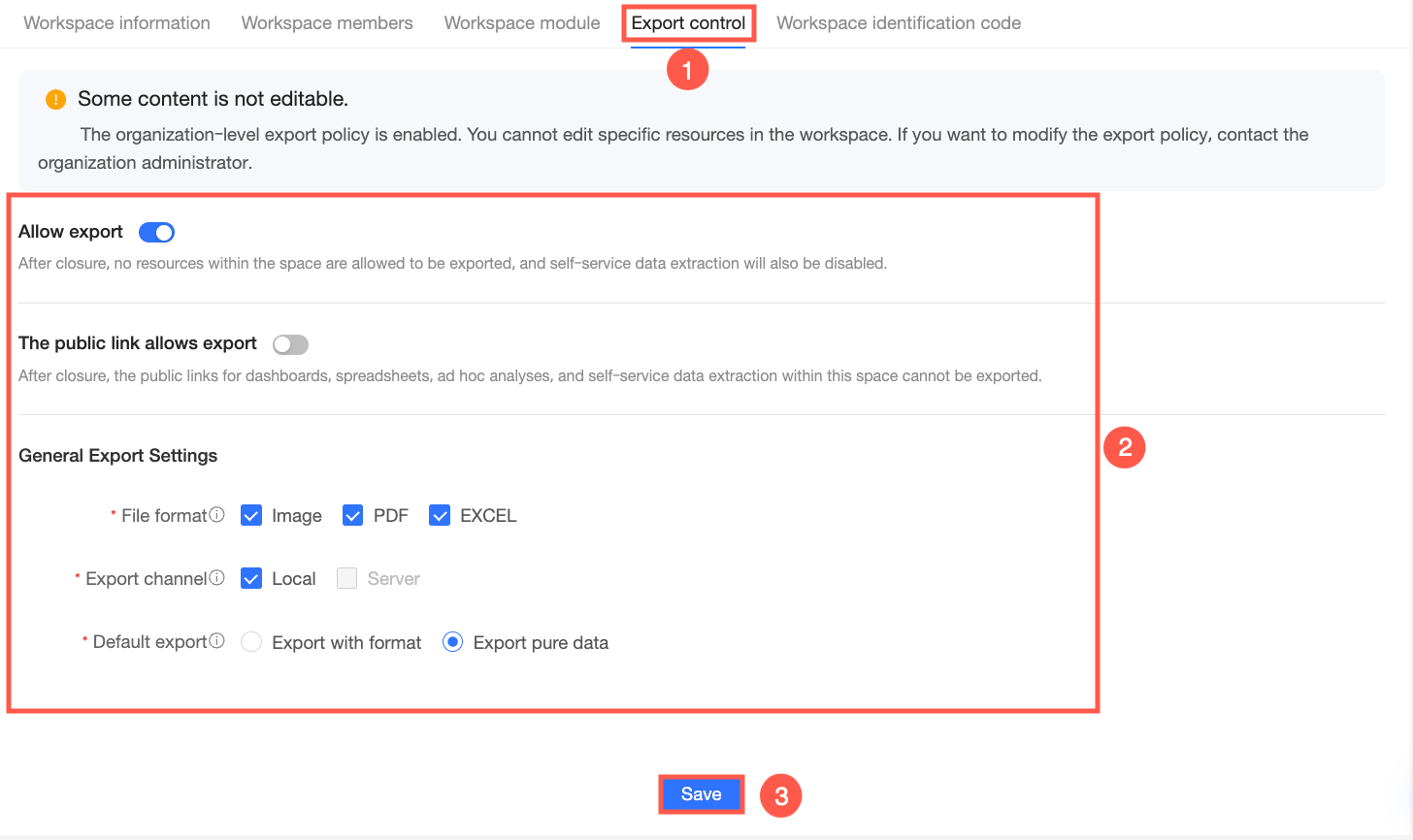
Click the Export Control tab and follow the instructions in the figure below to configure the export policy.
Parameter name
Description
Allow export
When this switch is disabled, no reports can be exported from the workspace.
Allow export for public links
When this switch is turned off, public links for dashboards, workbooks, ad hoc analysis, or Downloads cannot be exported.
Regular export settings
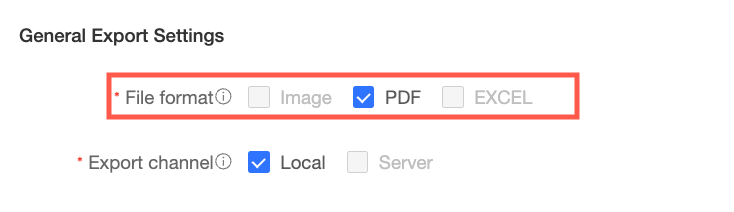
Export Format
Select the file formats available for exporting reports. The available options are affected by the organization-level export control. For example, if only PDF is selected at the organization level, only PDF is available as the export format in this workspace.
Export Channel
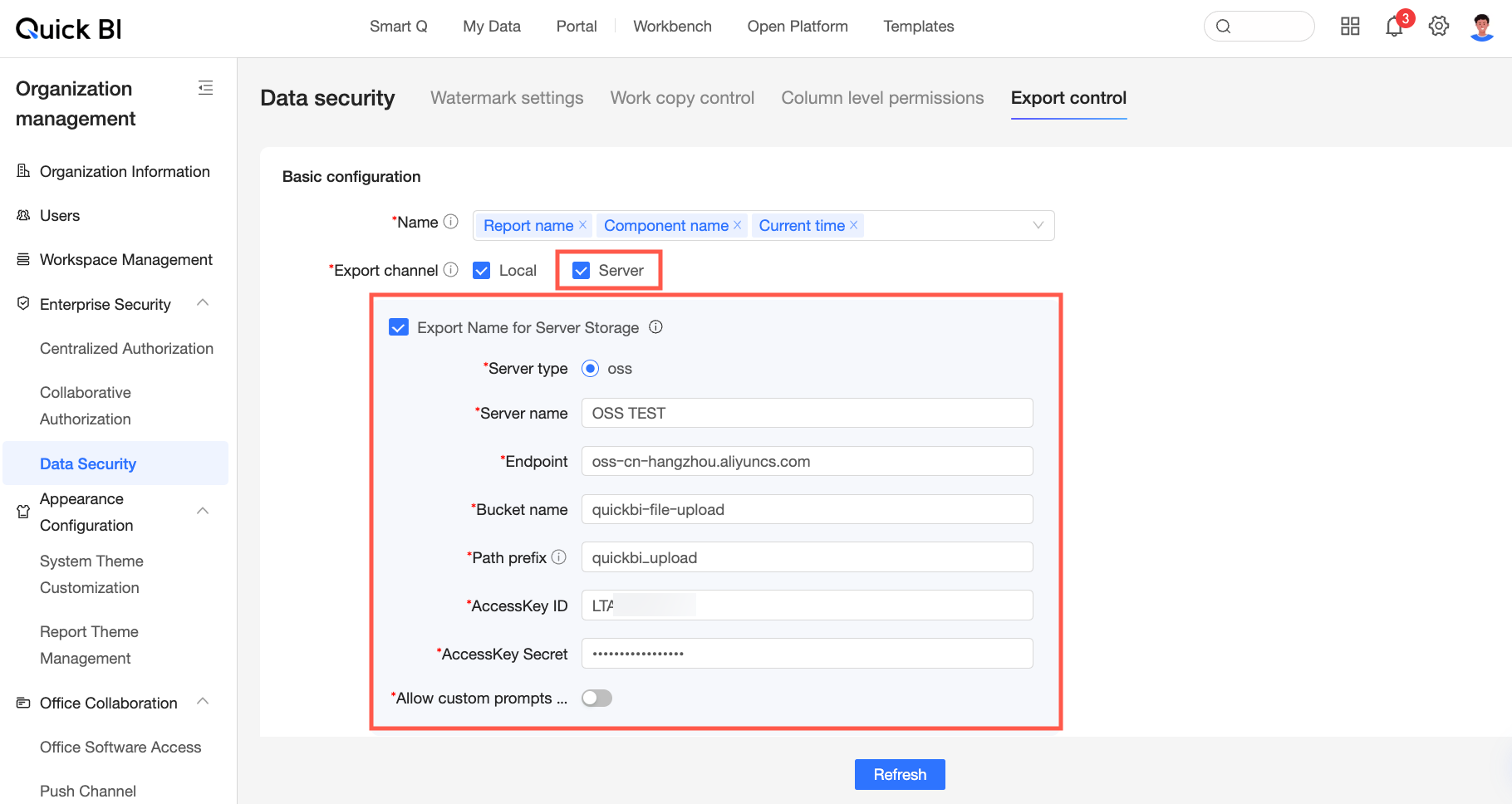
Select Server or Local as the export channel. You can select both options.
-
Local: Downloads the exported file directly to your local computer. Suitable for personal use or small-scale collaboration where offline access is needed, making it convenient to view and process exported files offline.
-
Server: Saves the exported file to a specified server location. Suitable for enterprises with strict data security requirements that do not allow direct export of files to local computers. All exported content is stored on the file server first and then distributed based on user permissions.
When Server is selected, ensure that the server option is also enabled and properly configured in the organization-level export settings.
Default Export Type
When Excel is selected as the Export format, specify whether the exported Excel file includes formatting.
-
When Formatted export is selected, the Excel file will include the data formats and styles from pivot tables and detail tables.
-
When Pure data export is selected, the Excel file will only contain plain text data.
NoteThe amount of exported data is the same regardless of the export type. Export time varies depending on computer configuration and data volume. We recommend using Pure Data Export for Excel files with more than 500,000 cells.
-