This topic describes how organization administrators can add Teams accounts to a Quick BI organization. Organization administrators can add multiple Teams accounts simultaneously.
Before you begin
You have been granted authorization for the Teams API. For more information, see Enable the Teams micro-app (Public Cloud).
Background information
Quick BI categorizes organization users into the following types and roles:
-
User types
Organization users are classified into three categories:
-
Developers: These include enterprise IT staff, data analysts, and data operations personnel.
-
Analysts: Business personnel who conduct business analysis with minimal technical requirements.
Analysts create and utilize dashboards, workbooks, and other analytical tools.
-
Visitors: Individuals such as executives or managers who only view reports, or frontline business staff who solely access data results. Visitors can access dashboards, workbooks, and sites via URLs or subscriptions.
-
-
User roles
-
Organization roles
There are three predefined roles at the organization level, with the option to add custom roles:
-
Organization Administrator: Manages project information, status, and members. They can also designate other users as organization administrators.
Typically, one to three individuals fill this role, often the project PM or those responsible for the BI platform.
-
Permission Administrator: Oversees permissions for project resources. One to three individuals usually assume this role, commonly those in charge of the BI platform. They are tasked with centralized permission management and allocation in the backend.
-
Regular User: Users who are not organization or permission administrators.
-
Custom Organization Roles: Tailored to specific business needs, these roles can be created as necessary. For more information, see Role Management.
-
-
Workspace roles
At the workspace level, there are four predefined roles, with the possibility of adding custom roles:
-
Workspace Administrator: Possesses the authority to create, edit, use, and view all modules, holding the highest level of permissions within the workspace. They also manage other members' permissions and works.
-
Workspace Developer: Granted permissions to create, edit, use, and view all modules.
-
Workspace Analyst: Authorized to create, edit, and view modules such as BI portals, dashboards, data dashboards, workbooks, ad hoc analysis, downloads, and data preparation. They also have viewing permissions for data reporting and data sources, along with the ability to use and view datasets.
-
Workspace Viewer: Has viewing permissions for all modules.
-
Custom Workspace Roles: Custom roles can be established based on business needs. For more information, see Role Management.
-
-
Limits
Only organization administrators can add Teams accounts as organization users.
Synchronize Teams accounts from office software
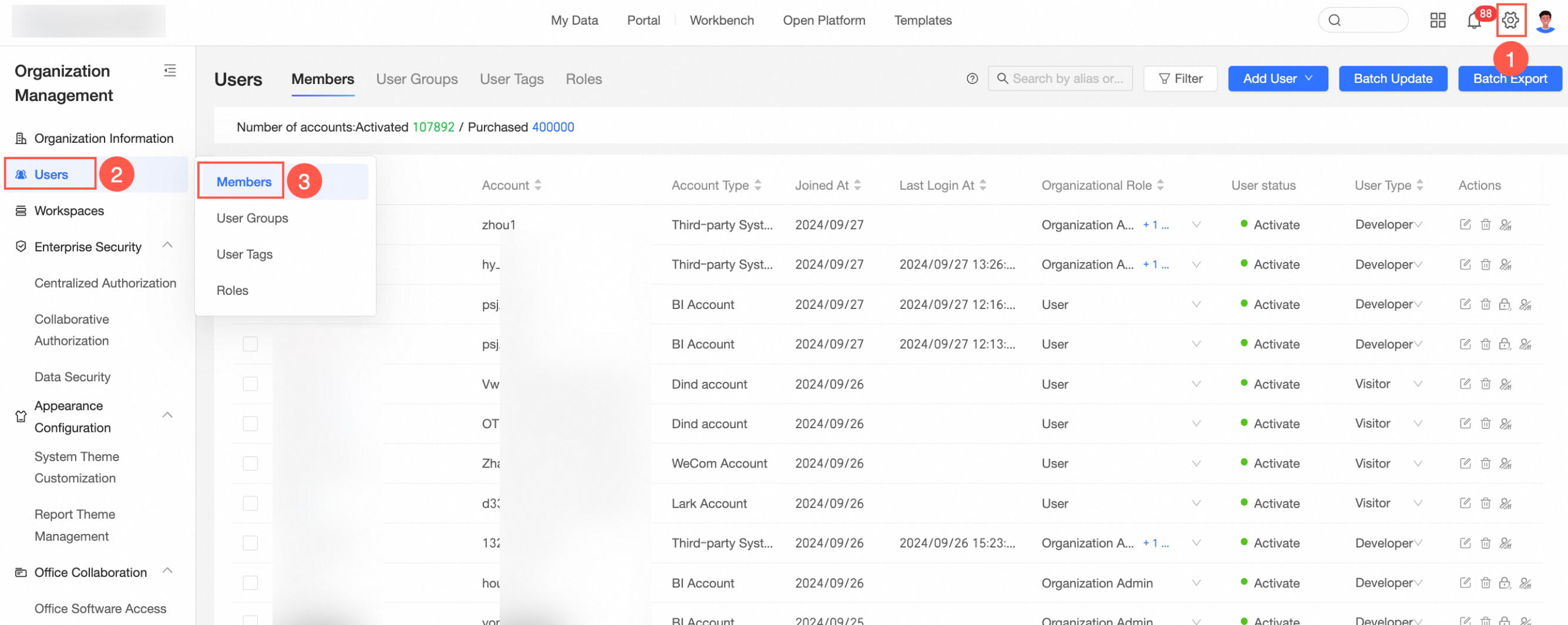
On the Quick BI homepage, follow the instructions in the figure below to go to the User Management → Member Management page.
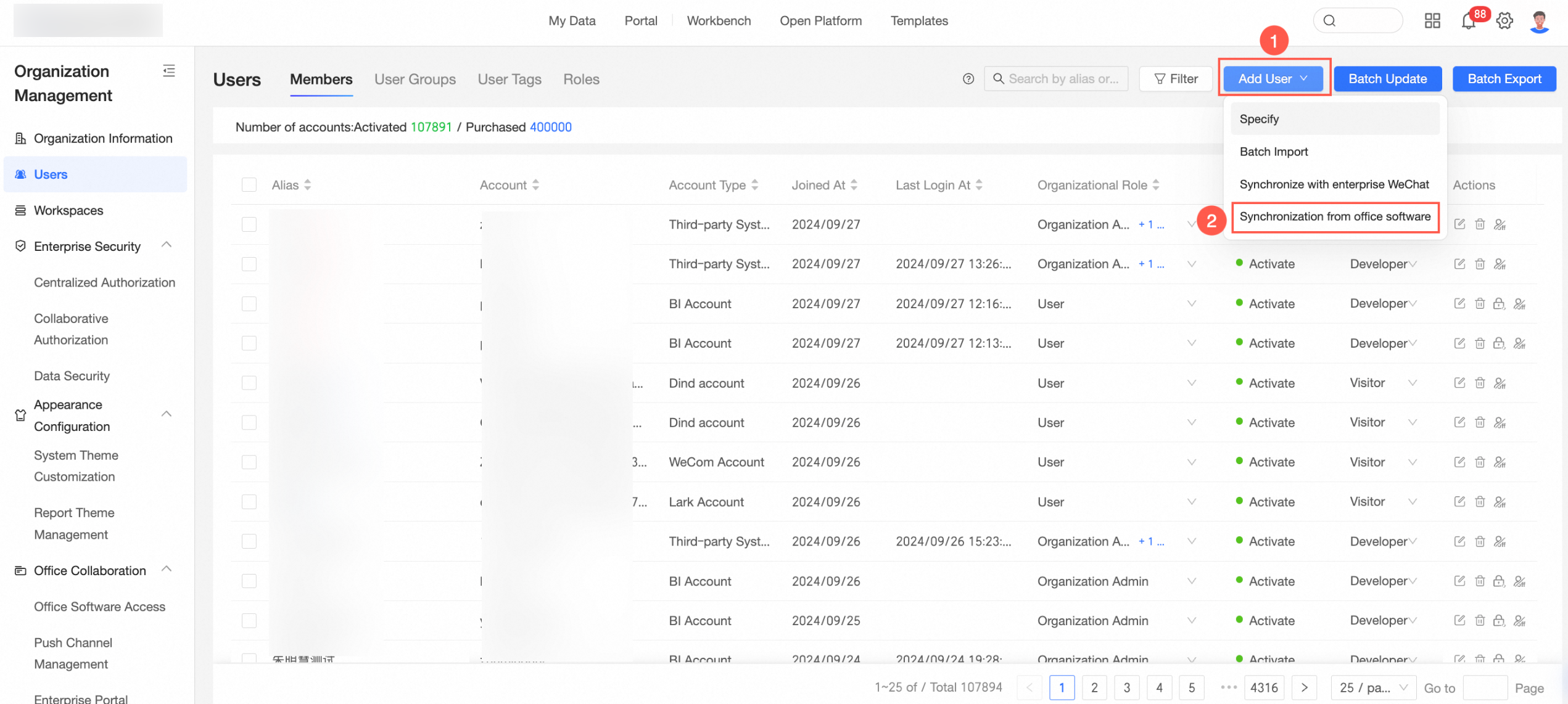
In the upper-right corner of the Member Management tab, select Add User → Sync from Office Software.
In the Sync Organization Structure dialog box, select Teams Account for Account Type, and follow the steps shown in the figure to synchronize accounts.
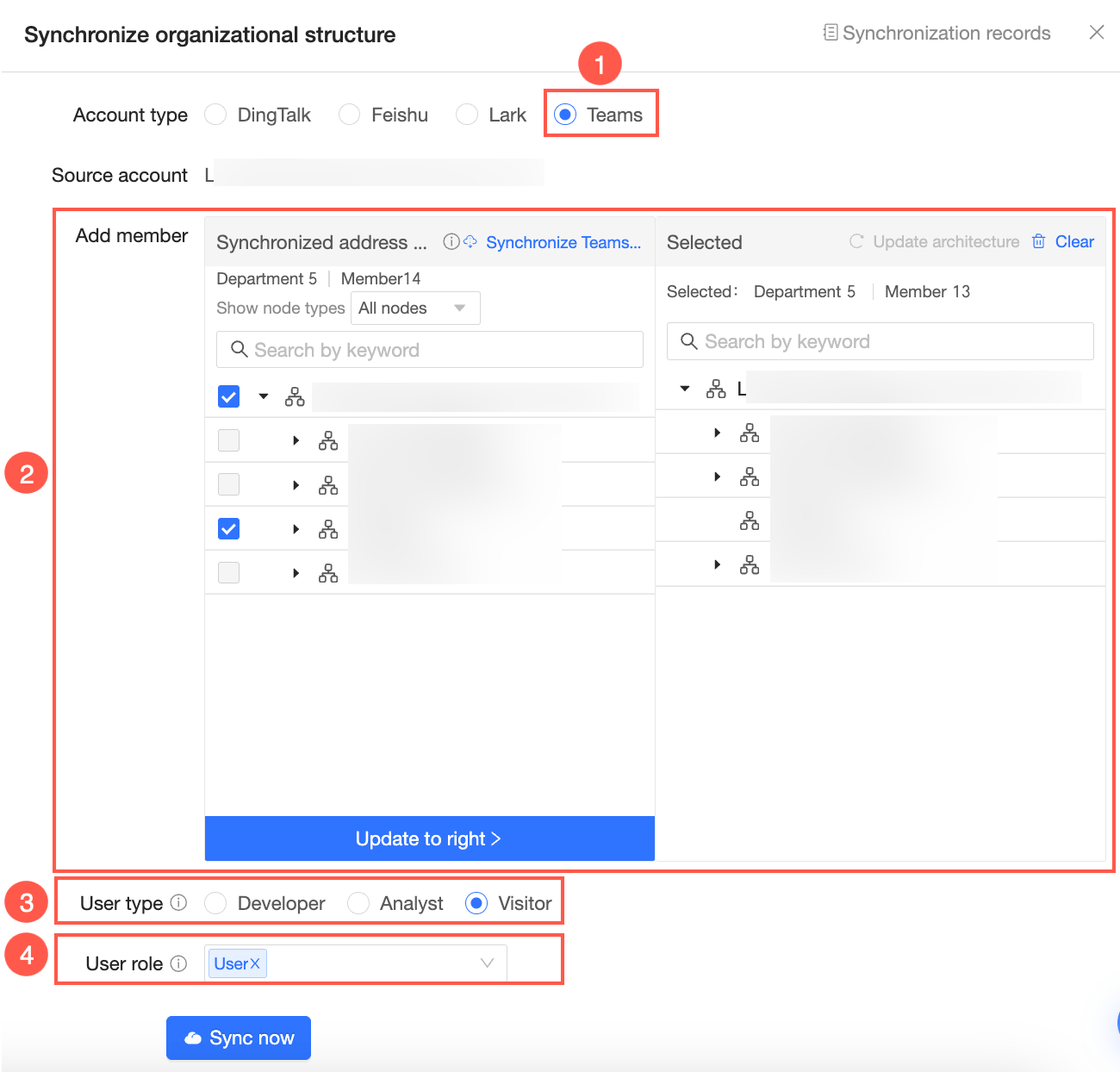
①Account Type: Select Teams Account.
②Add Member: Select the members you want to synchronize and click the Update to Right button.
③User Type: You can select Developer, Analyst, or Visitor.
④User Role: You can select Organization Administrator, Permission Administrator, Regular User, or Custom User Role. You can select organization administrator or permission administrator only when the user type is set to Developer or Analyst.
Click Start Sync.
NoteWhen the organization structure changes, we recommend that you first update the structure, and then start synchronization.
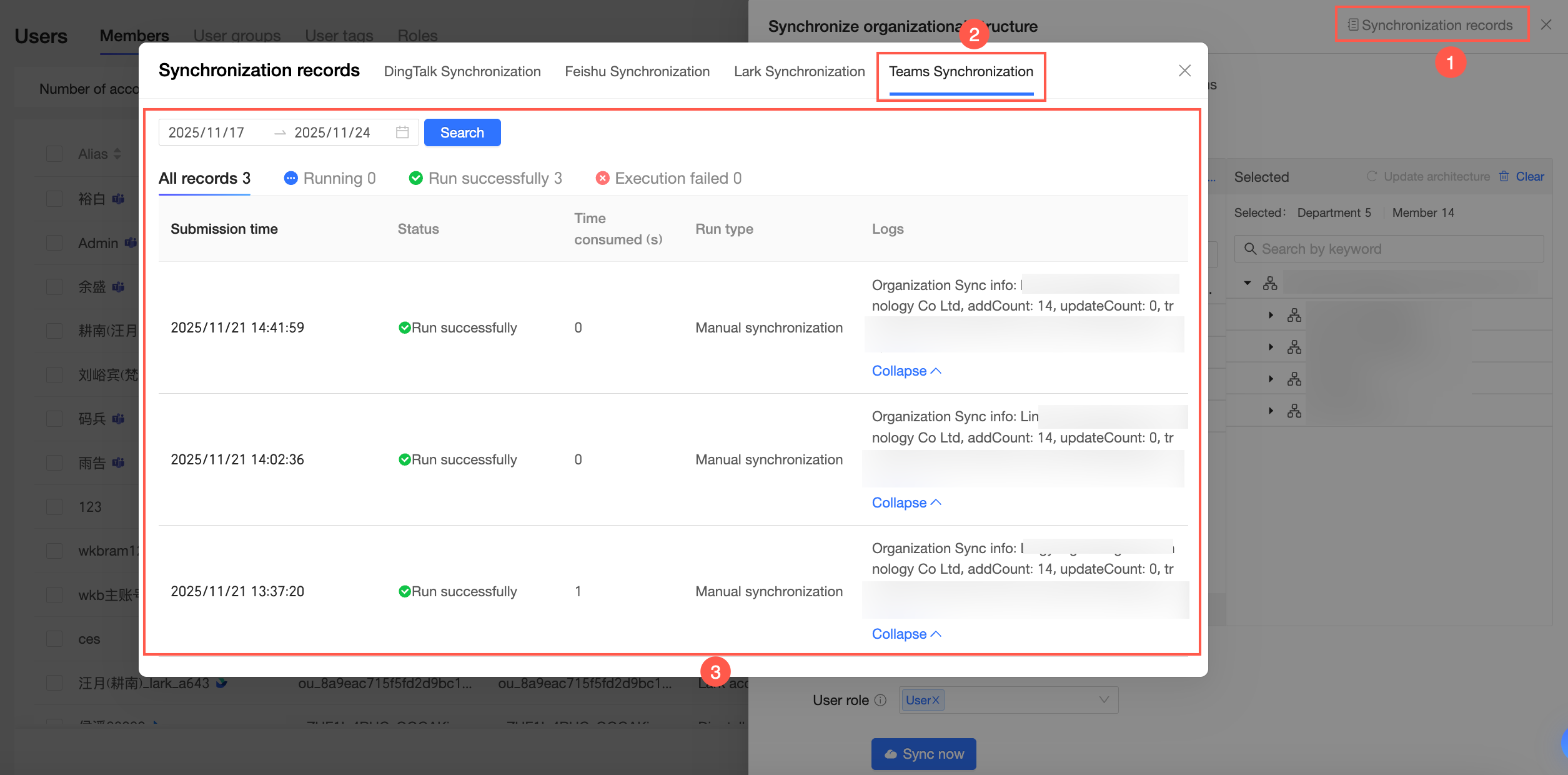
You can click Sync Records in the upper-right corner to view synchronization records.
Update structure
When the organization structure changes, you can use Update Structure. Name changes do not affect synchronization.
When a username changes, you will see a Name Changed prompt after the corresponding username.
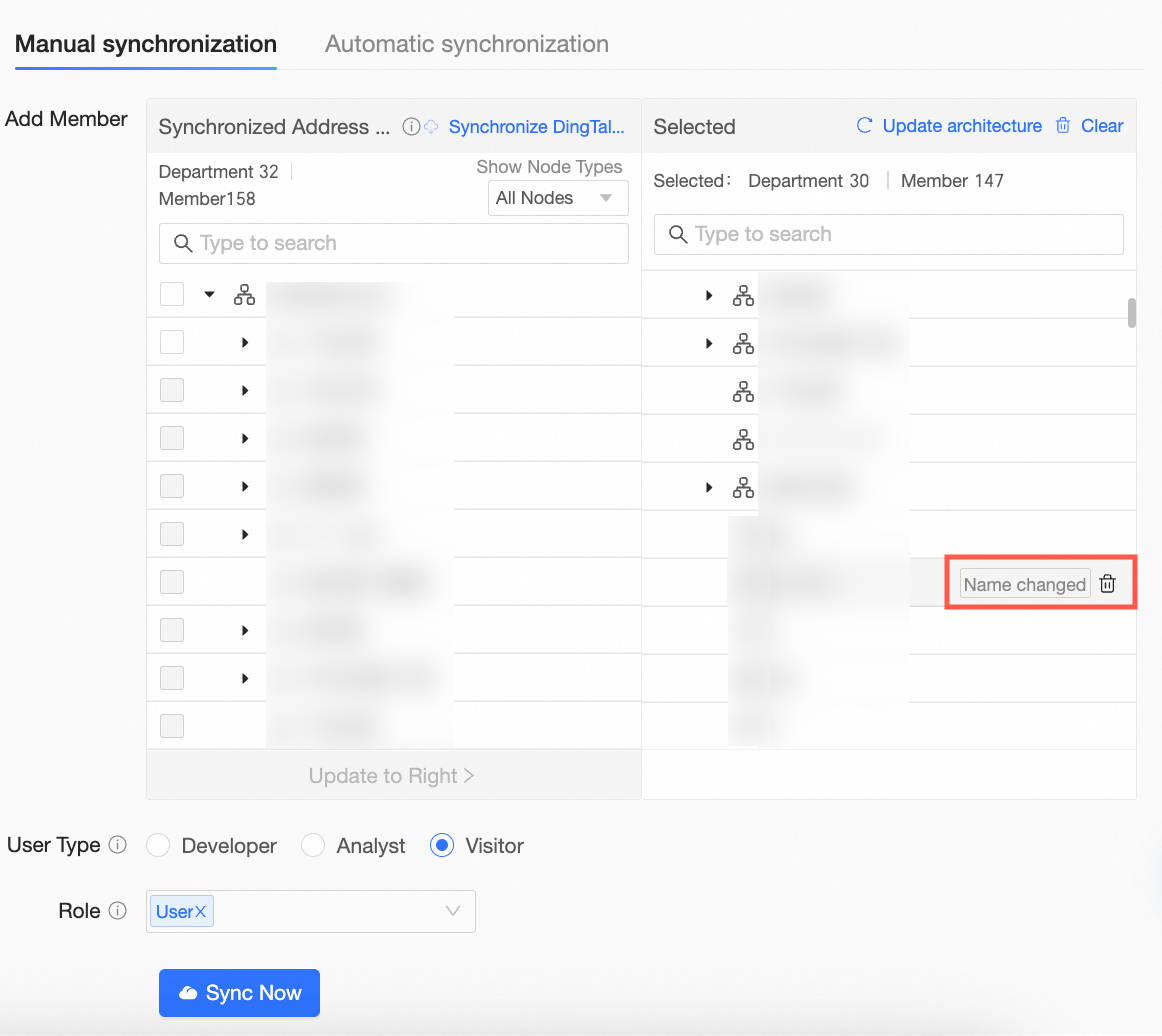 In this case, you can click the
  icon to delete the user as needed.
If a department name changes, a Name Changed prompt appears next to the department name. Click the Delete
icon and then click OK in the confirmation dialog box to delete the department.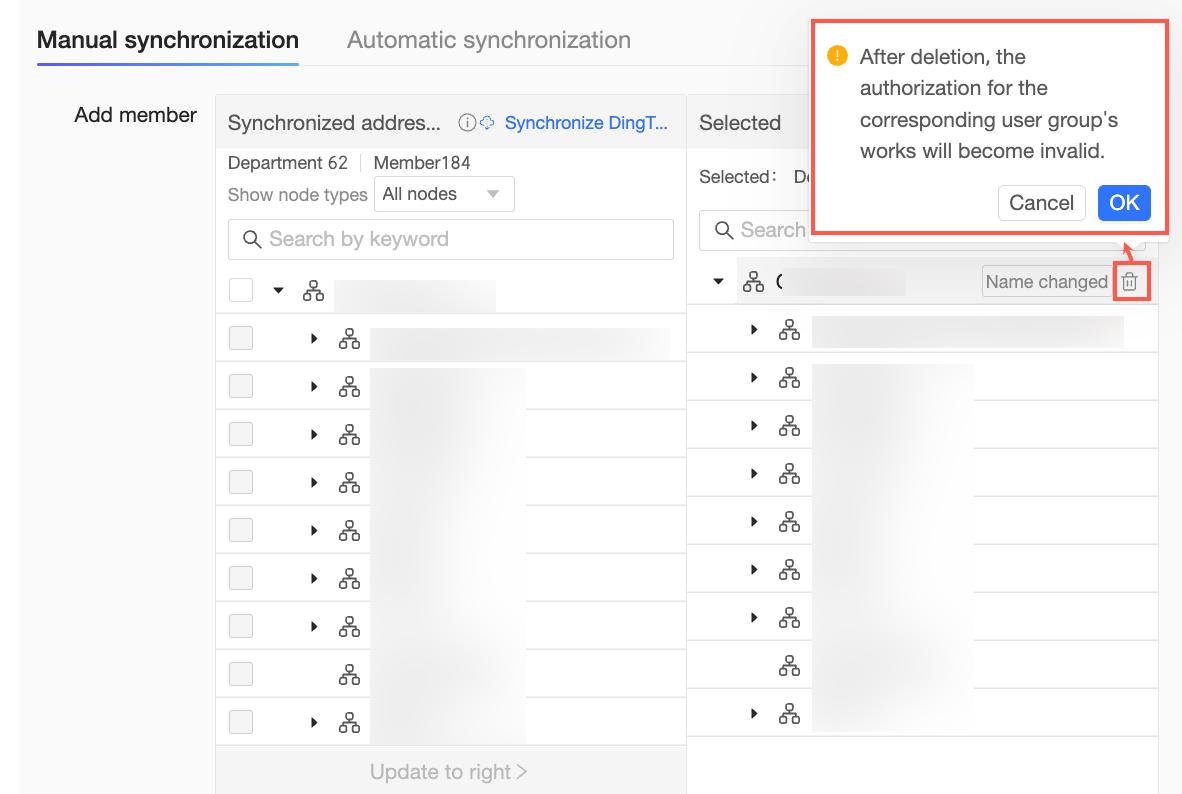 Note
NoteAfter the department is deleted, the work authorizations for the corresponding user group become invalid.
When a user is no longer in the organization, you will see a To Be Deleted prompt after the corresponding username.
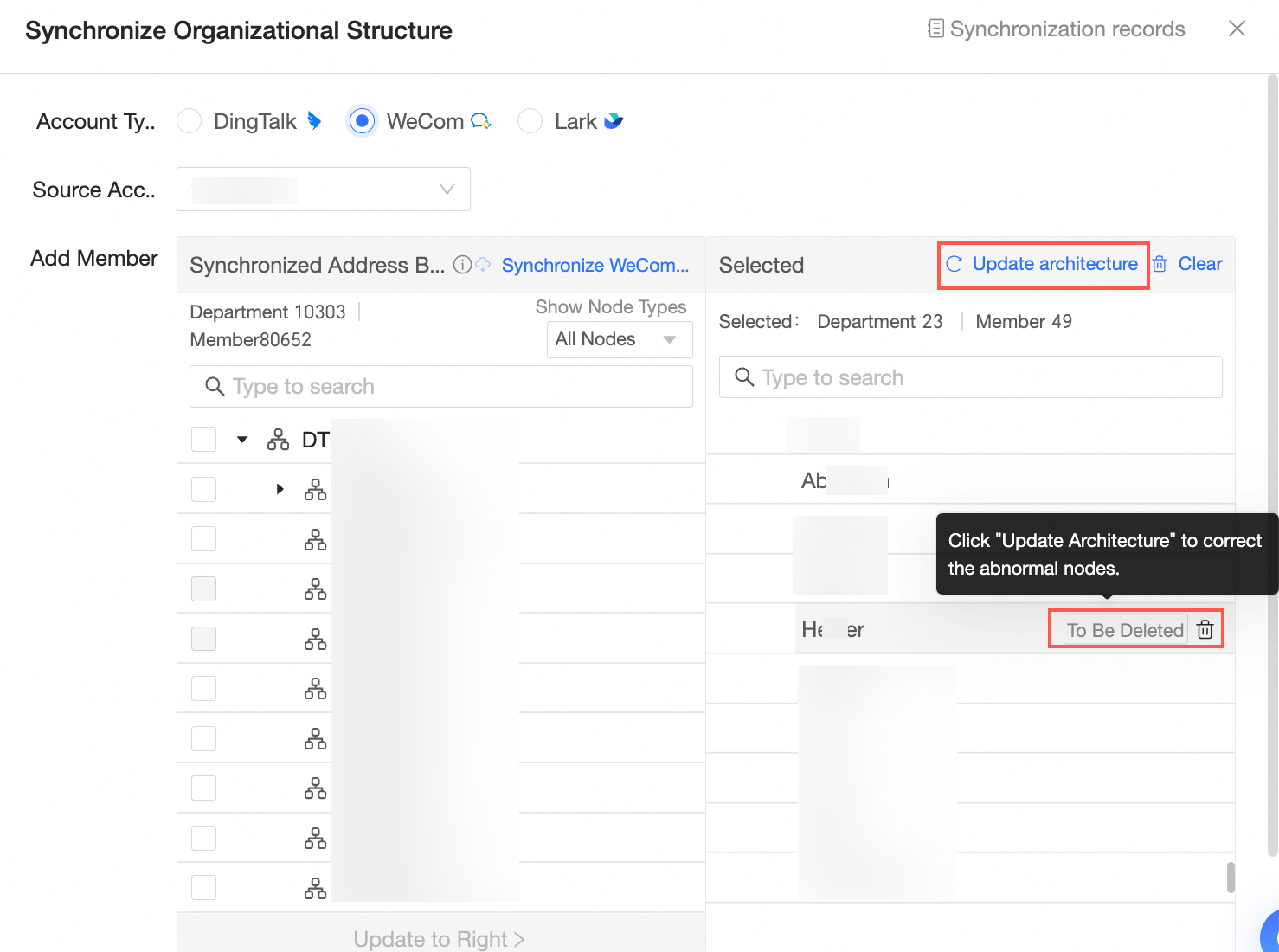
In this case, you can click the
icon to delete the user or click Update Structure to fix abnormal nodes.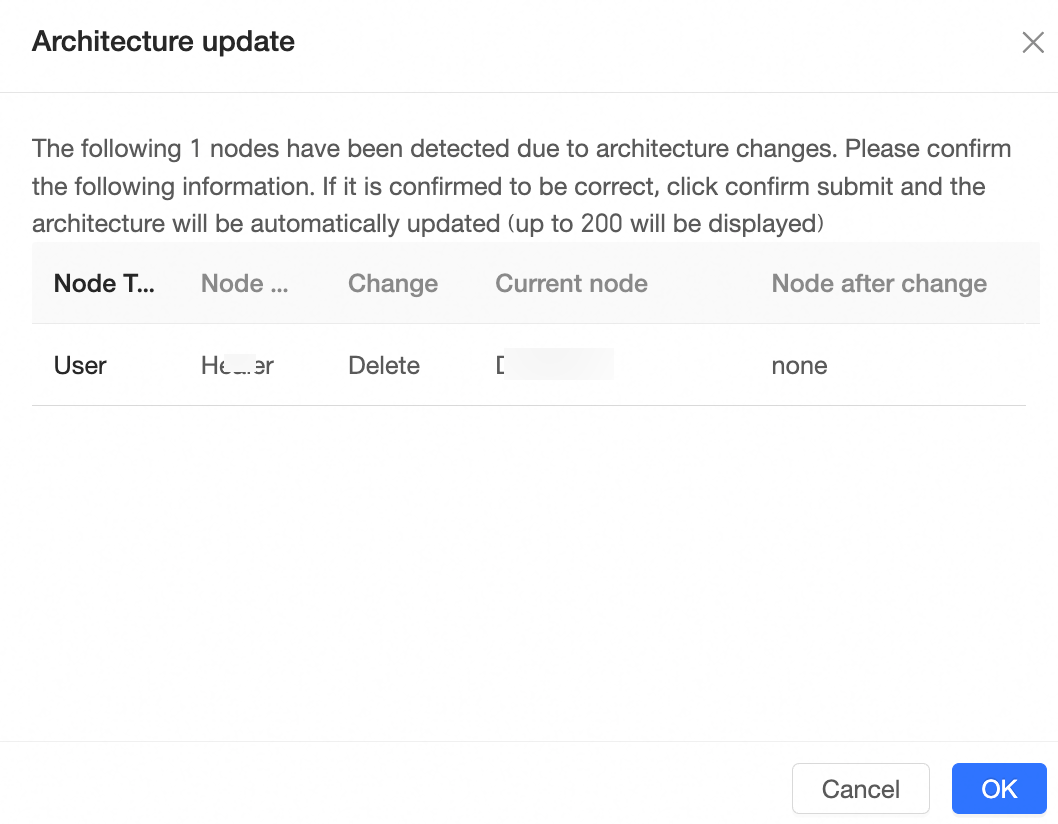
To clear the current organization structure, click the Clear button and then click OK in the confirmation dialog box.
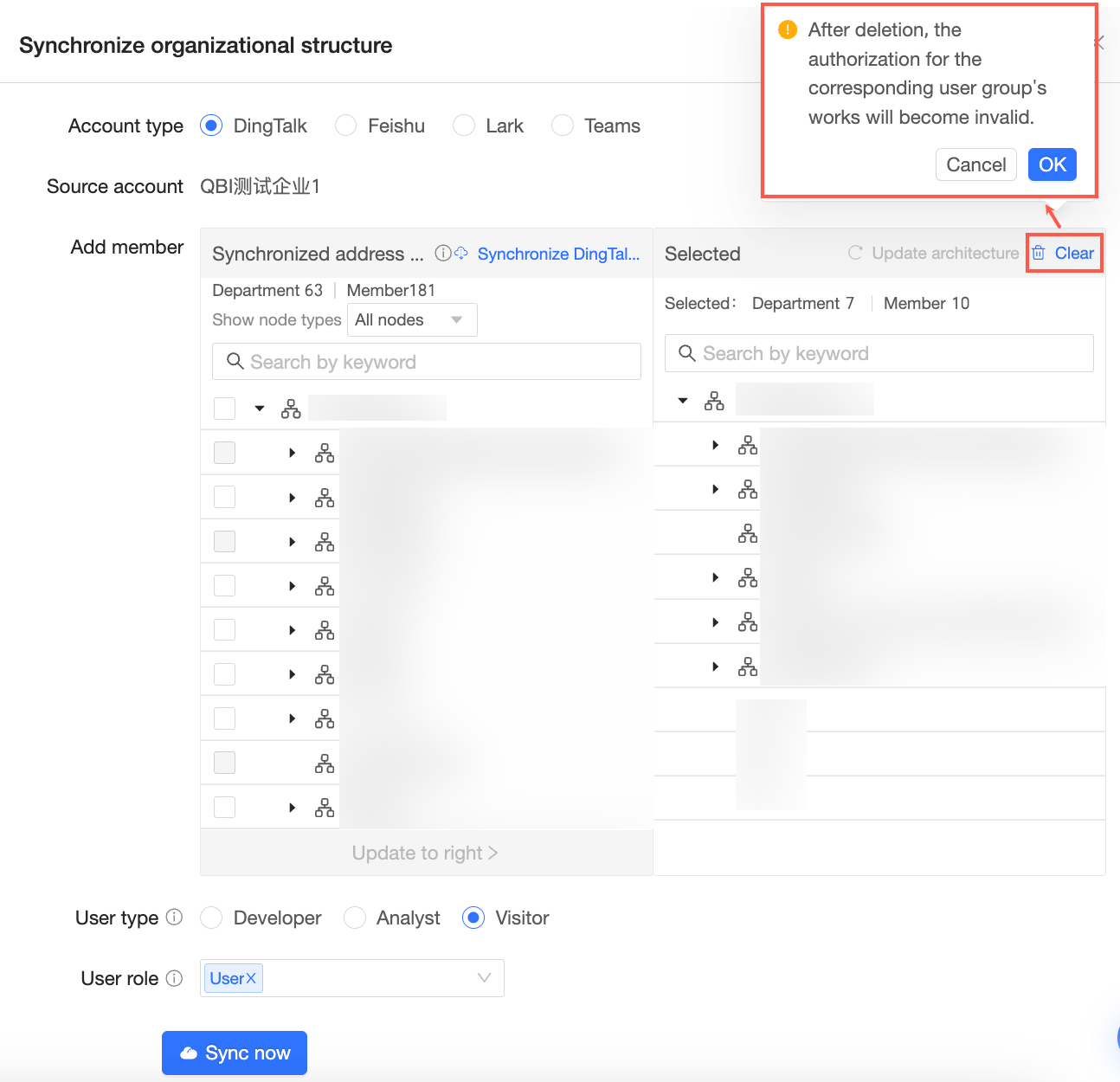 Note
NoteAfter the structure is cleared, the work authorizations for the corresponding user group become invalid.