Organization administrators can add one or more Lark accounts to a Quick BI organization.
Prerequisites
You have completed the Lark API authorization. For more information, see Enable the Lark micro-application (Public Cloud).
Background Information
Quick BI defines the following user types and roles at the organization level:
User Types
At the organization level, there are three user types:
developer: Includes corporate IT staff, data analysts, and data operations personnel.
analyst: A business user who analyzes data without needing deep technical skills.
Analysts analyze data by creating assets such as dashboards and spreadsheets.
viewer: A user who only views reports, such as an executive or a frontline business employee. Viewers can access dashboards, spreadsheets, and BI portals through URLs or subscriptions.
User Roles
Organization roles
At the organization level, Quick BI provides three pre-defined organization roles and supports the creation of custom organization roles.
organization administrator: Manages organization information, status, and members. They can also assign this role to other users.
We recommend assigning this role to 1 to 3 individuals, typically a project manager (PM) or BI platform administrators.
permission administrator: Manages permissions for resources within the organization. We recommend assigning this role to 1 to 3 individuals, typically BI platform administrators.
standard user: A user who is not an organization administrator or permission administrator.
custom organization role: Create custom roles based on your business needs. For more information, see Role Management.
Workspace roles
At the workspace level, Quick BI provides four pre-defined workspace roles and supports the creation of custom workspace roles.
workspace administrator: Has create (edit), use, and view permissions for all modules. This is the most privileged role in a workspace. Workspace administrators can also manage permissions and assets for other members in the workspace.
workspace developer: Has create (edit), use, and view permissions for all modules.
workspace analyst: Has create (edit) and view permissions for BI portals, dashboards, large-screen dashboards, spreadsheets, ad hoc analysis, self-service data retrieval, and data preparation modules. This role also has view permissions for data entry and data sources, and use and view permissions for datasets.
workspace viewer: Has view permissions for all modules.
custom workspace role: Create custom roles based on your business needs. For more information, see Role Management.
Limits
Only an organization administrator can add users from third-party systems to the organization.
Add Lark Accounts
-
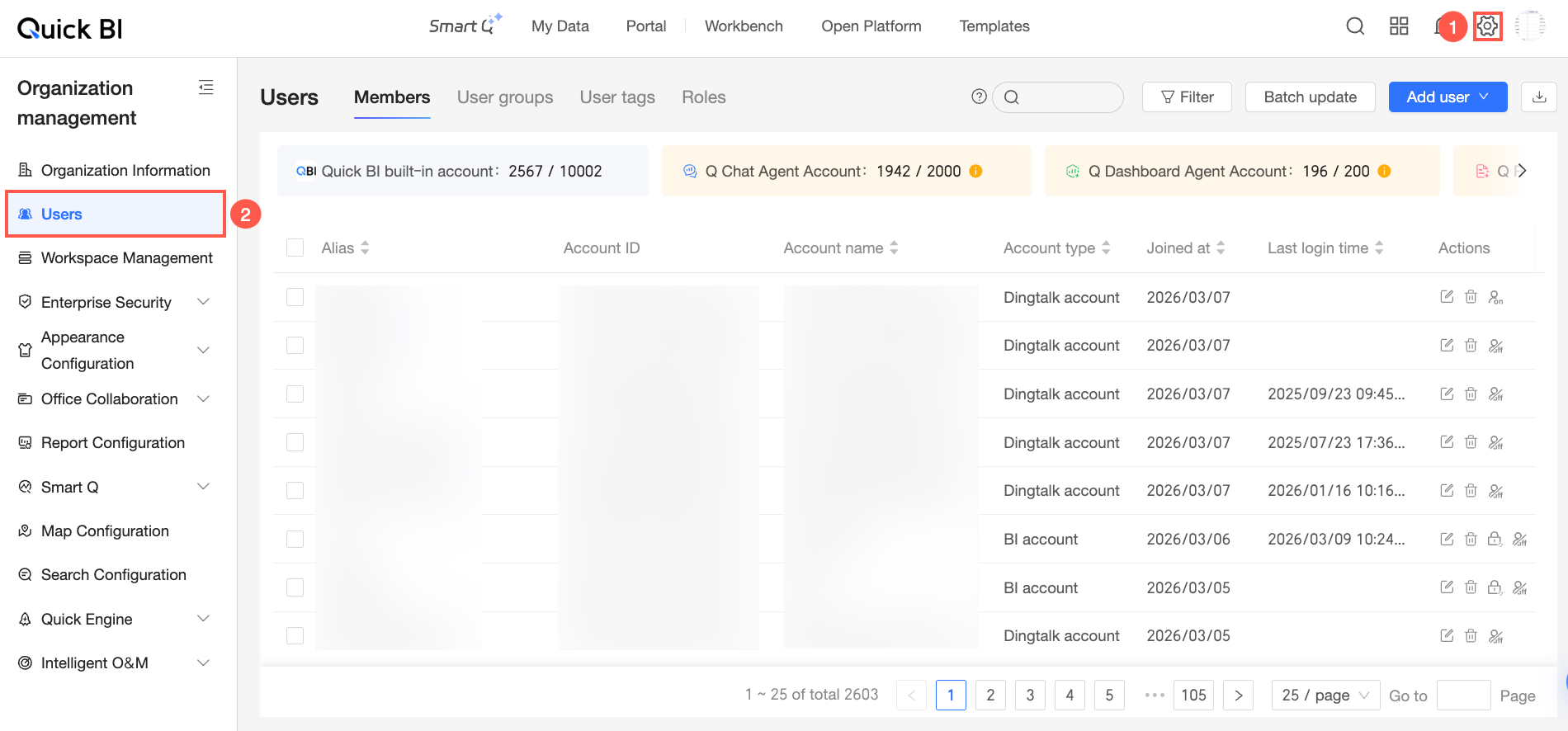
On the Quick BI homepage, go to the User Management page.
-
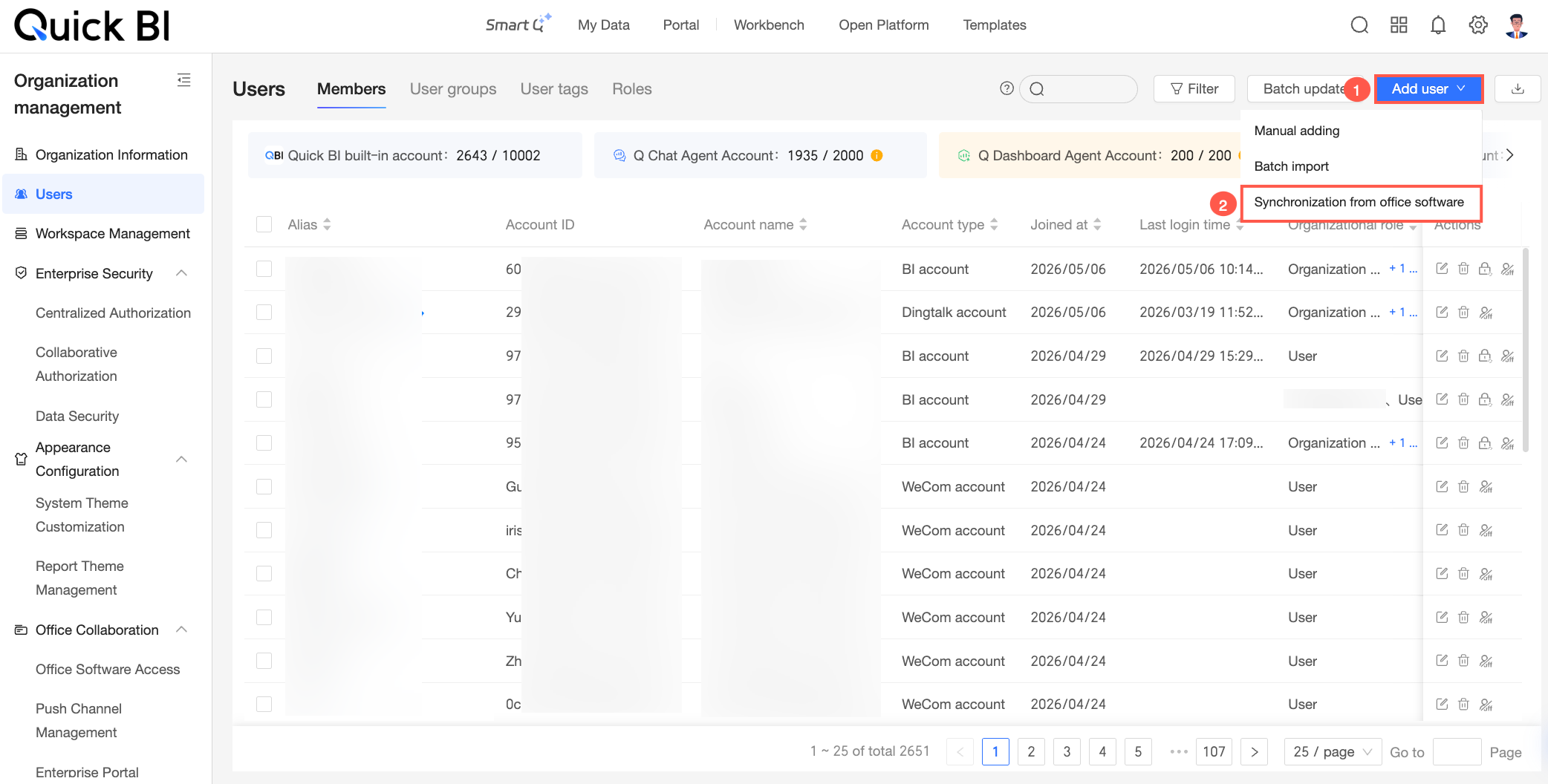
On the Member Management tab, click .
-
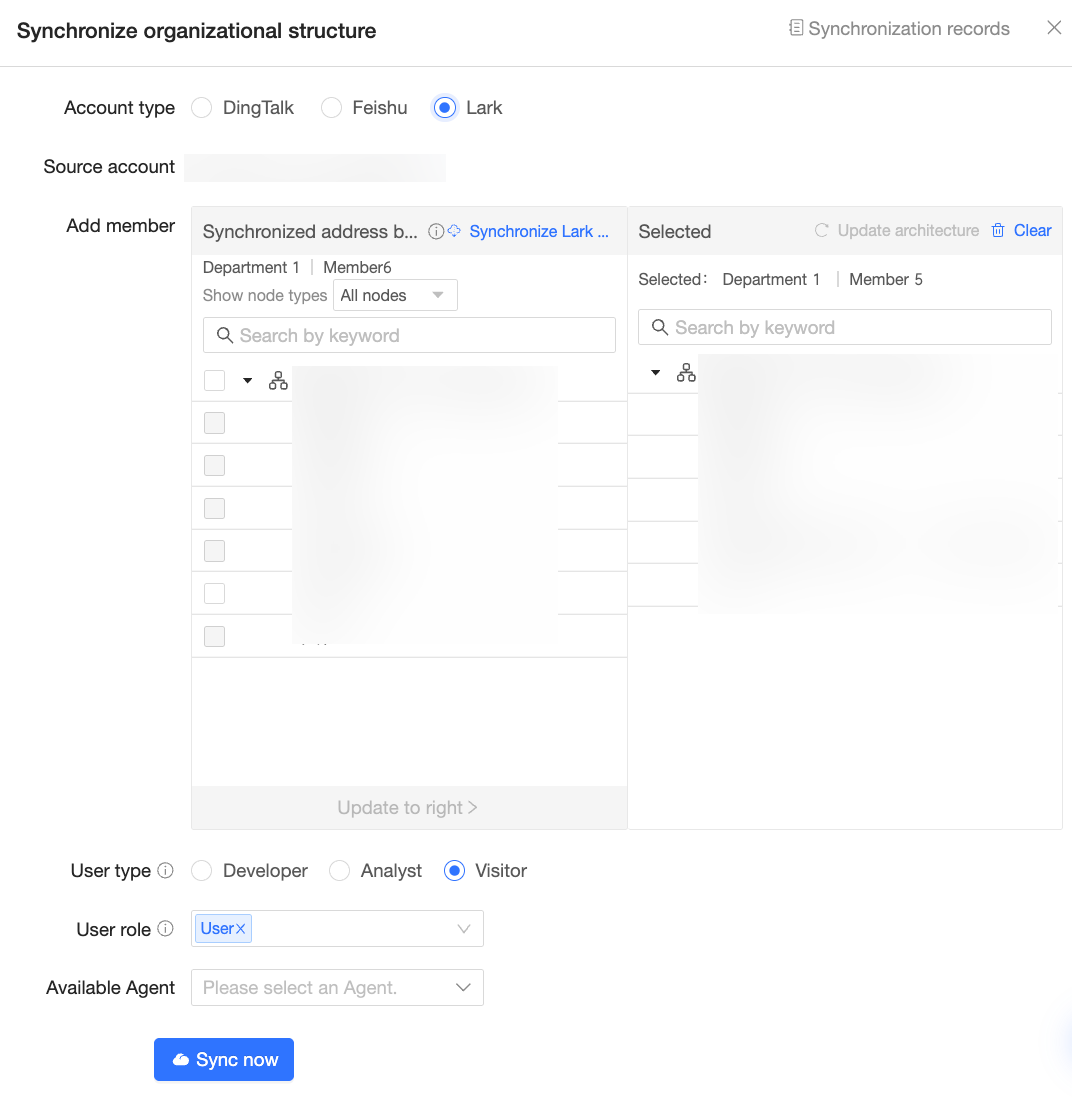
In the Sync Organizational Structure dialog box, set Account Type to Lark Account and configure the following settings to sync the accounts.
-
Account Type: Select Lark.
-
Account Source: Select the Lark organization that contains the accounts you want to sync. If you have only one enterprise connected under Office Software Integration > Lark API Authorization, it is selected by default. If you have multiple enterprises connected, click the drop-down arrow
 and select the desired Lark organization.
 -
Add Members: Select the members to sync, and then click Update to the right.
-
User Type: Select Developer, Analyst, or Viewer.
-
User Role: Select Organization administrator, Permission administrator, Regular user, or a custom user role. You can assign the organization administrator or permission administrator role only if the user type is set to Developer or Analyst.
-
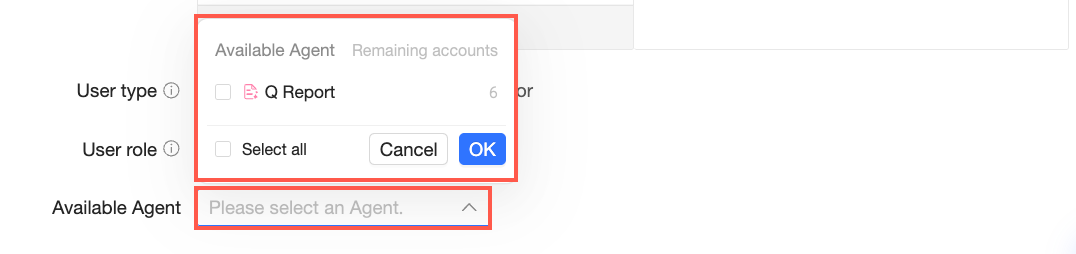
Available Agents: If your organization has purchased Agent seats for intelligent assistant Q, you can assign Agent seats to the users you are syncing.
Click Select Agent. The menu lists all available Agents in the organization and their remaining quota. Select the Agents to assign to the users and click OK.
 Note
Note-
Users with the viewer user type cannot use intelligent assistant Q to create an Agent.
-
Ensure that:
-
The remaining Agent quota is sufficient for the sync operation.
-
The organization role assigned to the users includes permissions to use the selected Agent. Otherwise, users cannot use the Agent even if a seat is assigned. For more information about organization role permissions, see Organization roles.
-
-
For information about purchasing Agent capabilities, see Quick BI billing - International site.
-
-
-
Click Start Synchronization.
NoteIf your organizational structure changes, we recommend that you update the structure before you start the synchronization.
-
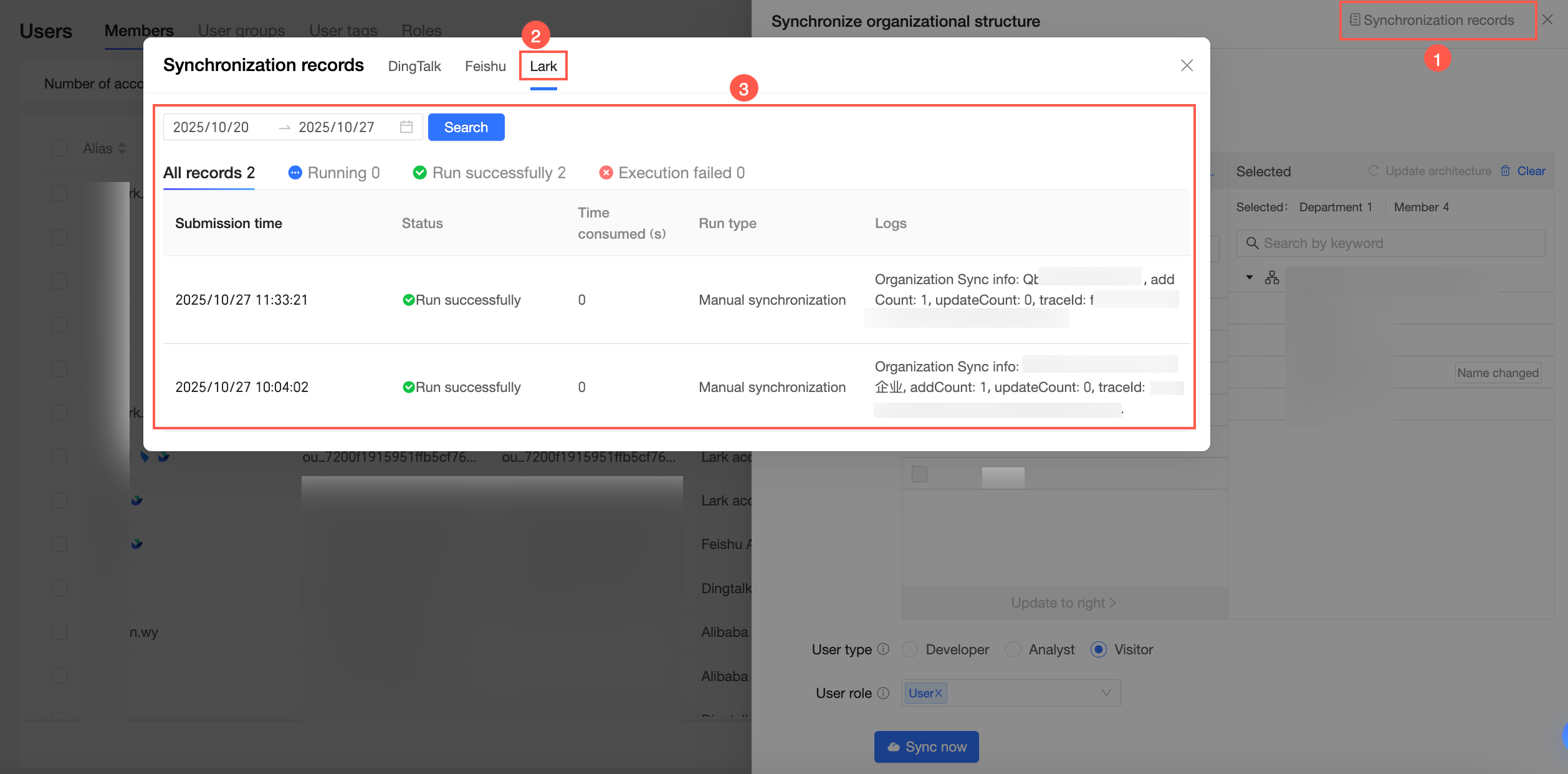
You can click Sync Records in the upper-right corner to view the synchronization history.
Update Structure
When your Lark organizational structure changes, use Update Structure to sync the latest structure. Name changes do not affect synchronization.
-
If a user's name changes, a Name Changed tag appears next to their name.
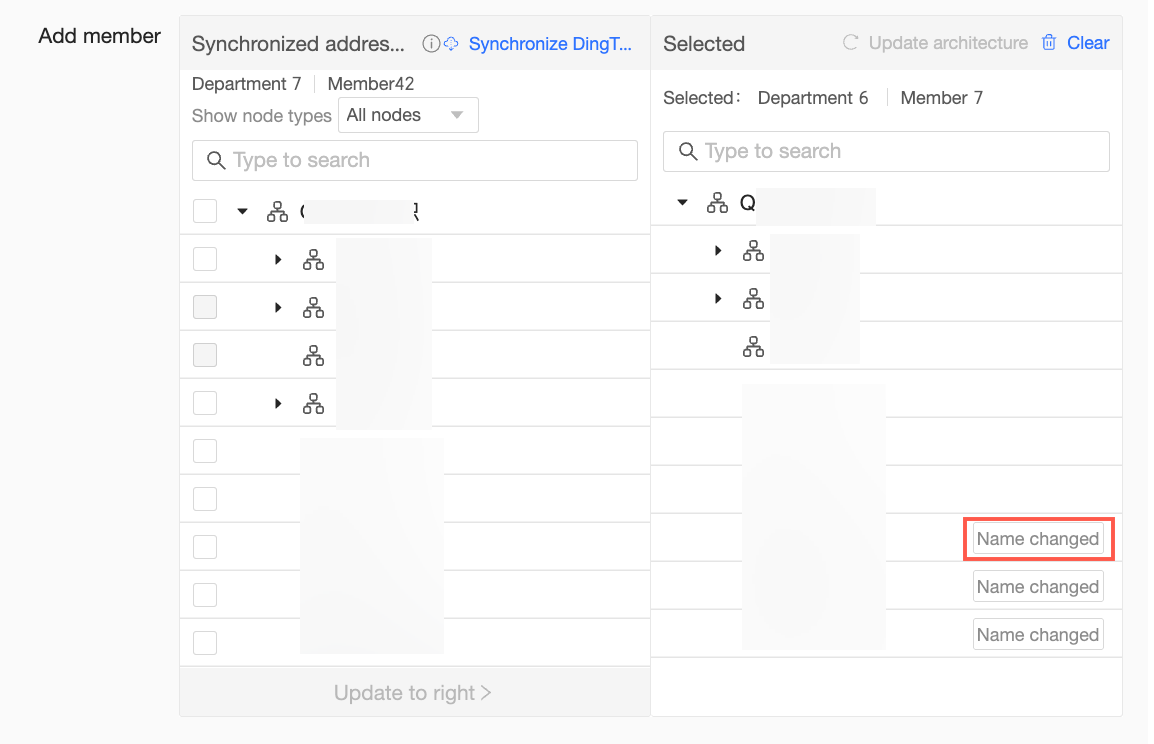 You can then click the
  icon to remove the user if necessary.
 -
If a department name changes, a Name Changed tag appears next to its name. You can click the
icon and then click OK in the confirmation dialog box to remove the department.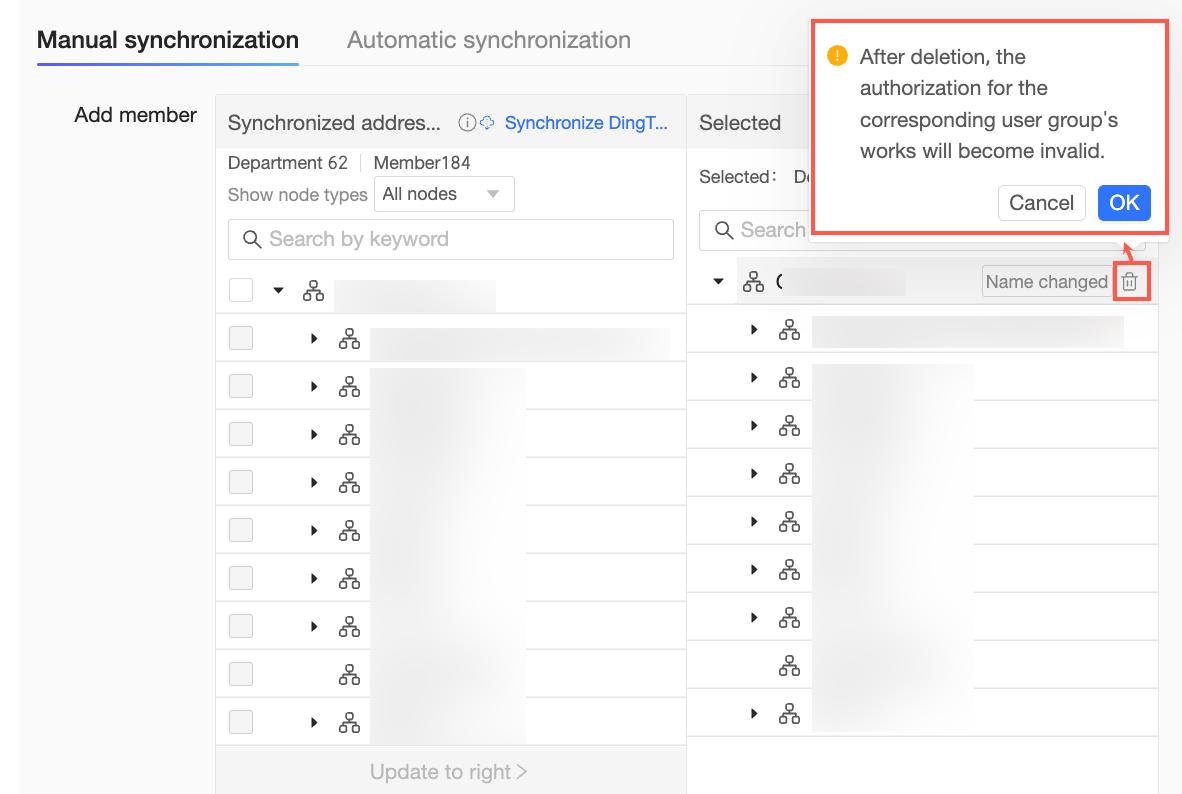 Note
NoteAfter you remove a department, asset permissions granted to that user group are revoked.
-
If a user is no longer in the organization, a To be deleted tag appears next to their name.
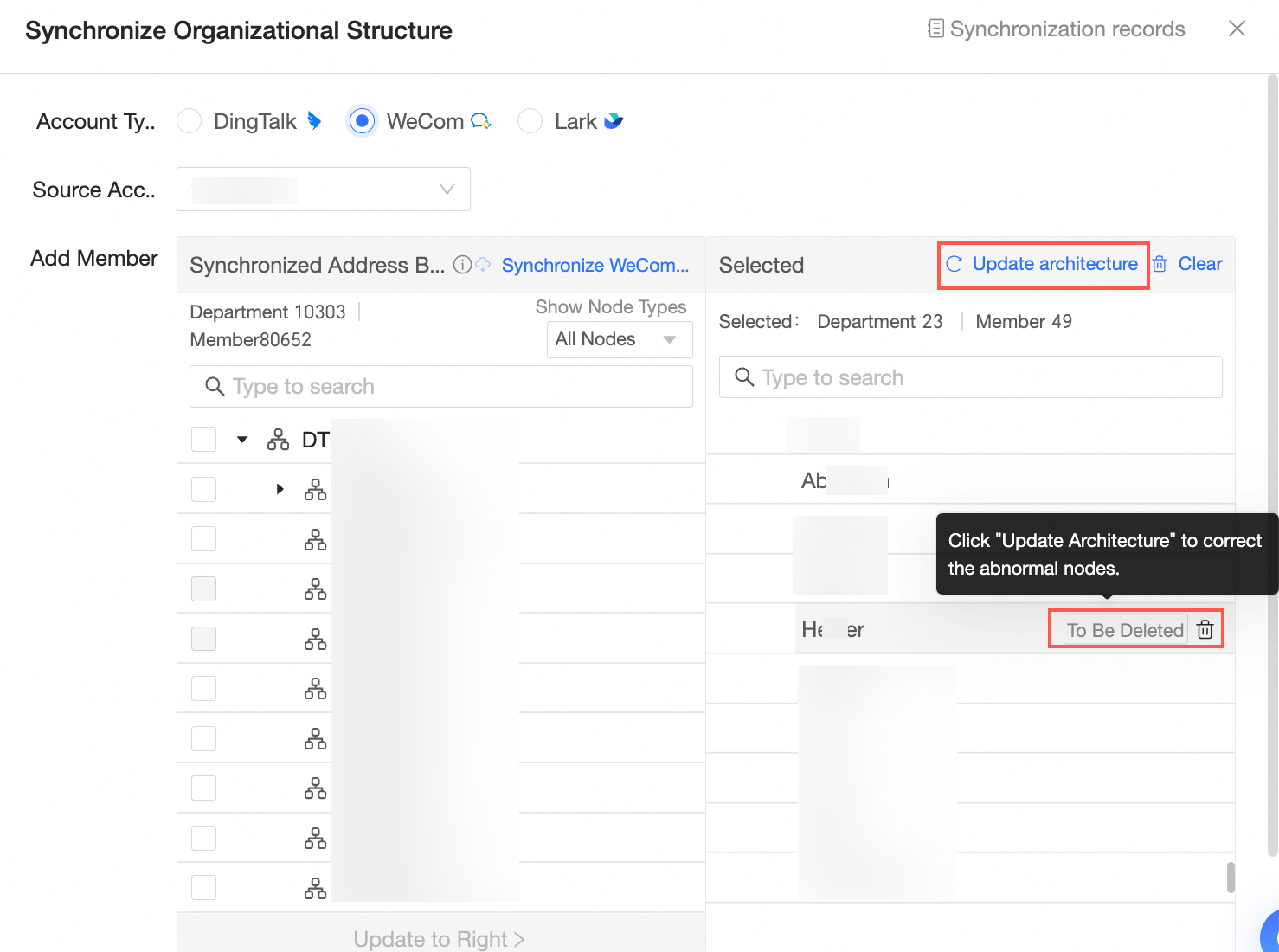
You can either click the
icon to remove the user or click Update Structure to resolve the discrepancy.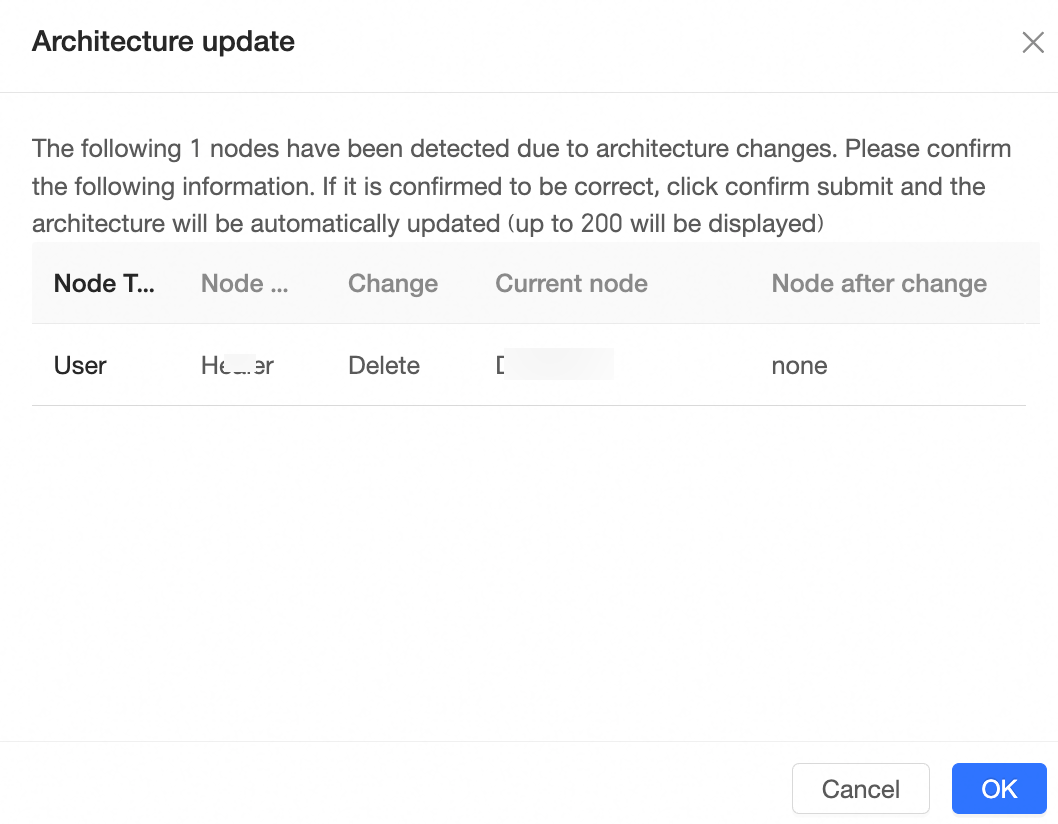
-
To remove the entire organizational structure, click Clear and then click OK in the confirmation dialog box.
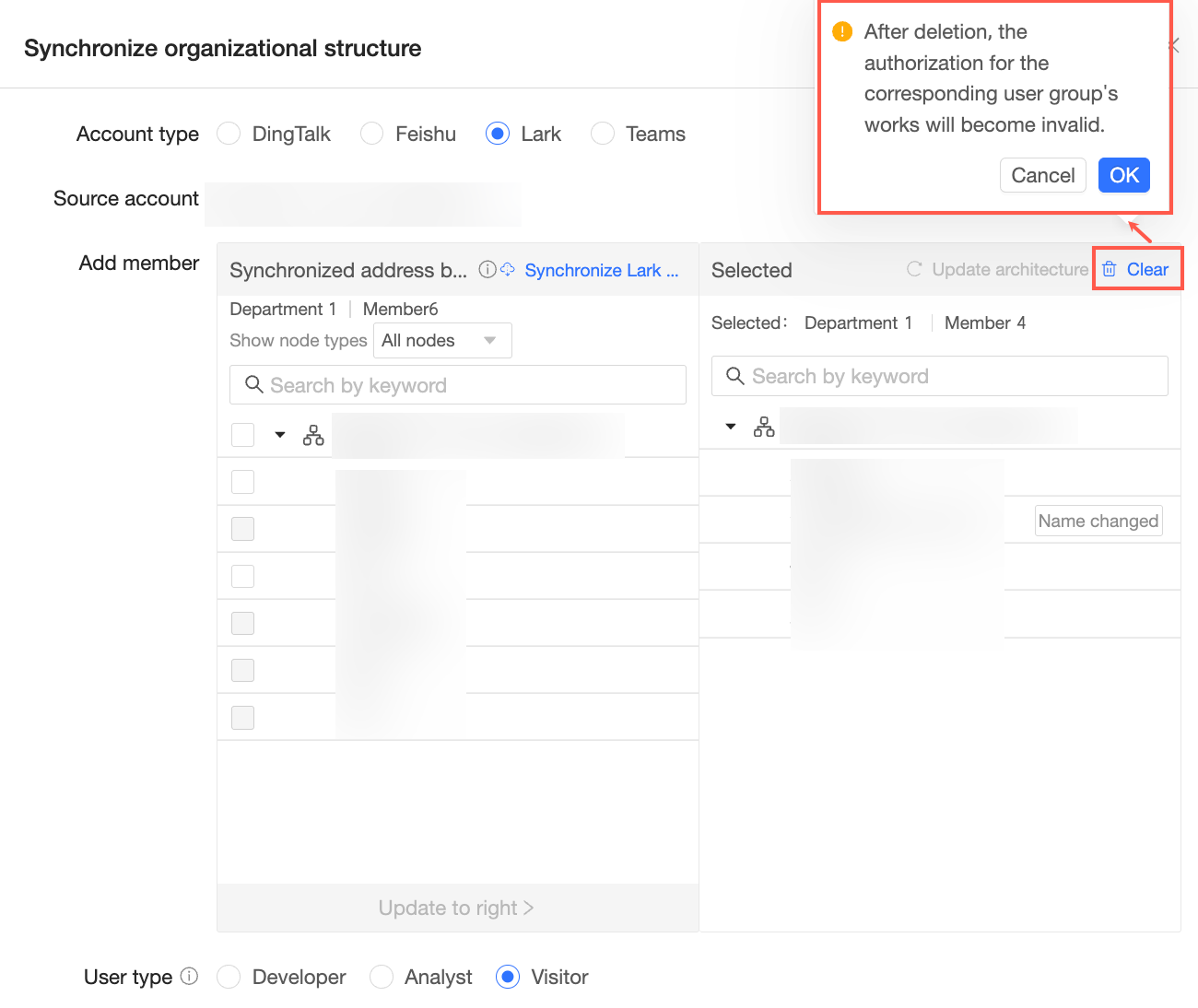 Note
NoteAfter you clear the structure, asset permissions granted to the corresponding user groups are revoked.
FAQ
Missing users after Lark contact sync
This issue typically occurs when the Quick BI app is not visible to the affected users due to app visibility settings in Lark.
To resolve this, go to the Lark admin console, navigate to workbench > app management, search for Quick BI, and configure its app visibility.
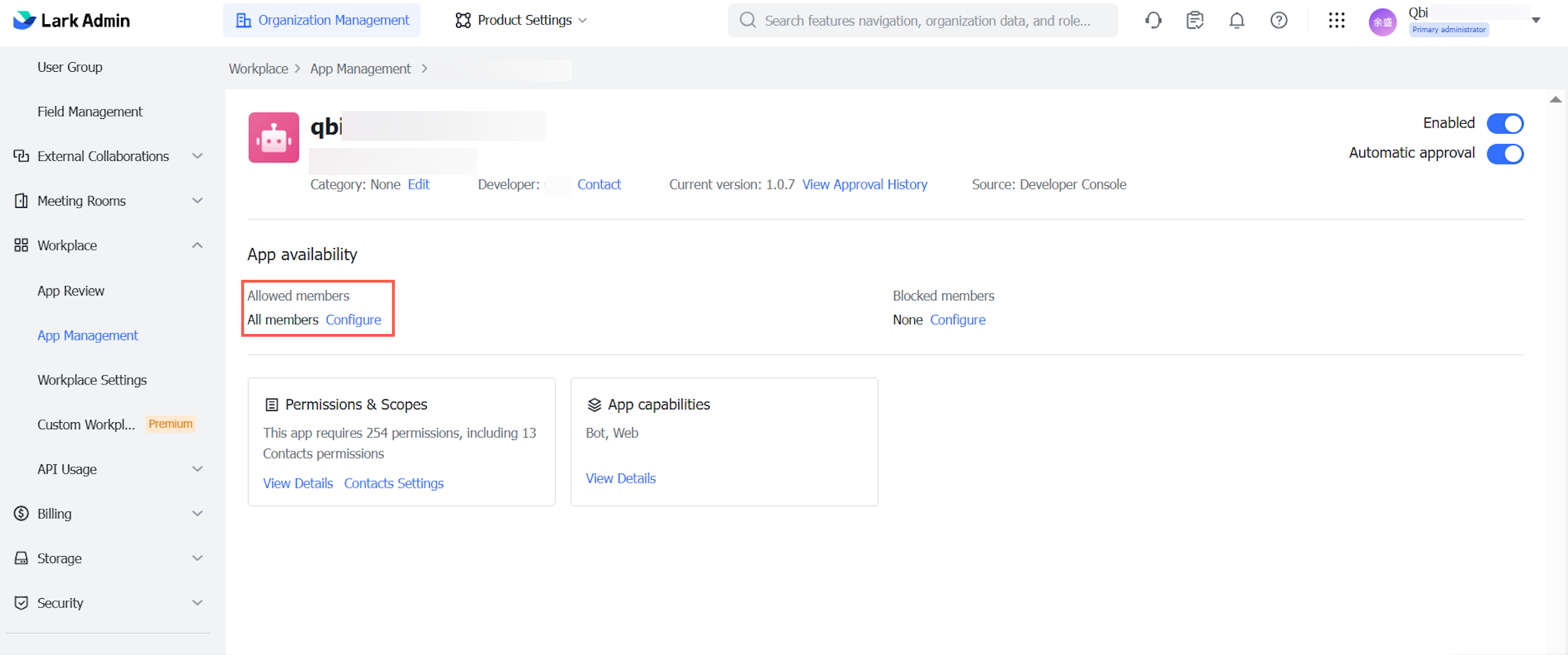
-
Navigate to App Permissions > Contacts and select Same as availability.
-
Configure the app visibility settings according to your needs. You can make the app visible to all members or add specific members or departments.