Tag filtering is used to filter audience who meet the specified tag value based on User Tags, including User Attributes and Custom Tags. For example, you can filter out members over the age of 18 or regular customers.
All types of tag fields can participate in filtering, excluding the ID field that has been declared in the table structure configuration. 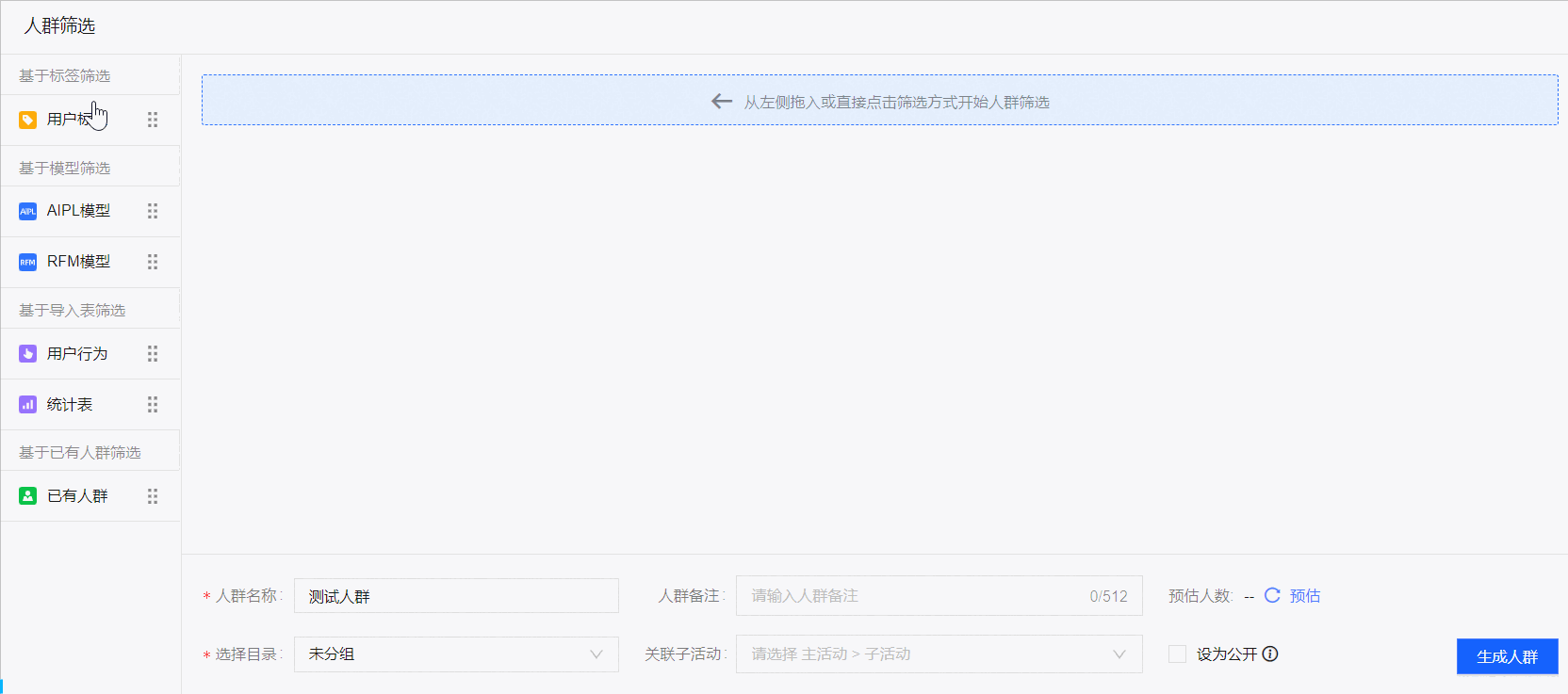
Procedure
Choose User Insight> Insight Analysis> Audience Filter.
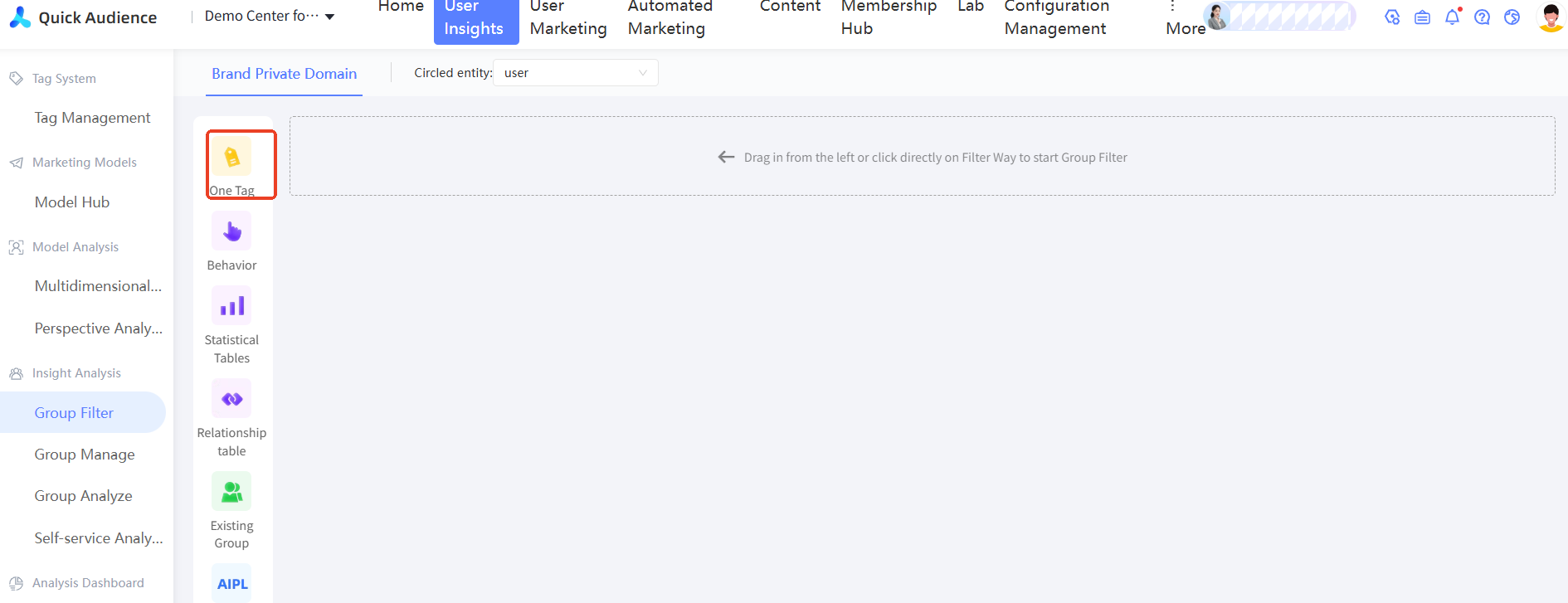
Click User Tags on the left side, or drag User Tags from the left side to the right side. A tag filter card is added on the right side.
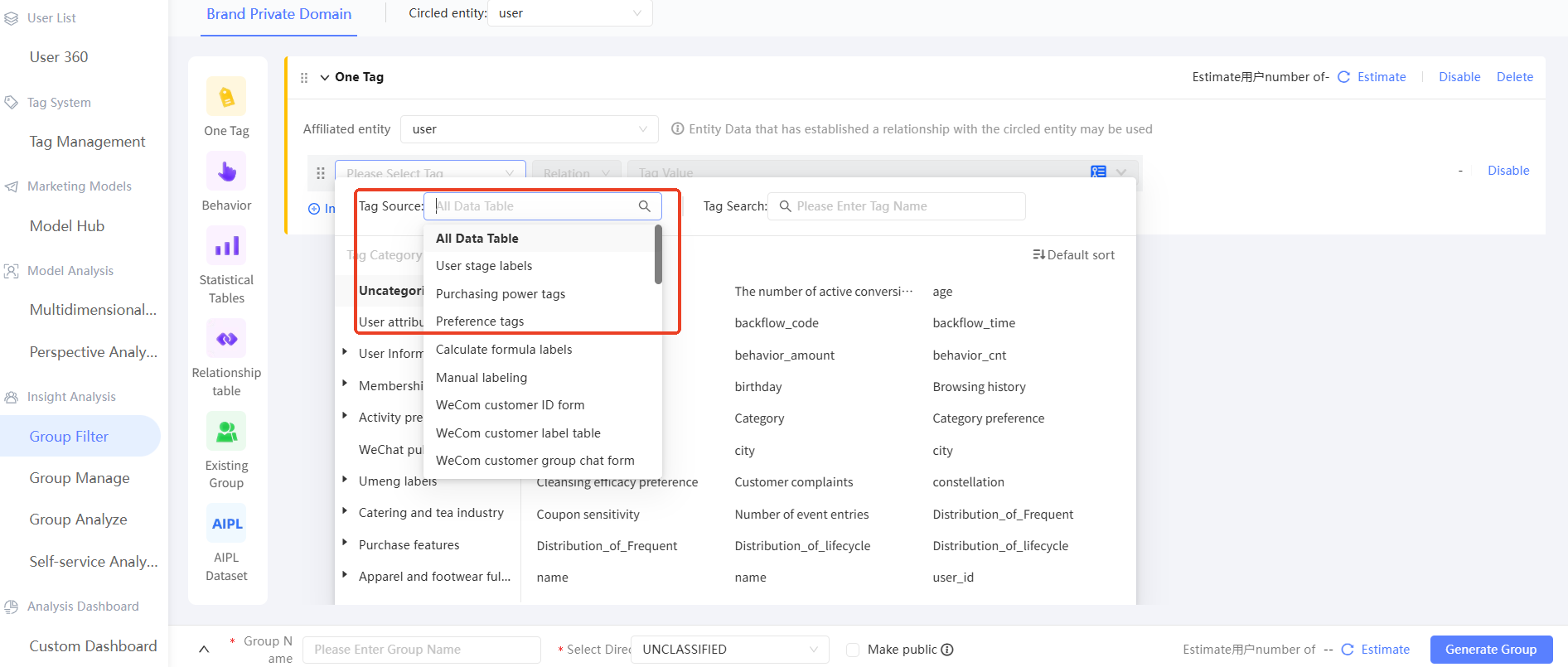
In the Tag filter card, select Tags.
If a tag has the same name, you can filter the source table of the tag to distinguish the tag. To select tags based on different entities, see Group Filtering.
 Note
NoteThe available tags include User Attributes, Tags in the User Tags Table, and Custom Tags. Select a tag group. For more information about tag groups, see Tag Management.
You can search for tag names or tag groups.
When you move the pointer over a tag, the data source of the tag is displayed.
For more information about how to set the value of a tag, see Filtering Methods for Different Types of Tags.

Click + Condition to add a condition.
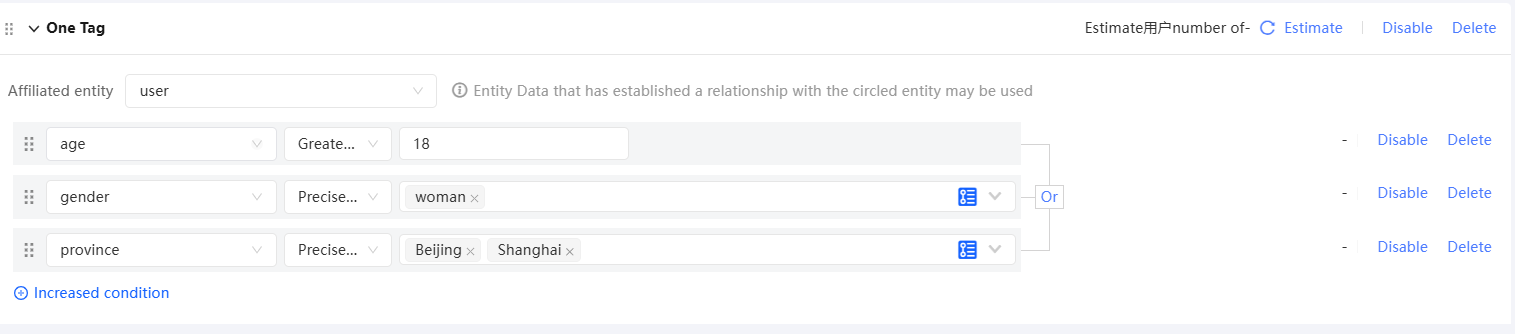
Multiple conditions support AND, OR. The default value is AND. You can click to switch between them, as shown in the following figure.
 Note
NoteIf you need a difference set relationship between two conditions, you can use cross filtering to filter the two conditions separately as two tag filters, and then use the difference set relationship between the two tag filters. For more information, see Cross Filter.
Press and hold the icon in front of the
 condition with the left mouse button and drag the condition to adjust the calculation level of the condition.
 Click Delete in the Actions column to delete the condition.
After you set the filtering conditions for an audience, enter the audience name and description, select the category where the audience is saved and the associated sub-activities (For more information, see Marketing Campaign Documentation), and set whether to make it public as public audience. Click Estimate to estimate the number of people. Click Generate Audience to save the message.

Filtering methods for different types of tags
Different types of tags have different filtering methods. Set them as follows:
Numeric
Select the filter criteria and enter a numeric value.
The following figure shows the filter condition types. If you select Between or Not Between, you need to enter a value range. 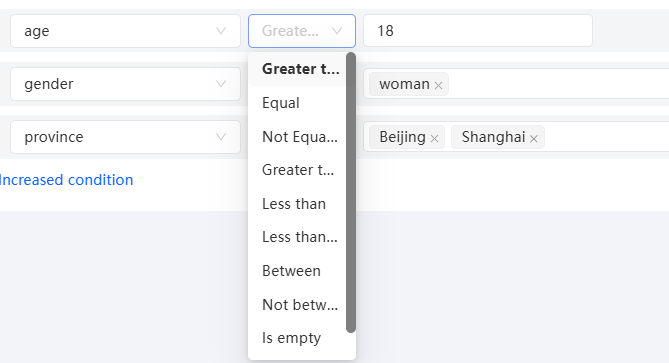
Text
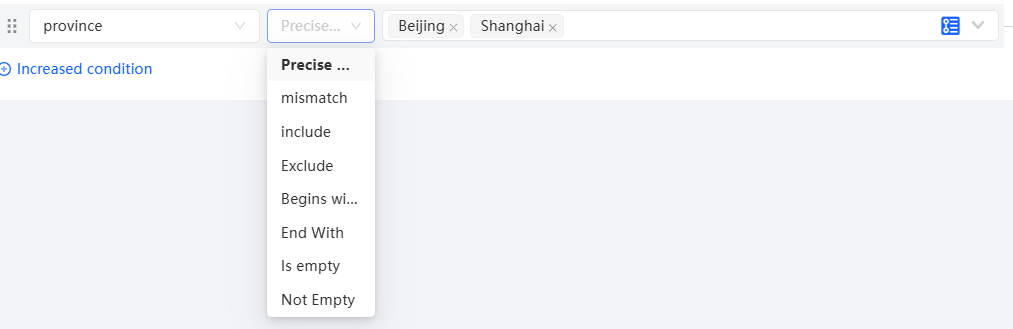
Select the filter criteria, and then select the tag value.
For filter conditions other than Empty, if you select multiple tag values and the relationship between the tag values is or, the filter result matches at least one of the tag values.
Select a tag value from the drop-down list. You can enter a tag value to search for the tag. The drop-down list displays a maximum of 3000 random tag values. To select a tag value that is not displayed, you must search for it and select it from the search results.
To ensure high computing performance, you can select a maximum of 2000 tag values in a filter condition.
Batch Input
You can enter multiple tag values at a time. For more information, see.
Move the pointer over the tag Value field and click the
 icon. The Batch Input dialog box appears.
Enter one tag value in one line in the window, up to 2000 lines, up to 60 characters per line, spaces are not supported.
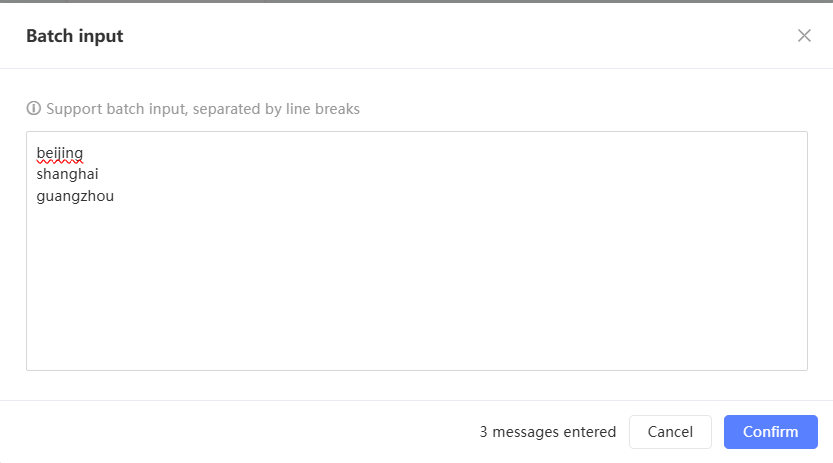
After you click OK, you are automatically redirected to the filter page. The tag values that can be matched to the tag data are selected.
Multi-value
The value of a multi-value tag consists of one or more values. Multiple values are separated by delimiters. The delimiters are specified when you Configure User Tag Table Structure.
Select a filter condition, and then select a tag value to separate from the tag value after deduplication. 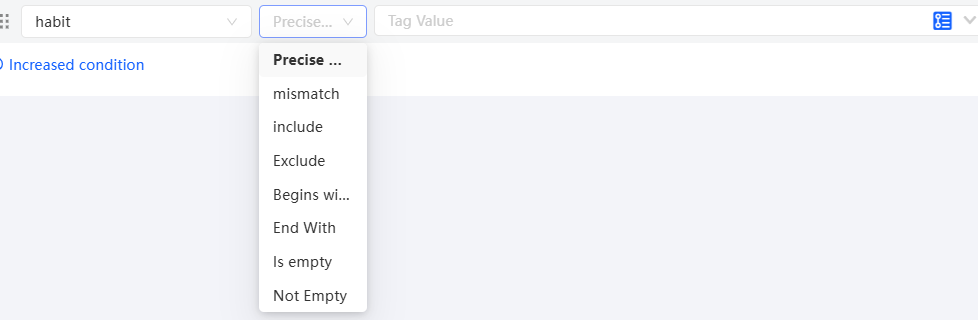
The filter condition can contain one or more tag values, Include All, or Empty. Description:
Include: If you select multiple tag values and the relationship between the tag values is OR, the filter result matches at least one of the tag values.
Include All: If you select multiple tag values and the relationship between the tag values is AND, the filter result matches all the tag values.
After you select a filter condition, select a tag value from the drop-down list on the right. You can enter a tag value to search for the tag value. The drop-down list displays a maximum of 3000 random tag values. To select a tag value that is not displayed, you must search for it and select it from the search results.
To ensure high computing performance, you can select a maximum of 2000 tag values in a filter condition.
Time
Select a time period for the time tag.
Multiple setting methods are supported:
If you set this parameter to a non-specific time, when you update a population, the specified time is refreshed based on the update time and the population is filtered based on the new time. If you set this parameter to a specific time, the updated results remain unchanged unless the tag value itself changes.
A common time period of the current year ("current year" is only distinguished from "every year", not only in the current year, but also in the previous year), as shown in the following figure.
The previous N days, the previous week, the previous month, and the previous year refer to the current day, this week, this month, the previous N days of the current year, the previous week, the previous month, and the previous year, respectively.
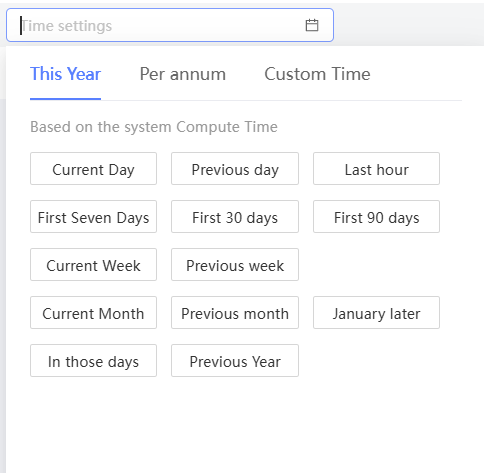
A common time period of each year. The specified time period of each year meets the requirements, as shown in the following figure.
Among them, the first month and the second month refer to the first month and the second month of this month respectively.
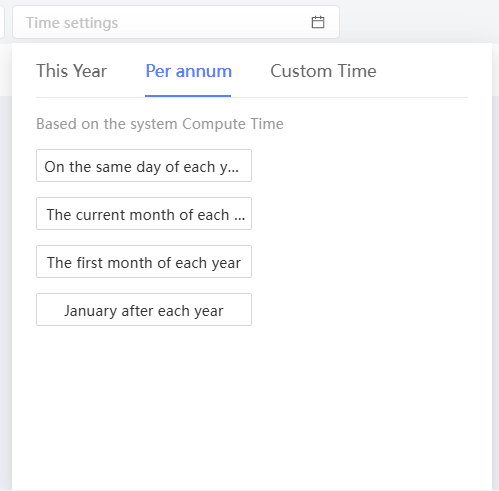
Custom time,there are three methods to set:
Specific time: Select the time directly.
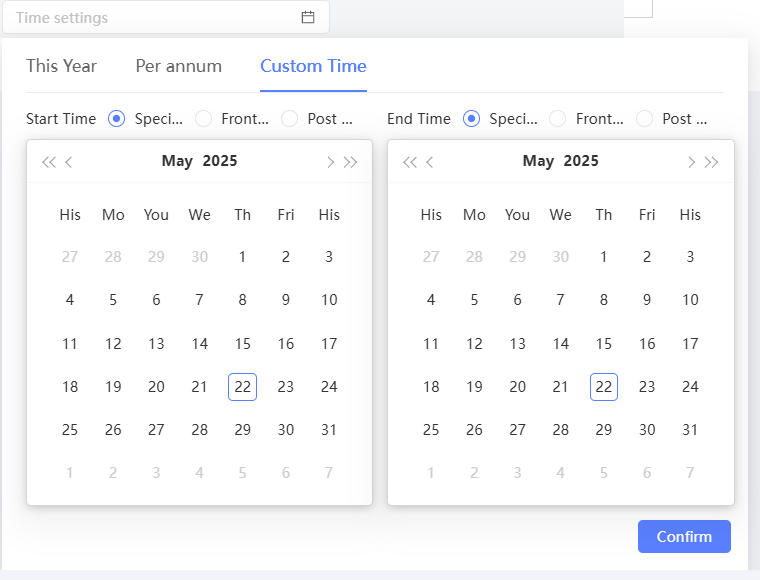
N days ago: N days ago based on the system calculation time. "0 days before" indicates the current day.
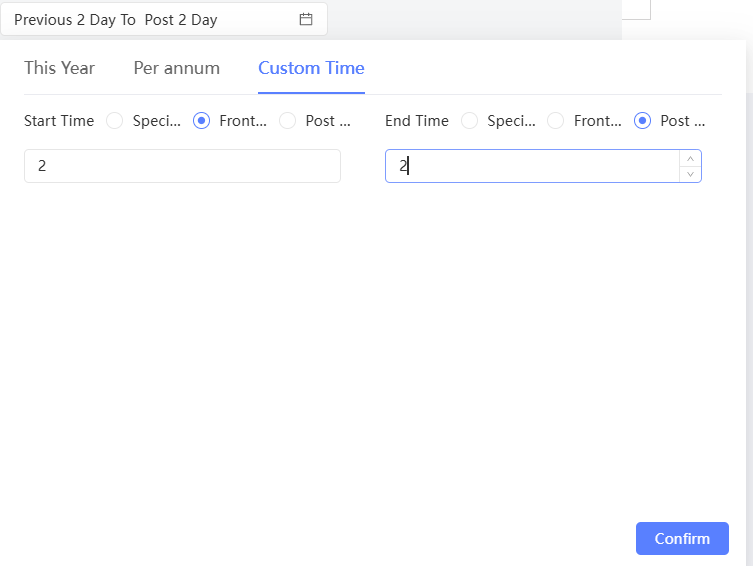
Next N days: the next N days based on the system calculation time. "Next 0 days" represents the current day.