Authorize your Quick BI Professional Edition instance to Quick Audience so that Quick Audience can embed Quick BI data reports and use Quick BI ad hoc analysis capabilities.
Quick BI authorization is required for Analysis Dashboard, User Analysis, and Marketing Campaign Embedding Quick BI Report. Only Quick BI Professional Edition instances are supported.
Procedure
-
In the upper-right corner
 of the page, choose Organizations > Interface Management.
-
In the Quick BI Authorization Configuration section, click Edit.
-
Configure the parameters described in the following table.
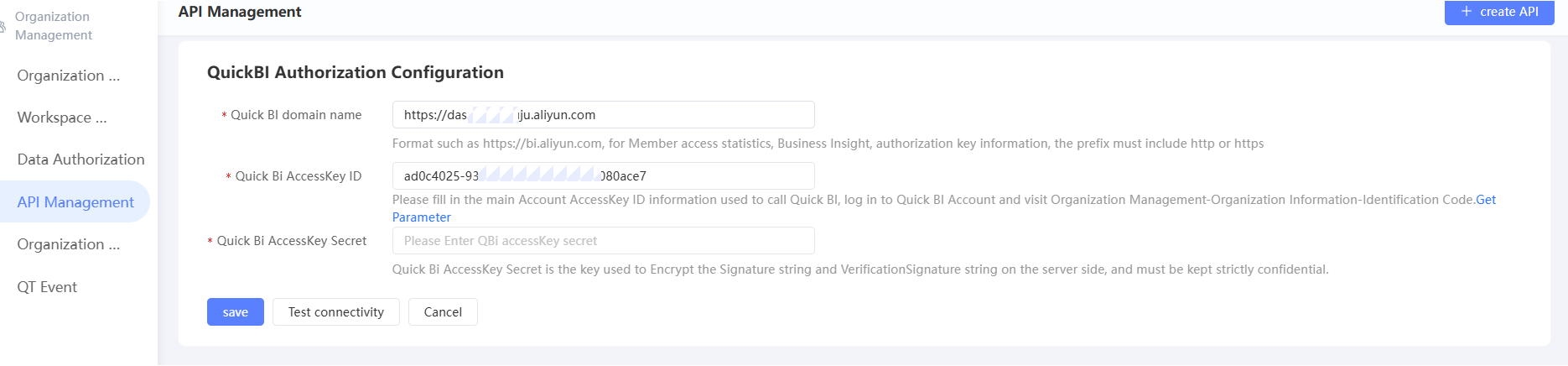
Item
Example value
Quick BI domain
The Quick BI domain.
For public cloud Quick BI, the domain is https://bi.aliyun.com.
Quick BI AccessKey ID
The AccessKey ID used to call Quick BI.
Log on to Quick BI with an administrator account and go to the Developer Center. On the Developer Center page, click Organization ID on the right side. The AccessKey ID and AccessKey secret are displayed. Click
 to copy.
Quick BI AccessKey Secret
The AccessKey secret used to call Quick BI.
-
Click Save.
The system performs a connectivity test. If the test passes, the configuration is automatically saved. If the test fails, a message is displayed. Modify the configuration and try again.
You can also click Test Connectivity to test the connectivity. The system displays the test results but does not save the configuration.