Loyalty tags use imported or reported user behavior and order detail data to derive tag values from attributes such as the time of a user's last or first action, the number of days since that action, or cumulative active days. Examples include the last purchase or access time, days since the last purchase, and cumulative consumption or active days.
Example 1:
The number of days since the user's last purchase within 90 days is used as the tag, named "Days since Purchase".
|
User |
Purchase Date |
Days from Purchase |
|
User A |
3 days ago |
3 |
|
User B |
10 days ago, 55 days ago |
10 |
|
User C |
Not purchased within 7 days |
NULL |
Example 2:
The cumulative number of days a user browses products within 7 days is used as the tag, named "Active Days".
|
User |
Browse Date |
Active Days |
|
User A |
3 days ago |
1 |
|
User B |
1 day ago, 5 days ago |
2 |
|
User C |
No browsing in 7 days |
0 |
Create a loyalty tag
Loyalty tags are based on user behavior tables and order details. For data requirements, see Data Table Requirements. To import user behavior and order details data, see User Behavior and Order Details. To report and store order event data, see Event Hub.
Steps:
-
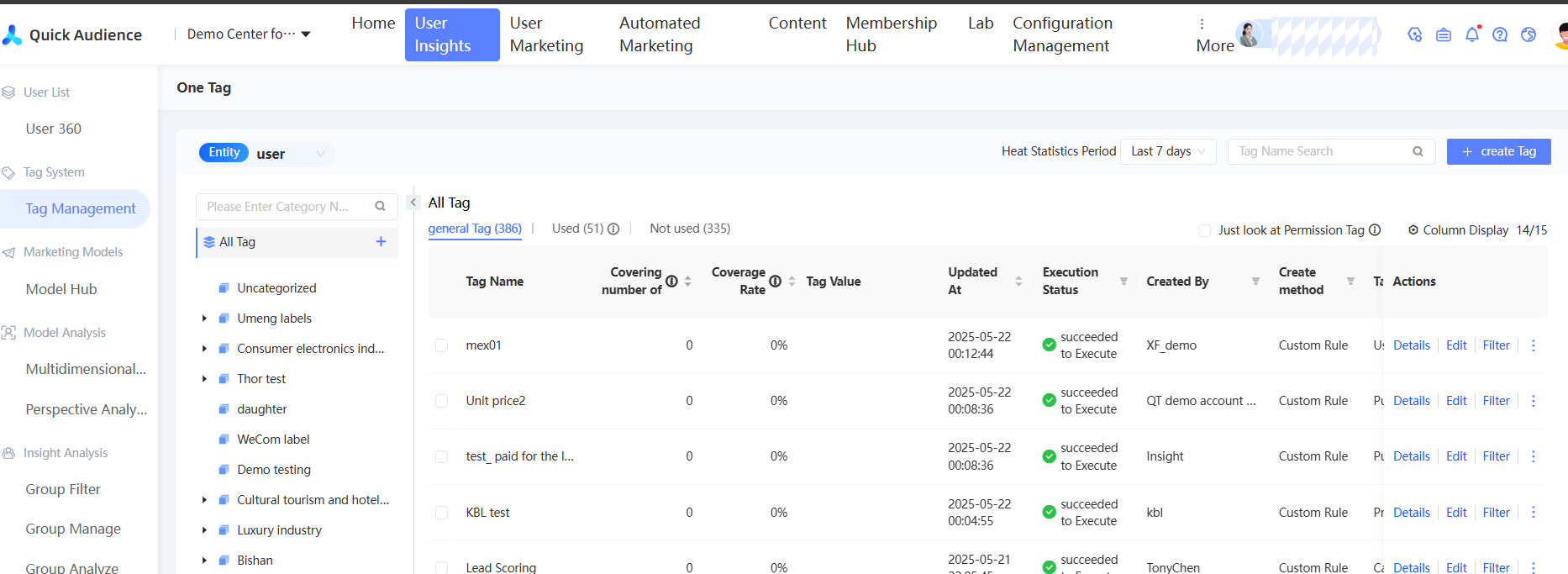
Choose Workspace> User Insight > User Tags > Manage Tags.
-
Click New Tag in the upper-right corner.
-
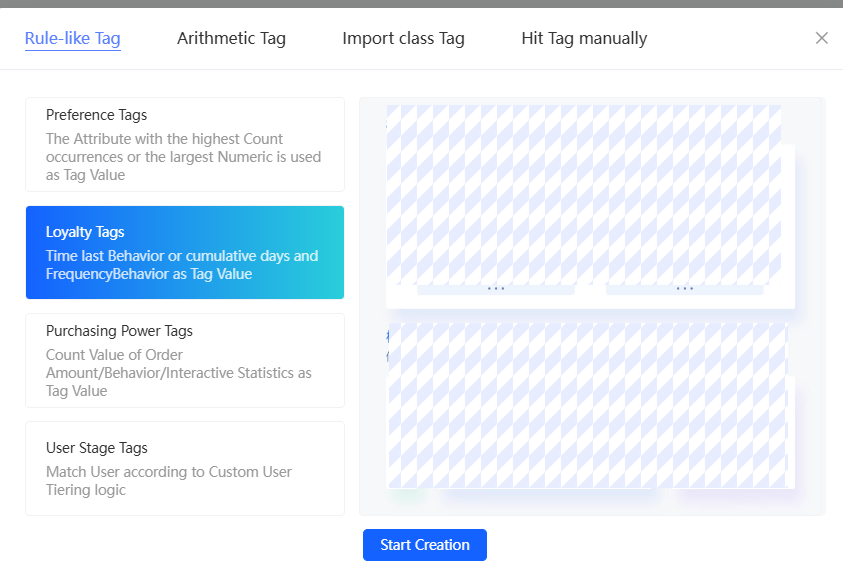
In the dialog box that appears, select Loyalty Tag and click OK.
-
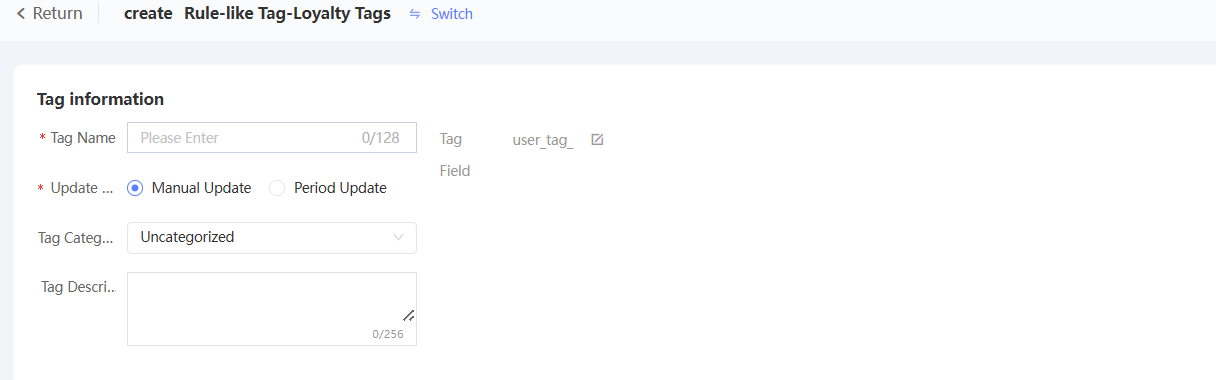
Configure the parameters in the Basic Information section.
-
Enter a label name. Click the
 icon next to the tag field to customize the tag field name. The prefix is fixed to "user_tag_". If you do not customize the tag field name, the system will generate a field name based on the tag name.
 -
Set whether tags are manually updated or automatically updated on a periodic basis. The periodic basis supports daily, weekly, and monthly.
-
Select a label category. The default category is Unclassified.
-
Enter a label description.
-
-
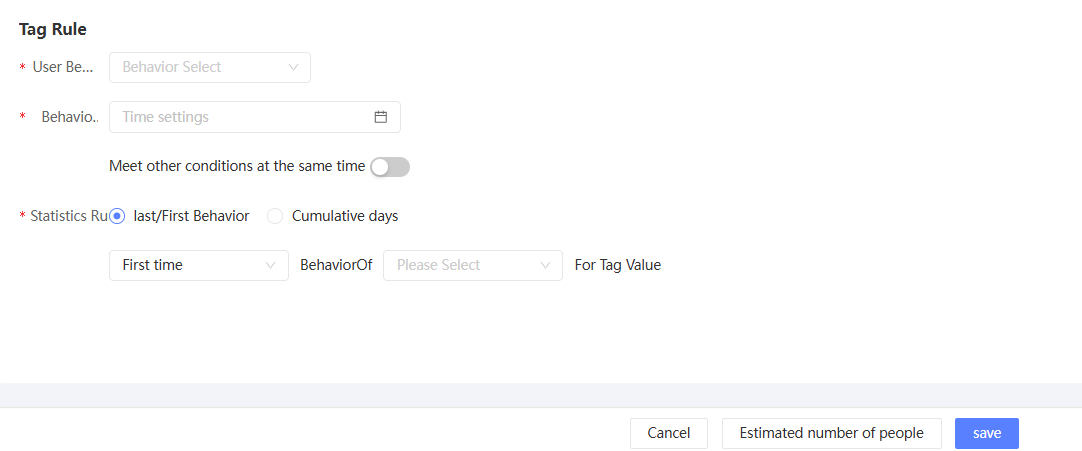
Configure tag rules.
-
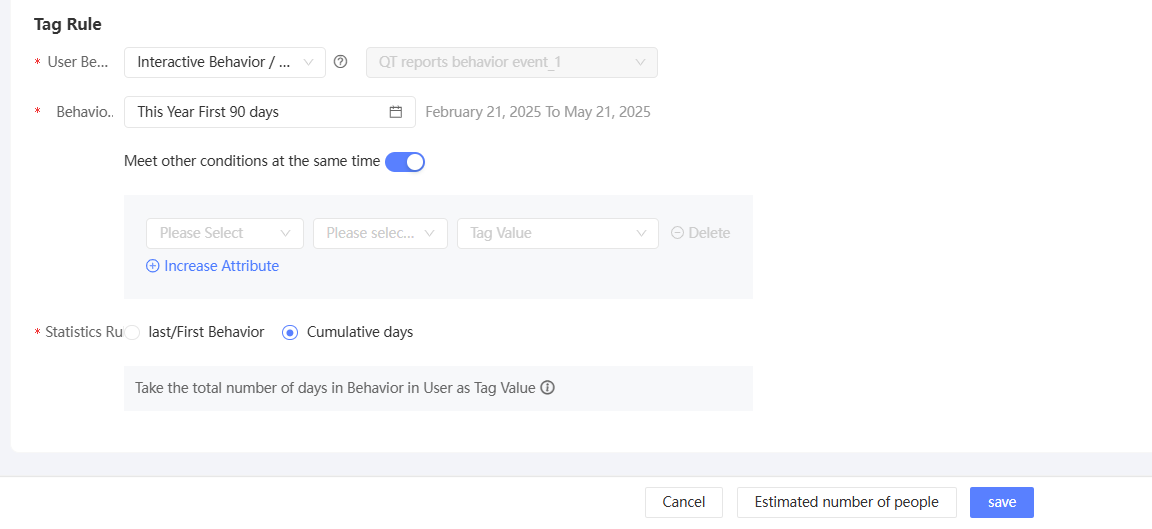
Select User Behavior. If you create a tag based on user behavior, select a specific behavior type under the Interaction Behavior category. If you create a tag based on order details, select a specific behavior type under the Order Behavior category.
If the selected behavior has multiple data sources, you need to select a source table. If the selected behavior has only one data source, you do not need to manually select a source table.
-
The behavior time. You can use multiple methods to set the behavior time. For more information, see Time-based.
When you create a tag based on order details, the table may contain multiple time fields. Before you set the behavior time, you must select the corresponding order time field.
NoteIf this parameter is set to a non-specific time, when the tag is updated, the specified time is refreshed based on the update time and the tag is calculated based on the new time. If this parameter is set to a specific time, the updated result remains unchanged unless the behavior record or the order record itself changes.
-
You can set other restrictions at the same time. For example, in the preceding figure, the category of products that are additionally restricted to purchase is autumn clothes.
You can click Add Attribute to add a condition. You can specify a maximum of 10 conditions. The relationship between multiple conditions is an AND.
-
Set statistical rules. There are two types of rules:
-
Last /First Behavior: uses attributes such as the time of the last or first behavior or the number of days as the tag value. For example, the number of days since the last purchase within the previous 30 days is used as the tag value. Therefore, the value of the tag value ranges from 1 to 30. If no purchase is made, no value is assigned, as shown in the preceding figure. For example, the channel, store, and brand of the user's last or first purchase are used as tag values.
-
Cumulative Days: The cumulative number of days of user behavior is used as the tag value. For example, the total number of days that users have browsed brand A in the previous week is used as the tag value. Therefore, the value of the tag value ranges from 0 to 7, as shown in the following figure.
-
-
-
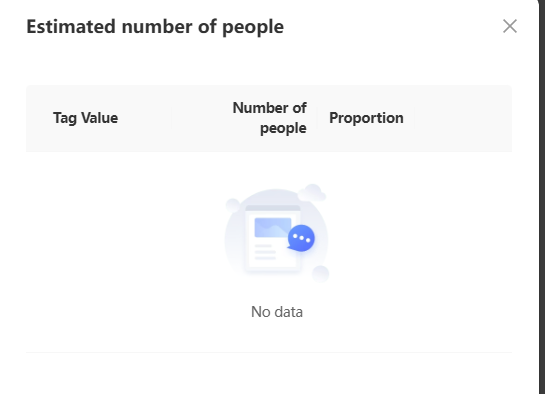
After you complete the settings, click Estimate Number of Tags in the lower part of the page. The total number of tags and the coverage rate of each tag value are estimated on the right side of the page.
-
Click Save. The custom tag is created.
The created tag appears in the tag list in the Executing state. You can use it after the status changes to Executing. For more information, see Tag Management.