You can create templates for text messages, digital messages, and card messages. After the template is approved, it can be used as the SMS content when you create a sending task.
Card text messages contain multimedia content and interactive menus. You can click to jump to H5, APP, browser, and dial-up actions. The system provides multiple style types. When you create a template, select the required style type and then set the template content.
1. Create a text message template
Procedure
In the workspace, choose User Marketing > Reach Marketing > Lingyang SuperSMS > SMS Template > Text SMS.
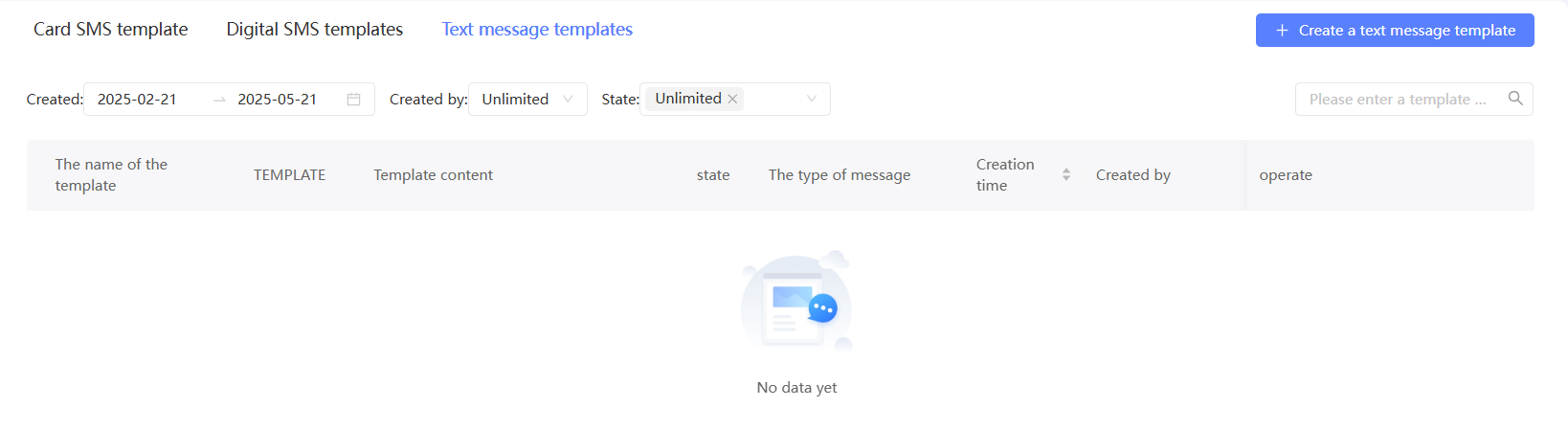
In the upper-right corner, click New SMS Template.
On the Create Template page, configure the basic information of the template.

Item
Example value
The message type.
Select a message type for Fatigue Control.
Promotional text messages: typically used to send marketing messages to users, such as new product launches, product promotions, discount coupons, and event invitations. Limited by fatigue control rules, no more can be sent after the upper limit of the number of sent within a period of time is reached.
SMS notification: usually used to send service information to users, including service activation, credit change, payment notification, logistics dynamic, etc., excluding marketing content. Not subject to fatigue control rules.
Template Name
Enter a template name.
The template content
Enter the content of the SMS template.
Note
It is used for reference by reviewers during review. It is recommended to explain the business scenarios of SMS.
After the configuration is complete, click Save and Submit for review.
Mobile phone manufacturers that support template styles and events will review the template. For the review results, see the template list.
NoteAudit work time: 9:00 to 23:00 on weekdays (legal holidays are postponed). We recommend that you submit your application before 18:00. It is expected that the audit will be completed within one working day.
2. Create a digital SMS template
Procedure
In the workspace, choose User Marketing > Reach Marketing > Lingyang SuperSMS > SMS Template > Digital SMS.

In the upper-right corner, click New Digital SMS Template.
On the Create Template page, configure the basic information of the template.

Item
Example value
The message type.
Digital SMS messages are used only for Fatigue Control.
Promotional messages: subject to fatigue control rules, you cannot send messages after reaching the maximum number of messages sent within a period of time.
SMS notifications: not subject to fatigue control rules.
Template Name
Enter a template name.
Template Theme
Enter a template subject, which will be sent to the user along with the text message.
Select Signature
Select an SMS signature that has been created and approved, or create a signature.
The template content
Enter the content of the digital SMS.
The text message preview appears on the right side of the page. Pay attention to the preview effect.
Click 「+ Add Content」 to add text, images, audio, and video. Move the mouse to the content item box, the Adjust Order button will appear on the left, and the Preview /Edit /Delete button will appear on the upper right.
You can insert variables. The variables reference the tag values of users. The content sent to different users varies with the tag values. Click the
 icon in the Actions column corresponding to a variable, enter a variable name, and then click Insert. A maximum of three variables can be inserted.
 Supports inserting short links and short links with short parameters.
Note
It is used for reference by reviewers during review. It is recommended to explain the business scenarios of SMS.
After the configuration is complete, click Save and Submit for review.
Mobile phone manufacturers that support template styles and events will review the template. For the review results, see the template list.
NoteAudit work time: 9:00 to 23:00 on weekdays (legal holidays are postponed). We recommend that you submit your application before 18:00. It is expected that the audit will be completed within one working day.
3. Create a card SMS template
Procedure
In the left-side navigation pane, choose User Marketing > Reach Marketing > Lingyang SuperSMS > SMS Template > Card SMS.

In the upper-right corner, click New SMS Template.
On the Create Template page, configure the basic information of the template.

Item
Example value
The message type.
Card text messages are used only for Fatigue Control.
Promotional messages: subject to fatigue control rules, you cannot send messages after reaching the maximum number of messages sent within a period of time.
SMS notifications: not subject to fatigue control rules.
Template Name
Enter a template name.
Benefits
Enter the business scenario of SMS.
Select Signature
Select an SMS signature that has been created and approved, or create a signature.
Template Usage
Select a template purpose:
Formal
Testing engineer
The template type.
Select a template type. You can configure different template content for different template types.
Configure the template content based on the selected template type.
Template for a single graphic:


Item
Example value
Images
Select an image from existing Materials or upload a new image. The image supports jpg, jpeg, and png formats, and the size does not exceed 100KB. The recommended ratio is 16:9, and the recommended size is 1248*702px. Other ratios and sizes will be stretched and scaled when displayed.
You must also set the click jump event of the image. For more information, see the next step.
Message Title
Enter the message title.
You can insert a variable that references the tag value of a user. In this case, the content sent to different users varies with the tag value.
How to configure a variable: Click the
icon, enter a variable name, and then click Insert.
The template content
Enter the template content.
Supports inserting three variables.
Button name
Enter a name for the button.
You must also set the click jump event of the button. For more information, see the next step.
Electricity supplier picture template
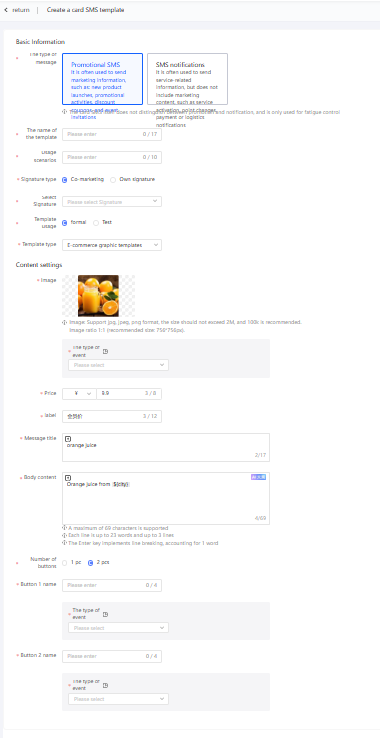
Item | Example value |
Images | Select an image from existing Materials or upload a new image. The image supports jpg, jpeg, and png formats, and the size does not exceed 100KB. The recommended ratio is 1:1, and the recommended size is 756*756px. Other ratios and sizes will be stretched and scaled when displayed. You must also set the click jump event of the image. For more information, see the next step. |
The price. | Enter the commodity price. |
The tag information. | Enter the label that appears next to the price, such as Member Price. |
Message Title | Enter the message title. You can insert a variable that references the tag value of a user. In this case, the content sent to different users varies with the tag value. For more information about how to configure variables, see the description in the graphic template. |
Content | Enter the body content. Supports inserting three variables. |
Number of Buttons | Select the number of buttons. |
Button name | Enter a name for the button. You must also set the click jump event of the button. For more information, see the next step. |
Poster Template:

Item | Example value |
Images | Select an image from existing Materials or upload a new image. The image can be in JPG, JPEG, or PNG format. The size of the image cannot exceed 2M. We recommend that you set the size to 100K. Picture scale 3:4 (recommended size: 1248*1664px). It is suggested that the poster has a button and copy to guide the jump. You must also set the click jump event of the image. For more information, see the next step. |
Long text class template:

Item | Example value |
Configuration Method | Select a configuration method:
|
Enterprise Logo | Select an image from existing Materials or upload a new image. JPG, JPEG, and PNG formats are supported. The size cannot exceed 2M. We recommend that you set the size to 100K. Picture scale 1:1 (recommended size: 640*640px). You must also set the click jump event of the image. For more information, see the next step. |
Enterprise information | Enter the enterprise information. A maximum of one line can be displayed. If the line is too long, it will be truncated. Supports inserting 1 variable. |
Message Title | Enter the message title. Supports inserting 1 variable. |
Content | Enter the body content. Supports inserting three variables. |
Button name | Enter a name for the button. You must also set the click jump event of the button. For more information, see the next step. |
Images | JPG, JPEG, and PNG formats are supported. The size cannot exceed 2M. We recommend that you set the size to 100K. The image scale is 3:1. |
Set the jump event after clicking the image and button. Four types of jumps are supported:
H5: Enter an H5 endpoint. Only HTTPS URLs are supported and short parameters are supported. Enter the access name, which is used to prompt "Jump to XXX (access name)" when jumping.
NoteThe jump H5 event cannot contain the download or open application. To download or open an app, you recommend use the jump browser event.
To redirect an application, you must enter a deeplink URL. You can include a short parameter and enter the access name and package name.
You can enter a bottom-up link to jump to the specified link when APP is not installed. HTTPS address of fast application deeplink or H5 is supported. If it is not set, it will jump to the APP download interface.
Jump Browser: You need to enter a web address. Only HTTPS URLs are supported and short parameters are supported. Enter the access name, which is used to prompt "Jump to XXX (access name)" when jumping.
Pull up the dial pad: need to enter the number to be dialed.
After the configuration is complete, click Save and Submit for review.
Mobile phone manufacturers that support template styles and events will review the template. For the review results, see the template list.
NoteAudit work time: 9:00 to 23:00 on weekdays (legal holidays are postponed). We recommend that you submit your application before 18:00. It is expected that the audit will be completed within one working day.
4. Manage card SMS templates
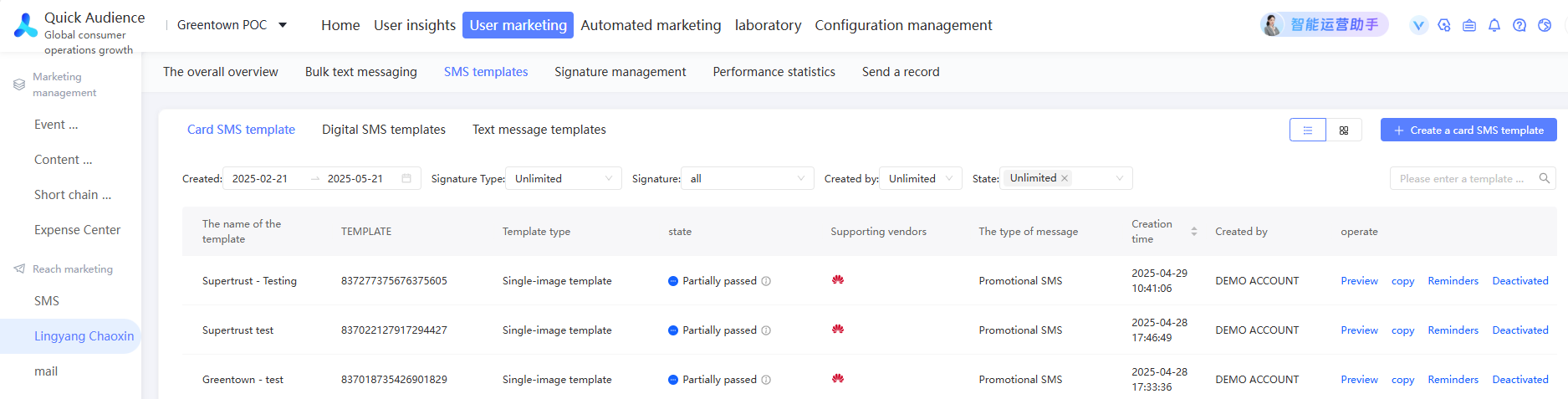
As shown in the following figure, the created SMS templates are displayed in the list, including the template type, status, and supported vendors. The status includes: Reviewed, Partially Passed, Approved, and Rejected.


The Partial Pass status indicates that some manufacturers have passed the review, while others are in the review or rejected.
Move the pointer over Partially Passed or Rejected. The review status and rejection reason information of each manufacturer appears.
Approved or partially approved templates can be used when creating a card SMS task. When sending card text messages, the approved manufacturer can parse and render the card text messages normally.
You can perform the following operations:
Preview: You can preview a template in any state.
Copy: You can copy a template in any state.
Edit: You can edit only the template that is rejected for review. After you edit the template, the template is submitted for review again.
Delete: You can delete approved, rejected, or partially approved templates. After deletion, the template cannot be used by the SMS task. Do not delete the template used by the card SMS task to be sent or in the process of sending.