After the Webhook configuration is complete, authorized users can create Webhook tasks to send marketing messages through a first-party or third-party system.
Procedure
-
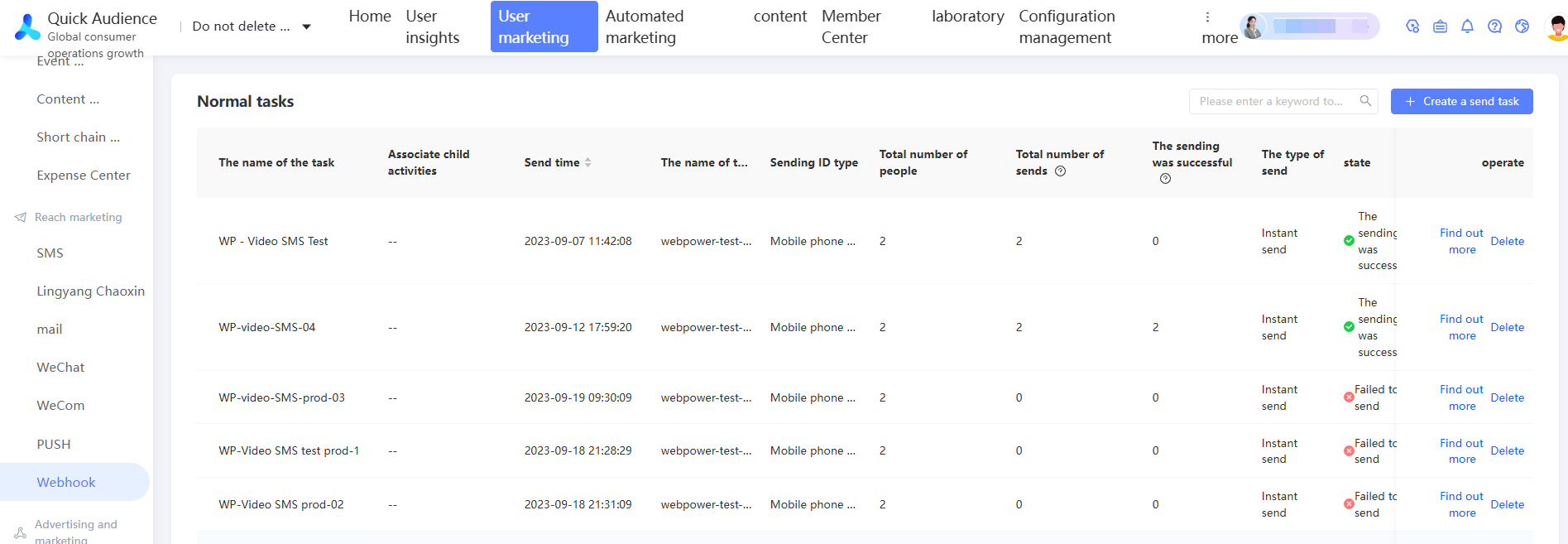
Choose Workspace> User Marketing > Reach Marketing > Webhook.
-
Click Create Sending Task in the upper-right corner.
-
On the Create Task page, set the following parameters:
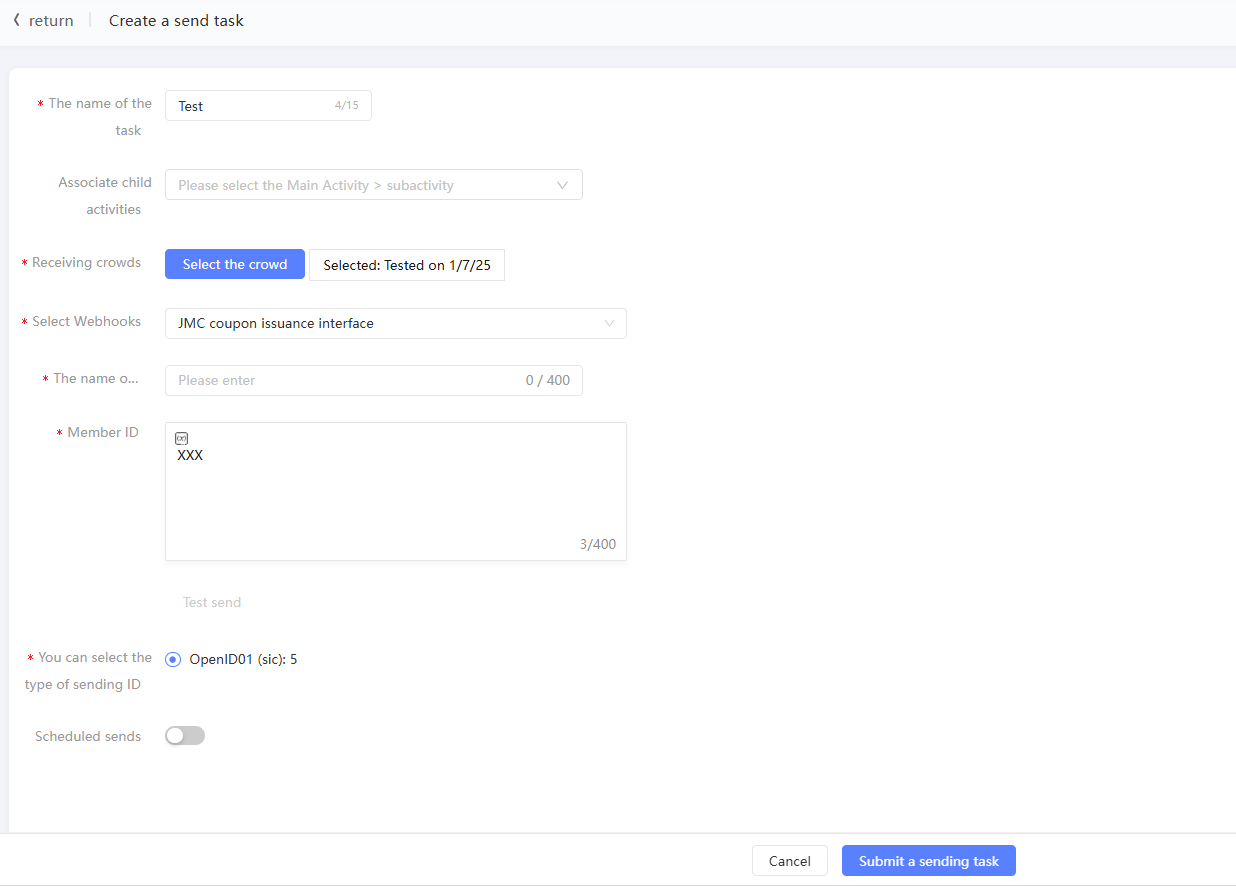
Item
Example value
Name
Enter a task name.
Associate sub-activities
Select a main campaign, and then select a sub-campaign under the main campaign. Standalone sub-campaigns are displayed under - at the end of the main campaign list. You can associate a marketing task with a sub-campaign. For more information, see Marketing Campaign Documentation.
Receiving crowd
Click Select Audience to select the target audience.
Select Webhook
After you select an audience, select a Webhook from the drop-down list. Only Webhooks whose supported ID type matches the selected audience are available.
Parameters (displayed as real parameter names on the interface)
Enter or select a value for each Webhook parameter. At send time, the parameter placeholder is replaced with this value. For example, if the message template is "Discount activity in {address}", {address} is a parameter that must be set to a specific value.
For text parameters, you can insert a variable that references a user tag value. The actual content sent to each user varies based on their tag value.
To insert a variable into a text parameter, click the
 icon at the desired position. In the dialog box, select the tag for the variable, enter the variable name, and specify whether to send the variable without the label or send a default value instead. Click Insert. For example, "On the current day" becomes "On the current day of ${birth}". If the user's birthday tag value is available, the parameter is sent as "on the XX day of the XX month"; otherwise, it is sent as "on your birthday".
Optional Send ID Type
Select the type of ID to send and how it is encrypted.
Campaign
When enabled, you can specify the sending time.
-
Click Test Send. In the dialog box that appears, enter the test ID and click OK. The system calls the first-party or third-party system to send a message to the test ID through the Webhook.
NoteIf the test is successful on the Webhook Management page, skip this step.
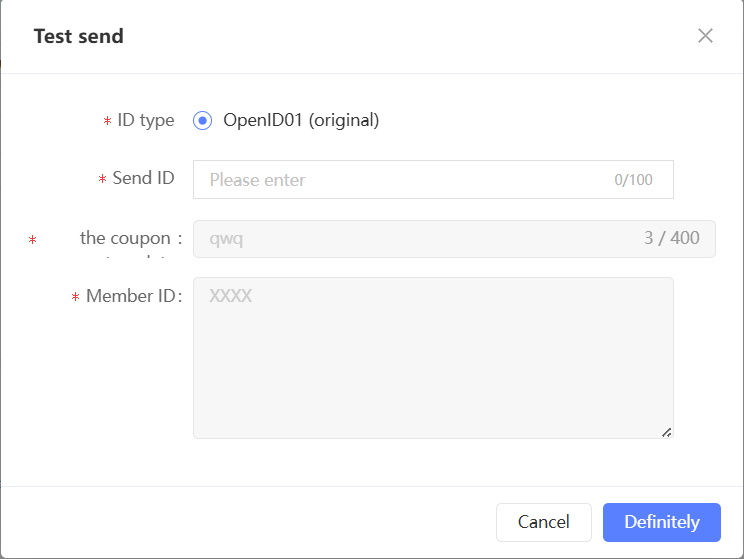
A dialog box displays the test result.
-
Test sent successfully: Verify that the first-party or third-party system received the Webhook request and that the test ID received the message. If not, click Download Log to troubleshoot.
-
Test failed: Click Download Log in the message to troubleshoot.
-
-
After the test task is sent, click Submit Sending Task to complete the task creation.