When a stress test is running, you can monitor the stress testing metrics of your scenarios and APIs in real time. You may need to change the load level to prevent APIs from receiving excessive requests and becoming overloaded, helping maintain system stability. Performance Testing Service (PTS) lets you modify the number of concurrent users in real time. PTS records the operations that you perform on stress testing scenarios for subsequent queries.
Concurrency modes
PTS provides two modes that control how concurrent users are added or changed during a stress test:
| Mode | Behavior | When to use |
|---|---|---|
| Tiered Increment | Adds users automatically based on predefined steps | The predefined ramp-up plan meets your needs and no manual intervention is required |
| Manual Adjustment | Lets you set a specific concurrency value | You need to react to real-time metrics -- for example, reduce load before an API becomes overloaded |
When you switch from Tiered Increment to Manual Adjustment, you also choose the scope of the change:
| Scope | Effect |
|---|---|
| Global Batch Speed Regulation | Applies to all APIs across all business sessions |
| Business Session Speed Regulation | Applies only to the current business session. Other business sessions are not affected |
Both PTS-based and JMeter-based stress tests support runtime adjustment, but the workflows differ as described below.
Prerequisites
Before you begin, make sure that you have:
A configured stress testing scenario (PTS-based or JMeter-based)
A running stress test. For setup instructions, see Get started with PTS-based stress testing or Get started with JMeter-based stress testing
The following figure shows the stress testing page after a test starts.
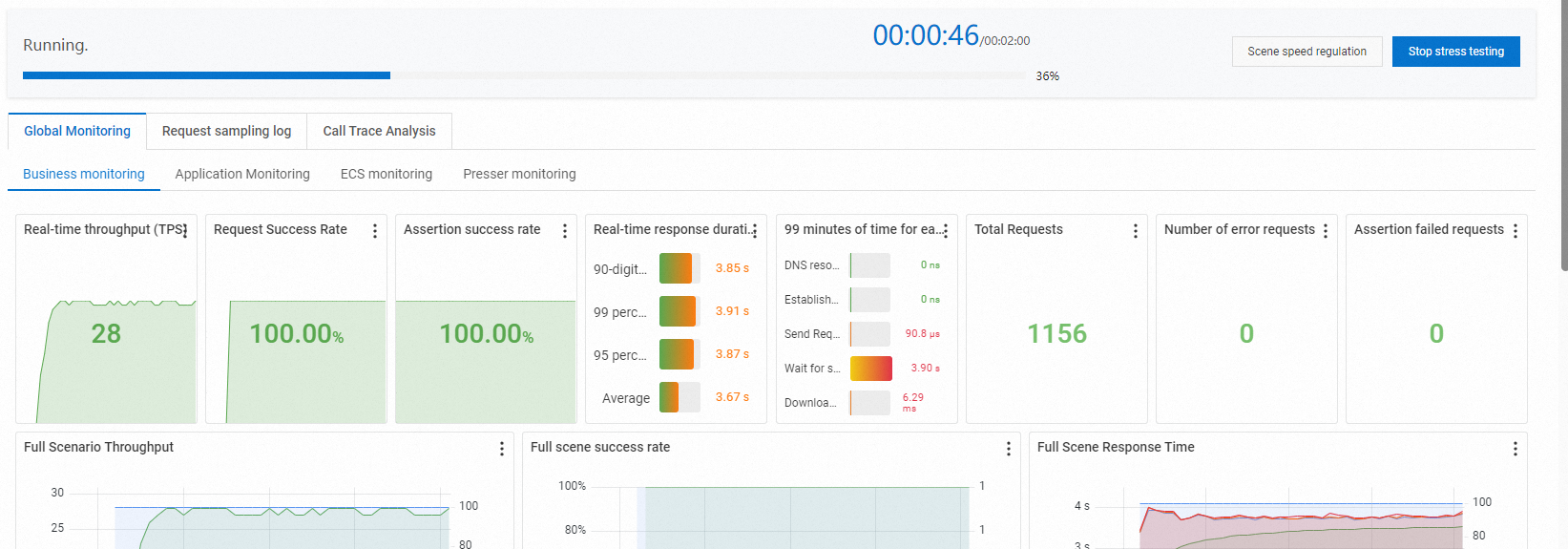
Adjust concurrent users in a PTS-based stress test
Switch from tiered increment to manual adjustment
On the Executing Test page, click Scene speed regulation.
Select the adjustment scope:
Global Batch Speed Regulation: Applies to all APIs across all business sessions.
Business Session Speed Regulation: Applies only to the current business session. Other business sessions are not affected.
Change the mode from Tiered Increment to Manual Adjustment.
Enter the desired concurrency value and start the test.
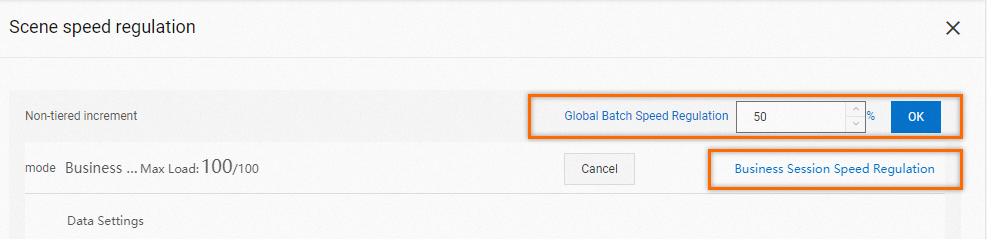
If Stress Mode is set to RPS Mode (Requests Per Second) in the Stress Mode Configuration section when you create a PTS-based stress testing scenario, you can adjust the number of concurrent users for each API individually.
Adjust users in manual adjustment mode
The workflow in Manual Adjustment mode is the same as in Tiered Increment mode: click Scene speed regulation, select the scope, enter a value, and apply.
If you do not make any changes, the stress test continues with its current settings.
Adjust concurrent users in a JMeter-based stress test
On the Executing Test page, click Scene speed regulation.
In the dialog box, enter the number of concurrent users.
Click OK.
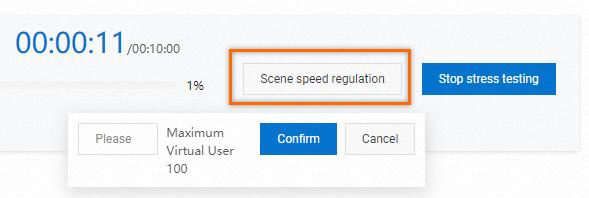
View operation records
PTS records the operations that you perform on stress testing scenarios for subsequent queries, such as the start and stop of the stress test and scenario editing.
To view these records, go to the Edit Scenario page and click Records in the upper-right corner.