Performance tests require unique data for each virtual user -- different usernames, passwords, or API parameters. Without parameterization, every virtual user sends identical requests, which does not reflect real-world traffic. CSV Data Set Config in JMeter reads external CSV files and maps columns to variables that virtual users consume at runtime.
PTS extends this for distributed testing: when a test runs across multiple stress testing engines, PTS splits the CSV file so each engine receives a unique data subset, preventing duplicate test data across engines.
How CSV Data Set Config works
CSV Data Set Config is a JMeter configuration element that reads rows from a CSV file and maps each column to a named variable. It is suitable for scenarios that require a large number of variables. On every iteration, each virtual user reads the next available row.
Three settings control how data flows through virtual users:
| Setting | Behavior |
|---|---|
| Sharing mode | Determines whether virtual users share a single read pointer or each gets an independent copy of the file. See the parameter reference below for details. |
| Recycle on EOF | When True, JMeter loops back to the first data row after reaching the end of the file. When False, subsequent reads return empty values (unless Stop thread on EOF is True). |
| Stop thread on EOF | When True and Recycle on EOF is False, threads stop after all rows are consumed. When both are False, variables return empty values -- this can cause silent test failures. |
If you upload a CSV file to PTS without a corresponding CSV Data Set Config element in your JMeter script, PTS treats the file as headerless. Always add CSV Data Set Config explicitly to avoid incorrect data splitting.
Configure CSV parameter files
This example configures a login API test with 100 concurrent users, each with unique credentials.
Step 1: Create a CSV file
Create a CSV file with one row per virtual user. The first row is the header, which defines the variable names:
username,password
user1,Password1
user2,Password2
user3,Password3
If your CSV file does not include a header row, define variable names manually in CSV Data Set Config (see Step 3).
If your data contains commas or quotes, set Allow Quoted Data? to True in Step 3. Quoted values are parsed as follows:
| CSV raw value | Parsed result |
|---|---|
"Smith, John" | Smith, John |
"4""5" | 4"5 |
simple | simple |
Step 2: Add CSV Data Set Config
In JMeter, right-click Thread Group and choose Add > Config Element > CSV Data Set Config.
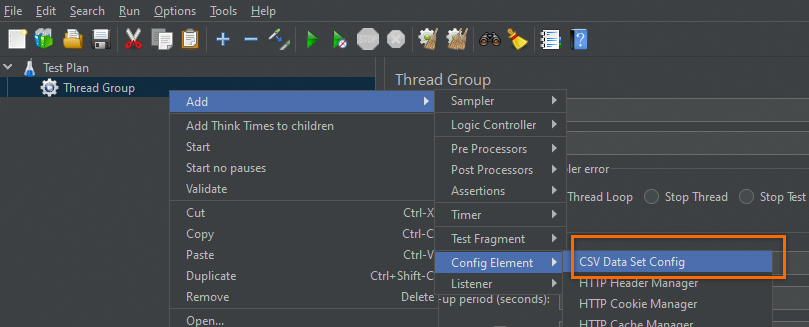
Step 3: Configure CSV Data Set Config
Enter the CSV file name in the Filename field. If your CSV file includes a header row, JMeter reads the first row as variable names automatically.
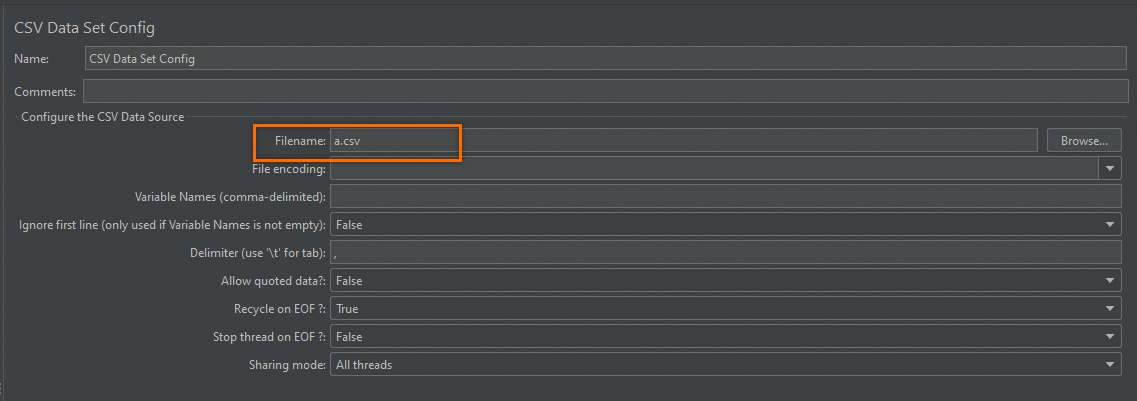
If your CSV file does not include a header row, enter the variable names (for example, username,password) in the Variable Names (comma-delimited) field.CSV Data Set Config parameters
| Parameter | Description | Default |
|---|---|---|
| Filename | The CSV file name. When uploaded to PTS, use the file name only (no path). | Required |
| File Encoding | Character encoding for the file. Leave blank to use the platform default. | Platform default |
| Variable Names (comma-delimited) | Comma-separated list of variable names. Leave blank if the first row is a header. | Header row |
| Delimiter | The character that separates values in each row. | , (comma) |
| Allow Quoted Data? | Set to True if values contain commas or quotes (for example, "Smith, John"). | False |
| Recycle on EOF? | When True, JMeter loops back to the first data row after reaching the end of the file. When False, subsequent reads depend on Stop thread on EOF. | True |
| Stop thread on EOF? | When True and Recycle on EOF is False, threads stop after all rows are consumed. When both are False, variables return empty values, which can cause silent test failures. | False |
| Sharing mode | Controls how data is shared across threads. All threads -- one shared read pointer across all thread groups. Current thread group -- shared within the group only. Current thread -- each thread gets its own independent copy of the file. | All threads |
Sharing mode behavior example (with a CSV file containing login1, login2):
| Iteration | All threads (VU 1 / VU 2) | Current thread (VU 1 / VU 2) |
|---|---|---|
| 1 | login1 / login2 | login1 / login1 |
| 2 | login1 / login2 | login2 / login2 |
Use
All threads(default) when each virtual user needs unique data (for example, unique login credentials).Use
Current threadwhen every virtual user should read the full dataset independently.
Step 4: Reference CSV variables in the HTTP request
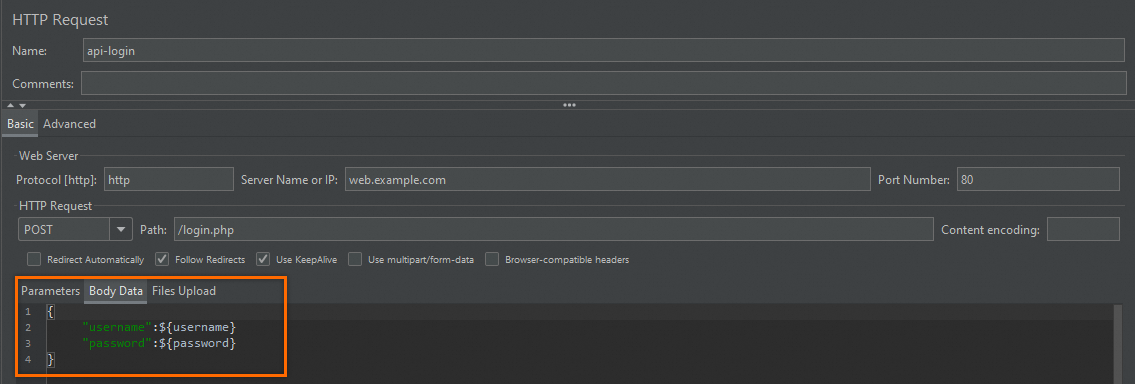
Right-click the thread group and choose Add > Sampler > HTTP Request. Set the following fields based on your API:
Name: A descriptive API name (for example,
Login API).Web Server: The protocol, hostname or IP address, and port number.
HTTP Request: The HTTP method (GET, POST, etc.) and path.
Body Data tab: Reference CSV variables with
${username}and${password}.
Step 5: Save and upload to PTS
Save the JMeter test script.
Upload both the test script and the CSV file to PTS. For details, see Create a JMeter scenario.
Split CSV files across stress testing engines
When a test runs on multiple stress testing engines, each engine loads the full CSV file independently and starts reading from row 1. Without splitting, virtual users on different engines consume identical data, which invalidates tests that require unique values per user (for example, login credentials or order IDs).
Splitting distributes the CSV rows across engines so that each engine receives a unique subset. This is the only way to guarantee data uniqueness in distributed tests, because JMeter assigns values at the engine level.
Select Split File next to the CSV file on the PTS scenario configuration page.

Split files with header rows
When the CSV file includes a header row, each split file keeps the header intact. The data rows are distributed without duplication. If rows cannot be divided evenly, some engines receive one extra row.
For example, splitting the sample file across two engines produces:
Engine 1:
username,password
user1,Password1
user3,Password3
Engine 2:
username,password
user2,Password2
Split files without header rows
For CSV files without a header row (for example, a file named b.csv):
user1,Password1
user2,Password2
user3,Password3
Define variable names in CSV Data Set Config instead of relying on the header:
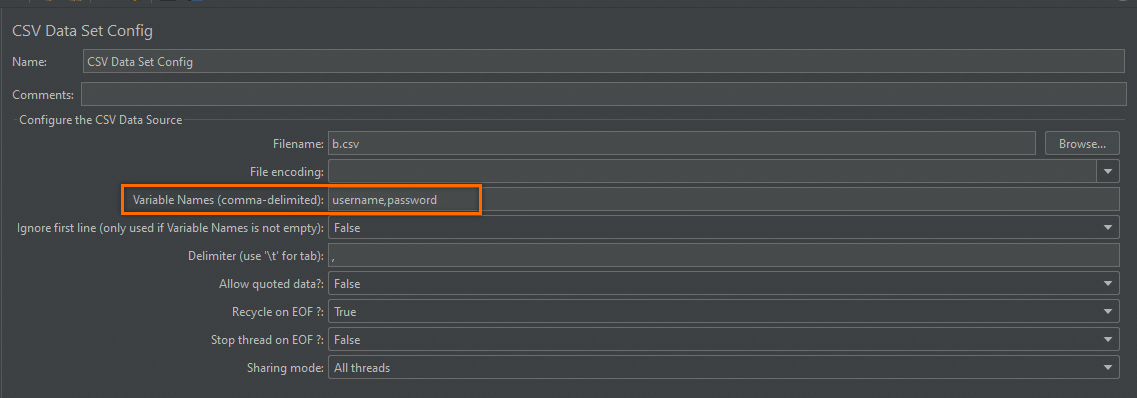
When split, each resulting file contains only data rows (no header). The same even-distribution rule applies -- some engines may receive one extra row.
Engine 1:
user1,Password1
user3,Password3
Engine 2:
user2,Password2