Storing sensitive data on disk creates a risk that attackers with physical or OS-level access can read your database files directly. Transparent Data Encryption (TDE) eliminates this risk by encrypting data files as they are written to disk and decrypting them when loaded into memory — without requiring any application changes.
TDE does not increase the size of data files. TDE is disabled by default on PolarDB for PostgreSQL (Compatible with Oracle) and must be explicitly enabled. Once enabled, it cannot be disabled.
Prerequisites
Before you begin, ensure that you have:
Key Management Service (KMS) activated. For more information, see Purchase a dedicated KMS instance
The PolarDB cluster authorized to access KMS. For more information, see Authorize a PolarDB cluster to access KMS
A cluster running the minimum required version:
| Database engine | Minimum revision version |
|---|---|
| PolarDB for PostgreSQL (Compatible with Oracle) 2.0 | 2.0.14.23.1 |
How it works
TDE performs data-at-rest encryption at the database layer. It encrypts data within tablespaces, data files, and backups when written to disk, and automatically decrypts data to plaintext for applications and users that have passed database authentication. The operating system and unauthorized users cannot access the encrypted data in plaintext form.
PolarDB uses keys generated and managed by KMS for TDE encryption. PolarDB does not provide the keys and certificates required for encryption. You can authorize PolarDB to use keys automatically generated by Alibaba Cloud or keys generated using your own key information.
Usage notes
TDE cannot be disabled after it is enabled. Plan your key management strategy before enabling.
Enabling TDE automatically restarts the cluster. Schedule this during a maintenance window.
In I/O-bound workload scenarios, TDE may affect database performance.
Choose a key type
Select the key type before enabling TDE. The choice determines your key management responsibilities.
| Default CMK | Custom key | |
|---|---|---|
| Key management | Alibaba Cloud manages the key lifecycle | You manage the key in KMS |
| Key rotation | Not supported | Supported (manual or automatic) |
| Key type | Aliyun_AES_256 | Aliyun_AES_256 |
| Best for | Standard workloads without compliance key-control requirements | Regulated environments requiring auditable key ownership |
Custom key requirements
To use a custom key, ensure all of the following conditions are met at all times:
Use an Alibaba Cloud account or an account with the AliyunSTSAssumeRoleAccess policy attached.
Keep the key active. The following actions make the key unavailable, which makes the cluster inaccessible:
Disabling the key
Setting a scheduled key deletion plan
Deleting the key material
Keep the PolarDB authorization in place. If you revoke the cluster's access to the key, the cluster becomes inaccessible after the next restart.
If you do not have a custom key, click Create Now in the Configure TDE dialog box to go to the KMS console and create one. For more information, see Create a CMK.
Enable TDE
To enable TDE when creating a new cluster, see Create a cluster. The following steps enable TDE on an existing cluster.
Enabling TDE causes the cluster to restart automatically.
Log on to the PolarDB console.
In the left-side navigation pane, click Clusters.
In the upper-left corner, select the region where the cluster is deployed.
Find the cluster and click its ID.
In the left-side navigation pane, choose Settings and Management > Security.
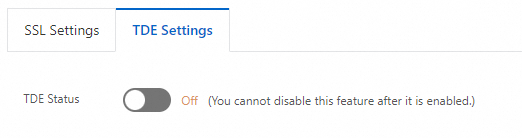
Click the TDE Settings tab, then turn on TDE Status.
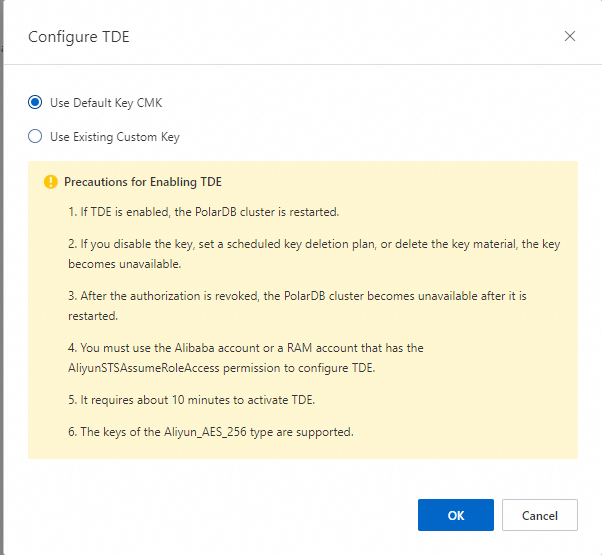
In the Configure TDE dialog box, select a key type:
Use Default Key CMK — Click OK.
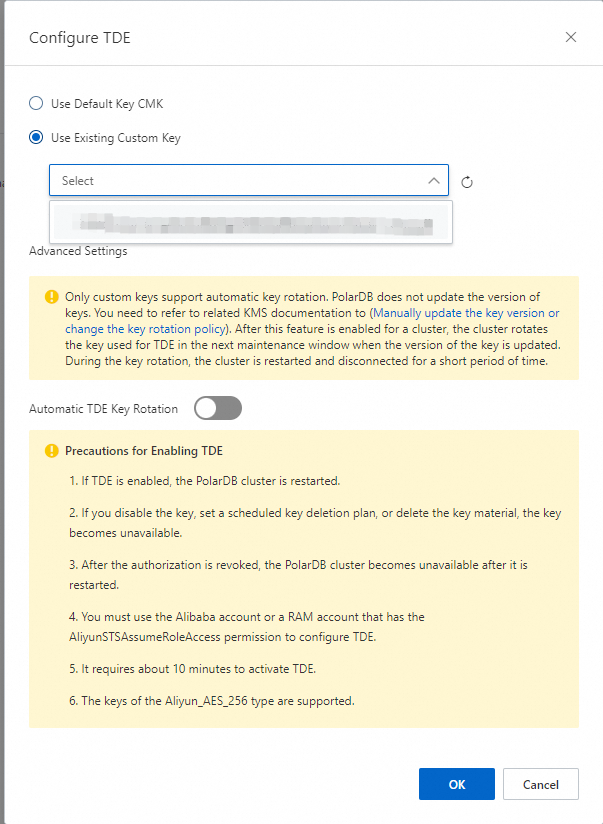
Use Existing Custom Key — Select a KMS key from the drop-down list, then click OK.
TDE takes approximately 10 minutes to enable.
View TDE status
Log on to the PolarDB console.
In the left-side navigation pane, click Clusters.
In the upper-left corner, select the region where the cluster is deployed.
Find the cluster and click its ID.
In the left-side navigation pane, choose Settings and Management > Security.
On the TDE Settings tab, check TDE Status.
Switch to a custom key
After enabling TDE with the default CMK, you can switch to a custom key at any time.
Log on to the PolarDB console.
In the left-side navigation pane, click Clusters.
In the upper-left corner, select the region where the cluster is deployed.
Find the cluster and click its ID.
In the left-side navigation pane, choose Settings and Management > Security.
On the TDE Settings tab, click Switch to Custom Key to the right of TDE Status.
In the Configure TDE dialog box, select Use Existing Custom Key, choose a KMS key from the drop-down list, then click OK.
Configure key rotation
Key rotation is only available when Use Existing Custom Key is selected.
PolarDB does not update the primary key version of the custom key. Update the key version manually or configure an automatic rotation policy in KMS. For more information, see Configure key rotation.
After PolarDB detects that the primary key version has been updated, the TDE key is rotated within the next maintenance window. The cluster restarts after rotation.
Enable automatic TDE key rotation using one of the following methods:
When enabling TDE: In the Configure TDE dialog box, select Use Existing Custom Key, expand Advanced Settings, then turn on Automatic TDE Key Rotation.
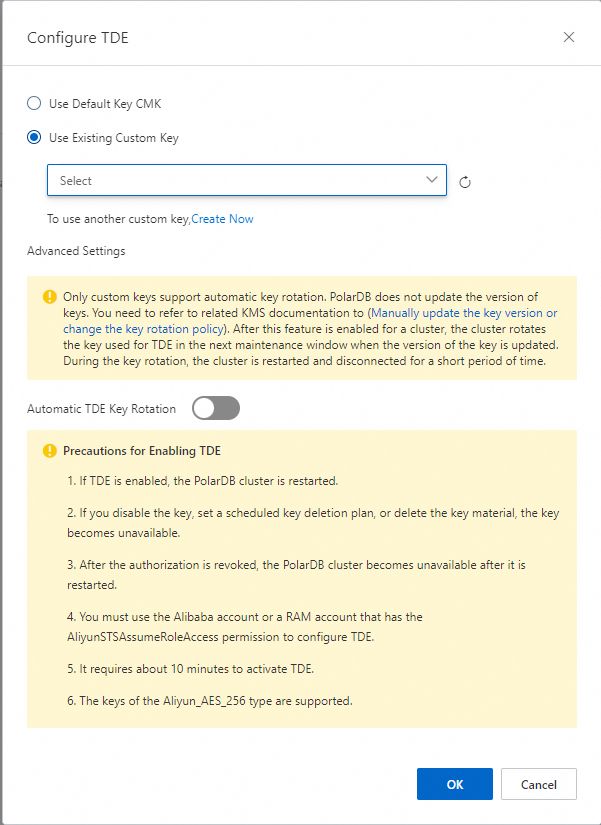
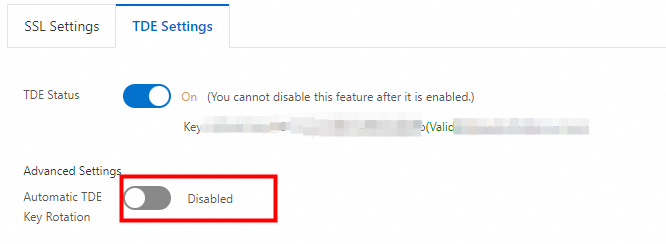
After enabling TDE: On the TDE Settings tab, turn on Automatic TDE Key Rotation.
FAQ
Can I use database tools like Navicat after enabling TDE?
Yes. TDE is transparent to applications and tools that connect through standard database authentication. No client-side configuration changes are needed.
Why does my data appear in plaintext after enabling TDE?
TDE stores data as ciphertext on disk. When queried, the data is decrypted and loaded into memory as plaintext. This is the expected behavior — TDE protects data at rest, not data in use.
API reference
| Operation | Description |
|---|---|
| ModifyDBClusterTDE | Enables TDE or modifies TDE settings for a PolarDB cluster |
| DescribeDBClusterTDE | Queries the TDE settings of a PolarDB cluster |
| CreateDBCluster | Creates a PolarDB cluster with TDE enabled (set DBType to Oracle) |