PolarSearch is a distributed search service built into PolarDB for MySQL. It supports full-text search and vector search (k-NN), and is compatible with the Elasticsearch and OpenSearch ecosystems. If you already know how to use OpenSearch, you can start querying immediately.
This guide assumes familiarity with Elasticsearch or OpenSearch. For background, see the OpenSearch documentation.
Prerequisites
Before you begin, make sure you have:
-
A PolarDB for MySQL cluster that meets all of the following:
-
Product edition: Enterprise Edition
-
PolarDB edition: Cluster Edition
-
Database engine: MySQL 8.0.1 or MySQL 8.0.2 (no minor version restriction)
-
-
A cluster deployed in a supported region and zone
-
Access to the PolarDB console
PolarSearch is not supported for Serverless clusters. For details, see Serverless.
Supported regions and zones
PolarSearch is available in the following zones:
| Region | Zone |
|---|---|
| China (Hangzhou) | Zone K, Zone J |
| China (Shanghai) | Zone E, Zone F, Zone L, Zone N |
| China (Shenzhen) | Zone C, Zone D, Zone F |
| China (Beijing) | Zone F, Zone L, Zone I |
| China (Hong Kong) | Zone B, Zone D |
| Singapore | Zone B |
To request support for additional zones, submit a ticket.
Billing
PolarSearch runs on dedicated search nodes. These nodes are billed at the same rate as regular compute nodes. Indexes and data stored on search nodes also consume storage space and incur storage fees.
Add search nodes
-
Log on to the PolarDB console. In the navigation pane, click Clusters, select the region where your cluster is deployed, and click the cluster ID to go to the Basic Information page.
-
In the Database Nodes section, click Add/Remove Node.

-
In the Add/Remove Node dialog box, select to add search nodes and confirm.
Set up accounts
PolarSearch uses two account types:
-
Admin account — a standard PolarDB database account that acts as the PolarSearch admin. Set it up through the PolarDB console.
-
Standard accounts — index-level access control accounts. Manage them through the PolarSearch Dashboard or the REST API.
Set up the admin account
The admin account is a standard PolarDB database account.
-
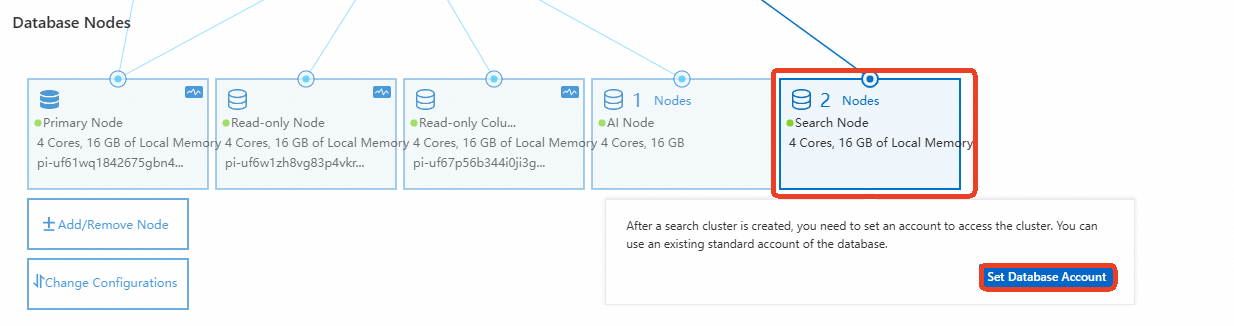
On the Basic Information page, in the Database Nodes section, hover over Search Node and click Set Database Account.
-
In the dialog box, select an existing standard database account or create a new one, then enter the account password.
ImportantThe account name must not be a case-insensitive substring of the password. For example, if the account name is
search_test, the password cannot beSEARCH_test@123, butSEARCHtest@123andSEARCH@_testare both valid.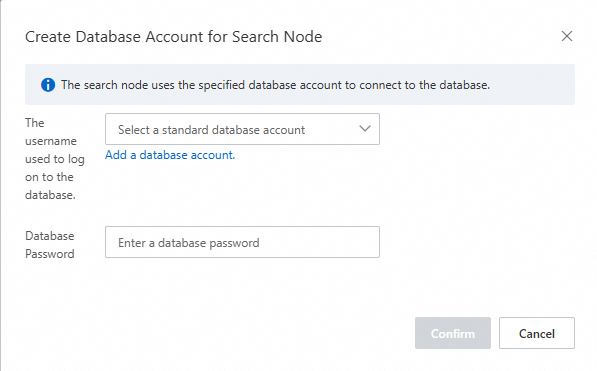
Set up standard accounts
Standard accounts let you control access at the index level. Configure them through the Dashboard UI or the REST API.
Dashboard
The admin account must have the security_rest_api_access role. Otherwise, the Security page is not displayed.
-
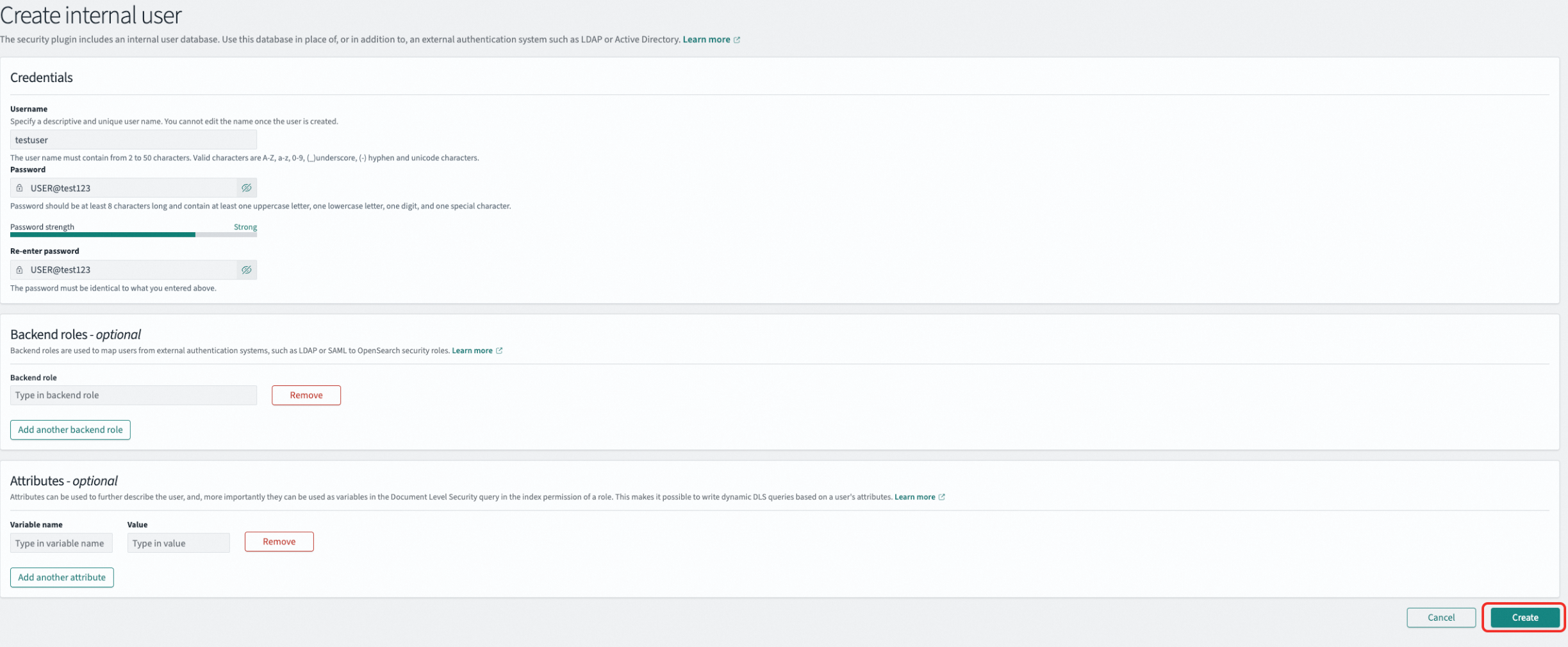
Create a user In the left navigation pane, go to Management > Security, select Internal users, and click Create internal user. Enter the username and password (for example, username
testuser, passwordUSER@test123), then click Create.
-
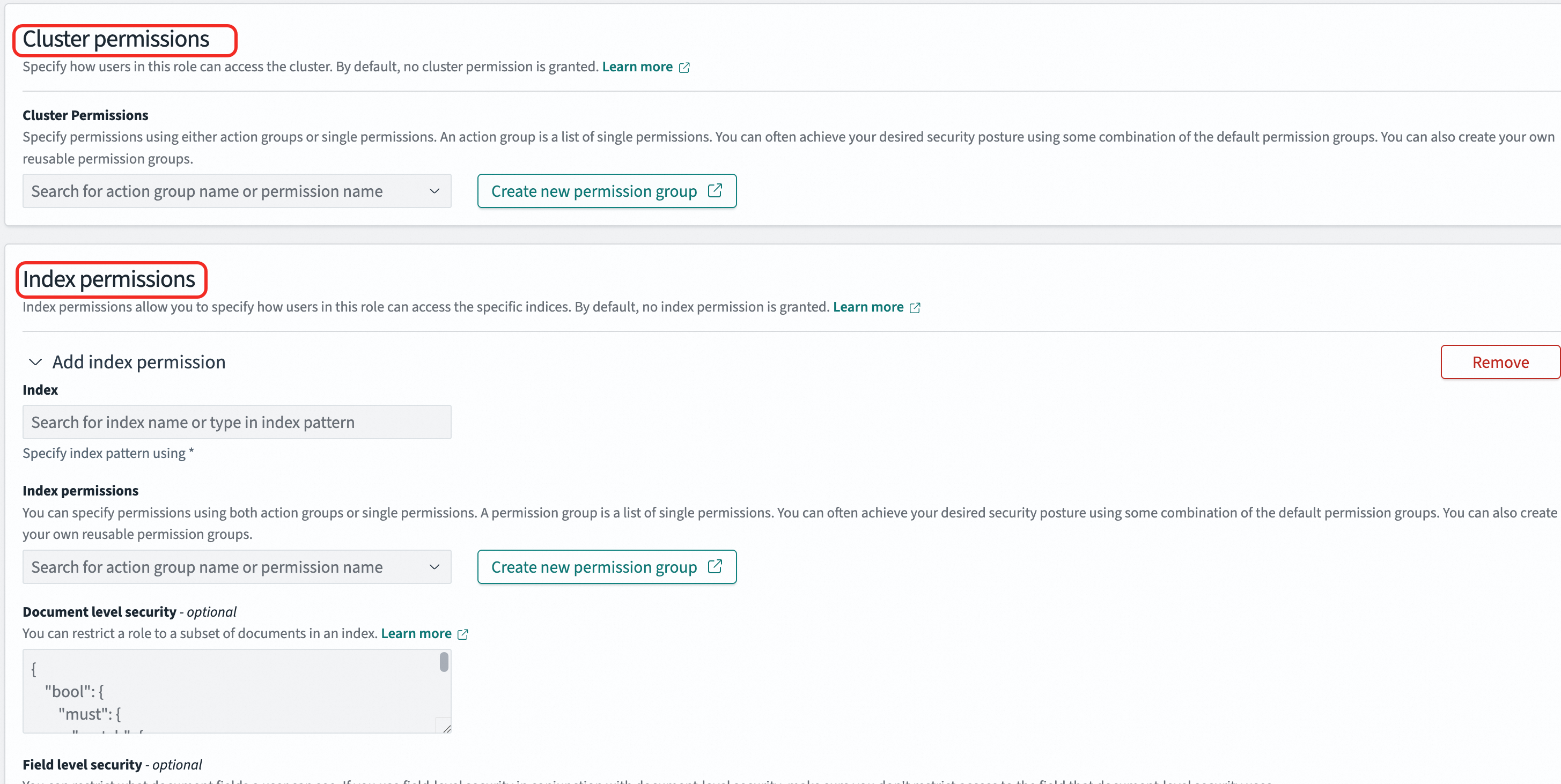
Create a role In the left navigation pane, go to Management > Security, select Roles, and click Create role. A role combines cluster permissions and index permissions. In the Index field, specify an index name or use
*to match multiple indexes. Under Index permissions, select the required permissions (read-only or read-write). Example: Create a role namedonlyreadrolewith full cluster permissions and read-only access to all indexes prefixed withindextest.
-
Map the role to a user In the left navigation pane, go to Management > Security, select Roles, and click the target role. On the Mapped users tab, add the user. A user can be mapped to multiple roles and inherits the permissions of all mapped roles. Example: Map
onlyreadroletotestuser. Thetestuseraccount then inherits all permissions ofonlyreadrole.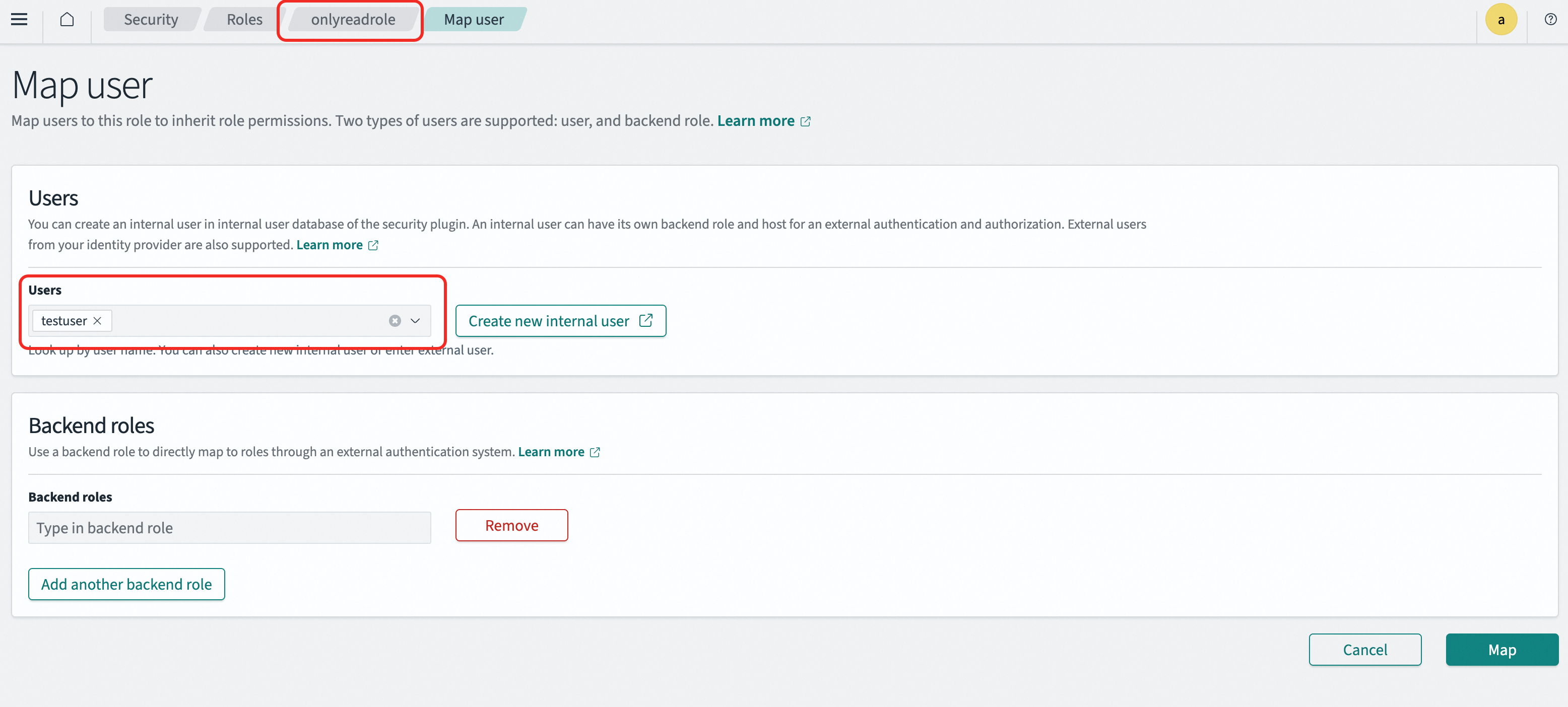
REST API
All three steps — create a user, create a role, and map the role — follow the same pattern: a PUT request to the _plugins/_security API. For the full API reference, see OpenSearch access control API.
Replace <endpoint>:<port> with your PolarSearch search endpoint, and <user_name>:<passwd> with the admin account credentials.
-
Create a user
curl -X PUT "http://<endpoint>:<port>/_plugins/_security/api/internalusers/<new_user>" \
  --user "<user_name>:<passwd>" \
  -H "Content-Type: application/json" \
  -d '{
    "password": "<new_password>",
    "backend_roles": [],
    "attributes": {}
  }'
Example: Create
testuserwith the passwordUSER@test123.curl -X PUT "http://<endpoint>:<port>/_plugins/_security/api/internalusers/testuser" \ --user "<user_name>:<passwd>" \ -H "Content-Type: application/json" \ -d '{ "password": "USER@test123", "backend_roles": [], "attributes": {} }' -
Create a role
-
index_patterns: Index name pattern. Use*to match multiple indexes. -
allowed_actions: Permissions to grant, such asreadorwrite.
curl -X PUT "http://<endpoint>:<port>/_plugins/_security/api/roles/<role_name>" \
  --user "<user_name>:<passwd>" \
  -H "Content-Type: application/json" \
  -d '{
    "cluster_permissions": ["*"],
    "index_permissions": [
      {
        "index_patterns": ["*"],
        "allowed_actions": ["*"]
      }
    ]
  }'
Example: Create
onlyreadrolewith full cluster permissions and read-only access to all indexes prefixed withindextest.curl -X PUT "http://<endpoint>:<port>/_plugins/_security/api/roles/onlyreadrole" \ --user "<user_name>:<passwd>" \ -H "Content-Type: application/json" \ -d '{ "cluster_permissions": ["*"], "index_permissions": [ { "index_patterns": ["indextest*"], "allowed_actions": ["read"] } ] }' -
-
Map a role to a user
curl -X PUT "http://<endpoint>:<port>/_plugins/_security/api/rolesmapping/<role_name>" \
  --user "<user_name>:<passwd>" \
  -H "Content-Type: application/json" \
  -d '{
    "backend_roles": [],
    "hosts": [],
    "users": ["<new_user>"]
  }'
Example: Map
onlyreadroletotestuser.curl -X PUT "http://<endpoint>:<port>/_plugins/_security/api/rolesmapping/onlyreadrole" \ --user "<user_name>:<passwd>" \ -H "Content-Type: application/json" \ -d '{ "backend_roles": [], "hosts": [], "users": ["testuser"] }'
Get connection endpoints
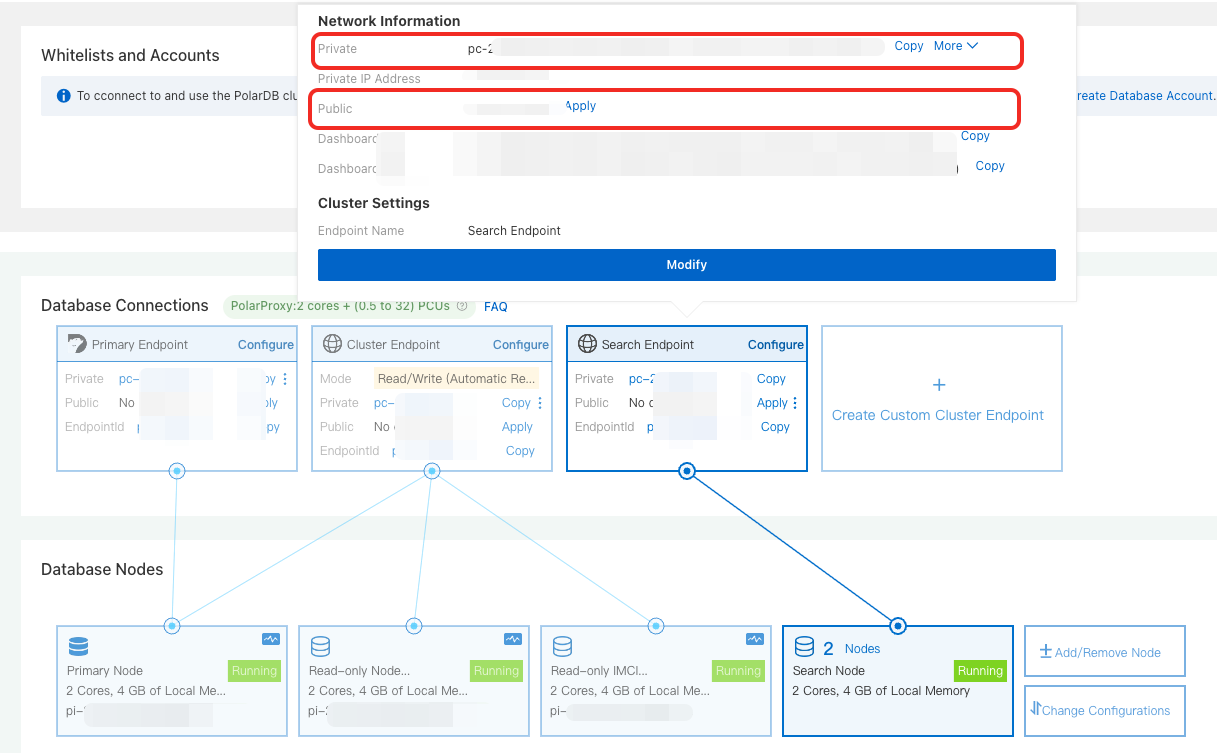
In the Database Nodes section on the Basic Information page, hover over Search Node to find both endpoint types:
Search endpoint
Search endpoint — for API access (SDK, REST API, or CLI). Copy the private or public endpoint based on your network environment.
Dashboard endpoint
Dashboard endpoint — for browser-based graphical access. Copy the private or public Dashboard endpoint.
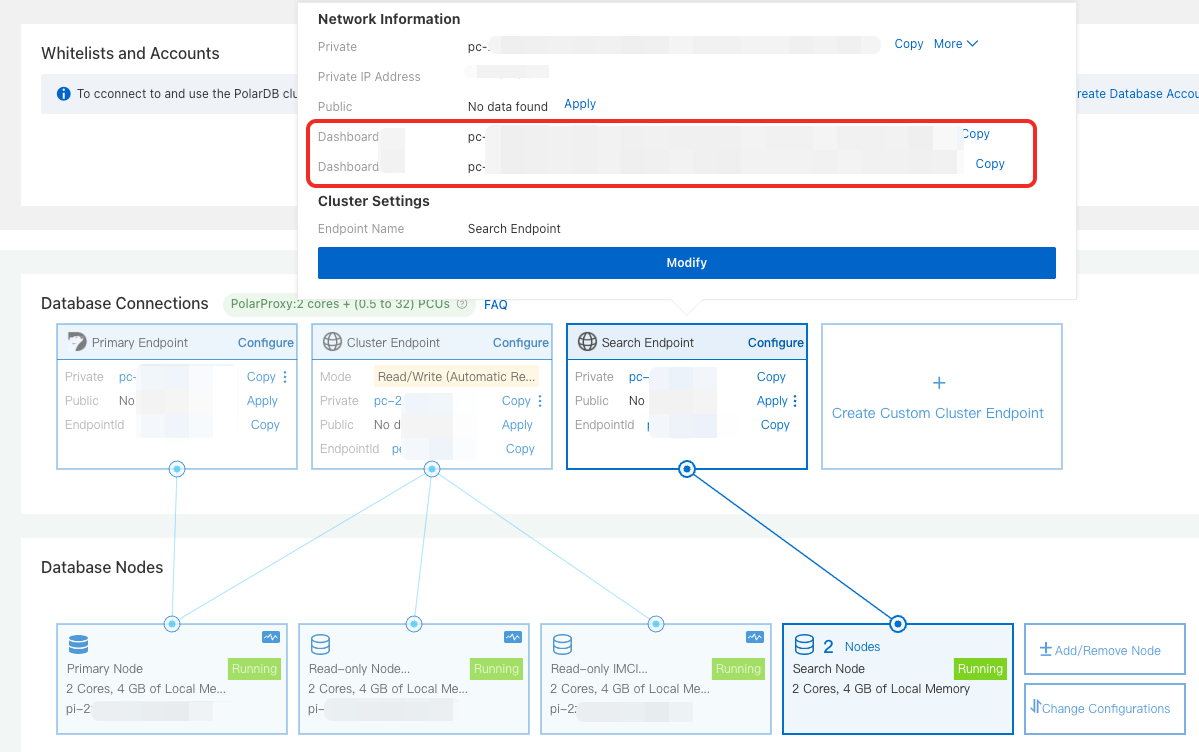
Use the private endpoint when your client and the PolarDB cluster are in the same virtual private cloud (VPC). Use the public endpoint for access from outside the VPC.
Connect to PolarSearch
Connect through the search endpoint
The search endpoint gives you API access for managing indexes and data programmatically. The following steps use an Elastic Compute Service (ECS) instance as an example.
-
Configure a whitelist for your cluster: Add the IP address of your ECS instance to the PolarDB for MySQL cluster whitelist.
If the ECS instance and the cluster are in the same VPC, use the private IP address of the ECS instance. Otherwise, use the public IP address.
-
Verify connectivity by running the following command. If the cluster information is returned, the cluster is available. Replace
<endpoint>:<port>with the search endpoint and<user_name>:<passwd>with the admin account credentials.curl http://<endpoint>:<port>/ -u <user_name>:<passwd>
Connect through the Dashboard
The Dashboard provides a Kibana-compatible graphical interface. The following steps use a local browser as an example.
-
Configure a whitelist for your cluster: Add the IP address of your local environment to the PolarDB for MySQL cluster whitelist.
-
In the browser address bar, enter
http://<endpoint>:<port>and press Enter. Replace<endpoint>:<port>with the Dashboard public endpoint. -
On the logon page, enter the admin account credentials to log on.
Examples
All examples in this section are run from an ECS instance through the command line. Each example shows both the CLI (cURL) and Dashboard (Dev Tools console) syntax.
PolarSearch is fully compatible with the OpenSearch 2.19.0 SDK and REST API. Other versions may have compatibility issues. For available clients, see OpenSearch clients.
Step 1: Create an index
An index in PolarSearch is equivalent to a table in a relational database — it holds your documents and defines how fields are stored and searched. The settings block controls sharding and replication; the mappings block defines field types.
CLI
curl -XPUT "http://<endpoint>:<port>/articles" \
  --user "<user_name>:<passwd>" \
  -H 'Content-Type: application/json' \
  -d '{
    "settings": {
      "number_of_shards": 1,
      "number_of_replicas": 1
    },
    "mappings": {
      "properties": {
        "title":   { "type": "text" },
        "content": { "type": "text" },
        "author":  { "type": "keyword" }
      }
    }
  }'
Dashboard
PUT articles
{
  "settings": {
    "number_of_shards": 1,
    "number_of_replicas": 1
  },
  "mappings": {
    "properties": {
      "title":   { "type": "text" },
      "content": { "type": "text" },
      "author":  { "type": "keyword" }
    }
  }
}
Key field types used here:
-
text— analyzed for full-text search (lowercased and tokenized) -
keyword— stored as-is for exact-match filtering
A successful response looks like:
{
  "acknowledged": true,
  "shards_acknowledged": true,
  "index": "articles"
}
Step 2: Import data
Use the bulk API to insert multiple documents in a single request. Each document requires an action line ({"index": {}}) followed by the document body.
CLI
curl -XPOST "http://<endpoint>:<port>/articles/_bulk" \
  --user "<user_name>:<passwd>" \
  -H 'Content-Type: application/json' \
  -d '
{"index": {}}
{"title": "Introduction to PolarSearch", "content": "PolarSearch is a powerful search engine.", "author": "Allen"}
{"index": {}}
{"title": "Advanced Search Techniques", "content": "Learn how to use full-text search and filters in PolarDB.", "author": "Lang"}
{"index": {}}
{"title": "Elasticsearch vs PolarSearch", "content": "A comparison of Elasticsearch and PolarSearch features.", "author": "Zhao"}
'
Dashboard
POST articles/_bulk
{"index": {}}
{"title": "Introduction to PolarSearch", "content": "PolarSearch is a powerful search engine.", "author": "Allen"}
{"index": {}}
{"title": "Advanced Search Techniques", "content": "Learn how to use full-text search and filters in PolarDB.", "author": "Lang"}
{"index": {}}
{"title": "Elasticsearch vs PolarSearch", "content": "A comparison of Elasticsearch and PolarSearch features.", "author": "Zhao"}
A successful response includes "errors": false and an items array with the result of each indexed document.
Step 3: Run a full-text search
After importing data, query the index using a match query. The following example searches the content field for documents containing "PolarSearch".
CLI
curl -XGET "http://<endpoint>:<port>/articles/_search" \
  --user "<user_name>:<passwd>" \
  -H 'Content-Type: application/json' \
  -d '{
    "query": {
      "match": {
        "content": "PolarSearch"
      }
    }
  }'
Dashboard
GET articles/_search
{
  "query": {
    "match": {
      "content": "PolarSearch"
    }
  }
}
A successful response returns matching documents in the hits.hits array. For more query syntax, see OpenSearch query DSL.
Step 4: Create a vector index
Vector search (k-nearest neighbors, or k-NN) finds documents whose vector embeddings are most similar to a query vector. It complements full-text search for use cases like semantic similarity, recommendation systems, and image search.
To use vector search, enable k-NN on the index and define a knn_vector field with the correct dimension matching your embedding model output.
CLI
curl -XPUT "http://<endpoint>:<port>/my-vector-index" \
  --user "<user_name>:<passwd>" \
  -H "Content-Type:application/json" \
  -d '{
    "settings": {
      "index": {
        "knn": true
      }
    },
    "mappings": {
      "properties": {
        "vector_field": {
          "type": "knn_vector",
          "dimension": 4
        },
        "metadata": {
          "type": "text"
        }
      }
    }
  }'
Dashboard
PUT my-vector-index
{
  "settings": {
    "index": {
      "knn": true
    }
  },
  "mappings": {
    "properties": {
      "vector_field": {
        "type": "knn_vector",
        "dimension": 4
      },
      "metadata": {
        "type": "text"
      }
    }
  }
}-
"knn": true— enables k-NN search on this index -
"type": "knn_vector"— stores the field as a dense vector -
"dimension": 4— must match the length of the vectors you insert
A successful response looks like:
{
  "acknowledged": true,
  "shards_acknowledged": true,
  "index": "my-vector-index"
}
Step 5: Insert vector data
CLI
curl -XPOST "http://<endpoint>:<port>/my-vector-index/_bulk" \
  --user "<user_name>:<passwd>" \
  -H "Content-Type:application/json" \
  -d '
{"index": {}}
{"vector_field": [0.1, 0.5, -0.3, 0.8], "metadata": "Document 1"}
{"index": {}}
{"vector_field": [-0.2, 0.7, 0.4, -0.1], "metadata": "Document 2"}
'
Dashboard
POST my-vector-index/_bulk
{"index": {}}
{"vector_field": [0.1, 0.5, -0.3, 0.8], "metadata": "Document 1"}
{"index": {}}
{"vector_field": [-0.2, 0.7, 0.4, -0.1], "metadata": "Document 2"}
A successful response includes "errors": false and an items array confirming each document was indexed.
Step 6: Run a vector search
Submit a query vector and specify k (the number of nearest neighbors to return). PolarSearch returns the k most similar documents by vector distance.
CLI
curl -XGET "http://<endpoint>:<port>/my-vector-index/_search" \
  --user "<user_name>:<passwd>" \
  -H "Content-Type:application/json" \
  -d '{
    "size": 2,
    "query": {
      "knn": {
        "vector_field": {
          "vector": [0.1, 0.5, -0.3, 0.8],
          "k": 2
        }
      }
    }
  }'
Dashboard
GET my-vector-index/_search
{
  "size": 2,
  "query": {
    "knn": {
      "vector_field": {
        "vector": [0.1, 0.5, -0.3, 0.8],
        "k": 2
      }
    }
  }
}-
"vector"— the query vector (must have the same dimension as the indexed vectors) -
"k": 2— number of nearest neighbors to return
A successful response returns the top k matching documents in the hits.hits array, ordered by vector similarity score.
What's next
Now that PolarSearch is running and you've completed your first searches, explore these topics:
-
OpenSearch query DSL — advanced query syntax including filters, aggregations, and hybrid search
-
OpenSearch k-NN documentation — k-NN algorithm options and index tuning for vector search
-
OpenSearch clients — SDK setup for Python, Java, Go, and other languages compatible with OpenSearch 2.19.0