When you build AI applications such as semantic search, intelligent Q&A, or recommendation systems, you typically need to convert business data, such as product descriptions or user comments, into vectors (embeddings) and store them in a specialized vector database. The AutoETL feature in PolarDB for MySQL, combined with the PolarSearch ingestion pipeline, automates data extraction, vectorization, and indexing. This eliminates the need to build and maintain complex data synchronization pipelines. This topic explains how to configure this automated workflow to vectorize text data from a PolarDB for MySQL table by calling an external embedding model, and synchronize the original text and the generated vectors to a PolarSearch index.
How it works
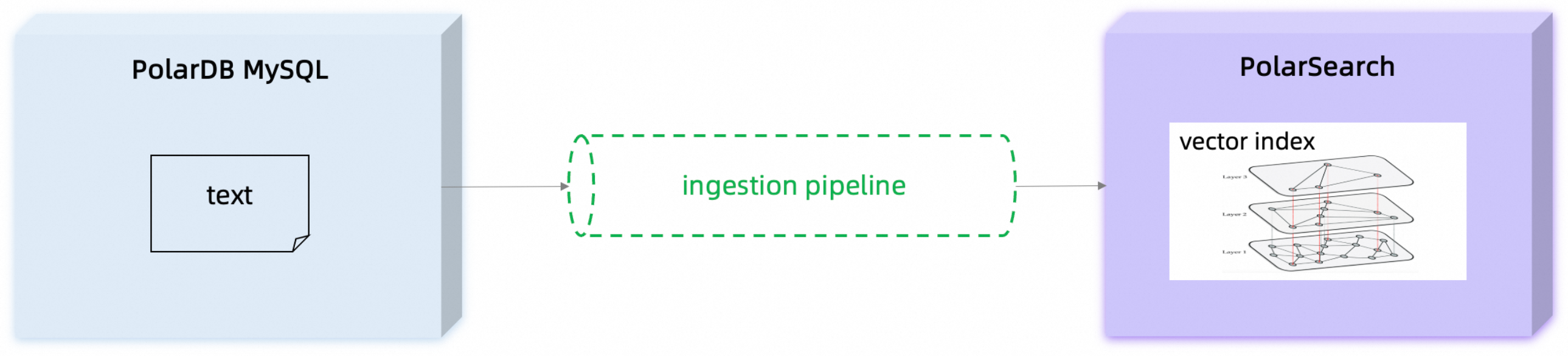
The automated data workflow involves PolarDB for MySQL, PolarSearch, and an embedding model service. The core workflow is as follows:
Data source: Your original text data is stored in a PolarDB for MySQL table.
Trigger synchronization: You call a Search View in PolarDB for MySQL to create and start a data synchronization task (AutoETL) from MySQL to PolarSearch.
Data write: The AutoETL task synchronizes data changes (inserts, deletes, and updates) from the table to the specified PolarSearch index in real time.
Pipeline processing: Before data is written to the PolarSearch index, PolarSearch triggers a predefined ingestion pipeline.
Call model: The
text_embeddingprocessor in the pipeline reads the content of a specified text field and calls an external embedding model service through a connector to convert the text into a vector.Vector storage: The pipeline writes the vector returned by the model to the corresponding field in the PolarSearch index along with the original data, completing the vector index.
Prerequisites
Before you use this feature, ensure your environment meets the following requirements:
Cluster version:
MySQL 8.0.1, revision 8.0.1.1.52 or later.
MySQL 8.0.2, revision 8.0.2.2.33 or later.
Network environment: The embedding model service used for text vectorization must be deployed within the same VPC as the PolarDB for MySQL cluster. The PolarSearch node connects to this model service as a client.
Important notes
When you use an ingestion pipeline to automatically vectorize text data in update scenarios, Search View uses the update write mode (Update) by default to modify data in PolarSearch. This mode updates only the changed fields and does not automatically update the corresponding vector field.
If you need to automatically regenerate the corresponding vector after updating a text field in the source table, you can configure the Search View to use the index write mode (Index). Before you create the Search View, run the following command:
SET esl_sink_options = "'sink.force-index-request' = 'true'";After you enable the index write mode, each synchronization replaces the entire document in the PolarSearch index instead of updating only the changed fields.
The index write mode (Index) overwrites all data in the index. If other non-AutoETL pipelines also write data to the same PolarSearch index, the AutoETL pipeline may overwrite that data.
For more information about the index write mode (Index), see AutoETL parameter configuration and practical cases.
Prepare an embedding model service
Before you configure PolarDB for MySQL, prepare an embedding model service that is accessible over HTTP and ensure it is accessible from PolarSearch. This service takes text as input and returns the corresponding vectors. For detailed deployment instructions, see Integrate external model services.
Configure access credentials and environment variables
Before you begin, prepare the following information and set it as environment variables. Centralizing these values simplifies the following curl commands and makes them easier to copy and run.
Parameter | Description | Example value |
| The connection address for your PolarSearch node. For more information, see Get connection string. |
|
| The PolarSearch node's Admin account. |
|
| The API key for the external model service. Note
|
|
Procedure: Run the following commands in your terminal, replacing the example values with your actual information.
# Set the PolarSearch host and port
export POLARSEARCH_HOST_PORT="pc-xxx.polardbsearch.rds.aliyuncs.com:3001"

# Set the PolarSearch admin username and password
export USER_PASSWORD="polarsearch_user:your_password"

# Set your Alibaba Cloud Model Studio (Bailian) API key
export YOUR_API_KEY="sk-xxxxxxxxxxxxxxxxxxxxxxxx"
Create an ingestion pipeline
Create an ingestion pipeline that automatically performs vectorization before data is written to an index. Define a pipeline named text_to_vec_pipeline that uses the text_embedding processor.
Parameters
model_id: The ID of the embedding model that you deployed in Integrate External Model Services.field_map: Defines the mapping between input and output fields. For example, a mapping can read the text content from themy_textfield, call a model to generate a vector, and then store the vector result in themy_vectorfield.
CLI
curl -XPUT "http://${POLARSEARCH_HOST_PORT}/_ingest/pipeline/text_to_vec_pipeline" \
--user "${USER_PASSWORD}" \
-H 'Content-Type: application/json' \
-d '{
  "description": "A text embedding pipeline",
  "processors": [
    {
      "text_embedding": {
        "model_id": "<your-deployed-embedding-model-id>",
        "field_map": {
          "my_text": "my_vector"
        }
      }
    }
  ]
}'
Dashboard
PUT _ingest/pipeline/text_to_vec_pipeline
{
  "description": "A text embedding pipeline",
  "processors": [
    {
      "text_embedding": {
        "model_id": "<your-deployed-embedding-model-id>",
        "field_map": {
          "my_text": "my_vector"
        }
      }
    }
  ]
}
Set up data synchronization
Prepare test data: Log in to the PolarDB for MySQL cluster, create a database and a table, and insert some sample data.
CREATE DATABASE IF NOT EXISTS db;
CREATE TABLE IF NOT EXISTS db.test_table (
    id INT PRIMARY KEY,
    t1 INT,
    t2 TEXT
);
INSERT INTO db.test_table(id, t1, t2) VALUES
(1, 11, 'aaa'),
(2, 22, 'bbb'),
(3, 33, 'ccc');
Create an index: Create a PolarSearch index to store the original data and vectors.
default_pipeline: Sets the default pipeline for this index to thetext_to_vec_pipelinethat was created in the previous step. This ensures that any data written to the index is automatically vectorized.my_vector.type: The data type of the vector field must beknn_vector.my_vector.dimension: The vector dimension must be exactly the same as the actual output dimension of the model (1024).
CLI
curl -XPUT "http://${POLARSEARCH_HOST_PORT}/test_index" \
--user "${USER_PASSWORD}" \
-H 'Content-Type: application/json' \
-d '{
  "settings": {
    "index": {
      "knn": true,
      "default_pipeline": "text_to_vec_pipeline"
    }
  },
  "mappings": {
    "properties": {
      "id": {
        "type": "integer"
      },
      "my_text": {
        "type": "text"
      },
      "my_vector": {
        "type": "knn_vector",
        "dimension": 1024,
        "method": {
          "engine": "faiss",
          "name": "hnsw"
        }
      }
    }
  }
}'
Dashboard
PUT /test_index
{
  "settings": {
    "index": {
      "knn": true,
      "default_pipeline": "text_to_vec_pipeline"
    }
  },
  "mappings": {
    "properties": {
      "id": {
        "type": "integer"
      },
      "my_text": {
        "type": "text"
      },
      "my_vector": {
        "type": "knn_vector",
        "dimension": 1024,
        "method": {
          "engine": "faiss",
          "name": "hnsw"
        }
      }
    }
  }
}
Create and start the AutoETL synchronization task: In the PolarDB for MySQL cluster, create a Search View.
This command creates a mapping from
db.test_tabletotest_index. When data indb.test_tablechanges, AutoETL synchronizes the values of theidandt2fields to theidandmy_textfields oftest_index, respectively. Becausetest_indexhas a default pipeline, writing data to it automatically triggers the vectorization process, and the resulting vector is stored in themy_vectorfield.CREATE SEARCH VIEW test_index(id, my_text) AS SELECT id, t2 FROM db.test_table;
Verify data synchronization
Query test_index in PolarSearch to confirm that data has been written and the my_vector field contains vector data.
CLI
curl -XPOST "http://${POLARSEARCH_HOST_PORT}/test_index/_search" \
--user "${USER_PASSWORD}" \
-H 'Content-Type: application/json' \
-d '{
  "query": {
    "match": {
      "my_text": "aaa"
    }
  }
}'
Dashboard
POST /test_index/_search
{
  "query": {
    "match": {
      "my_text": "aaa"
    }
  }
}
The expected response is as follows (excerpt):
"hits": [
      {
        "_index": "test_index",
        "_id": "1",
        "_score": 0.44583148,
        "_source": {
          "my_text": "aaa",
          "id": 1,
          "my_vector": [
            -0.013453668,
            0.009771001,
            -0.00977745,
            ...
          ]
        }
      }
    ]