This topic describes how an administrator can use the transfer and delete feature to transfer a user's data with one click.
Transfer and delete
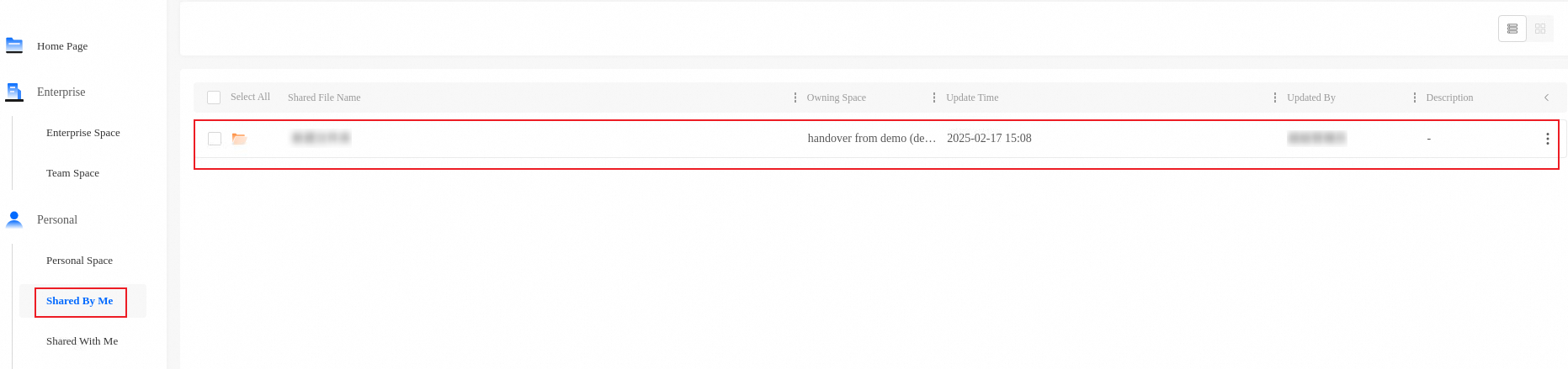
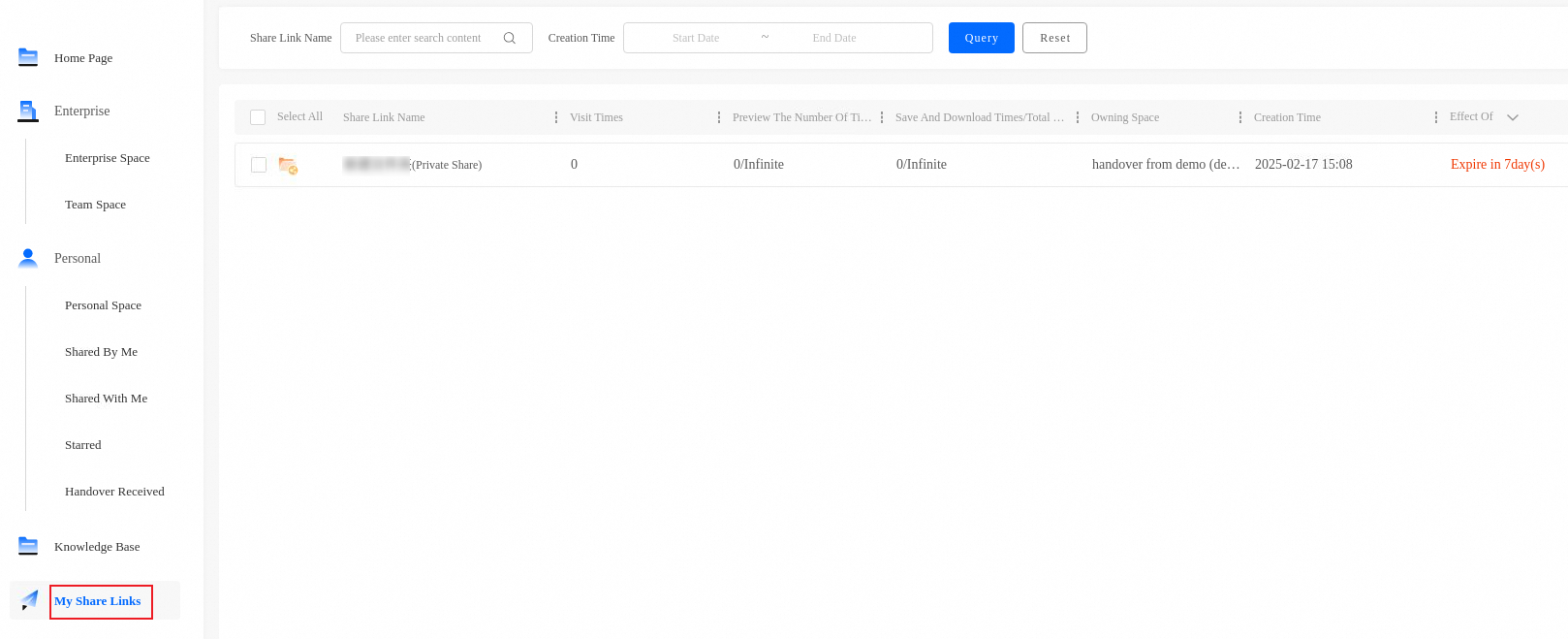
The transferred content includes all resources in the selected user's personal space, and all created and active shares.
The transferred content does not include resources in the selected user's recycle bin, received shares, or favorites.
After the transfer is complete, the selected user is deleted. The recipient can then manage the resources in the user's personal space.
Procedure
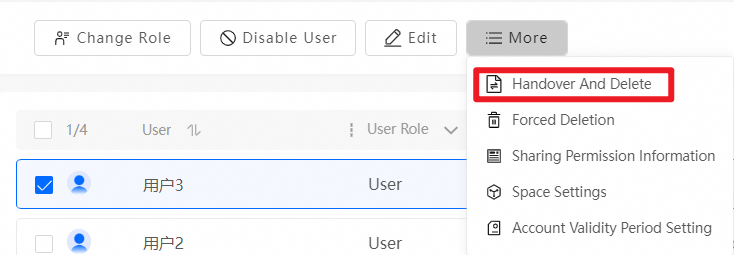
Log on as an administrator. In the upper-right corner, click Management Console > Team Management. Select the target user and click Transfer and delete.
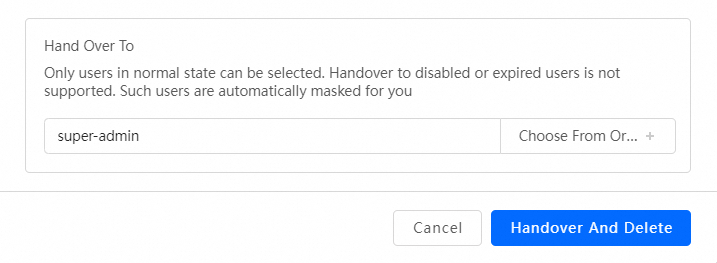
Click Select from organization. Select a recipient and click Confirm.
Verify that the transferor and recipient are correct. Then, click Transfer and delete and wait for the task to complete.
View received transfers
Procedure
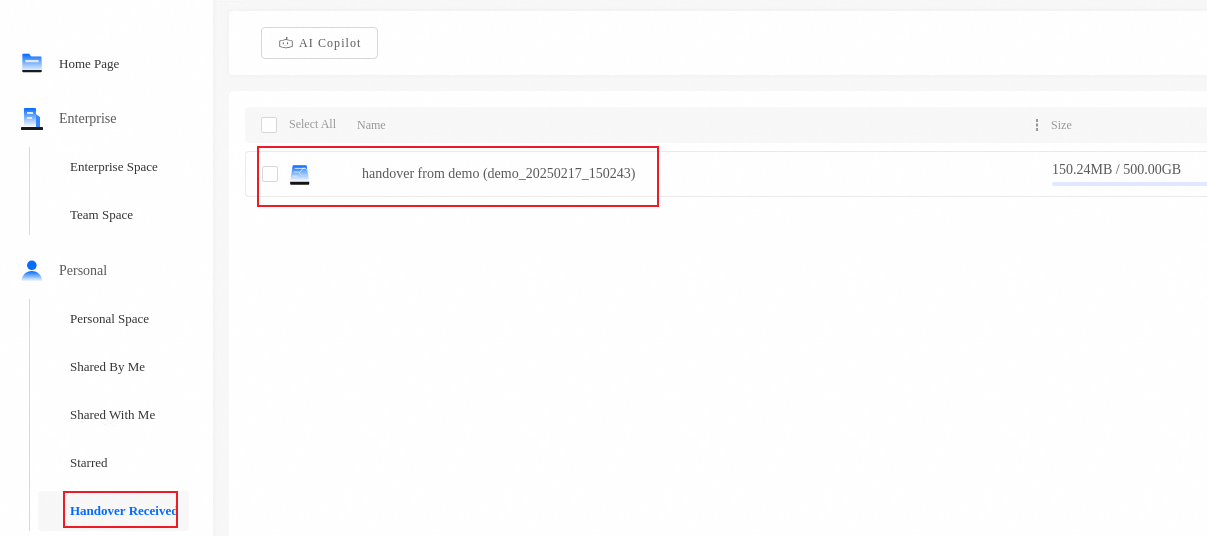
In the user interface, the recipient can click Personal > Received transfers to view the transferred content.
The transferred content includes all resources in the selected user's personal space, and all created and active shares.