This topic describes the favorites feature of personal space. You can add files and folders in your personal space to favorites based on your business requirements. This feature helps you view and manage data with ease.
Feature description
Add to favorites
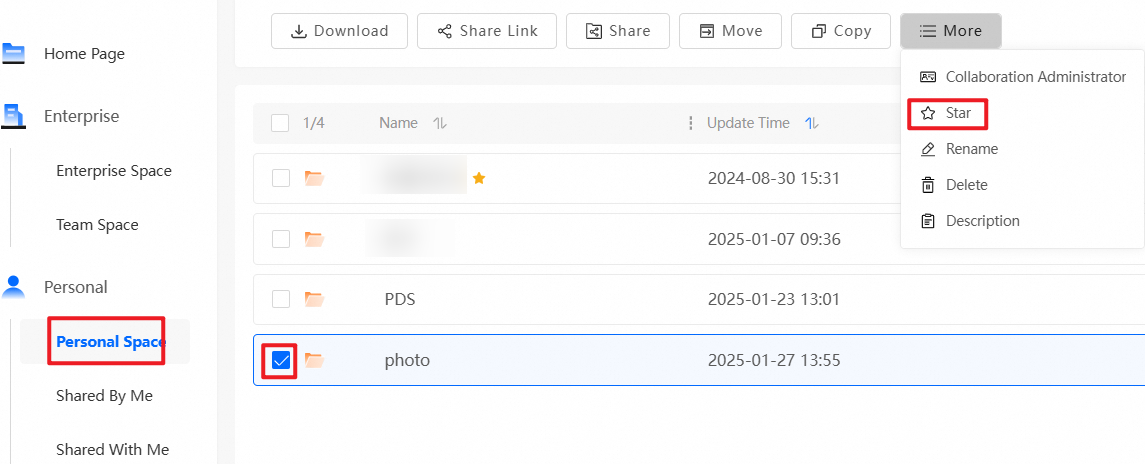
Log on to the personal space. In the left-side navigation pane, choose Personal > Personal Space. On the Personal Space page, select the files and folders that you want to add to favorites and click Star. The selected files and folders are added to favorites in your personal space.
View my favorites
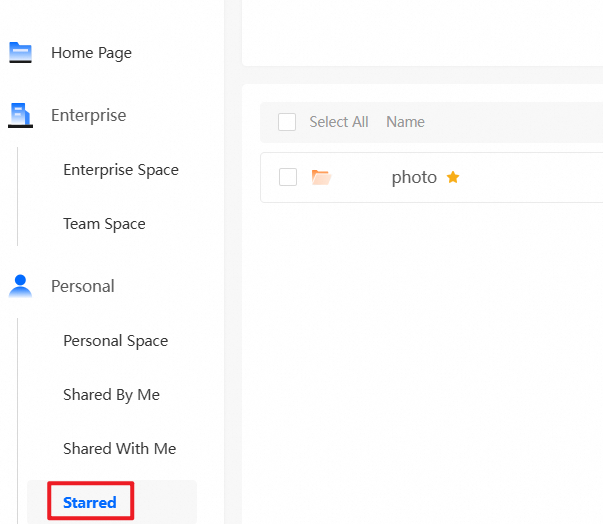
Log on to the personal space. In the left-side navigation pane, choose Personal > Starred. On the Starred page, you can view and manage the files and folders that you have added to favorites in your personal space.
ImportantIf you delete, rename, or move a file or folder that you have added to favorites or add a description to the file or folder, the update on the file or folder is synchronized to your personal space. Proceed with caution.
Remove from favorites
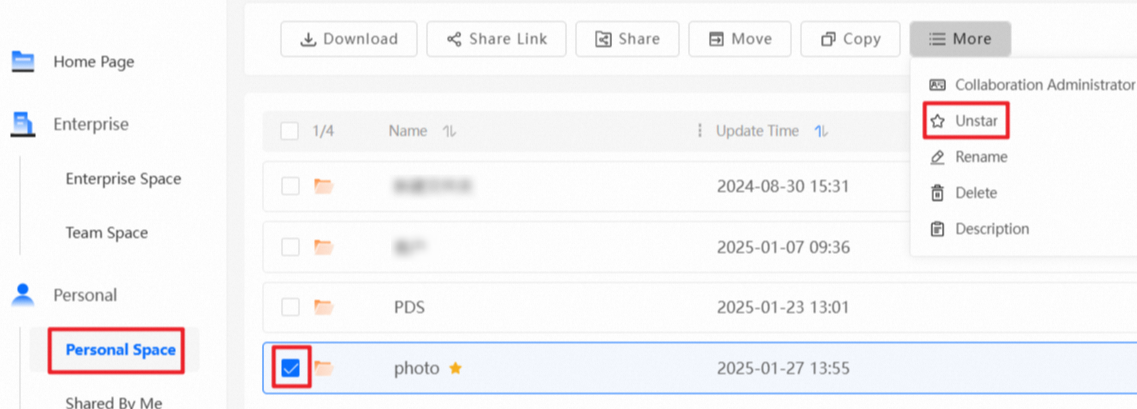
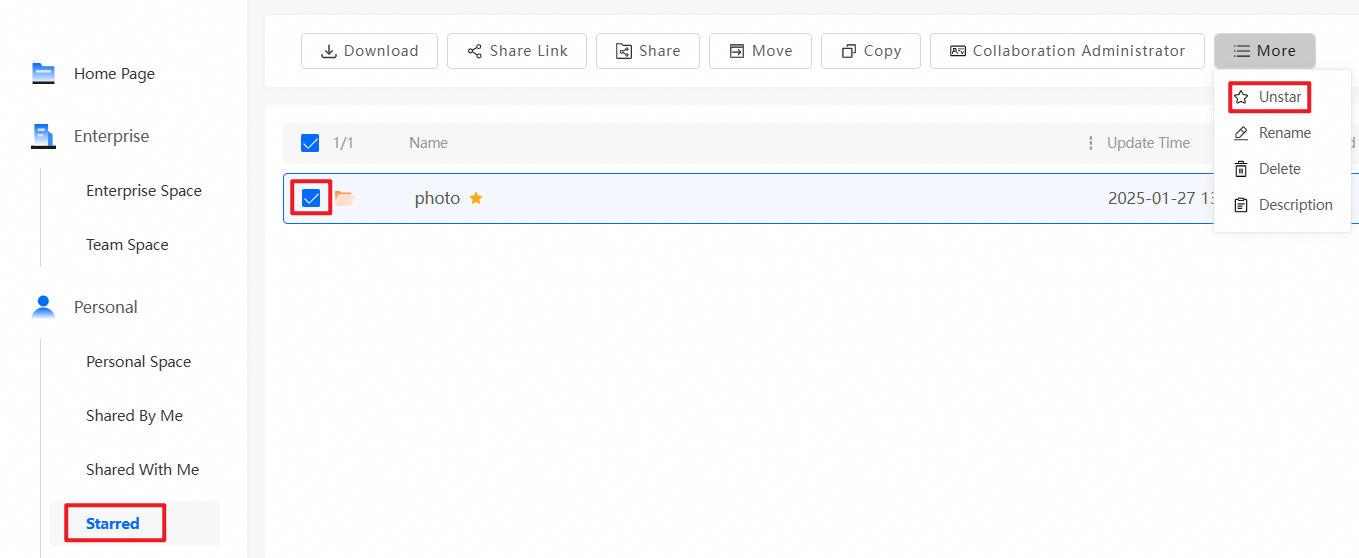
If you want to remove a file or folder from favorites, go to the Personal Space or Starred page, select the file or folder that you want to manage, and then click Unstar. The selected file or folder is removed from favorites. The removed file or folder is no longer displayed on the Starred page. However, the file or folder remains in your personal space.