This topic describes how to log on to Drive and Photo Service (Developer Edition) from PC and mobile devices.
Prerequisites
You have the permissions to operate the PDS console. If you log on as a RAM user that has not been granted the relevant permissions (AliyunPDSFullAccess), you need to grant the permissions to the RAM user.
A PDS Developer Edition domain is created.
You have generated a desktop client.
Log on to a client
PC client
Before logging on to the PC client, make sure you have enabled BasicUI in the Drive and Photo Service PDS console. After enabling it, follow these steps to choose a suitable logon method:
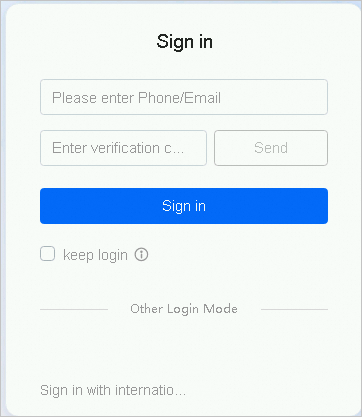
Default logon method
By default, if you have not connected to a third-party account, log on directly with your phone number or email address.
Open the desktop client.
Enter your phone number or email address and click Send.
Enter the verification code and click Sign in. Then access the product and start using it.
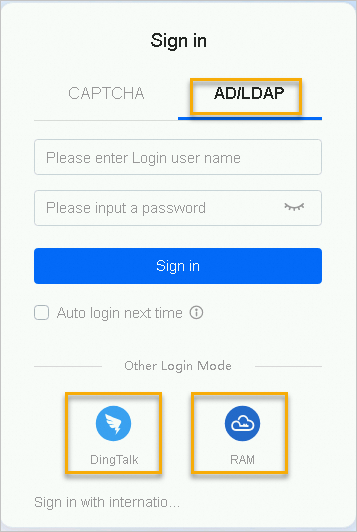
Other logon methods
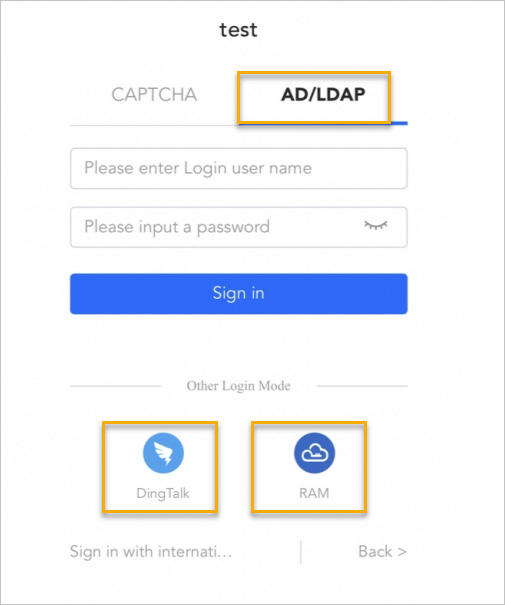
If you have connected to DingTalk, RAM sub-accounts, or AD/LDAP accounts, select the connected logon method below and enter your username and password to log on. For more information, see Account connection.
Mobile client
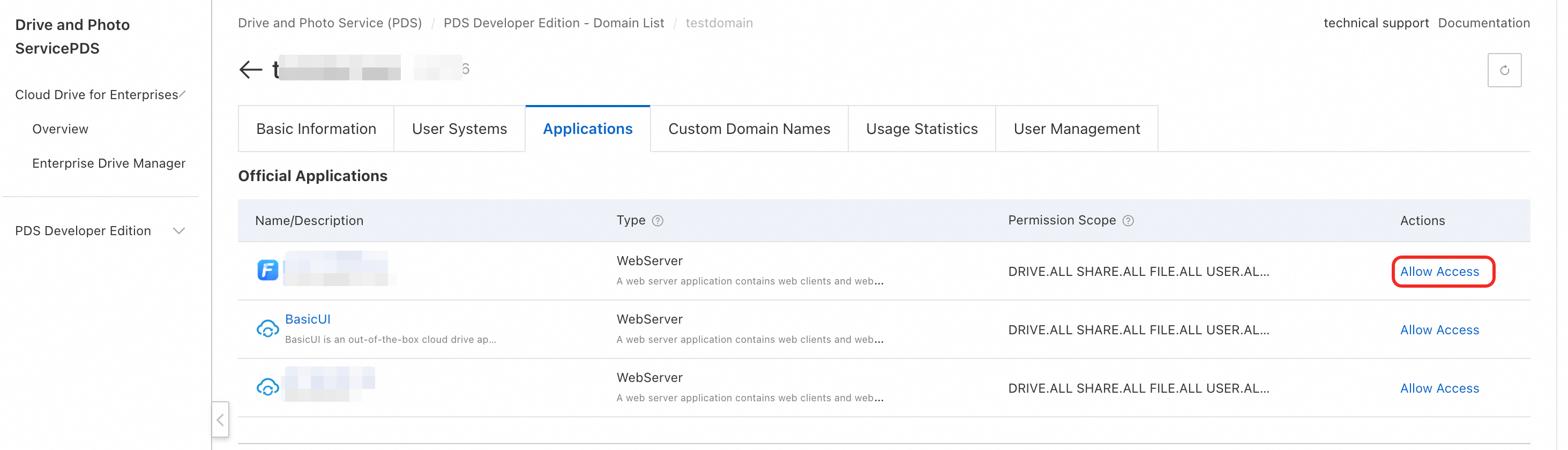
Before logging on to the mobile client, follow these steps to allow access to Enterprise File Management App:
Log on to the PDS console.
In the upper-left corner of the page, select the region where you created the domain.
Under , select the domain you want to operate and click Details.
Select Applications.
In the Actions column of Enterprise File Management App, click Allow Access.
After enabling access permissions, follow these steps to choose a suitable logon method:
Default logon method
By default, if you have not connected to a third-party account, log on directly with your phone number or email address.
Open the Enterprise File Management App.
In the upper-right corner of the interface, select International Site.
Enter the domainID. Click The next step.
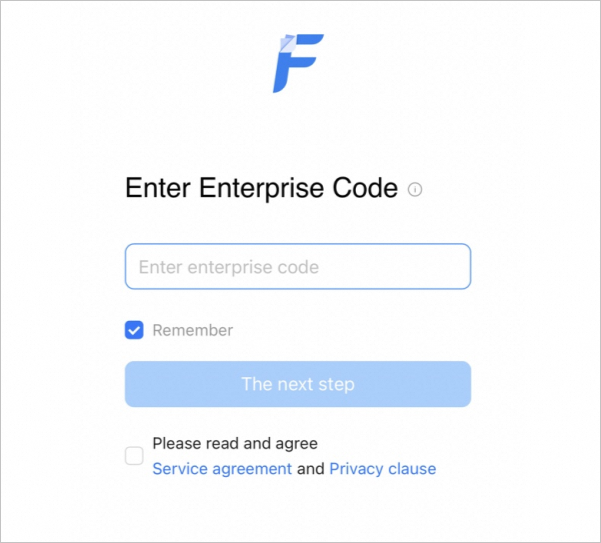
Enter your phone number or email address and click Send.
Enter the verification code and log on. Then access the product and start using it.
Other logon methods
If you have connected to DingTalk, RAM sub-accounts, or AD/LDAP accounts, select the connected logon method below and enter your username and password to log on. For more information, see Account connection.
In the upper-right corner of the interface, select International Site.
Enter the domainID in the Enterprise code field. Click Next.
Select the connected account below to log on.
FAQ
If you have downloaded the Enterprise Edition client on your PC and want to log on to the Developer Edition, see How to access the Developer Edition from the Enterprise Edition logon interface.