This topic describes how to stop the billing of Photo and Drive Service (PDS) Developer Edition. The procedure includes the steps to delete team drives, users, and domains. PDS no longer charges fees after you clear all data.
The operations described in this topic cannot be undone once performed. Back up your data in advance.
PDS Developer Edition is a pay-as-you-go service that charges storage, data transfer, and service fees.
Usage notes
After you delete all data of the team drives and your personal space, you must empty the recycle bin before the data can be permanently deleted.
Procedure
If you encounter any issues, contact us.
Step 1: Delete team drives
Access the BasicUI client.
Log on to the PDS console. In the left-side navigation pane, choose Drive and Photo Service (Developer Edition) > Domains.
On the Domains page, find the domain that you want to manage and click Details in the Actions column.
On the domain details page, click the Applications tab.
In the Official Applications section, find BasicUI and click Manage in the Actions column.
Go to the user page. On the Team Space page, delete all team drives. On the Personal Space page, delete all files from the personal space.
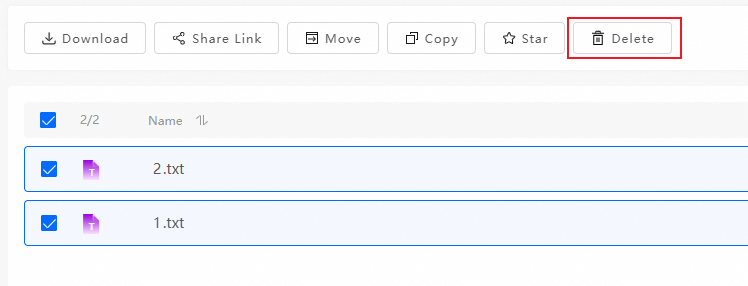
In the left-side navigation pane, click Bin.
On the Bin page, click Empty Trash.
Step 2: Delete users
Access the BasicUI client.
Log on to the PDS console. In the left-side navigation pane, choose Drive and Photo Service (Developer Edition) > Domains.
On the Domains page, find the domain that you want to manage and click Details in the Actions column.
On the domain details page, click the Applications tab.
In the Official Applications section, find BasicUI and click Manage in the Actions column.
In the left-side navigation pane of the BasicUI console, click Team Management.
On the Team Management page, select the user that you want to delete, click More above the user list, and then click Transfer And Delete or Forced Deletion.
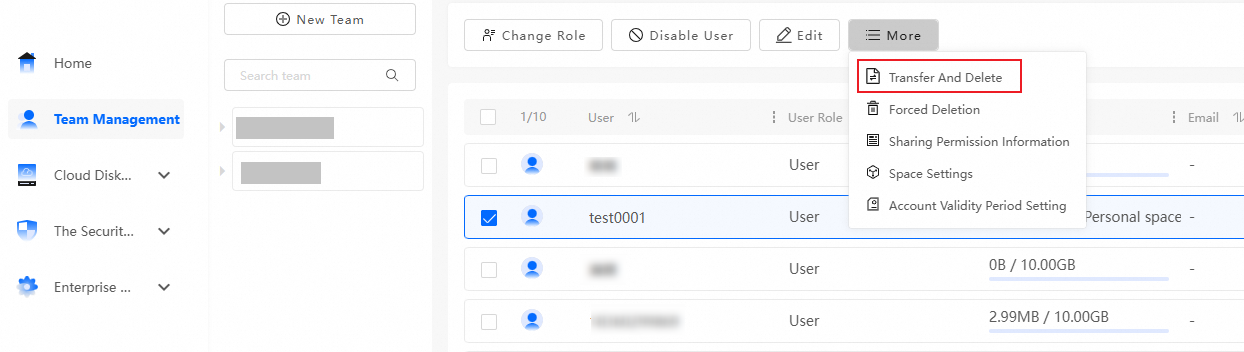
Transfer And Delete: deletes all resources in the personal space of the selected user and the created shares in the effective state.
Forced Deletion: deletes the selected user and all resources under the user, cancels all shares of the user, and closes the personal space of the user. The operation cannot be undone.
Step 3: Delete domains
Log on to the PDS console.
In the left-side navigation pane, choose Drive and Photo Service (Developer Edition) > Domains.
On the Domains page, find the domain that you want to delete and click Delete in the Actions column. In the Delete Domain message, click OK.

FAQ
Make sure that all domains within your account are deleted.
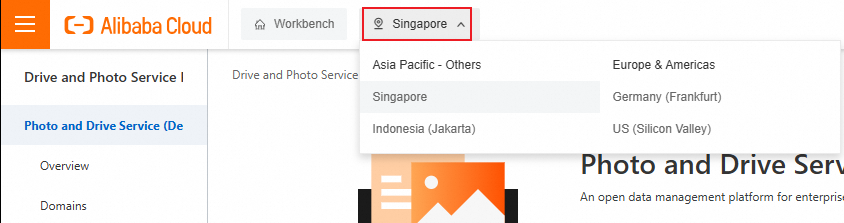
In the PDS console, move your pointer over the region drop-down list in the top navigation bar to switch among regions and check whether domains in all regions are deleted. After all domains are deleted, you are no longer charged.