ComfyUI is a node-based AIGC tool built on Stable Diffusion, designed for short-form video generation and animation production. PAI-EAS supports scenario-based deployment of ComfyUI services.
Before you begin
Key limitations and considerations
Read this section before you deploy to avoid wasted resources and common mistakes.
-
Deployment resources: We recommend GU30, NVIDIA A10, or NVIDIA T4 GPU instance types. The
ml.gu7i.c16m60.1-gu30instance type offers the best price-performance ratio.ImportantEach PAI-EAS instance runs a single ComfyUI process and supports only one GPU (single-instance single-GPU or multi-instance single-GPU). Multi-GPU parallel inference is not supported. Do not select multi-GPU instance types (such as 2×A10). Multi-GPU instance types waste resources and do not improve single-task performance.
Horizontal scaling: To increase concurrency, use the API Edition and increase the number of replicas instead of selecting a multi-GPU instance type.
Choose a deployment edition
Select the edition that best fits your use case:
Edition | Use case | Access method | Key features | Billing method |
Standard Edition | Single-user development and testing |
|
| When deployed on public resources, billing starts as soon as the instance is running, even without any API calls. |
API Edition | High-concurrency production workloads | API calls (asynchronous) |
| |
Cluster Edition WebUI | Multi-user teams and training | WebUI |
For more information about how this works, see How Cluster Edition works |
For more billing information, see Elastic Algorithm Service (EAS) billing.
Synchronous and asynchronous API calls differ based on whether the PAI-EAS queue service is used:
Synchronous call: Sends a request directly to the inference instance without using the PAI-EAS queue service.
Asynchronous call: Uses the PAI-EAS queue service. Requests are submitted to an input queue, and results are delivered through a subscription model.
Because ComfyUI has its own built-in asynchronous queue system, even synchronous calls are processed asynchronously under the hood. After you submit a request, the system returns a Prompt ID that you use to poll for the inference result.
Deploy the service
Standard Edition, Cluster Edition, and API Edition: You can use scenario-based model deployment for a simplified experience, or custom model deployment for advanced configuration options.
Method 1: Scenario-based model deployment (recommended)
Log on to the PAI console. Select a region on the top of the page. Then, select the desired workspace and click Elastic Algorithm Service (EAS).
On the Elastic Algorithm Service (EAS) page, click Deploy Service. In the Scenario-based Model Deployment section, click AI Video Generation: ComfyUI-based Deployment.
-
Configure the following key parameters and set other parameters as needed:
Version: See Choose a deployment edition.
-
Model Settings: For example, using Object Storage Service (OSS), select a bucket and directory. After deployment succeeds, the system automatically creates the required ComfyUI directories in this location.
ImportantPAI-EAS does not support installing custom nodes (plugins) directly from the network through ComfyUI Manager or Git Clone. To use your own models, install custom nodes, or make API calls, you must configure this storage mount.
Resource Configuration: You must select a GPU instance type. We recommend GU30, NVIDIA A10, or NVIDIA T4.
ml.gu7i.c16m60.1-gu30offers the best price-performance ratio. If this instance type is unavailable, selectecs.gn6i-c16g1.4xlargeinstead.
Click Deploy. Wait approximately 5 minutes. When Service Status changes to Running, the deployment is complete.
Method 2: Custom model deployment
Log on to the PAI console. Select a region on the top of the page. Then, select the desired workspace and click Elastic Algorithm Service (EAS).
Click Deploy Service. In the Custom Model Deployment section, click Custom Deployment.
-
Configure the following key parameters:
Deployment Method: Select Image-based Deployment and select the Enable Web App check box.
-
Image Configuration: In the Alibaba Cloud Image list, select
comfyui:2.3. Image version naming convention:x.xfor Standard Edition,x.x-apifor API Edition, andx.x-clusterfor Cluster Edition.NoteBecause versions are updated frequently, select the latest available image version when you deploy.
For the use cases of each edition, see Choose a deployment edition.
-
Mount storage: Using Object Storage Service (OSS) as an example, select a bucket and directory. After deployment succeeds, the system automatically creates the required ComfyUI directories in this location. Make sure the bucket is in the same region as the PAI-EAS service.
ImportantPAI-EAS does not support installing custom nodes (plugins) directly from the network through ComfyUI Manager or Git Clone. To use your own models, install custom nodes, or make API calls, you must configure this storage mount.
URI: Click
 to select an existing OSS directory. For example,
 oss://bucket-test/data-oss/.Mount Path: Set this to
/mnt/datato mount the OSS directory to the container path/mnt/data.
-
Command to Run:
After you select an image version, the system automatically configures the runtime command.
If you configured a storage mount, you must add the
--data-dirparameter to the Command, and its value must match the Mount Path exactly. For example,python main.py --listen --port 8000 --data-dir /mnt/data --cache-root /stable-diffusion-cache.
Resource Type: Select Public Resources.
Deployment: You must select a GPU instance type. We recommend GU30, NVIDIA A10, or NVIDIA T4.
ml.gu7i.c16m60.1-gu30offers the best price-performance ratio. If this instance type is unavailable, selectecs.gn6i-c16g1.4xlargeinstead.
Click Deploy. Deployment takes approximately 5 minutes. When Service Status changes to Running, the service is deployed.
Use the service through WebUI
Standard Edition and Cluster Edition support access through WebUI.
Open the web interface
Click the name of the target service to open the Overview page, and then click Web Application in the upper-right corner.
If the page takes a long time to load, see Page freezes or takes too long to load .
Use a template workflow
ComfyUI provides prebuilt templates for common tasks.
-
Select a template (for example, Wan VACE Text to Video).
NoteTemplates vary across ComfyUI image versions. If the sample template is not available, select a different template or load a workflow file from the local file system.
After the workflow loads, you may see errors about missing models. You can dismiss these errors (we recommend selecting the option to not show this message again).
-
Because model paths may have changed, running the workflow directly may produce the following error:
Prompt outputs failed validation:
UNETLoader:
- Value not in list: unet_name: 'wan2.1_vace_14B_fp16.safetensors' not in (list of length 200)
LoraLoader:
- Value not in list: lora_name: 'Wan21_CausVid_14B_T2V_lora_rank32.safetensors' not in (list of length 364)
In the Load models here section, reselect
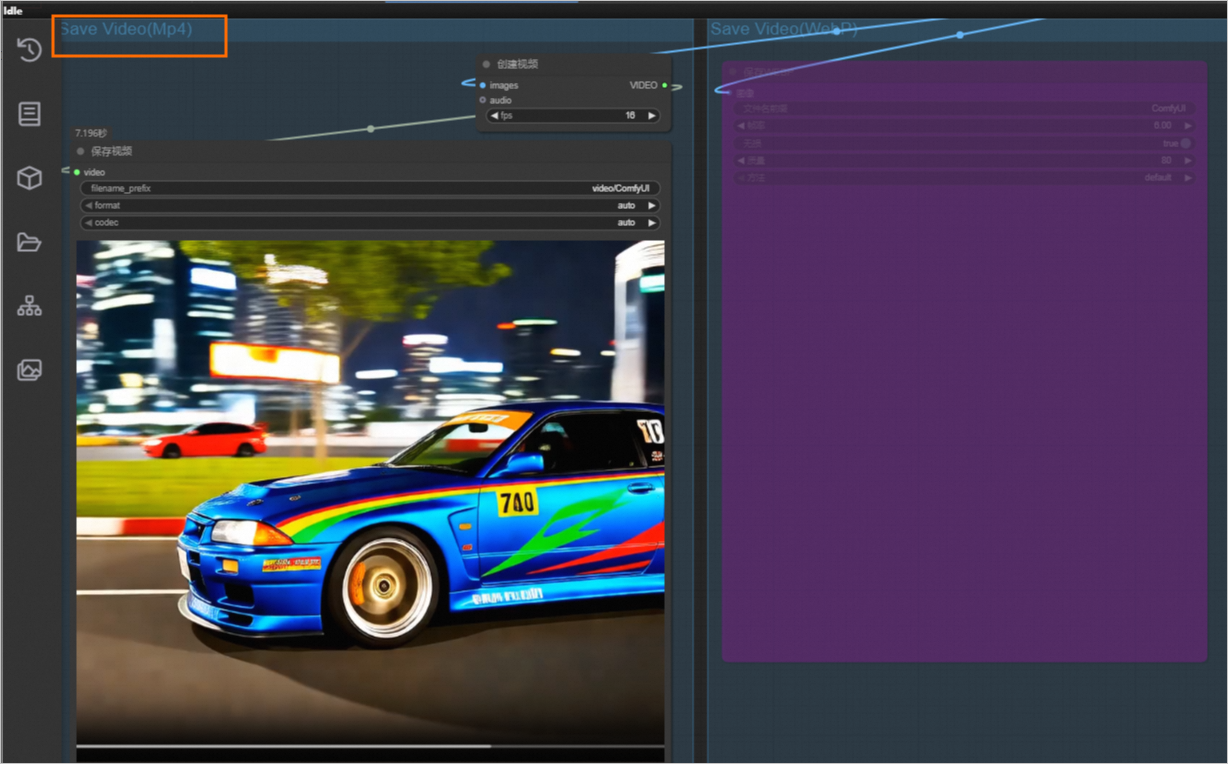
wan2.1_vace_14B_fp16.safetensorsin the UNET loader andWan21_CausVid_14B_T2V_lora_rank32.safetensorsin the LoRA loader. After the workflow runs successfully, the generated video appears in the Save Video section.
Use custom models and nodes
-
Make sure the service has a storage mount configured. After the service is deployed, the system automatically creates the following directory structure in the mounted OSS or NAS storage.
data-oss/ ├── custom_nodes/ # Custom node files (ComfyUI plugins) ├── models/ # Model files ├── input/ ├── output/ ├── unet/ └── temp/ -
Upload model or node files. For example, you can use OSS and upload files to OSS through the console. For large files, see How do I upload large objects to OSS?.
-
Upload model files: Check the documentation of the source repository for the node that uses the model, and upload the model to the corresponding subdirectory under
models. For example:Checkpoint loader: Upload models to
models/checkpoints.Style model loader: Upload models to
models/styles.
Upload node files: Upload custom nodes to the
custom_nodesdirectory in the mounted storage.
-
-
Load new content.
Models: At the top of the page, click PaiCustom > Load New Models. If the model still does not appear, click PaiCustom > Restart Process. After the process restarts, refresh the browser page.
Nodes: Click Restart Process. After the process restarts, refresh the browser page.
Call the service through API
You can call the ComfyUI service through its API to integrate it into your applications for automated content generation. The core workflow: submit a workflow JSON > get a task ID > use the task ID to retrieve the generation result.
Edition support: Standard Edition supports only synchronous calls and provides online debugging. API Edition supports only asynchronous calls and only the /prompt endpoint.
Retrieving generated output: Generated images and videos are stored in the mounted
outputdirectory. API responses return file names and subdirectory names rather than the files themselves. For OSS, construct the full file path to download the files. For more information, see Download OSS files by using the Alibaba Cloud SDK.
Prepare the API request body
The request body format depends on the call method:
Synchronous call: Wrap the workflow JSON content inside a
promptkey-value pair.Asynchronous call: The request body is the workflow JSON content directly.
How to download a workflow: In the upper-left corner of the ComfyUI page, click  > File > Export (API).
Because the Wan VACE Text to Video workflow above is time-consuming, the following test workflow is provided for easier testing (each run takes approximately 3 minutes).
Synchronous calls
Synchronous calls send requests directly to the PAI-EAS service instance. This method is suitable for development, testing, and low-concurrency scenarios.
Online debugging
Online debugging lets you test API calls directly in the console without writing code. This is useful for quickly validating workflow configurations.
On the Elastic Algorithm Service (EAS) page, click Online Debugging in the Actions column of the target service to open the online debugging page.
Code-based calls
You can call the API through code to integrate ComfyUI into your applications. The workflow is the same as online debugging: first obtain the Prompt ID, then query the inference result.
Asynchronous calls
Asynchronous calls are designed for high-concurrency production workloads. This method uses the PAI-EAS queue service for load balancing. Requests return immediately, and you retrieve results by subscribing to the result queue.
Asynchronous calls support only the api_prompt endpoint. The task_id parameter is a critical identifier for matching requests to results. Assign a unique value to each request so you can correlate it with the corresponding queue result. The request path is:
{service_url}/api_prompt?task_id={assign a unique value}
-
On the Inference Services tab, click the name of the target service to open the Overview page. In the Basic Information section, click View Call Information. On the Asynchronous Call tab of the Call Information dialog box, view the service access endpoint and token.

The following sections use <EAS_ENDPOINT> to refer to the Internet Input Endpoint (if the caller is in the same VPC as PAI-EAS, you can use the VPC Input Endpoint), and <EAS_TOKEN> to refer to the Token.
-
-
FAQ
The following are common issues and solutions for ComfyUI deployment and usage.
Deployment issues
Q: The service stays in a waiting state or ComfyUI cannot generate output
This is usually caused by insufficient resources. Verify that the service image and instance type are configured correctly. We recommend GU30, NVIDIA A10, or NVIDIA T4 GPU instance types. The ml.gu7i.c16m60.1-gu30 instance type offers the best price-performance ratio.
Model and node issues
Q: WebUI displays a "Missing Model" error
Problem: A dialog box titled Missing Model indicates that the model at checkpoints/v1-5-pruned-emaonly-fp16.safetensors is missing, and a red warning on the left shows Invalid directory specified (does this require custom nodes?).
Solution: You can safely ignore this error. This validation check is not applicable to ComfyUI deployed on PAI. Refer to the actual runtime errors instead.
We recommend selecting the option to not show this message again, or disable model validation in Settings.
Q: I uploaded a new model but cannot find it
Solution:
Click PaiCustom and select Load New Models.
If the model still does not appear, click Restart Process.
Q: The model loader shows "undefined"
First, verify that the model file is placed in the correct directory as required by the model loader node.
If you uploaded the model after deployment, restart the service.
Q: Cannot find a node
For newly installed nodes, restart the service.
If the node is not installed, see Use custom models and install nodes (ComfyUI plugins).
Q: ComfyUI Manager fails to download models or install nodes
We do not recommend using ComfyUI Manager with ComfyUI deployed on PAI-EAS. ComfyUI Manager downloads models and plugin code from external sources such as GitHub, which frequently fails due to network restrictions.
Instead, upload model and node files to the mounted storage. For more information, see Use custom models and install nodes (ComfyUI plugins).
Q: How to view available model files and nodes (ComfyUI plugins)
Model files: Check from the corresponding model loader node. For example, view available model files in the drop-down list of the Checkpoint loader.
Nodes: Right-click the WebUI page and click Add Node in the context menu to view all installed ComfyUI plugins.
Runtime errors
Q: The page freezes or takes too long to load
Refresh the page, clear the browser cache, or access the service in incognito/private browsing mode.
If storage is mounted, delete the files in the
input/,output/, andtemp/directories.Try restarting the service.
Q: The process restarts mid-workflow
If the instance logs contain run.sh: line 54: 531285 Killed python -u main_run.py "$@", the process was killed due to an out-of-memory (OOM) condition. The process automatically restarts after an OOM event.
Q: RuntimeError: CUDA error: out of memory
This means GPU memory is exhausted. For image models, reduce the image resolution or batch size. For video models, reduce the frame count or resolution.
Q: API call returns "url not found" or "404 page not found"
Verify that the API endpoint URL is complete. For synchronous calls, you must append the
/promptpath.
Other
Q: xFormers acceleration performance
xFormers is an open-source Transformer-based acceleration tool that reduces image and video generation time and GPU memory usage.
ComfyUI images have xFormers acceleration enabled by default. The acceleration effect depends on the size of the workflow, with the most noticeable improvements on GPU-intensive operations, especially with NVIDIA GPUs.
What to do next
After you deploy the ComfyUI service, you can:
Service monitoring: Configure monitoring and alerting to track service health in real time. For more information, see View service monitoring metrics.
Auto scaling: Configure auto scaling policies based on workload to optimize resource usage and costs. For more information, see Auto scaling.
Cost optimization: Understand PAI-EAS billing methods and choose the right instance type and deployment edition to reduce costs. For more information, see Billing overview.
Reference
Install Python packages
Install a .whl package by running a command
Make sure the service has a storage mount configured. For example, assume the OSS path (URI) is
oss://examplebucket/comfyui/and the mount path is/mnt/data/.Upload the
.whlfile to theoss://examplebucket/comfyui/models/whldirectory. If thewhldirectory does not exist, create it first.Update the Command to Run of the service: Prepend
pip install /mnt/data/models/whl/xxx.whlto the runtime command. In this command,/mnt/datais the OSS mount path, and xxx.whl is the name of the .whl package.Restart the service.
Install packages through third-party library configuration
On the service details page, click Update in the upper-right corner.
If the service was deployed through scenario-based model deployment, switch to custom model deployment.
In the Environment Information section, configure the dependencies in the Third-party Library Configuration area.
Click Update at the bottom of the page to apply the update.
Update the image version
If the service has OSS or NAS storage mounted, custom models are stored in the OSS or NAS storage and are not affected by an image version update.
On the service details page, click Update in the upper-right corner.
If the service was deployed through scenario-based model deployment, switch to custom model deployment.
In the Service Configuration section, edit the JSON configuration and update the
imagefield undercontainersto the desired version (for example, change 1.9 to the target version).Click Update Directly.
Generate a sign-in-free URL with a custom validity period
You can use an API to generate a sign-in-free web access URL with a specified validity period.
Go to the DescribeServiceSignedUrl API page.
Select the service endpoint.
-
Set the following parameters:
-
ClusterId (Region) and ServiceName: Enter the region and name of the service.
On the EAS service overview page, the Service Name field shows the ServiceName value. The region is embedded in the node image address (for example,
cn-hangzhoucorresponds to the ClusterId region value). You can click View Web Application in the upper-right corner to open the service. Type (Page type): Select webview from the drop-down list.
Expire (Expiration time): Enter an integer in seconds. The maximum value is 43200 seconds (12 hours). Set this as needed.
Internal (VPC access): Set to false (public access) or true (VPC access).
-
Click Call API. The
SignedUrlfield in the response contains the sign-in-free web access URL.
Change the default language of the WebUI
On the WebUI page, click the Settings button in the lower-left corner.
-
Configure the language in the following two locations, then refresh and reload the page.
Comfy > Locale.
Language > Locale.
Appendix
How Cluster Edition works
The following diagram shows the architecture:

Cluster Edition is designed for multi-user scenarios. It introduces a proxy layer that decouples clients from backend inference instances.
Each user has an independent backend environment and working directory, but shares the backend GPU inference instance pool.
When a user sends an inference request, the proxy selects an available instance from the pool to handle the request.
This time-multiplexing mechanism isolates user environments while maximizing GPU resource utilization and reducing inference costs in multi-user scenarios.