Shared gateways use shared bandwidth and fixed access policies, making it difficult to meet the high isolation and elasticity demands of high-concurrency applications. To address this, Elastic Algorithm Service (EAS) provides a fully-managed dedicated gateway. It offers flexible public and private network access control, supports custom domain names, and provides dedicated bandwidth to ensure service stability and reliability.
Key features
Access control: Control public and private network access using an allowlist.
Custom domain name access: Allows you to configure a custom domain name and certificate for external services.
Cross-account VPC access: Allows servers in a cross-account VPC within the same region to access EAS services over a private network.
Authoritative DNS resolution: Enable authoritative DNS resolution for the gateway domain. This feature is used for calling EAS services from other clouds or on-premises data centers and requires a connection to the Alibaba Cloud network.
Billing
Gateway fees: Supports both pay-as-you-go and subscription billing methods. For details, see Elastic Algorithm Service (EAS) billing.
Additional fees:
Private network access: Incurs additional PrivateLink fees, including instance fees and data processing fees. For details, see PrivateLink billing.
Public network access: Public data transfer fees are billed through Cloud Data Transfer (CDT). For details, see the CDT console.
1. Create a fully-managed dedicated gateway
Log on to the PAI console. Select a region on the top of the page. Then, select the desired workspace and click Elastic Algorithm Service (EAS).
On the Inference Gateway tab, click Create Dedicated Gateway, and then select Fully managed dedicated gateway.
On the EAS dedicated gateway purchase page, configure the parameters. To ensure service stability, select a Gateway Specification based on the Appendix: Dedicated gateway capacity planning.
After configuring the parameters, click Buy Now. Follow the on-screen instructions to confirm your order and complete the payment.
You can view the gateway in the inference gateway list. The gateway is ready when its Status changes to Running.
After creating a fully-managed dedicated gateway, you can update its specification and the number of nodes. Changes take about 3 to 5 minutes to take effect.
You can set a dedicated gateway as the default. When you deploy new services, the system automatically selects this gateway.
2. Associate a service with a dedicated gateway
The following steps demonstrate how to deploy a new service and associate it with the gateway. For an existing service, you can update its configuration to use the gateway.
Log on to the PAI console. Select a region on the top of the page. Then, select the desired workspace and click Elastic Algorithm Service (EAS).
On the Inference Service tab, click Deploy Service. In the Custom Model Deployment section, click Custom Deployment.
In the Network Information section, select Dedicated Gateway and choose the dedicated gateway that you created.
3. Enable network access
3.1 Configure public access
On the Inference Gateway tab, click the name of the target fully-managed dedicated gateway to open its details page.
In the Gateway Access Control section, go to the Internet tab and turn on the Access Portal switch. When the status changes to Activated, public access is enabled for the gateway.
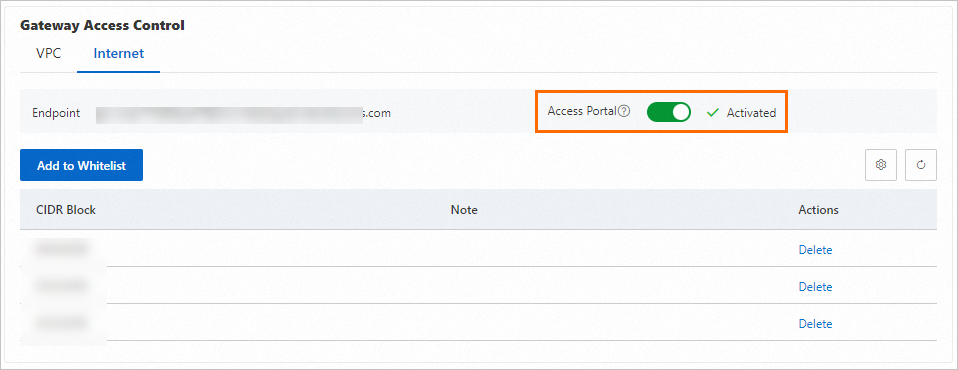
By default, the gateway is not publicly accessible. Click Add to Whitelist and enter the public IP CIDR blocks from which to allow access (for example, 192.0.2.0/24).
Separate multiple CIDR blocks with commas or line breaks.
To allow access from any public IP address, add the 0.0.0.0/0 CIDR block. You can add up to 15 CIDR blocks.
Verify public access connectivity to the gateway.
On the Internet tab, find the Endpoint.
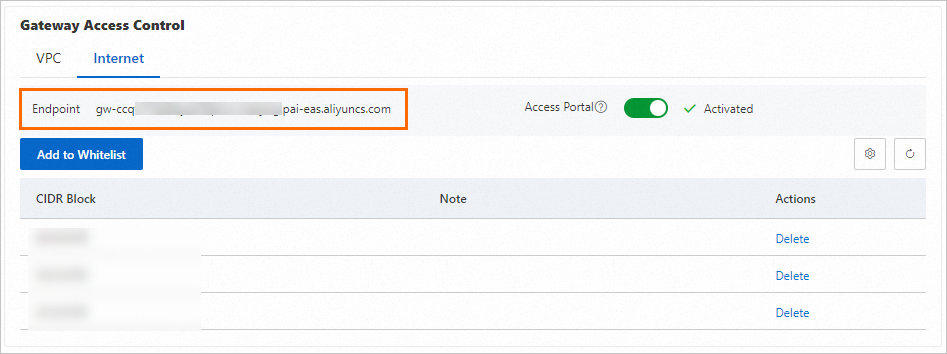
From a device with an IP address in an allowed CIDR block, access the domain name. The following output indicates that the connection is successful.
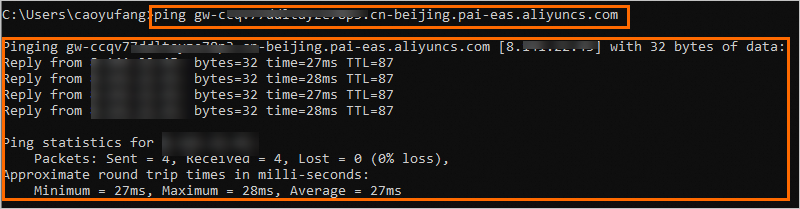
To disable public access, go to the Internet tab and turn off the Access Portal switch.
From a local terminal, access the domain name. The following output indicates that public access to the gateway is disabled.
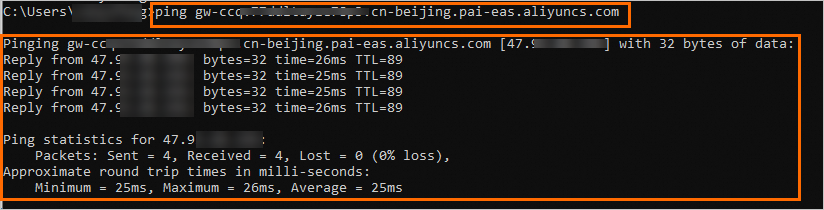

3.2 Configure private access
On the Inference Gateway tab, click the name of the target fully-managed dedicated gateway to open its details page.
In the Gateway Access Control section, go to the VPC tab, click Add VPC, and select the VPC and vSwitches you want to connect.
You can add a cross-account VPC from the same region. After adding a VPC from Account B, servers in that VPC can access EAS services that use this dedicated gateway through the VPC endpoint. Note: Account B must have PAI-EAS, PrivateLink, and PrivateZone enabled.
NoteTo use this allowlisted feature, submit a ticket.

The gateway supports authoritative DNS resolution for the gateway domain name. This is used for calling EAS services from other clouds or on-premises data centers and requires a connection to the Alibaba Cloud network. Authoritative DNS resolution can only be enabled in one VPC configuration at a time.
When you add a VPC, the system adds an allowlist entry of 0.0.0.0/0 by default, allowing access from all IP addresses within that VPC. You can Modify Whitelist as needed.
Verify private access connectivity to the gateway.
On the VPC tab, find the Endpoint.
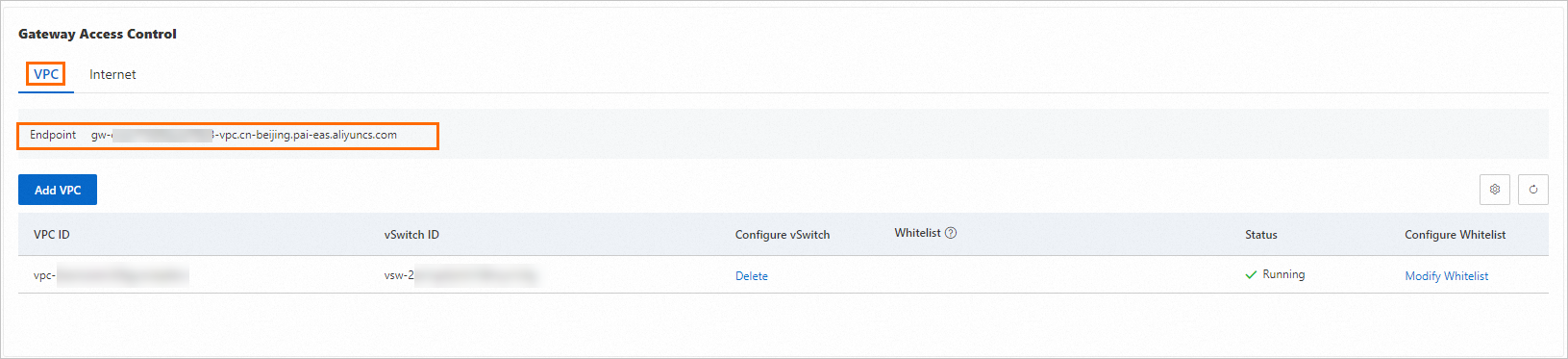
From a terminal within the Virtual Private Cloud, access the domain name. The following output indicates that the connection is successful.
NoteYou can use the allowlist to grant gateway access to any zone within the Virtual Private Cloud, not just the zones of the added vSwitches.
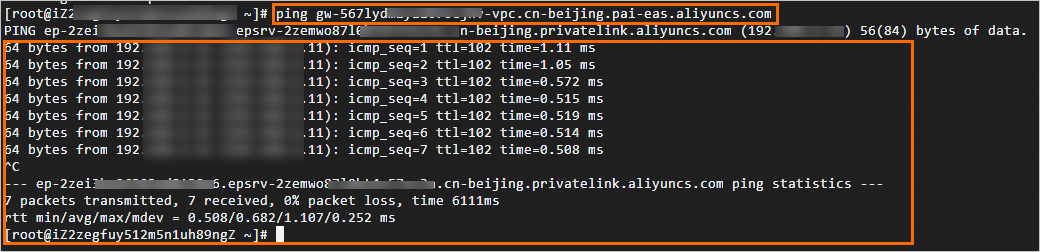
To disable private network access, find the vSwitch in the list and click Delete in the Configure vSwitch column.
From a terminal within the Virtual Private Cloud, access the domain name. The following output indicates that private access to the gateway is disabled.


4. Test service invocation
On the Inference Service tab, find the target service and click Invocation Method in the Service Type column.
On the Dedicated Gateway tab, copy the Internet Endpoint, VPC Endpoint, and Token.

Use a
curlcommand to send a request and verify that the response is correct.Public invocation: Run the command from any machine with public internet access.
Private invocation: Run the command from a terminal within the configured Virtual Private Cloud.
curl <Endpoint_URL> -H'Authorization:<token>'The following example shows a GET request with no parameters. The expected response is
True.
5. Configure a custom domain name
1. (Optional) Prepare an SSL certificate
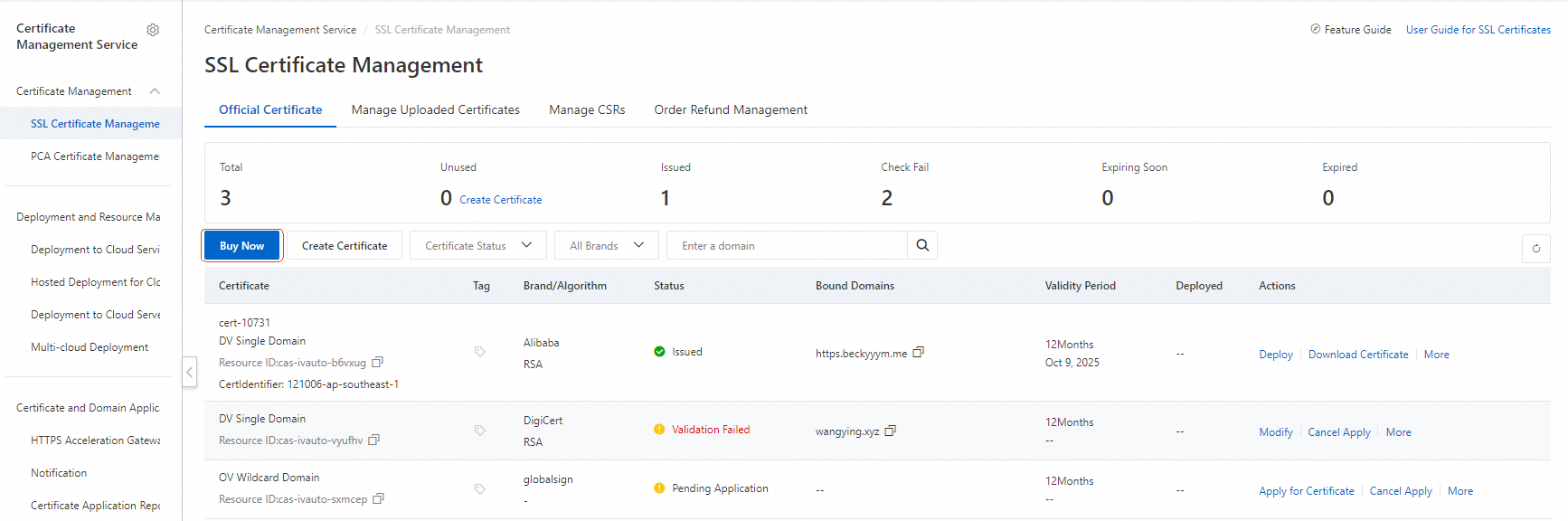
To use HTTPS for your service, you must first add the SSL certificate for your custom domain name to Certificate Management Service.
Log on to the Certificate Management Service console and select SSL Certificate Management.
Click Purchase Certificate or upload an existing certificate. For details, see Purchase an SSL certificate and Upload an SSL certificate.
2. Configure the custom domain name
Public custom domain
On the gateway details page, switch to the Domain Name tab, click Create Domain Name, and configure the settings as shown below.
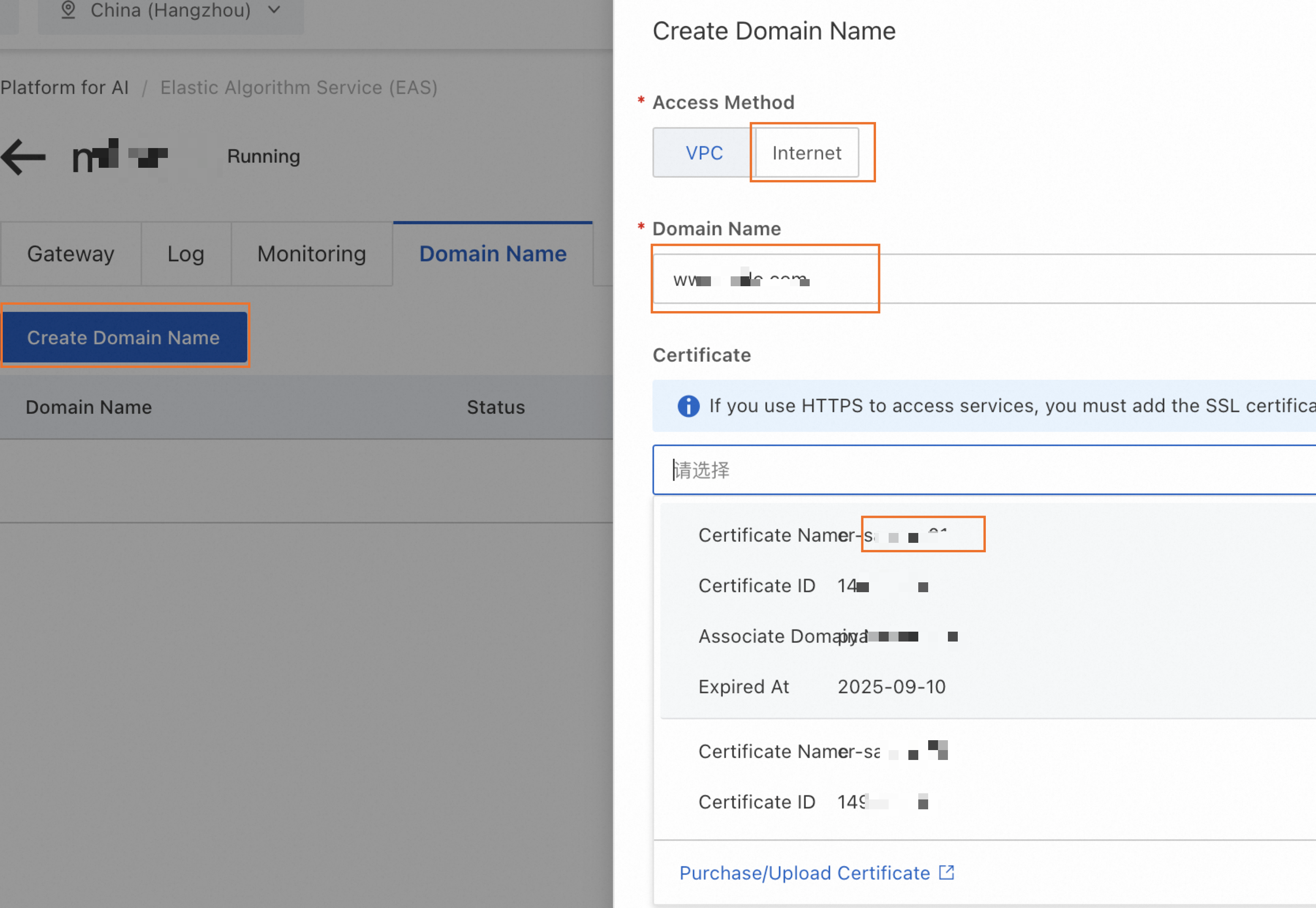 Note
NoteIf a service is already deployed using this gateway, the new custom domain name may take up to 5 minutes to take effect.
Verify that the public endpoint URL in the service invocation information is updated to your custom domain name.
Configure public DNS resolution.
On the Gateway tab, find the gateway's public domain name.
Add a CNAME record for your custom domain name that points to the gateway's public domain name.
For information on configuring public DNS resolution with Alibaba Cloud, see Domain Management and Add a DNS record.
Private custom domain
On the gateway details page, switch to the Domain Name tab and click Create Domain Name. Refer to the following configuration.
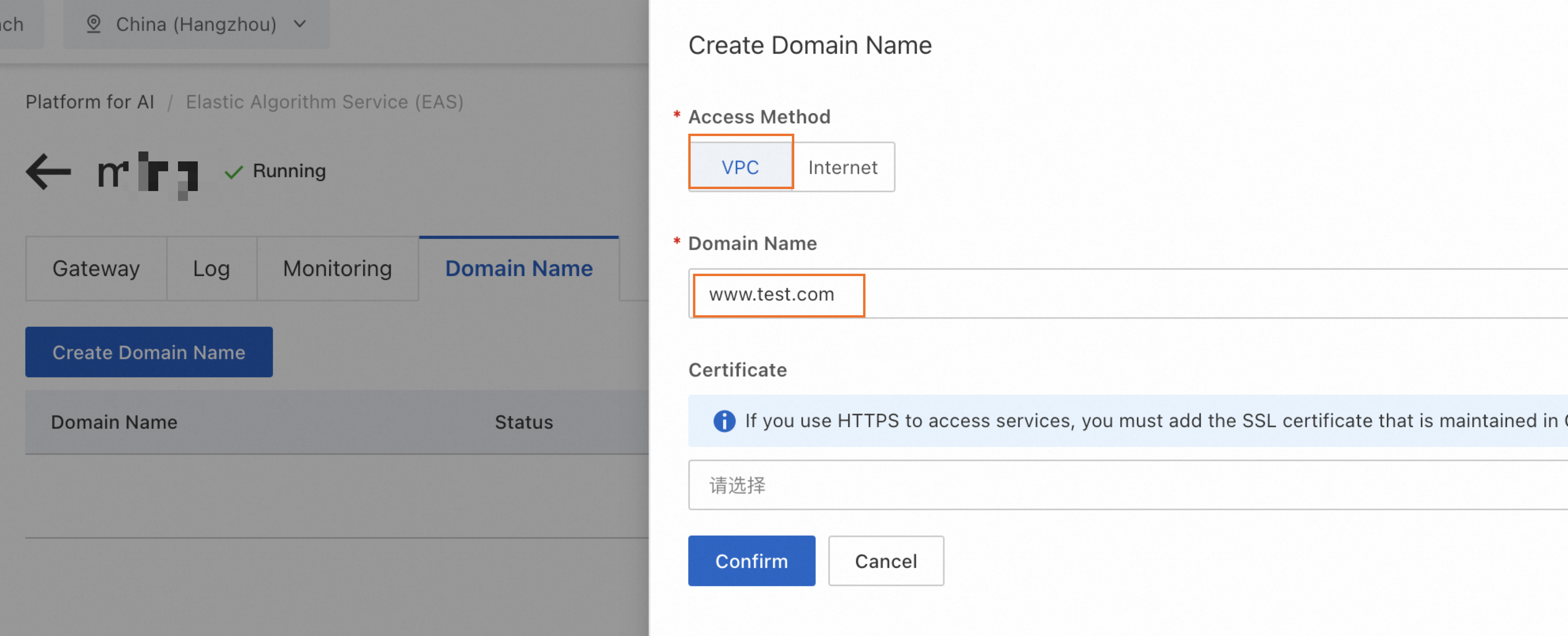
If a service is already deployed using this gateway, wait up to 5 minutes for the new private custom domain name to take effect. Verify that the domain name in the VPC endpoint URL has been updated to your private domain name.
Monitoring and alerts
To ensure the stability of your fully-managed dedicated gateway and promptly detect operational issues, we recommend enabling logs, monitoring, and alerts.
Procedure
To enable logs, monitoring, and alerts, go to the Logs, Monitoring, and Alert tabs on the gateway details page and follow the on-screen instructions to enable each feature.
Create an alert policy: After enabling alerts, the Create Alert Policy for EAS Dedicated Gateway button appears. Click it to create alert rules for the gateway. For more information, see Manage alert rules.
ImportantThe variable
{{$labels.envoy_clusterid}}in the alert content displays an internal ID instead of your custom gateway name, which makes it difficult to quickly identify the specific gateway when you receive an alert. For easier identification, we strongly recommend that you manually modify the notification template when you create an alert rule to replace or supplement this variable with a more recognizable gateway name.
Alert metrics
Metric name | Description | Recommendations |
EAS dedicated gateway CPU utilization | The CPU utilization percentage of the gateway instance (Pod). | Recommendation: |
EAS dedicated gateway memory utilization | The memory utilization percentage of the gateway instance (Pod). | Recommendation: |
EAS dedicated gateway overall success rate |
| Recommendation: |
EAS dedicated gateway certificate expiration | The number of days remaining until the configured HTTPS certificate expires. | Recommendation: |
EAS dedicated gateway 4xx/5xx error rate |
| 5xx recommendation: |
EAS dedicated gateway average response time (RT) | The average response time of all requests within a time period, measured in milliseconds (ms). | Recommendation: Set based on your business baseline, for example, |
EAS dedicated gateway request volume (Day-over-Day) | The percentage change in request volume over an N-minute period compared to the same period on the previous day. | Recommendation: |
EAS dedicated gateway request throttling | The total number of requests rejected by the gateway's throttling policy within a time period. | Recommendation: |
Usage notes
When a service uses a dedicated gateway, auto scaling cannot scale out from zero. You must set the minimum number of replicas to a value greater than 0.
FAQ
Q: Error when adding a VPC: vSwitch vsw-2zeqwh8hv0gb96zcd**** in zone cn-beijing-g is not supported, supported zones: [cn-beijing-i cn-beijing-l cn-beijing-k]
The zone of the selected vSwitch is not supported. Select a vSwitch in one of the supported zones.
Appendix: Dedicated gateway network architecture
