Experiment management allows you to visualize and compare task metrics by using TensorBoard. This topic describes how to use experiment management in Model Gallery when you fine-tune a model.
Prerequisites
A bucket to store objects in Object Storage Service (OSS) is created. For more information, see Create a bucket.
Billing
You are charged for Deep Learning Containers (DLC) resources and OSS storage when you train the model in Model Gallery and associate the training task with experiment. For more information, see Billing of DLC and Billing overview.
PAI provides up to five free TensorBoard instances for metric visualization. You are charged for more instances.
Associate training jobs with experiments
You can associate tasks with new or existing experiments when you create a model fine-tuning job in Model Gallery. Perform the following steps:
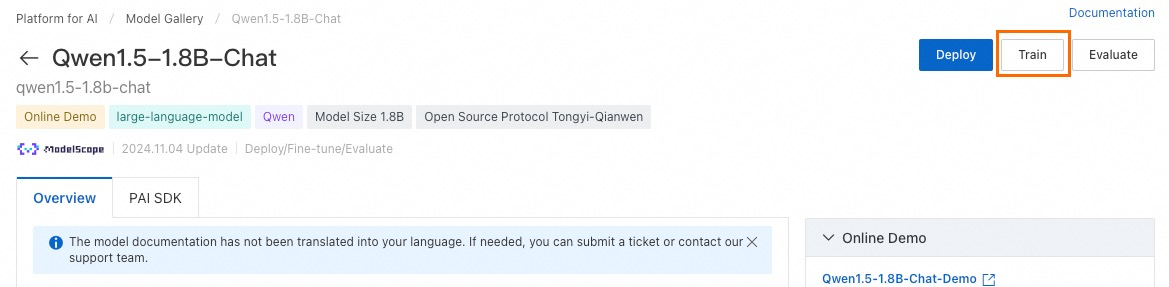
On the Model Gallery page, click the name of the model you want to train. In the overview page of the model, click Train.
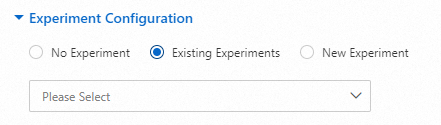
On the Fine-tune page, in the Experiment Configuration section, configure the required parameters.
The first time you use experiment management or if you want to associate the job with a new experiment, select New Experiment, and configure the Experiment Name and Experiment Output Path parameters.
NoteAll job data associated with the experiment, such as models, TensorBoard, and so on, uses the experiment output path as the default path.
If you want to customize the job output path, you can configure the Training Output Configuration parameter. If you change the default TensorBoard path, you cannot compare the visualized metrics of this job with other jobs.
You can also associate the job with Existing Experiments.
For other parameter configurations of the fine-tuning training job, see Deploy and train models.
Click Fine-tune at the bottom of the page.
The page automatically redirects to the Task Details page. You can view the experiment name associated with the job, hyperparameters of the job, and other metadata.
View experiments and open TensorBoard
For the jobs that are associated with the same experiment, you can compare the visualized metrics, such as train_loss and total_flos in the TensorBoard instance of the experiment. Perform the following steps:
On the Model Gallery page, click Job Management.
On the Job Management page, click All Experiments. Select the experiment for which you want to compare the job metrics, and click Tensorboard.
A TensorBoard instance automatically opens.
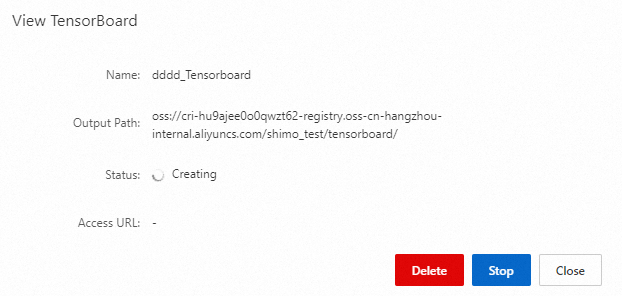
When the TensorBoard status changes to In operation, click Go to. A new tab displays.
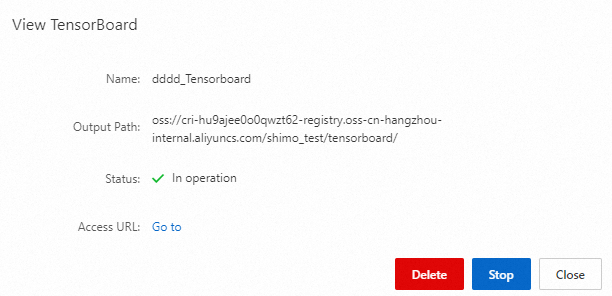 You can view the metrics of all training jobs associated with the experiment on this page. The metrics of the jobs vary based on the model.
Compare job metrics in TensorBoard
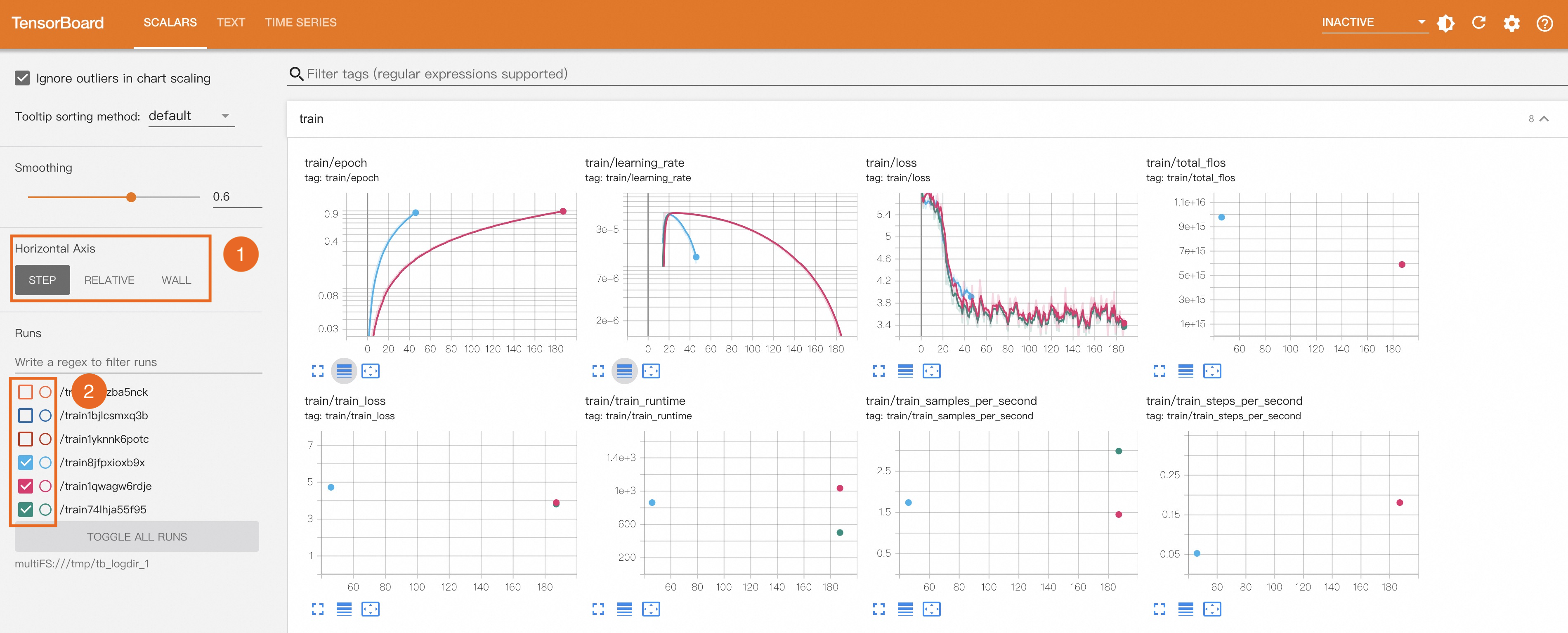
You can switch the horizontal axis by selecting different options under Horizontal Axis parameter.
STEP: The number of steps in model training.
RELATIVE: Relative time, such as 0.5 hours after the start of training. Unit: hour.
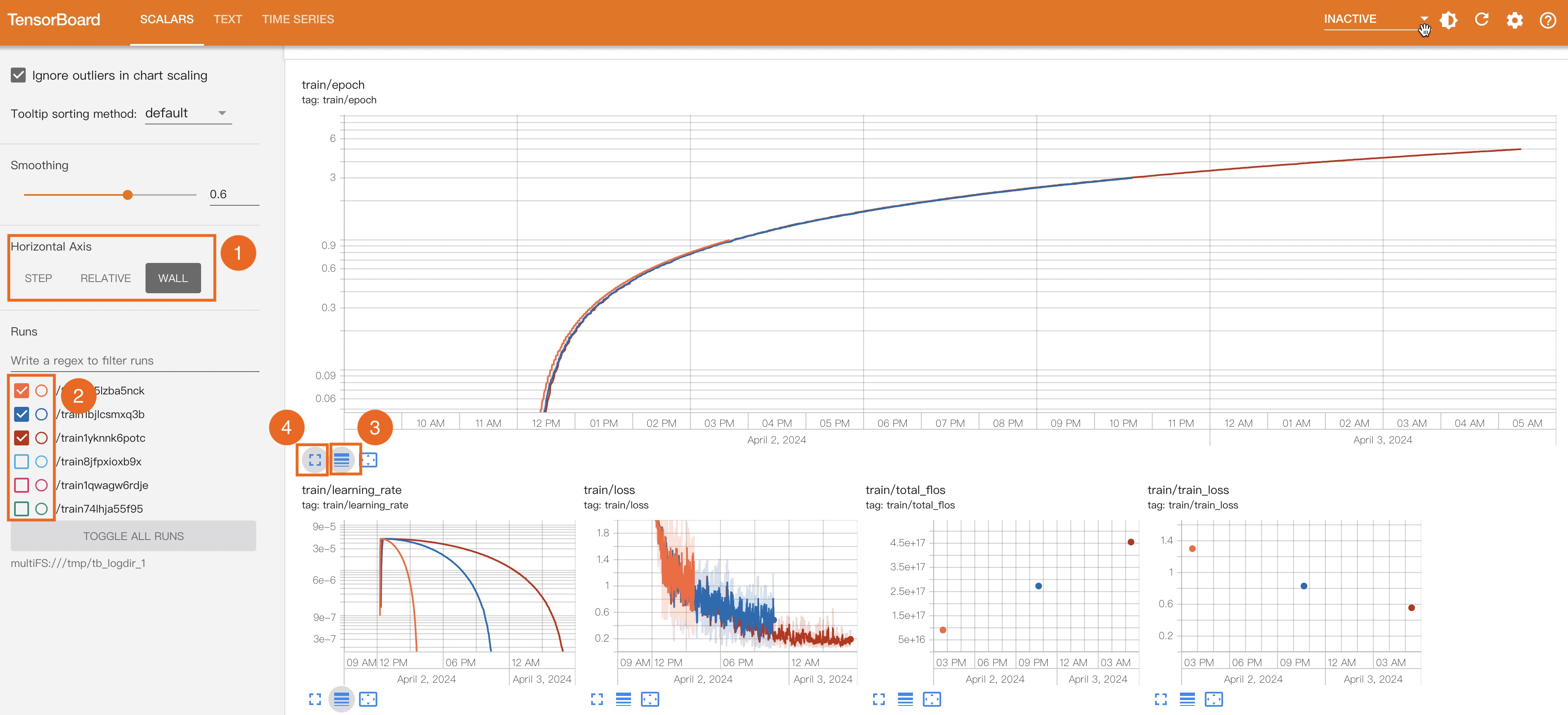
WALL: Absolute time, such as 10 AM on April 2, 2024. Unit: hour.
Common metrics:
loss: The difference between the predicted results and the actual results.
accuracy/precision/recall: Precision metrics.
You select the jobs for metric comparison by selecting the check boxes in front of the job ID.
If the values of a specific metric are close to each other, you can click the button in the middle below the Cartesian coordinate system as displayed in the following figure to focus on the parts in which differences are significant.
To enlarge the graph, you can click the enlarge button below the Cartesian coordinate system as displayed in the following figure.