Associate a RAM role with DLC jobs to access Alibaba Cloud services using temporary STS credentials instead of AccessKey pairs.
Benefits
Use a RAM role whose trusted entity is an Alibaba Cloud service. The Alibaba Cloud service can assume the RAM role to implement cross-service access. Obtain a temporary access credential using the RAM role to implement identity authentication and access control. This method provides the following benefits:
-
Security and confidentiality: No need to manage credentials in DLC jobs. Use temporary STS credentials instead of AccessKey pairs to reduce AccessKey leak risks.
-
Convenient management: Modify policies attached to RAM roles associated with DLC jobs to manage developer access permissions on Alibaba Cloud services in a more convenient and fine-grained manner.
Limits
Each DLC job can be associated with only one RAM role.
Configuration method
Associate a RAM role with a DLC job when creating the job, and obtain temporary STS credentials using the RAM role.
Associate a RAM role with a DLC job
Scenario 1: Associate the default role of PAI to a DLC job
The default role of Platform for AI (PAI) is a RAM role to which the normal service role AliyunPAIDLCDefaultRole is assigned. The default role has access permissions only on MaxCompute and Object Storage Service (OSS) and supports fine-grained access control. When accessing MaxCompute tables, a temporary access credential provided using the default role of PAI has the same permissions as the owner of a DLC instance. When accessing OSS, a temporary access credential can be used to access only the default OSS bucket configured for the current workspace.
If associating the default role with a DLC job, obtain temporary access credentials to access basic development resources in the job without creating another RAM role.
-
Use scenarios
After associating the default role of PAI with a DLC job, no need to configure an AccessKey pair in the following scenarios:
-
Use MaxCompute SDK to submit a job to a MaxCompute project on which the job owner has execution permissions.
-
Use OSS SDK to access data in the default OSS bucket configured for the current workspace.
-
-
Configuration method
When submitting a training job, select Default Roles of PAI for Instance RAM Role in the Roles and Permissions section.
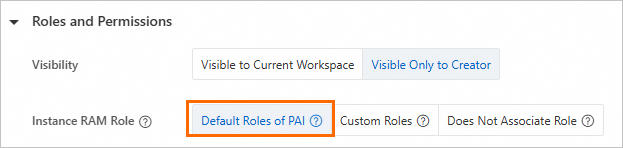
After associating the RAM role with the DLC job, obtain temporary access credentials using the RAM role.
Scenario 2: Associate a custom role with a DLC job
If the permissions of a temporary access credential obtained using the default role of PAI cannot meet requirements, create a RAM role and grant permissions to control the range of Alibaba Cloud resources that developers can access in the job. Perform the following steps:
-
Log on to the RAM console and create a RAM role.
Take note of the following key parameters:
-
Principal Type: Select Cloud Service.
-
Principal Name: Select Platform for AI / PAI.
-
-
Grant permissions to the RAM role.
Attach a system policy or custom policy to the RAM role to enable access or management of related resources. For example, attach the AliyunOSSReadOnlyAccess policy to the RAM role.
If using a RAM user, contact the Alibaba Cloud account owner to grant the current RAM user permissions to use the RAM role. For more information, see Grant permissions to a RAM user. Sample policy document:
{
  "Version": "1",
  "Statement": [
    {
      "Effect": "Allow",
      "Action": "ram:PassRole",
      "Resource": "acs:ram::*:role/${RoleName}"
    }
  ]
}
Replace ${RoleName} in the preceding sample policy document with the name of the RAM role to associate with the DLC job.
-
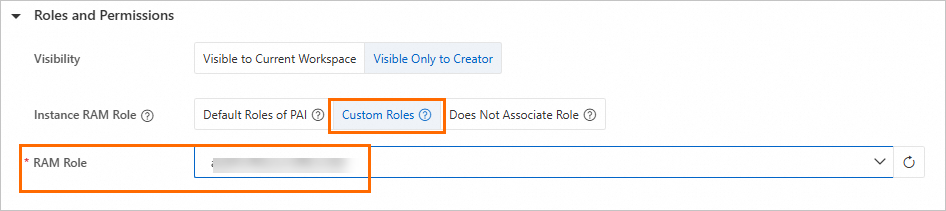
Associate the RAM role with the DLC job and submit the job. Configure only the following key parameters in the Roles and Permissions section. For information about other parameters, see Create a training job.
Parameter
Description
Instance RAM Role
Select Custom Role.
RAM Role
Select the RAM role created in Step 1. After associating the RAM role with the DLC job, obtain permissions of the RAM role to access other Alibaba Cloud services in the DLC job using temporary STS credentials.
After associating the RAM role with the DLC job, obtain temporary access credentials using the RAM role.
Scenario 3: Do not associate a RAM role with a DLC job
If no need to use an AccessKey pair to access data, we recommend that you do not associate a RAM role with a DLC job. When submitting a training job, select Does Not Associate Role for Instance RAM Role in the Roles and Permissions section. 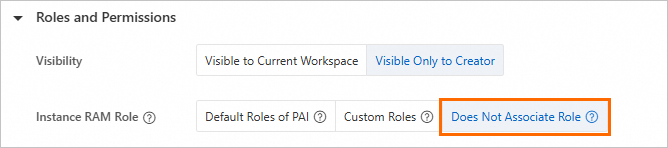
Obtain temporary access credentials using the RAM role associated with a DLC job
When creating a DLC job, if associating the job with the default role of PAI or a custom role, obtain temporary access credentials using the following methods:
Method 1: Use the Alibaba Cloud Credentials tool
The Alibaba Cloud Credentials tool calls the local service that is automatically injected when creating a DLC job to obtain temporary STS credentials. This credential is updated regularly.
When submitting a training job, complete the following key configurations.
-
Install the Alibaba Cloud Credentials tool.
On the Create Job page, select Select from List for the Third-party Libraries parameter and enter alibabacloud_credentials in the Third-party Libraries field to install the Alibaba Cloud Credentials tool.
NoteIf the third-party library is pre-installed in the image, skip this configuration.
-
Configure a script file.
In this example, a Python script file is used. For more information about sample code of SDKs for other programming languages, see Sample code. Select Online configuration for the Code Builds parameter, or select Local Upload to upload a script file from your on-premises machine to the DLC environment.
from alibabacloud_credentials.client import Client as CredClient
from alibabacloud_credentials.models import Config as CredConfig

credentialsConfig = CredConfig(
    type='credentials_uri'
)
credentialsClient = CredClient(credentialsConfig)
Method 2: Access the local service of the DLC job
When submitting a training job, set the Startup Command parameter to the following command to access the local service that is automatically injected into the DLC job to obtain temporary access credentials.
# Obtain a temporary access credential for the RAM role of an instance.
curl $ALIBABA_CLOUD_CREDENTIALS_URI
The following output is returned:
{
	"Code": "Success",
	"AccessKeyId": "STS.N*********7",
	"AccessKeySecret": "3***************d",
	"SecurityToken": "DFE32G*******",
	"Expiration": "2024-05-21T10:39:29Z"
}
In the output, take note of the following parameters:
-
SecurityToken: the temporary access credential of the RAM role.
-
Expiration: the expiration time of the temporary access credential for the RAM role.
Method 3: Access the local file of the DLC job
Access the file in the specified path of the DLC container to obtain temporary access credentials using the RAM role. The file is automatically injected by PAI and refreshed regularly. The path of the file is /mnt/.alibabacloud/credentials. The following sample code provides an example of the file content:
{
	"AccessKeyId": "STS.N*********7",
	"AccessKeySecret": "3***************d",
	"SecurityToken": "DFE32G*******",
	"Expiration": "2024-05-21T10:39:29Z"
}
Examples
Example 1: Access MaxCompute using a RAM role associated with a DLC job
When submitting a training job, complete the following key configurations.
-
Install the Alibaba Cloud Credentials tool.
Set the Third-party Libraries parameter to Select from List and enter the following third-party libraries to install Alibaba Cloud Credentials and MaxCompute SDK.
alibabacloud_credentials pyodpsNoteIf the third-party libraries are pre-installed in the image, skip this configuration.
-
Configure a script file.
In this example, a Python script file is used. Select Online configuration for the Code Builds parameter, or select Local Upload to upload a script file from your on-premises machine to the DLC environment. Then, configure a Mount Path such as
/mnt/data/.from alibabacloud_credentials import providers from odps.accounts import CredentialProviderAccount from odps import ODPS if __name__ == '__main__': account = CredentialProviderAccount(providers.DefaultCredentialsProvider()) o = ODPS( account=account, project="{odps_project}", # Replace {odps_project} with the name of your project. endpoint="{odps_endpoint}" # Replace {odps_endpoint} with the endpoint of the region where your project resides. ) for t in o.list_tables(): print(t) -
Configure a startup command
Set Startup Command to the command that runs the script. For example,
python /mnt/data/xx.py. -
Configure Role Information
Select Default Roles of PAI for Instance RAM Role.
Example 2: Access OSS using a RAM role associated with a DLC job
When submitting a training job, complete the following key configurations.
-
Install the Alibaba Cloud Credentials tool.
Set the Third-party Libraries parameter to Select from List and enter the following third-party libraries to install Alibaba Cloud Credentials and OSS SDK.
alibabacloud_credentials oss2NoteIf the third-party libraries are pre-installed in the image, skip this configuration.
-
Configure a script file.
In this example, a Python script file is used. Select Online configuration for the Code Builds parameter, or select Local Upload to upload a script file from your on-premises machine to the DLC environment. Then, configure a Mount Path such as
/mnt/data/.import oss2 from alibabacloud_credentials.client import Client from alibabacloud_credentials import providers from itertools import islice auth = oss2.ProviderAuth(providers.DefaultCredentialsProvider()) bucket = oss2.Bucket(auth, '{oss_endpoint}', # Replace {oss_endpoint} with the endpoint of the region where your OSS bucket resides. '{oss_bucket}' # Replace {oss_bucket} with the name of your OSS bucket. ) for b in islice(oss2.ObjectIterator(bucket), 10): print(b.key) -
Configure a startup command
Set Startup Command to the command that runs the script. For example,
python /mnt/data/xx.py. -
Configure Role Information
Select Default Roles of PAI for Instance RAM Role.
FAQ
What to do if an error occurs when associating a custom role with a DLC job during job creation?
-
The error message is check permission for ram role failed or check permission for sub user failed.
To resolve this issue, log on to the RAM console to check whether the RAM role exists.
-
If the RAM role does not exist, change the RAM role to an existing role.
-
If the RAM role exists, contact the Alibaba Cloud account owner to grant the current RAM user permissions to use the RAM role. For more information, see Grant permissions to a RAM user. The following sample code shows the policy document. Replace
${RoleName}with the name of the RAM role.{ "Version": "1", "Statement": [ { "Effect": "Allow", "Action": "ram:PassRole", "Resource": "acs:ram::*:role/${RoleName}" } ] }
-
-
The error message is Failed to assume role for user.
In most cases, this error occurs because no trust policy is configured for the RAM role. To configure a trust policy for the RAM role, perform the following steps:
Log on to the RAM console as a RAM administrator.
In the left-side navigation pane, choose .
On the Roles page, click the name of the target RAM role.
-
On the Trust Policy tab, click Edit Trust Policy.
-
In the code editor, modify the JSON policy document and click OK.
The following sample code shows the original policy document of the RAM role:
{
  "Statement": [
    {
      "Action": "sts:AssumeRole",
      "Effect": "Allow",
      "Principal": {
        "RAM": [
          "acs:ram::aaa:root"
        ],
        "Service": [
          "xxx.aliyuncs.com"
        ]
      }
    }
  ],
  "Version": "1"
}
The following sample code shows the new policy document of the RAM role:
{
  "Statement": [
    {
      "Action": "sts:AssumeRole",
      "Effect": "Allow",
      "Principal": {
        "RAM": [
          "acs:ram::aaa:root"
        ],
        "Service": [
          "xxx.aliyuncs.com",
          "pai.aliyuncs.com"
        ]
      }
    }
  ],
  "Version": "1"
}