Associate a RAM role with DSW instances to use STS temporary credentials for cloud resource access, eliminating long-term AccessKeys.
What is an instance RAM role?
An instance RAM role is a role-based temporary identity mechanism for DSW instances. When you associate a RAM role with a DSW instance:
-
Processes within the instance automatically obtain short-term STS credentials through the local meta service or credential files.
-
Credentials have access policies of the RAM role, enabling secure access to authorized cloud services such as OSS, MaxCompute, and DLC.
-
Avoid storing AccessKeys in plaintext within code or configurations, meeting enterprise security and compliance requirements.
Core advantages:
-
Security: Uses auto-refreshing STS temporary credentials instead of long-term AccessKeys. This eliminates hard-coded keys and the risk of leakage.
-
Convenience: Centralizes permission management with RAM role policies. Policy changes take effect immediately without restarting instances or updating code.
-
Trust: Credentials are issued by Alibaba Cloud STS. No additional authentication middleware is required.
Limitations
Each DSW instance can be associated with only one RAM role.
Procedure
Step 1: Select a RAM role for the DSW instance
On the DSW instance configuration page, select one of these roles:
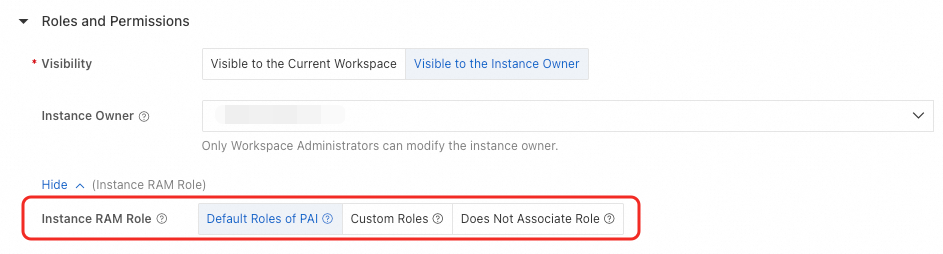
Scenario 1: PAI default role
PAI provides a default role that grants the instance access to these resources without additional AccessKey configuration:
-
Submit tasks to MaxCompute projects where the instance owner has execution permissions using the ODPS SDK.
-
Access data in the default storage path bucket of the current workspace using the OSS SDK.
-
Use the Tongyi Lingma service in WebIDE.
-
Create and submit training jobs to the current workspace using the PAI/DLC SDK.
Scenario 2: Custom role
-
Log on to the RAM console and create a RAM role. See referenced document.
Key parameters:
-
Trusted entity type: Alibaba Cloud service
-
Trusted entity name: Platform for AI (pai.aliyun.cs.com)
-
-
Grant permissions to the RAM role.
Click Add Authorization and attach a system or custom policy to the RAM role. For example, attach the AliyunOSSFullAccess policy. See referenced document.
NoteIf you use a RAM user to operate a DSW instance, request that the root account administrator create this policy and attach it to your RAM user.
Replace
${RoleName}with the name of the DSW instance RAM role.{ "Version": "1", "Statement": [ { "Effect": "Allow", "Action": "ram:PassRole", "Resource": "acs:ram::*:role/${RoleName}" } ] }
Scenario 3: Do not associate a RAM role
If the instance is set to public in the workspace, we recommend not associating the instance with a RAM role to prevent permission leakage. Set Instance RAM Role in the Advanced Information section to Does Not Associate Role when creating a new instance or changing its configuration.
Update RAM role of existing instance
-
Go to the DSW page.
-
Log on to the PAI console. Select region and workspace.
-
In left navigation pane, choose Model Training > Data Science Workshop (DSW).
-
-
Click Change Settings next to the DSW instance.
-
Configure the instance RAM role in the Roles and Permissions section.
ImportantIf you change the instance RAM role between associated and not associated (for example, from Default Roles of PAI or Custom Roles to Does Not Associate Role, or vice versa), the running instance restarts immediately. Save work before proceeding.
-
Click OK.
Step 2: Obtain temporary credentials
After associating a RAM role with the instance, obtain temporary credentials in the instance to access cloud services.
Method 1: Use the Credentials tool (recommended)
Use the Credentials tool provided by Alibaba Cloud SDKs. It automatically handles credential acquisition and refresh.
-
Install dependencies (Python example):
pip install alibabacloud_credentials -
Usage example:
from alibabacloud_credentials.client import Client as CredClient from alibabacloud_credentials.models import Config as CredConfig credentialsConfig = CredConfig( type='credentials_uri' # If no other "default credential chain" access methods are configured, explicit specification is unnecessary. The Credentials SDK will obtain temporary credentials through the URI method. ) credentialsClient = CredClient(credentialsConfig)
For SDK examples in other languages, see referenced document.
Method 2: Call the local credential service
Run this command in the DSW instance terminal to retrieve credentials from the locally injected service:
# Get temporary authorization access credentials for the instance RAM role
curl $ALIBABA_CLOUD_CREDENTIALS_URIResponse fields:
-
SecurityToken: Temporary token of instance RAM role.
-
Expiration: Expiration time of temporary credentials.
{
"Code": "Success",
"AccessKeyId": "STS.N*********7",
"AccessKeySecret": "3***************d",
"SecurityToken": "DFE32G*******",
"Expiration": "2024-05-21T10:39:29Z"
}Method 3: Read the local credential file
PAI automatically injects and periodically refreshes a credential file at /mnt/.alibabacloud/credentials. File contents:
{
"AccessKeyId": "STS.N*********7",
"AccessKeySecret": "3***************d",
"SecurityToken": "DFE32G*******",
"Expiration": "2024-05-21T10:39:29Z"
}Step 3: Access cloud services
Example 1: Access OSS
-
Install the Credentials tool and the OSS SDK:
# Install the Credentials tool pip install alibabacloud_credentials # Install the OSS SDK pip install oss2 -
Use the instance RAM role credentials to list 10 objects in an OSS bucket. For OSS endpoints, see referenced document.
import oss2 from alibabacloud_credentials.client import Client from alibabacloud_credentials import providers from itertools import islice auth = oss2.ProviderAuth(providers.DefaultCredentialsProvider()) bucket = oss2.Bucket(auth, '<oss_endpoint>',# Replace with endpoint of region where your OSS bucket resides '<oss_bucket>'# Replace with your OSS bucket name ) for b in islice(oss2.ObjectIterator(bucket), 10): print(b.key)
Example 2: Access MaxCompute
-
Install the Credentials tool and the ODPS SDK:
# Install the Credentials tool pip install alibabacloud_credentials # Install the ODPS SDK pip install odps -
Use the instance RAM role credentials to list tables in a MaxCompute project. For MaxCompute endpoints, see referenced document.
from alibabacloud_credentials import providers from odps.accounts import CredentialProviderAccount from odps import ODPS if __name__ == '__main__': account = CredentialProviderAccount(providers.DefaultCredentialsProvider()) o = ODPS( account=account, project="<odps_project>", # Replace with your project name endpoint="<odps_endpoint>"# Replace with endpoint of region where your project resides ) for t in o.list_tables(): print(t)
Example 3: Access PAI-DLC
-
Install the Credentials tool, OpenAPI SDK, and DLC SDK:
# Install the Credentials tool pip install alibabacloud_credentials # Install the Alibaba Cloud OpenAPI SDK pip install alibabacloud-tea-util alibabacloud_tea_openapi # Install the PAI-DLC SDK pip install alibabacloud_pai_dlc20201203 -
Use the instance RAM role credentials to list DLC jobs in a workspace:
from alibabacloud_credentials.client import Client as CredClient from alibabacloud_tea_openapi.models import Config from alibabacloud_pai_dlc20201203.client import Client as pai_dlc20201203Client from alibabacloud_pai_dlc20201203 import models as pai_dlc_20201203_models from alibabacloud_tea_util.models import RuntimeOptions # Initialize the DLC client using the Credentials tool credentialsClient = CredClient() config = Config(credential=credentialsClient) config.endpoint = '<dlc_endpoint>' # Replace with endpoint of your region client = pai_dlc20201203Client(config) # Initialize the request and call the ListJobs API list_jobs_request = pai_dlc_20201203_models.ListJobsRequest() list_jobs_request.workspace_id = '<workspace_id>' # Replace with your workspace ID runtime_options = RuntimeOptions() headers = {} resp = client.list_jobs_with_options(list_jobs_request, headers, runtime_options) jobs = resp.to_map()['body']['Jobs'] print(jobs[0])
FAQ
Q: How do I resolve PassRoleFailedError when creating an instance with a custom role?
Log on to the RAM console and verify that the role exists.
-
If the role does not exist, change the instance RAM role to an existing role.
-
If the role exists, request that the root account administrator grant your RAM user this policy. Replace ${RoleName} with the name of the RAM role.
{
  "Version": "1",
  "Statement": [
    {
      "Effect": "Allow",
      "Action": "ram:PassRole",
      "Resource": "acs:ram::*:role/${RoleName}"
    }
  ]
}
Q: How do I resolve AssumeRoleFailedError when creating an instance with a custom role?
This error typically occurs because the trust policy for the role does not include PAI. To fix this:
-
Log on to the RAM console.
-
In left navigation pane, choose Identity Management > Roles.
-
Click the RAM role name.
-
On the Trust Policy tab, click Edit Trust Policy.
-
Add
pai.aliyuncs.comto the Service array in the trust policy and click OK.For example, if the original trust policy is:
{
  "Statement": [
    {
      "Action": "sts:AssumeRole",
      "Effect": "Allow",
      "Principal": {
        "RAM": [
          "acs:ram::aaa:root"
        ],
        "Service": [
          "xxx.aliyuncs.com"
        ]
      }
    }
  ],
  "Version": "1"
}
Update it to include
pai.aliyuncs.com:{ "Statement": [ { "Action": "sts:AssumeRole", "Effect": "Allow", "Principal": { "RAM": [ "acs:ram::aaa:root" ], "Service": [ "xxx.aliyuncs.com", "pai.aliyuncs.com" ] } } ], "Version": "1" }