AutoML CMD is a CLI for AutoML. It simplifies the process of initiating an AutoML experiment on an on-premises machine and supports various business projects. This topic describes how to use AutoML CMD.
Prerequisites
In this topic, Data Science Workshop (DSW) Terminal is used to describe how to use AutoML CMD. You can use other Alibaba cloud services or tools based on your business requirements.
The AccessKey ID and AccessKey secret of your Alibaba Cloud account are obtained. For more information, see Obtain an AccessKey pair.
Object Storage Service (OSS) is activated and a bucket is created.
NoteThe bucket must reside in the region where Platform for AI (PAI) is activated. After a bucket is created, you cannot change the region of the bucket.
A workspace is created. For more information, see Create a workspace.
A DSW instance is created, and a Python environment is prepared. The Python version is 3.8 or later. For more information, see Create a DSW instance.
Limits
Only macOS or Linux operating systems are supported. Windows operating systems are not supported.
Procedure
Step 1: Create a dataset
Go to the Dataset page.
Log on to the PAI console.
In the left-side navigation pane, click Workspaces. On the Workspaces page, find the workspace that you want to manage and click the name of the workspace.
In the left-side navigation pane, choose .
On the Dataset page, click Create Dataset.
In the Create Dataset panel, set the Create Dataset parameter to From Alibaba Cloud and configure the parameters described in the following table. Configure other parameters based on the on-screen instructions.
Parameter
Description
Dataset Name
The name of the custom dataset.
Create a dataset that is stored in Alibaba Cloud storage
To upload a file from an on-premises machine, perform the following steps:
Click the
 icon. In the Select OSS directory dialog box, select the bucket you created and click Upload File.
 Click View local files to select a file or drag a file to the blank area, and click OK. In this example, mnist.py is uploaded.
Default Mount Path
The default mount path of the dataset. Example: /mnt/oss/.

Click Submit.
On the Dataset page, click the
 icon next to the ID of the dataset to copy the dataset ID.
Step 2: Install the CLI
Go to the development environment of a DSW instance.
Log on to the PAI console.
In the top navigation bar, select the region in which the DSW instance resides.
In the left-side navigation pane, click Workspaces. On the Workspaces page, click the name of the workspace that you want to manage.
In the left-side navigation pane of the Workspace Details page, choose Model Training > Data Science Workshop (DSW).
On the Data Science Workshop (DSW) page, find the DSW instance that you want to manage and click Open in the Actions column to go to the development environment of the DSW instance.
Run the following commands in DSW Terminal to install the CLI:
wget http://pai-automl.oss-cn-zhangjiakou.aliyuncs.com/release/client/install_upgrade_paiautoml.sh
chmod +x install_upgrade_paiautoml.sh
bash install_upgrade_paiautoml.sh
Configure a configuration file.
The first time you use the CLI, you must add the configuration file. Run the following command to configure the related parameters described in the following table:
automl configParameter
Description
accessKeyID
The AccessKey ID and AccessKey secret of your Alibaba Cloud account.
accessKeySecret
region
The ID of the region in which the model service or dedicated resource group is deployed. In this example, the China (Shanghai) region is used, and you must set this parameter to
cn-shanghai. For information about the IDs of other regions, see Regions and zones.
Step 3: Configure an experiment
Upload configuration files.
Upload the following files to the DSW instance. For more information, see Upload or download data files.
Configure the trial_service.ini file.
On the Notebook tab of the DSW instance, double-click the trial_service.ini file and configure the key parameters described in the following table.
Parameter
Description
data_sources
The dataset ID.
Replace
${data_sources}with the ID of the dataset created in Step 1.workspace_id
The ID of the workspace.
Set this parameter to the ID of the workspace to which the DSW instance belongs. For more information, see View the details of a workspace.
model_path
The OSS path where the model is saved.
Use the OSS bucket that you created. The
${exp_id}and${trial_id}are built-in variables. You do not need to modify these variables.Press Ctrl+S to save the trial_service.ini file.
Step 4: Start the tuning
On the Terminal tab of the DSW instance, run the following command to start the tuning. In the command, replace
<YOUR_WORKSPACE_ID>with the ID of the workspace to which the DSW instance belongs. For more information, see View the details of a workspace.automl create hpo --config exp_service.yml --workspace_id <YOUR_WORKSPACE_ID>Step 5: View the result
Go to the AutoML page.
Log on to the PAI console.
In the left-side navigation pane, click Workspaces. On the Workspaces page, find the workspace that you want to manage and click the name of the workspace.
In the left-side navigation pane of the Workspace Details page, choose Model Training > AutoML.
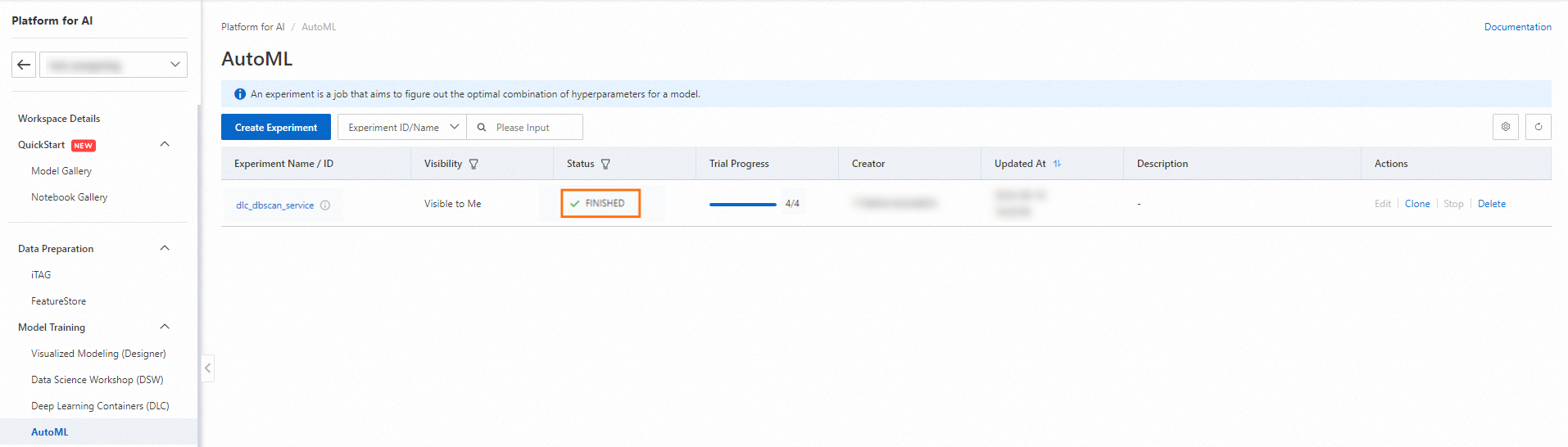
View the experiment.
If the experiment status on the AutoML page changes to FINISHED, the AutoML experiment is created.
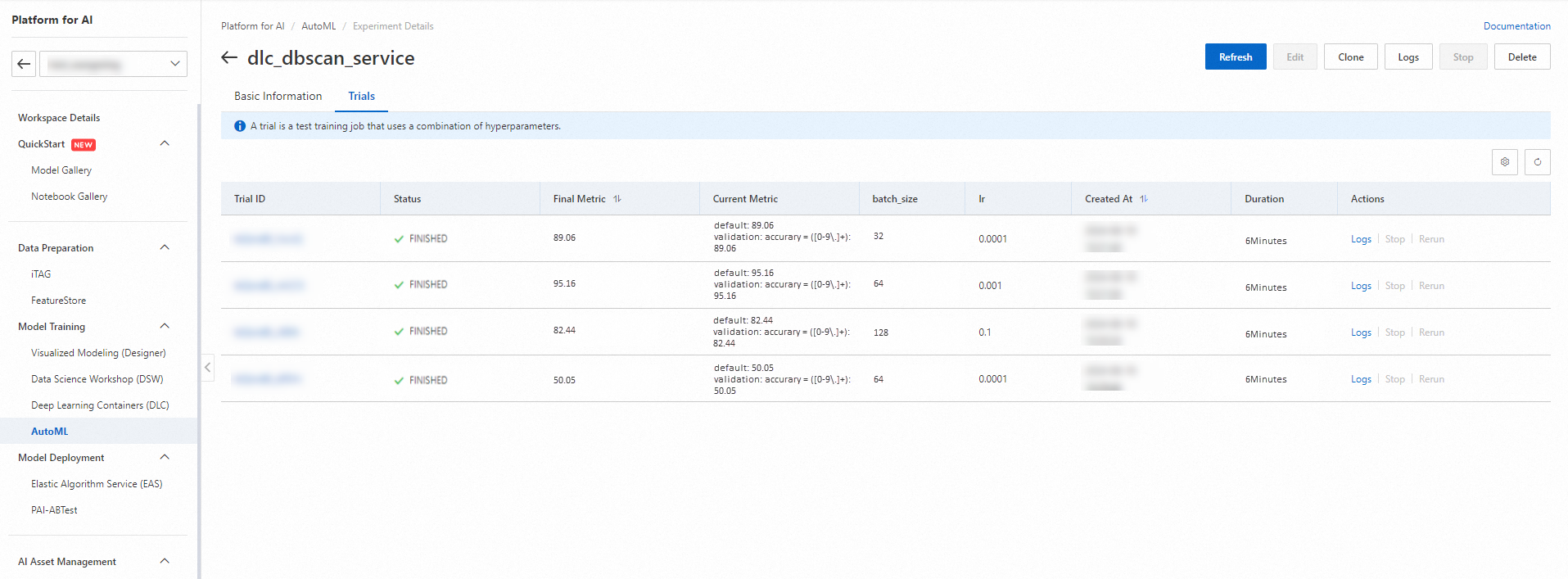
View the trial list.
Click the name of the experiment. The Experiment Details page appears. On the Trials tab, view the trial details of the experiment.
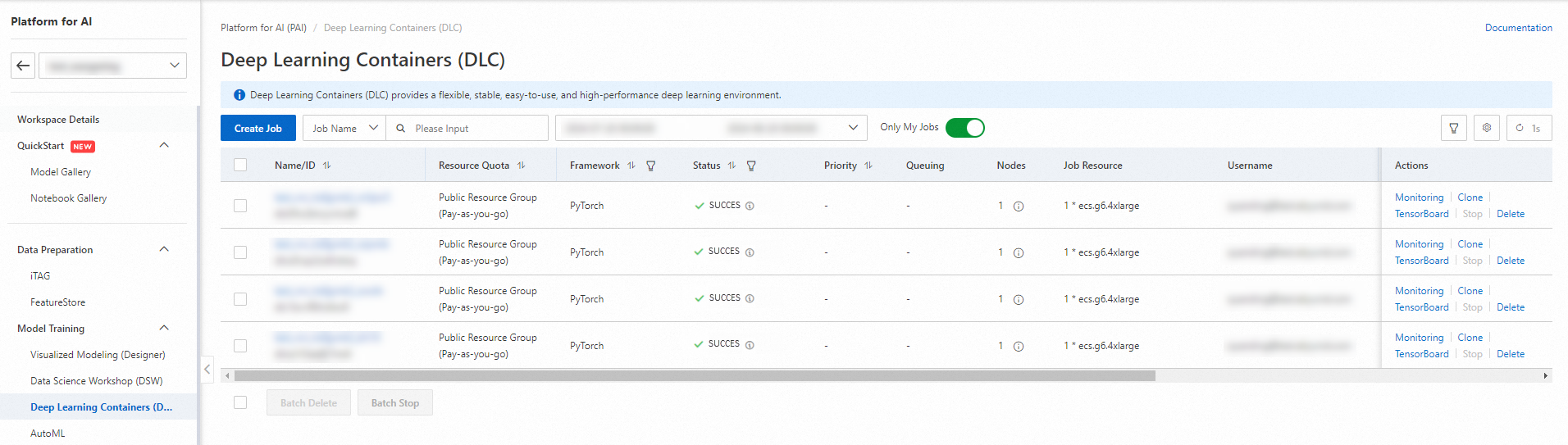
You can also choose Model Training > Deep Learning Containers (DLC) to view the training details of the experiment.
Step 6: View the hyperparameter fine-tuning results
You can run commands to obtain experiment details or trial logs or stop an experiment. The following table describes the parameters.
Parameter
Description
<YOUR_WORKSPACE_ID>
The ID of the workspace to which the DSW instance belongs. For more information, see View the details of a workspace.
<YOUR_EXP_ID>
The ID of the experiment that you created. To obtain the ID of an experiment, go to the Basic Information tab of the Experiment Details page.
<YOUR_TRIAL_ID>
The ID of the trial. To obtain the ID of a trial, go to the Trials tab of the Experiment Details page.
Obtain the experiment list
automl list hpo --workspace_id <YOUR_WORKSPACE_ID>Obtain the status of an experiment
automl info <YOUR_EXP_ID>Obtain the logs of an experiment
Run the following command to save logs to the related file:
automl log <YOUR_EXP_ID>Obtain the logs of a trial
Run the following command to save logs to the related file:
automl log <YOUR_EXP_ID> --trial-id <YOUR_TRIAL_ID>Stop an experiment
automl kill <YOUR_EXP_ID>Stop a trial
automl kill nu4jqyk --trial-id <YOUR_TRIAL_ID>
FAQ
What do I do if the following error is reported when I run the automl config command?
Error message

Solution
Run the following command to check whether the automl_client folder exists. If the automl_client folder does not exist, reinstall AutoML CMD.
ls -lh /home/pai/envs/py38_nni/lib/python3.8/site-packages | grep automl
What do I do if the error message Tea.exceptions.TeaException: Error: Forbidden.NoPermission code: 403,......, is reported?
Error message
Tea.exceptions.TeaException: Error: Forbidden.NoPermission code: 403, You are not authorized to do this operation. Action: paiautoml:CreateHpoExperimentSolution
This error message is returned because the user does not have the permissions to perform hyperparameter fine-tuning in the current workspace. To resolve this issue, assign the Algorithm Developer role to the user on the Workspace Details page. For more information, see Manage members of a workspace.