Large Vision Model (LVM) image processing algorithms offer features like image cleaning, content filtering, information extraction, and caption generation. You can combine these algorithms to filter image data and generate text descriptions, helping you prepare high-quality data for training image generation models. This topic explains how to use the Image-Text Filtering preset template in Visualized Modeling (Designer).
Limitations
The Image-Text Filtering preset template is available only in the China (Hangzhou), China (Shanghai), China (Beijing), and China (Shenzhen) regions.
Prepare image data
PAI provides sample data to get you started.
-
Download the image metadata file and the image file.
-
Image metadata file: image_meta.jsonl, used as input for image-text algorithms.
-
Image file: data.zip, used as input for general image processing algorithms.
-
-
Decompress the data.zip file and upload the images to OSS. For details, see Simple upload.
-
Modify the image metadata file.
In the image metadata file, replace
oss://bucket_name.oss-cn-hangzhou.aliyuncs.com/image_algorithm_test/image_data/with the OSS bucket directory where you uploaded the images.
-
Upload the modified image metadata file to the OSS bucket used in step 2. For details, see Simple upload.
Create and run a workflow
-
Go to the Designer page.
-
Log on to the PAI console.
-
In the upper-left corner, select the required region.
-
In the left-side navigation pane, click Workspaces. On the Workspaces page, click the name of your workspace.
-
In the left-side navigation pane, choose Model Training > Visualized Modeling (Designer) to open the Designer page.
-
-
Create a workflow.
-
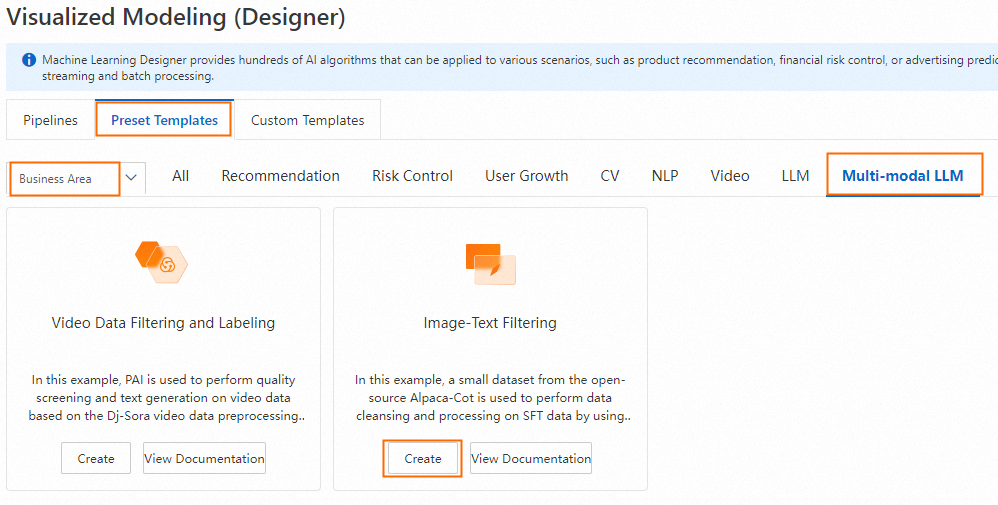
On the Preset Templates tab, choose Business Areas > Multi-modal LLM, and then click Create on the Image-Text Filtering template card.
-
Configure the workflow parameters (or keep the default settings) and click Confirm.
-
In the workflow list, select the workflow you created and click Open.
-
-
Configure the workflow.
-
Configure the Read OSS Data component: Click the Read OSS Data component. In the right-side pane, on the Field Settings tab, set OSS Data Path to the OSS bucket directory that contains your image data file.
-
Configure the LLMDataProcessGroup1 group: Click the settings icon
 and set the Data Output OSS Directory. This directory stores the result files from subsequent workflow runs. For more information about the LVM image preprocessing algorithm components, see Image preprocessing operators.
-
-
Run the workflow. After the run completes, view the generated files:
-
meta.jsonl file: During the run, the workflow generates an image metadata file named meta.jsonl in the parent directory of the path specified for OSS Path of Image Data.
-
Result file: View this file in the directory specified for OSS Path of Output File.
For details about the result file, see the description of the OSS Path of Output File parameter in Image preprocessing operators.
-