PAI covers the full machine learning lifecycle—data preparation, model development, training, and deployment. Each module offers different purchase options and billing methods.
Activation
PAI supports the following two activation methods, each with different billing rules:
-
Activate PAI as a standalone service
You can activate PAI for free and create a default workspace. Each module is billed separately, with charges itemized in your PAI bill.
-
Activate PAI with other products
When you activate PAI, you can also activate other products such as OSS, MaxCompute, and DataWorks. These products are billed separately, and their fees do not appear in your PAI bill. For details, see:
-
For OSS billing, see Pay-as-you-go.
-
For MaxCompute billing, see Pay-as-you-go Standard Edition.
-
For DataWorks billing, see DataWorks resource consumption-based billing.
-
Features and purchase options
|
AI workflow stage |
Component |
Purchase option |
Instructions |
|
Data preparation |
iTAG |
Free annotation platform |
Go to the iTAG page in the PAI console to use the service. For more information, see iTAG overview. |
|
Paid annotation service |
If you need to process 100,000 or more annotations, you can submit a ticket to request the paid annotation service. |
||
|
Model development |
Data Science Workshop (DSW) |
Pay-as-you-go |
Charges are based on the runtime of DSW instances in a public resource group. To create a DSW instance in a public resource group, see Data Science Workshop (DSW). |
|
Subscription |
Go to the AI Compute Resources > Resource Pools page to purchase general-purpose or Lingjun Intelligent Computing resources in advance and create a resource quota. Use this quota in your workspace to create a DSW instance. You are charged based on the subscription duration. To create a DSW instance with a resource quota, see Data Science Workshop (DSW). Note
|
||
|
Model training |
Deep Learning Containers (DLC) |
Pay-as-you-go |
Charges are based on the runtime of distributed training jobs on public resources. To submit jobs using public resources, see Deep Learning Containers (DLC). |
|
Subscription |
Go to the AI Compute Resources > Resource Pools page to purchase general-purpose or Lingjun Intelligent Computing resources in advance and create a resource quota. Use this quota in your workspace to submit DLC jobs. You are charged based on the subscription duration. To submit a training job with a resource quota, see Deep Learning Containers (DLC). Note
|
||
|
Model deployment |
Elastic Algorithm Service (EAS) |
Pay-as-you-go |
|
|
Subscription |
Go to the Subscription-based Dedicated EAS Resources page to purchase machines for a dedicated subscription resource group. Charges are based on the subscription duration. To deploy an EAS service in a dedicated subscription resource group, see Elastic Algorithm Service (EAS). |
||
|
Preemptible instance |
When deploying an EAS service in a public resource group, you can use preemptible instances to reduce costs. For configuration details, see Elastic Algorithm Service (EAS). |
Usage
Data Science Workshop (DSW)
Pay-as-you-go
-
Create a DSW instance. Set Resource Type to Public Resource Group (Pay-as-you-go). For more information about parameter settings, see Create a DSW instance.
On the Create Instance page, enter an Instance Name, set Resource Type to Public Resource Group (Pay-as-you-go), and select
ecs.gn6i-c4g1.xlarge (4 vCPU, 15 GiB, NVIDIA T4 * 1)for Instance Type. -
If you no longer need the DSW instance, click Stop in the Actions column for the target instance. Billing stops when the instance is stopped.
Subscription
-
Go to the AI Compute Resources page to purchase subscription-based compute resources:
-
On the Resource Pool page, in the General Computing Resources tab, create a resource group and purchase general-purpose computing resources. Then, on the Resource Quota page, in the General Computing Resources tab, create a resource quota and associate it with a workspace. For more information, see General-purpose compute resource quotas.
-
On the Resource Pool page, in the Lingjun Intelligence Resources tab, create a resource group and purchase Lingjun Intelligent Computing resources. Then, on the Resource Quota page, in the Lingjun Resources tab, create a resource quota and associate it with a workspace. For more information, see Create a resource quota.
-
-
Create a DSW instance in a workspace associated with your resource quota. For Resource Quota, select the general-purpose compute resource quota or Lingjun Intelligent Computing resource quota that you created. For more information about parameter settings, see Create a DSW instance.
On the DSW Create Instance page, in the Resource Information section, switch Resource Type to the Resource Quota tab, and select your resource quota from the Resource Quota drop-down list.
Deep Learning Containers (DLC)
Pay-as-you-go
Submit a DLC job. Set Source to Public Resources. For more information, see Create a Training Job.
In the Resource Information section, configure the following parameters:
-
Resource Type: Select General-Purpose Computing.
-
Resource Source: Select Public Resource Group.
-
Framework: Select PyTorch.
Subscription
-
Go to the AI Compute Resources page to purchase subscription-based compute resources:
-
On the Resource Pool page, in the General Computing Resources tab, create a resource group and purchase general-purpose computing resources. Then, on the Resource Quota page, in the General Computing Resources tab, create a resource quota and associate it with a workspace. For more information, see General-purpose compute resource quotas.
-
On the Resource Pool page, in the Lingjun Intelligence Resources tab, create a resource group and purchase Lingjun Intelligent Computing resources. Then, on the Resource Quota page, in the Lingjun Resources tab, create a resource quota and associate it with a workspace. For more information, see Create a resource quota.
-
-
Submit a Deep Learning Containers (DLC) job in a workspace that is associated with a resource quota. For the job, select Resource Quota for Source, and select an existing general-purpose computing resource quota or Lingjun Intelligent Computing resource quota for Resource Quota. For more information about parameter configurations, see Create a training job.
On the Create Training Job page in Deep Learning Containers (DLC), in the Resource Information section, set Resource Source to Resource Quota and select your quota from the Resource Quota drop-down list. Configure Priority (1–9), Framework (for example, PyTorch), and fill in the required parameters for Worker in the job resource table: Number of Nodes, GPU (Cards), CPU (Cores), Memory (GiB), and Shared Memory (GiB).
Elastic Algorithm Service (EAS)
Pay-as-you-go
-
Deploying services using public resources
-
Go to the EAS page and create a pay-as-you-go EAS service. Set Resource Type to Public Resources. For more information, see Deploy services by using public resources.

-
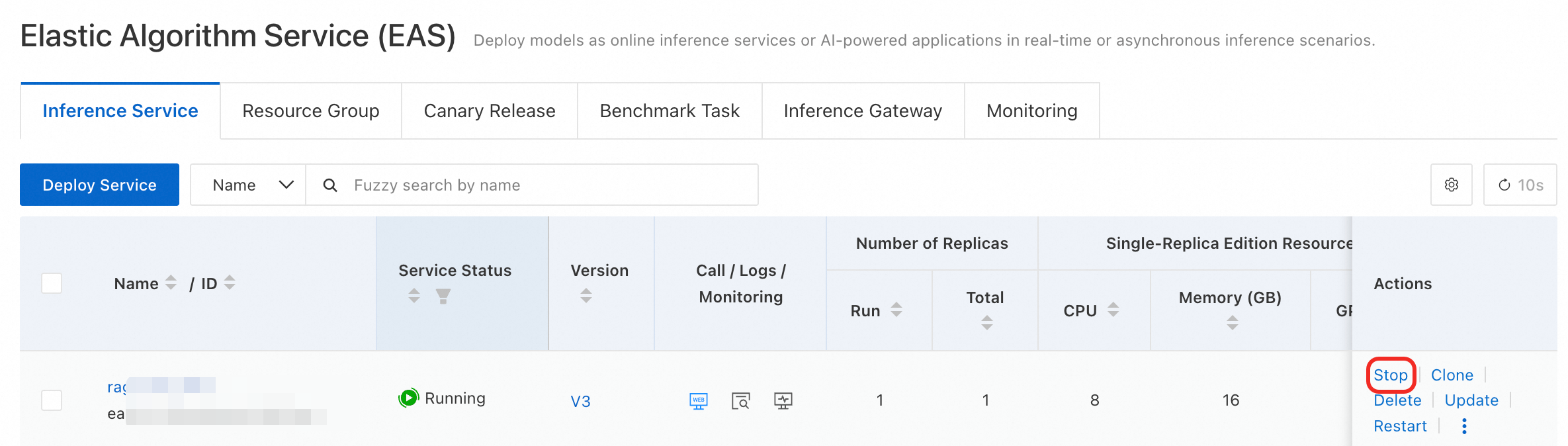
If you no longer need the EAS service, click Stop in the Actions column for the target service. Billing stops when the service is stopped.
To stop billing, find the target service in the Inference Services list, and click Stop in the Actions column.
-
-
Deploying services using a dedicated pay-as-you-go resource group
-
Go to the Pay-As-You-Go Dedicated EAS Resources page to purchase pay-as-you-go machines. For detailed instructions, see Manage and use resource groups for EAS.
On the PAI resource purchase page, set Payment Mode to Pay-As-You-Go, select the target region under Region and Zone, switch Architecture to GPU in the Instance Type section, select the required GPU instance type from the instance list (for example,
ecs.ebmgn6g-256g.20xlarge), and click Buy Now to complete the purchase of the dedicated pay-as-you-go resource group. -
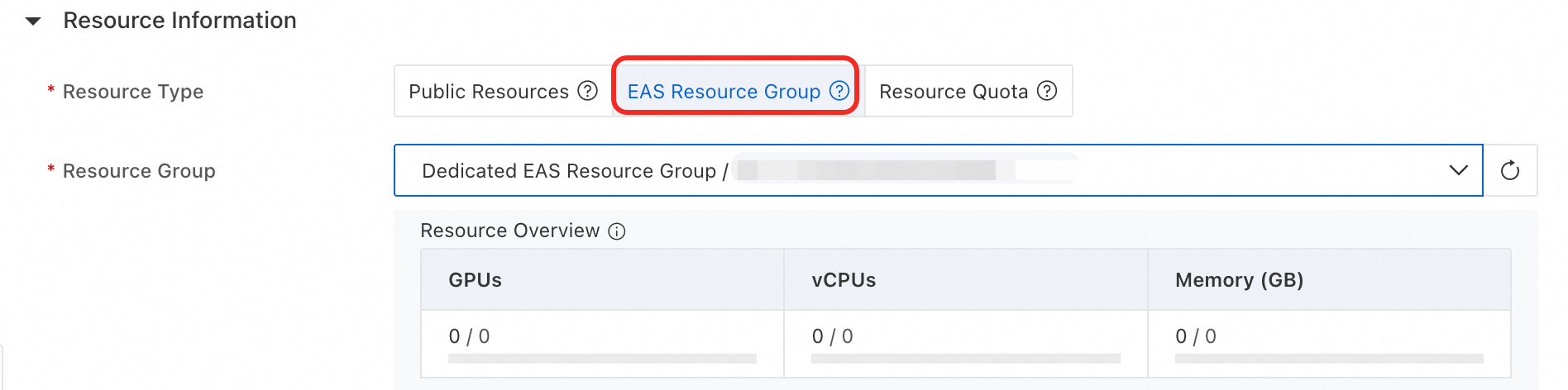
Go to the EAS page to create an EAS service. Set Resource Type to EAS Resource Group and for Resource Group, select the dedicated pay-as-you-go resource group that you purchased. For more information, see Create a custom service.
In the Resource Information section for the deployed service, set Resource Type to EAS Resource Group, and select the dedicated resource group you purchased from the Resource Group drop-down list. The Resource Overview below displays the GPU (cards), CPU (cores), and memory (GB) usage for the selected resource group.
-
If you no longer need the EAS service, click Stop in the Actions column for the target service.
-
Subscription
-
Go to the Subscription-based Dedicated EAS Resources page to purchase subscription-based machines. For detailed instructions, see Manage and use resource groups for EAS.
On the EAS Dedicated Machine Subscription purchase page, configure the following parameters:
-
Payment Mode: Select Subscription.
-
Region and Zone: Select the target region, for example, China (Beijing).
-
Use Case: Select EAS Inference Resources.
-
Instance Type: Select the GPU architecture, and select the required GPU instance type from the instance list.
After completing the configuration, click Buy Now to complete the payment.
-
-
Go to the EAS page to create an EAS service. Set Resource Type to EAS resource group and for Resource Group, select the dedicated subscription resource group that you purchased. For more information, see Create a custom service.
Preemptible instance
To deploy a service, set Resource Type to Public Resources. After you select Resource Specification, enable Bidding. For more information, see Preemptible instances.
Related documentation
-
After activating PAI and purchasing resources, see the New user guide to get started.
-
The Model Gallery offers pre-trained models with zero-code fine-tuning, compression, evaluation, and deployment. For more information, see Model Gallery.