Common issues and solutions for deploying and fine-tuning models in PAI-Model Gallery.
Ask PAI Agent first
Click the  icon in the upper-right corner of the PAI console to launch the PAI AI Assistant (Agentic PAI). Agentic PAI provides user manuals and operational guidelines for end-to-end PAI products. It supports O&M diagnostics for DSW instances, DLC tasks, and EAS services, automatically identifying the root causes of failures and providing troubleshooting recommendations.
Is deep thinking enabled for model evaluation in Model Gallery?
Model evaluation uses the default Model Gallery deployment configuration, both for models provided by Model Gallery and for models that you fine-tune. Check the model page and the default deployment configuration to determine whether deep thinking is enabled.
How do I deploy a model trained in Model Gallery?
Go to Task Management in Model Gallery, find the training task, and open its details page. Click Deploy in the upper-right corner. The model runs as an online service after deployment.

How do I find out why my training task failed?
Training tasks can fail for many reasons. For example, a dataset might not be in the required format. Use the following methods to troubleshoot:
-
Check the task diagnostics: In PAI-Model Gallery > Task Management > Training Tasks, click the task. On the Task Details tab, hover over Failed. The cause of the error and the solution are displayed.

-
Check the task logs: In Task Management > Training Tasks, click the task and check the error message on the Task log tab:

The following table lists the solutions to the error messages:
Error type
Error message
Solution
Input and output errors
ValueError: output channel ${your OSS uri} must be directory
The output path must be a directory. Check whether the specified path is a directory.
ValueError: train must be a file
The input path must be a file. Check whether the specified path is a file.
FileNotFoundError
Check whether the input path contains files that meet the requirements.
JSONDecodeError
Check whether the JSON file is in the correct format.
ValueError: Input data must be a json file or a jsonl file!
The input file must be a JSON or JSONL file. Check the file format.
KeyError: ${some key name}
This error often occurs with JSON training datasets. Check whether the key-value pairs in the training data files meet the requirements described in the model documentation.
ValueError: Unrecognized model in /ml/input/data/model/.
PyTorch can't recognize the provided model file.
UnicodeDecoderError
Check the encoding format of the input files.
Input/output error
Make sure the input path is readable and the output path is readable and writable.
NotADirectoryError: [Errno 20] Not a directory:
Check whether the input and output paths are directories.
Hyperparameter configuration
ERROR:torch.distributed.elastic.multiprocessing.api:failed (exitcode: -9) local_rank: 0 (pid: 51) of binary: /usr/bin/python (and no related subprocess logs)
The instance runs out of memory (OOM) when loading the model. Select an instance type with more memory.
torch.cuda.OutOfMemoryError: CUDA out of memory
The GPU memory of the current instance type is insufficient. Select a GPU instance type with more GPU memory, or reduce hyperparameters such as LoRA dim and batch size.
ValueError: No closing quotation
A single
"in the system prompt or another parameter prevents the algorithm from generating the training command. Remove the single"or add the matching quote to complete the pair.Instance type and resource configuration
Exception: Current loss scale already at minimum - cannot decrease scale anymore. Exiting run
The model parameters are in BF16 format. Use Ampere or later GPUs (such as A10 or A100) for training. Pre-Ampere GPUs convert the parameters to FP16.
RuntimeError: CUDA error: uncorrectable ECC error encountered
The current instance type has a hardware issue. Switch to a different instance type, or retry in a different region.
MemoryError: WARNING Insufficient free disk space
The memory of the current instance type is insufficient. Switch to an instance type with more memory.
User quota limits
failed to compose dlc job specs, resource limiting triggered, you are trying to use more GPU resources than the threshold
Training tasks can run on at most 2 GPUs at the same time, and exceeding this limit triggers resource limiting. Wait for running tasks to finish before you start new ones, or submit a ticket to request a quota increase.
How do I debug a deployed model online?
-
After the model is deployed, view the deployed service in Model Gallery > Task Management > Deployment Tasks. Make sure the service is running before you start debugging.

-
On the PAI-EAS page, click Online Debugging in the Operation column of the deployed service. Online debugging lets you verify the model API without writing client code.

-
Configure the request parameters for online debugging:
-
On the model page, find how to call the model for your deployment mode. To open the model page, click a model card on the Model Gallery page. For example, after you deploy DeepSeek-R1-Distill-Qwen-7B by using BladeLLM, send an HTTP POST request to
/v1/chat/completions. The following example shows the request:

-
Configure and send the request.
Append
/v1/chat/completionsto the request URL, and enter the request body based on the example in the previous step.
-
Online debugging fails with the error "no healthy upstream"
Online debugging returns error code 503 with the error message "no healthy upstream":
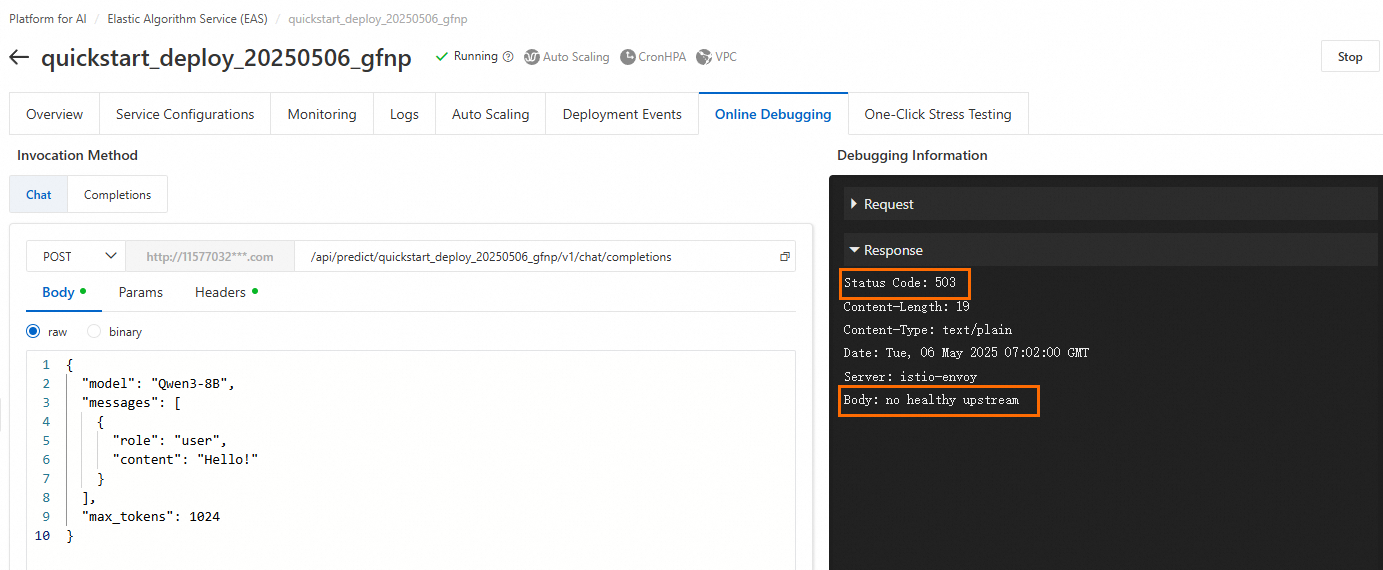
Cause: CPU, memory, or GPU memory usage on the instance is too high, leaving insufficient headroom.
-
Solution:
For Public Resources, call the service during off-peak hours, or switch to a different resource specification and region.
For Dedicated Resources (EAS Resource Group), reserve sufficient CPU, memory, and GPU memory for the instances. Keep at least 20% of the resources free as a buffer.
Model training fails with the error "SupportsDistributedTraining false, please set InstanceCount=1"
Cause: The training task uses multiple instances (more than one node), but the model doesn't support distributed training.
-
Solution: Set the number of nodes to 1. The model supports only single-node training.

API calls to a model fail with the error 404 - {'detail': 'Not Found'}
Possible causes:
The model service doesn't support API calls. Some model services deployed from Model Gallery, such as
PAI-DistilQwen2.5-7B-Instruct, support only web-based interaction through the Web App button on the service details page. These services don't provide OpenAI-compatible API endpoints and can't be called by using the OpenAI SDK.The request path is incomplete or incorrect. For the chat API, the path usually follows this format:
{domain}/api/predict/{service_name}/v1/chat/completions.
How do I download a model trained in Model Gallery to my local machine?
To download the model files:
In the left-side navigation pane of the PAI console, choose Model Gallery > Task Management > Training Tasks, and click the task name to open the task details page.
On the task details page, click Output Model. You are redirected to the AI Asset Management > Models page, where you can view the model URL in the model version list.
Click the model URL to go to the OSS console, and then download the model files as needed. For more information about how to download objects from OSS, see Simple download.
Model selection FAQ
What are the differences between PAI-DistilQwen2.5-7B-Instruct and DeepSeek-R1-Distill-Qwen-7B?
Both PAI-DistilQwen2.5-7B-Instruct and DeepSeek-R1-Distill-Qwen-7B are distilled from Qwen2.5-7B, but they target different use cases:
|
Dimension |
PAI-DistilQwen2.5-7B-Instruct |
DeepSeek-R1-Distill-Qwen-7B |
|
Base model |
Qwen2.5-7B-Instruct |
Qwen2.5-7B + DeepSeek-R1 |
|
Distillation method |
Black-box data distillation and white-box logits distillation |
Knowledge distillation (reasoning capability transfer) |
|
Use case |
General instruction following |
Math and reasoning tasks |
|
Notes |
Significant improvement in instruction following over the base model. |
For math problems, include step-by-step reasoning instructions in the prompt. |
What are the differences between Fun-CosyVoice and the legacy CosyVoice?
Fun-CosyVoice 3.0 is a text-to-speech (TTS) system built on large language models (LLMs). It outperforms its predecessor, CosyVoice 2.0, in content consistency, speaker similarity, and prosody naturalness.
What are the differences between the Qwen3-Embedding models?
The following table compares these models:
|
Model |
Model size |
GPU memory usage |
Maximum embedding dimension |
Scenario |
|
Qwen3-Embedding-0.6B |
1.12 GiB |
2–4 GB |
1024 |
Lightweight retrieval and memory-sensitive scenarios |
|
Qwen3-Embedding-4B |
7.55 GiB |
10–14 GB |
2560 |
Standard semantic search |
|
Qwen3-Embedding-8B |
14.11 GiB |
18–24 GB |
4096 |
High precision and complex semantics |
Choose a model and GPU based on your scenario:
|
Scenario |
Recommended model |
Recommended GPU |
Budget |
|
Personal development or POC |
0.6B |
RTX 3060 or laptop GPUs |
Low |
|
Small and medium-sized business APIs |
4B |
A10 (24 GB) |
Medium |
|
Enterprise production |
8B |
A100 40 GB or 80 GB |
High |
|
Ultra-large vector databases |
0.6B or 4B |
Multiple A10 instances |
Medium |
|
High-precision semantic search |
8B |
H100 (80 GB) |
Very high |
Model Gallery supports one-click deployment of the Qwen3-Embedding models. Note the following:
If you don't specify
--max-model-len, vLLM readsmax_position_embeddingsfrom the model'sconfig.jsonby default. This parameter sets the upper limit on the number of tokens in the input text. If the input exceeds this limit, vLLM truncates it or returns an error.Embedding models don't use autoregressive generation, but vLLM still preallocates the full KV cache, which wastes GPU memory. Set
--max-model-lenexplicitly based on your actual input lengths. Setting this parameter reduces GPU memory usage, increases concurrency, and prevents over-allocation.