Find answers to common questions about algorithm components in Machine Learning Designer, including data type support, error messages, and debugging tips.
Which MaxCompute data types do algorithm components support?
Algorithm components support five MaxCompute data types: BOOLEAN, BIGINT, DOUBLE, STRING, and DATETIME.
"Compute Resource Not Exists, Type: MaxCompute" error
Your workspace is not associated with MaxCompute resources. Associate MaxCompute resources with your workspace to resolve this error.
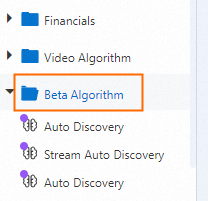
How do I use Beta algorithm components?
Beta components such as text approximate similar pairs and multi-hot encoder train are intended for specific business requirements. Use other components with similar functions instead, or submit a ticket for more information.
x13-auto-arima: "row number should be (1, 1200]" error
Each subset of the training dataset imported into x13-auto-arima must contain no more than 1,200 entries. If you are not using subsets, the entire training dataset must not exceed 1,200 entries.
Doc2Vec: CallExecutorToParseTaskFail error
The dataset imported into the Doc2Vec component exceeded the memory limit. The limit is calculated as (Number of documents + Number of words) × Vector length, which must be less than 2,410,000 × 10,000. The number of users must be less than 42,432,500 × 7,712,293 × 300.
To stay within the limit, reduce the dataset size and perform word segmentation on the data before importing it.
How do I persist temporary tables generated on the canvas?
Machine Learning Designer provides the Write Table component. Connect the Write Table component as a downstream node to the node that generates the temporary tables.
RAM user not authorized to access MaxCompute
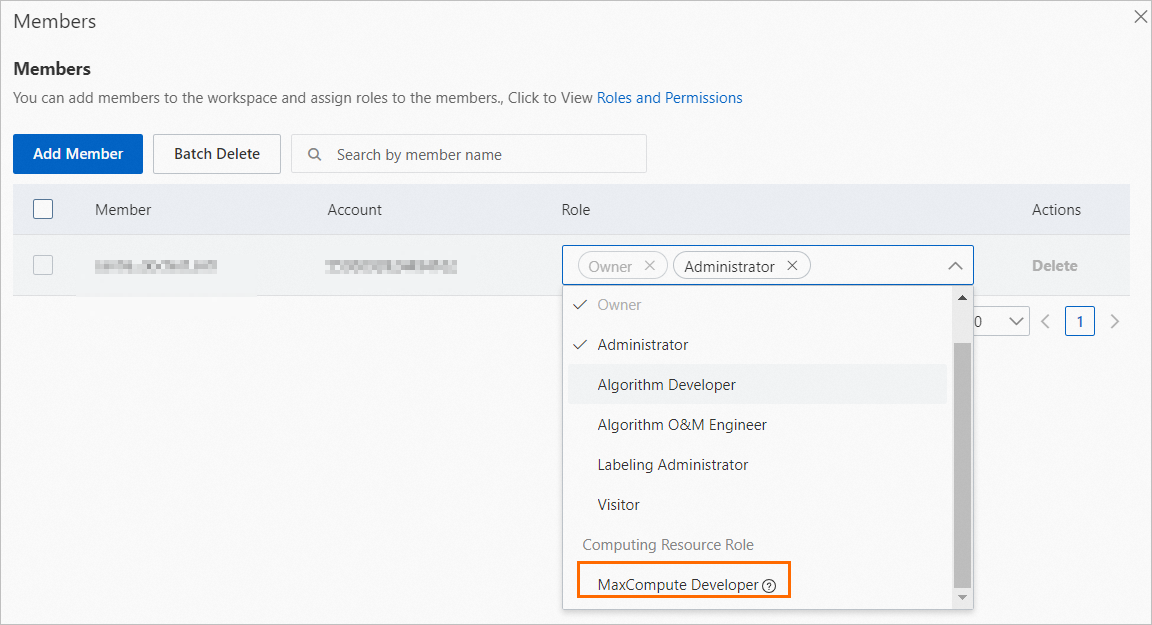
In your workspace, verify that the Resource Access Management (RAM) user has the MaxCompute Developer role. For instructions, see Manage the members of a workspace.
Column selector cannot find a column
The upstream node may not have run successfully, so the required data table was not generated. Right-click the upstream node and select Stop Here from the shortcut menu to run only up to that node and confirm it generates the expected data table.
Pipeline fails with "not in the MaxCompute project" error
In the Members panel of the Workspace Details page, assign the MaxCompute Developer role to the RAM user. For instructions, see Manage the members of a workspace.
How do I debug a failed algorithm component?
-
On the canvas, right-click the failed component and select View Log from the shortcut menu.
-
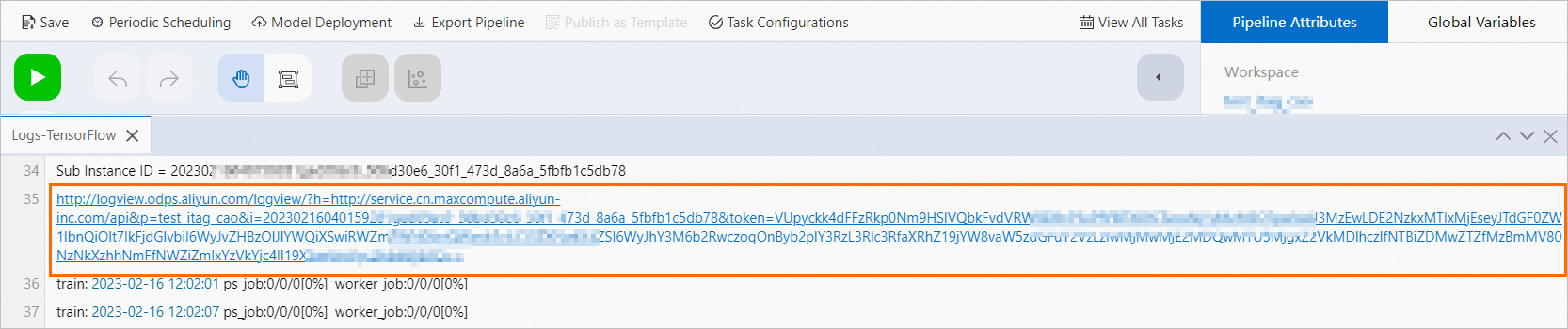
On the log tab, click the logview link to open the job details in MaxCompute Logview.
-
On the Job Details tab, click the
 icon in the StdErr column.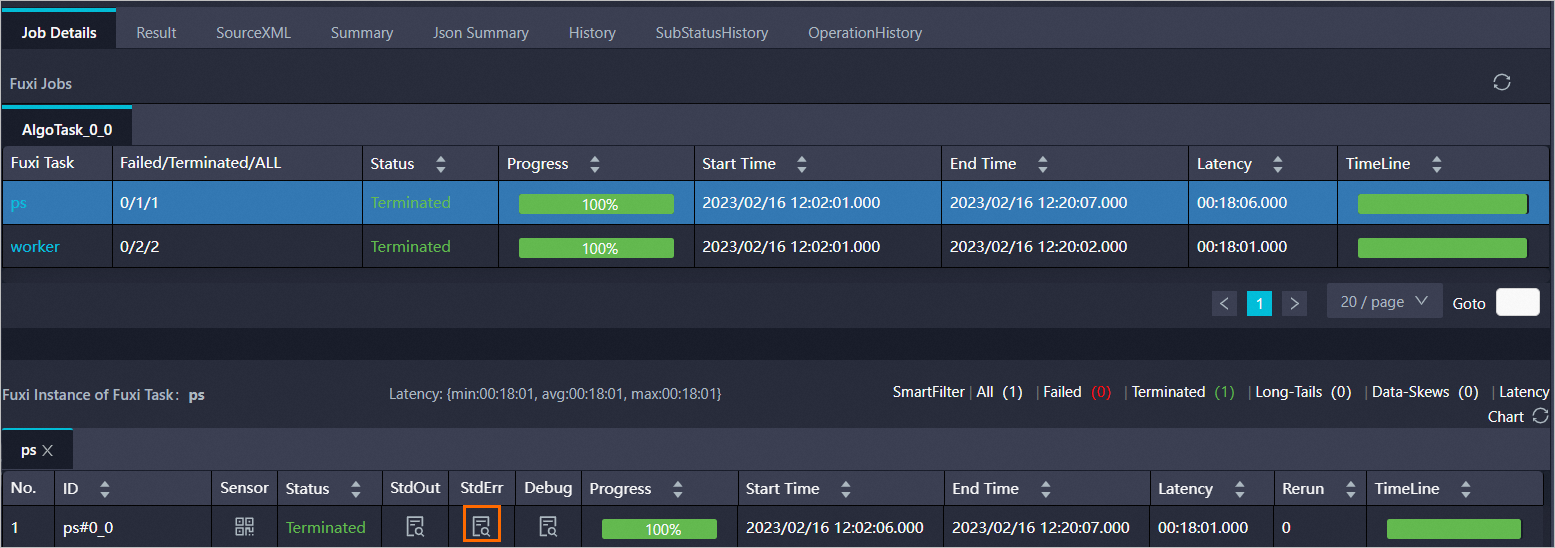
-
In the StdErr dialog box, review the error log.