Data Science Workshop (DSW) can expose the services that run inside an instance, such as model APIs and web UIs, to the public network. You can then access the services directly from a browser or share them with collaborators for testing. This feature is built on NAT Gateway and Elastic IP Address (EIP) resources and is intended for development and testing.
Usage notes
Additional costs apply: Public network access requires a NAT Gateway and an Elastic IP Address (EIP), and both resources are billed separately.
Supported instance types: You can configure public network access for instances in the public resource group whose instance type doesn't start with
ecs.ebm, and for Lingjun intelligent computing instances. Each instance supports a maximum of 5 custom services.Custom services stop when the DSW instance stops: When the DSW instance stops, the services inside it and their public network access become unavailable.
Use PAI-EAS for production environments: For stable, highly available services that support elastic scaling, deploy your models to PAI-EAS (Elastic Algorithm Service).
How it works
To make a service inside a DSW instance reachable from the public network (for example, an API listening on port 9000), the following resources are used:
EIP: Provides a fixed public IP address (
121.40.**.**). This is the entry point for public network access.NAT Gateway: Resides in your virtual private cloud (VPC) and maps requests from the public network (
EIP:port) to the DSW instance on the private network (private IP:port).Security group: Controls traffic to the DSW instance like a firewall. You must explicitly add rules that allow public traffic on the port your service listens on, such as
9000. This step is critical for successful access.
Core flow: External user (browser/tool) -> EIP:port -> NAT Gateway -> vSwitch -> security group rule check -> DSW instance private IP:port -> your service
Billing
Charges for the NAT Gateway and EIP start as soon as the resources are created.
Even if the DSW instance is stopped, charges continue to accrue as long as the NAT Gateway and EIP aren't deleted.
The DSW instance itself is billed based on its state. Pay-as-you-go instances stop generating charges after they're stopped.
Configure public network access
Configure public network access when you create a DSW instance
Create a DSW instance and configure the following key network parameters.
In the Network Information section, select your VPC and security group. To create these resources, follow the steps in this section. For more information, see Create a VPC and a vSwitch and Create a security group. The VPC and security group must be in the same region as the DSW instance.
Steps to create a VPC, a vSwitch, and a security group
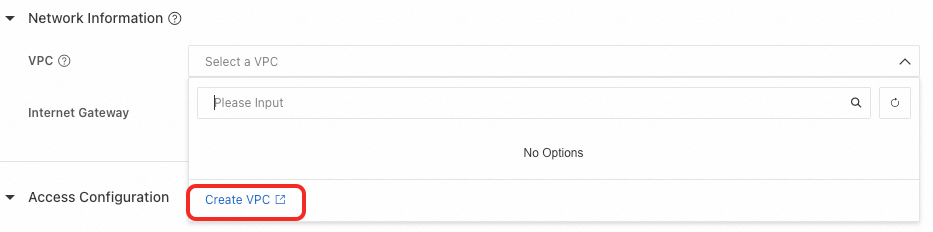
On the DSW configuration page, click Create VPC.
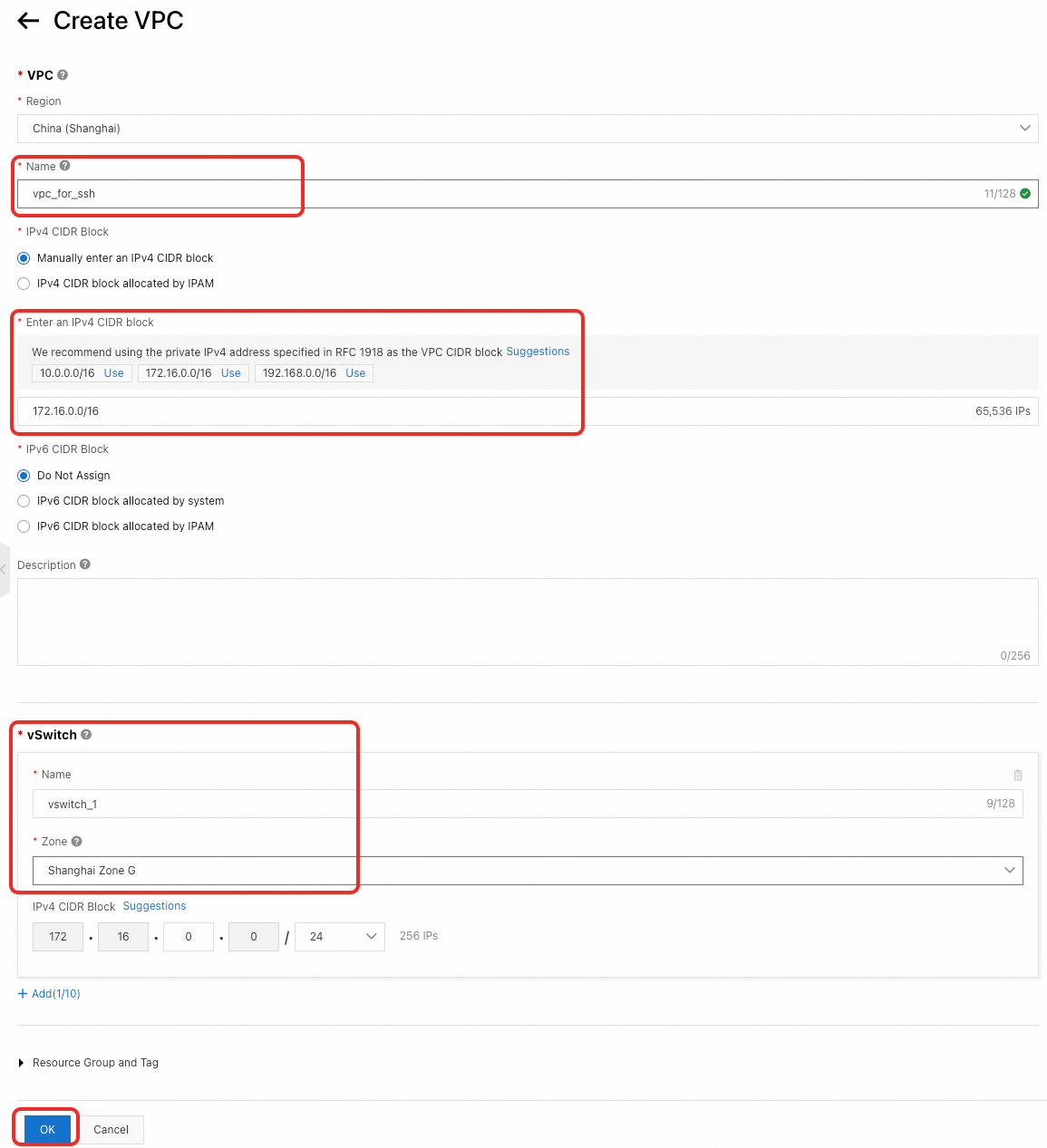
Configure the VPC name, IPv4 CIDR block, and vSwitch information. Keep the other parameters at their default values, and then click OK to create the VPC and vSwitch.
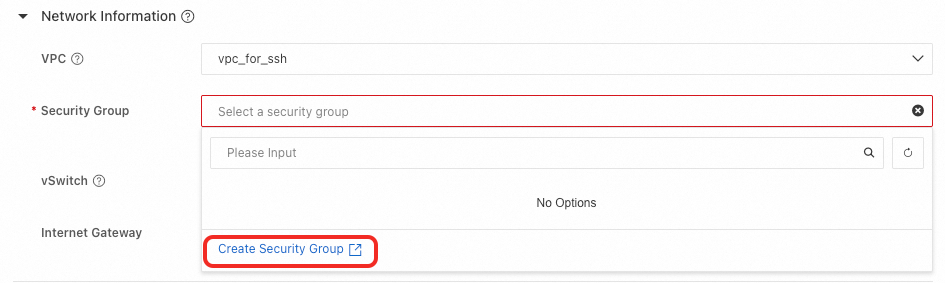
Return to the DSW configuration page. In VPC Settings, select the VPC that you just created.
Click Create Security Group. Keep the default parameters and click Create. Then return to the DSW configuration page and set Security Group ID to the security group that you just created.
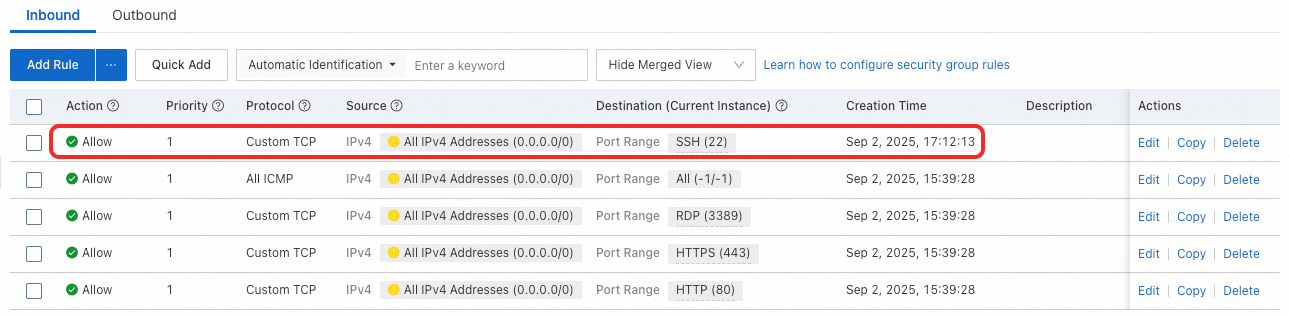
Make sure the security group allows inbound access on port 22.
Find Service Access and Port Configuration and click Add. To create a NAT Gateway and an EIP, refer to the following steps. The NAT Gateway and EIP must be in the same region as the DSW instance.
Enter Service Name and Listener Port (for example,
9000).Select Access over Internet, and set Internet Access Port (for example,
9000).Click DNAT+EIP, and then select your NAT Gateway and EIP.
Steps to create a NAT Gateway and an EIP
Click Create NAT Gateway.
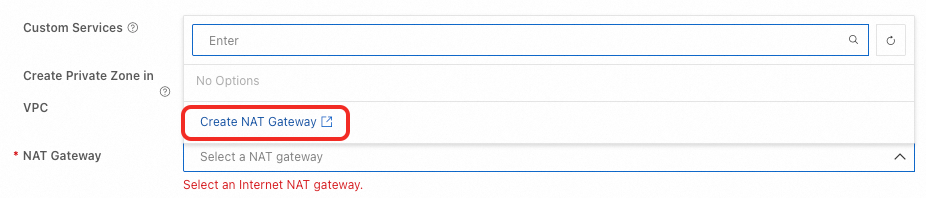
On the NAT Gateway creation page, configure the parameters or keep the default values, and then click Create EIP.
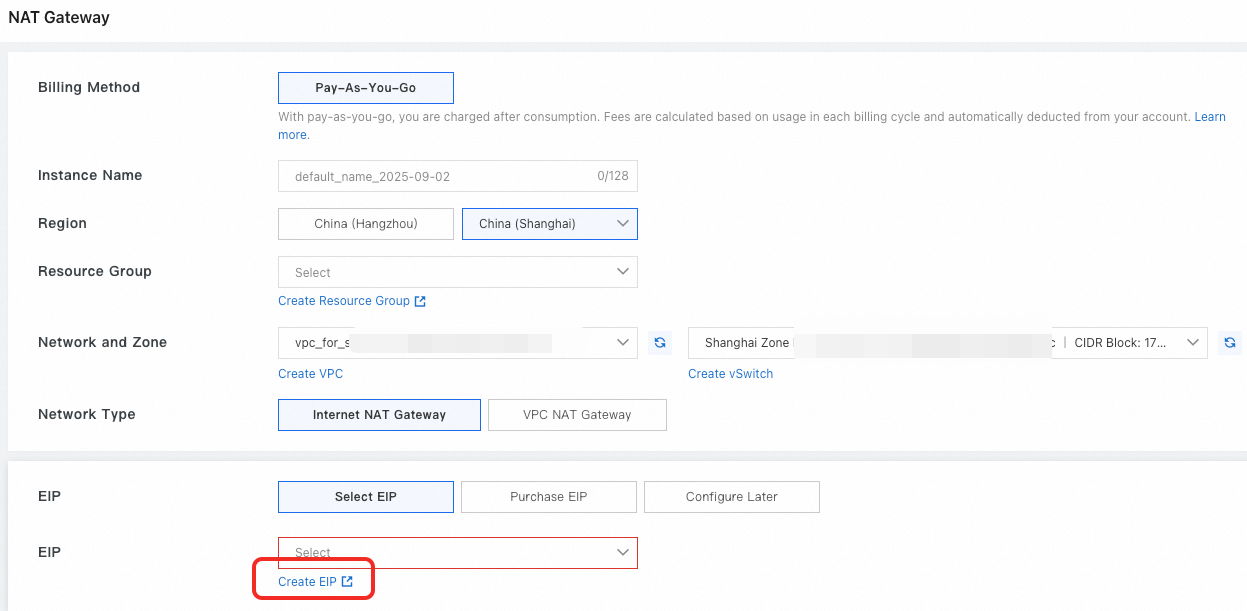
On the EIP creation page, configure the parameters or keep the default values, and then click Buy Now.
Return to the NAT Gateway creation page. In Elastic IP Address Instance, select the EIP that you just created, and then click Buy Now to create the NAT Gateway.
In addition, you can use a Network Load Balancer (NLB) instead. When you create the NLB, set Instance Network Type to Public, and select the same VPC as the DSW instance. For more information, see Network Load Balancer.
NoteIf multiple DSW instances share the same DNAT entry and EIP (or NLB), use different ports for public access.
Add an inbound rule for the listening port to the security group that you selected. The key parameters are as follows. For more information, see Add a security group rule.
Authorization Policy: Allow
Protocol Type: Select the protocol that your service uses, such as
TCP.Port Range: Enter the listening port that you configured, such as
9000/9000.Authorization Object:
0.0.0.0/0(allows access from all public IP addresses; for testing only) or a restricted IP range based on your needs. For production environments, strictly restrict source IP addresses.After the rule is added, the inbound rule list of the security group shows a rule with the protocol Custom TCP, the port range
9000/9000, and the source0.0.0.0/0.
Configure public network access for an existing DSW instance
For an existing DSW instance, you can modify the public network access configuration in either of the following ways:
Note: To add or change resources such as the VPC or NAT Gateway, you must still use Change Settings and then restart the instance.
Configure on the instance details page
On the DSW instance list page, click the instance name to go to the details page and modify the public network access configuration.
In the Access Configurations section of the details page, find the Custom Service row and click Modify Configuration to configure public network access. If you need to open a port during the configuration, get the Security Group ID from the Network Configuration section (for example, sg-bp1g37d4lmajq...), and then go to the security group to add the corresponding rule.
Configure inside the DSW instance
In the DSW development environment, click Change Settings at the top of the page to modify custom services.
In the left-side navigation pane, click Access Configurations. The custom service section shows the configured services (for example, a service named gradio with the listening port 9000) and their public access URLs and configuration status. Click Modify Configuration to edit the custom services.
In the left-side navigation pane, click Network. In the network configuration information on the right, find the Security Group ID (for example, sg-bp1g37d4lmajugsicmz2) and note it for the security group rule configuration.
Test connectivity
In the DSW Terminal, run the following commands to start the Python built-in HTTP server:
# Create an HTML file that contains test content
echo 'Hello, World!' > index.html
# Start the Python built-in HTTP server (listening on port 9000)
python -m http.server 9000 --bind 0.0.0.0
On the instance details page, view Access Configurations to obtain the access URLs.
The table in the Access Configurations section contains two columns of address information: VPC Access and Public Access. When the configuration status is Ready, the corresponding access URL is available.
For public network access, copy the public access URL
121.40.**.**:9000and open it in a browser. IfHello, World!is returned, the service is accessible over the public network.
Apply in production
Development and testing only: The DSW public network access feature is intended for temporary testing and collaborative debugging.
Deploy production services to PAI-EAS: Deploy inference services to PAI-EAS for production use. PAI-EAS provides the following capabilities:
High availability and load balancing.
Automatic elastic scaling to handle traffic fluctuations.
Comprehensive monitoring and alerting, version management, and canary releases.
Optimized public network access and billing models. For more information, see PAI-EAS.
Reduce costs:
After the DSW instance is stopped: The DSW instance itself (pay-as-you-go) stops generating charges. However, the NAT Gateway and EIP continue to generate charges as long as they exist.
When you no longer need public network access: If you're sure that you no longer need it, delete the NAT Gateway and EIP to stop the associated charges. You can delete them in the VPC console and the EIP console.
FAQ
Q: I configured public network access, but browser access or external connections fail (This site can't be reached, Connection refused, or a timeout). What should I do?
Step 1: Check the security group rules (the most common cause)
Make sure an inbound rule is added to the security group.
Make sure the Port Range of the rule includes the port that you configured, such as
9000.Make sure the Authorization Object of the rule includes your public IP address or
0.0.0.0/0.Make sure the Protocol Type of the rule (TCP/UDP) is correct.
Step 2: Make sure the service is running and listening on the correct port
In the Terminal of the DSW instance, run
netstat -tunlp | grep <port>(for example,netstat -tunlp | grep 9000) to check whether a process is listening on the port.Make sure the application service process is started and listening on the configured port.
Step 3: Check the status of the NAT Gateway and EIP
In the VPC console, make sure the NAT Gateway is in the Running state.
In the EIP console, make sure the associated EIP is in the Associated state and the account has no overdue payments.
Step 4: Test locally: Inside the DSW instance, run
curl http://localhost:<port>orcurl http://<instance private IP>:<port>to check whether the service responds.Step 5: Use network diagnostic tools:
Alibaba Cloud VPC provides Network Intelligence Service (NIS) to help you troubleshoot path issues (NIS must be activated first).
Inside the DSW instance, run
telnet <EIP> <port>to test port connectivity (installtelnetfirst).
Q: What should I do if the web UI shows "disconnected (1006): no reason"?
This message indicates that the WebSocket connection between the browser and the service inside the instance was closed unexpectedly. First make sure the DSW instance itself is running normally, and then troubleshoot the public network access path.
Step 1: Check the state of the DSW instance
On the DSW instance list page in the Platform for AI (PAI) console, find the target instance and check whether its state is Running.
Step 2: Restart the abnormal instance
If the instance is in a state other than Running, such as Stopped or Failed, click Start in the Actions column, or call the DSW
StartInstanceAPI operation to start the instance.After the instance returns to the Running state, reopen the web UI to restore access.
Step 3: If the instance state is normal but the error persists, troubleshoot the public network access path: Follow the troubleshooting steps in the previous question. Check the following items in order: the security group inbound rules, whether the service is listening on the configured port, and the status of the NAT Gateway and EIP.
Do not run ps aux | grep gateway inside the DSW instance to find or restart the gateway process. The DSW gateway is a platform-side service of PAI (it corresponds to platform domain names such as dsw-gateway-<region>.data.aliyun.com) and doesn't run inside the DSW instance. Therefore, you can't find the process inside the instance or restart it from within the instance. The processes inside a DSW instance that are managed by supervisord include dsw-agent, dsw-manager, jupyter-lab, and web-terminal, which listen on ports 8888, 8887, 8088, and 8090, respectively.
Q: Does the public network access configuration still incur charges after I stop DSW?
Yes. After the DSW instance is stopped, the instance itself (pay-as-you-go) no longer incurs charges. However, the associated NAT Gateway and EIP continue to incur independent charges as long as they aren't deleted. Delete them manually to save costs.
Q: Can one EIP map multiple ports?
Yes. Multiple service ports configured on the same DSW instance (up to 5) are all mapped through the same EIP and NAT Gateway for access. Use EIP:<port> to access each service.
Q: Why can't I find the VPC or NAT Gateway I created in the drop-down list?
The most common cause is a region mismatch. In the upper-left corner of the DSW page, check whether the current region matches the region of the VPC or NAT Gateway. DSW can use only VPCs and NAT Gateways in the same region.
The drop-down list isn't refreshed. If the VPC or NAT Gateway is newly created, wait until the resource is created, and then click the refresh button
 on the DSW configuration page to reload the list.