Data Security Center (DSC) can assess the security configuration compliance of your buckets by checking if ACL and encryption policies are configured. DSC detects configuration risks and provides remediation recommendations. Address these configuration risks promptly based on the provided recommendations to strengthen the baseline security of your Object Storage Service (OSS) buckets.
Solution overview
DSC supports the following baseline risk check items for OSS buckets:
|
Policy name |
Check item |
Description |
|
Data storage security |
OSS-Enable server-side encryption for buckets |
Checks whether server-side encryption is enabled for an OSS bucket. Data at rest should be encrypted to ensure its confidentiality and integrity. |
|
Data backup and recovery |
OSS-Enable versioning for buckets |
Checks whether versioning is enabled for an OSS bucket. Implement versioning and a recovery mechanism to manage data redundancy and protect data availability. |
|
Access control management |
OSS-Enable hotlink protection for buckets, OSS-Configure an IP address whitelist for access |
Checks whether an OSS bucket is publicly exposed. Restrict data access and usage based on business requirements to prevent public exposure of data assets. |
|
Data Transmission Encryption |
OSS-Enable secure encrypted transfer |
Checks whether encryption in transit is enabled for OSS objects. Encrypt data in transit to ensure its security. |
|
Logging, monitoring, and auditing |
OSS-Enable logging for buckets |
Checks whether logging is enabled for an OSS bucket. Enable logging and monitoring throughout the data processing lifecycle to ensure traceability. |
|
Identity and permission management |
OSS-Check settings for "read/write/full control" permissions granted to anonymous accounts |
Checks for insecure permission settings on an OSS bucket, such as public read/write access that allows modification of stored objects. Access to data should follow the principle of least privilege. Clearly define access permissions for relevant personnel to prevent unauthorized access. |
|
Sensitive data protection |
OSS-Check public read/write permissions for buckets that store sensitive data, OSS-Configure public read/write permissions for log files |
Checks for data leak risks, such as public read/write permissions on OSS log files, and verifies whether access control is enabled for projects that contain sensitive data. In this example, DSC does not perform sensitive data discovery for the OSS bucket and only runs baseline checks. Therefore, the OSS-Check public read/write permissions for buckets that store sensitive data check item passes by default. |
You can complete the baseline security checks and remediation in four steps:
-
Create an OSS bucket: Create a new OSS bucket for this tutorial.
-
Onboard the OSS bucket to DSC: Enable the Configuration Risk switch in Asset Center.
-
Manually run a baseline security check: DSC automatically runs a daily security baseline check on all connected assets at approximately 01:00. To view the results immediately, you must run the check manually.
-
View and remediate security risks: Remediate detected configuration risks based on the check results.
Prerequisites
-
You have activated the free edition of Data Security Center and authorized DSC to access other Alibaba Cloud resources.
The Free Edition of DSC provides the baseline check feature. It supports check items in the Alibaba Cloud Data Security Best Practices and includes 500 TB of OSS protection capacity per month at no cost. This example requires only the free edition of DSC.
-
You have activated Object Storage Service (OSS).
Step 1: Create an OSS bucket
-
In the Object Storage Service (OSS) console, go to the Bucket List page and click Create Bucket.
-
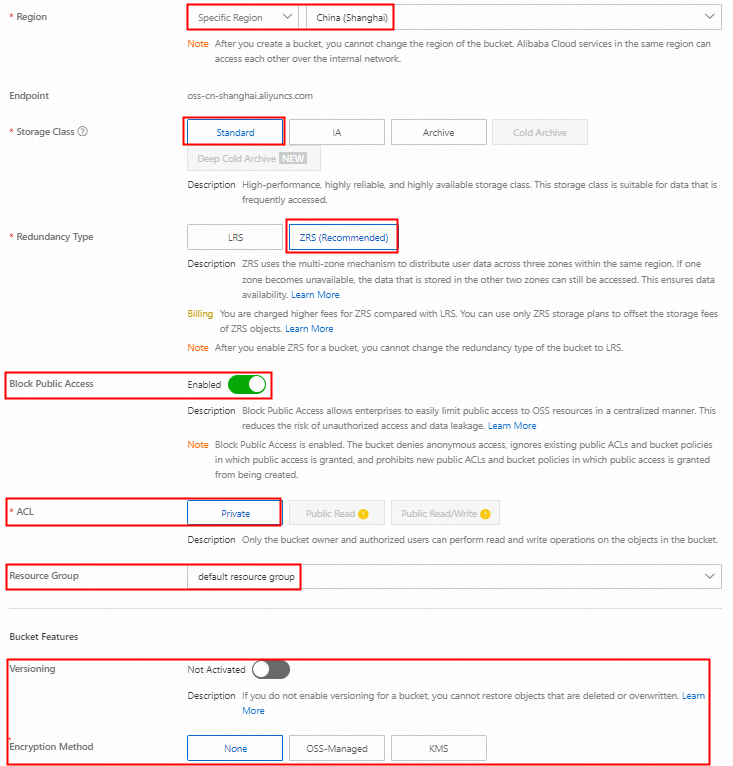
In the Create Bucket panel, configure the required parameters, keep the default settings for the other parameters, and then click Create.
Step 2: Onboard OSS bucket to DSC
-
Log on to the Data Security Center console.
-
In the left-side navigation pane, select Asset Center.
-
Take the new version of Asset Center as an example. On the Asset Center page, in the left-side Unstructured Data section, click OSS, and then click Asset synchronization.

-
After the assets are synchronized, find the new OSS bucket and enable the Configuration Risks switch.
Wait for the Connection Status of the OSS bucket to change to Connected.

Step 3: Manually run a baseline check
3.1 Verify check policy is enabled
-
In the left-side navigation pane, choose .
-
On the tab, view the OSS-related check items and their status.
The PIPL-based Security Baseline Check requires a DSC Enterprise Edition instance. This example uses the Alibaba Cloud Data Security Best Practices to check the compliance of the authorized bucket.
By default, DSC enables all check items in the baseline check policy to detect risks for authorized OSS assets.

-
Confirm that the status column for the OSS check items shows the enabled
 icon.
icon.
3.2 Manually run security checks
-
On the tab, click Details in the Actions column for the target policy.
-
On the Risk Situation tab, click Check for each OSS-related check item. The check is complete when the button becomes active again. Close the panel.

-
Repeat these steps for all other relevant checks.
Step 4: View and remediate security risks
4.1 View bucket check results
-
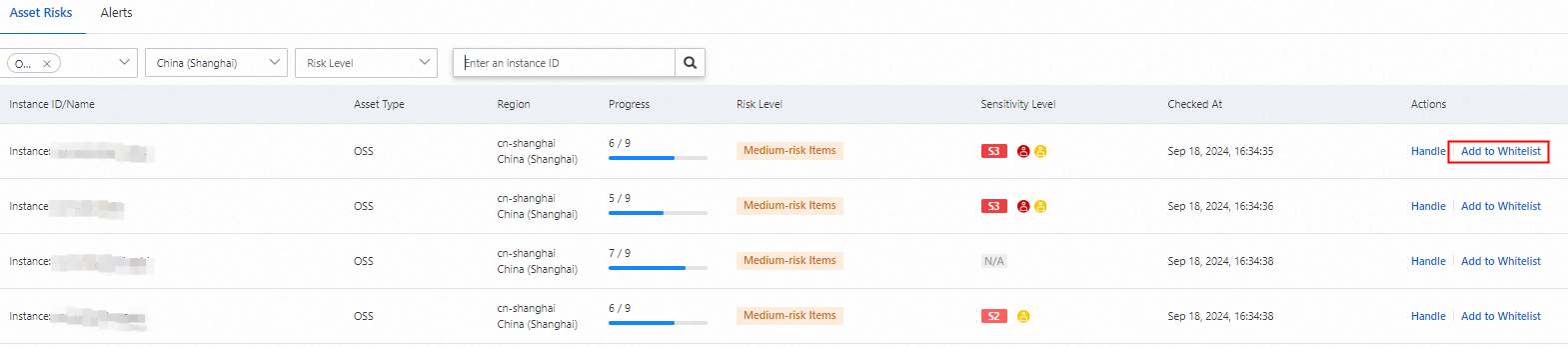
After the baseline check is complete, go to the Asset Risk tab and search for the target bucket. The results show that five security configuration items passed and display the time of the last check.

-
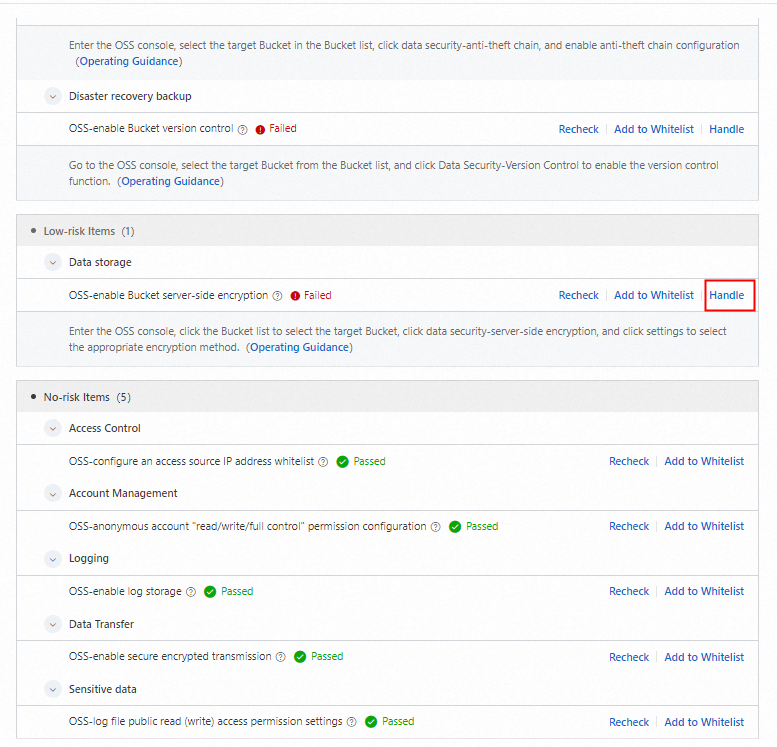
Click Handle in the Actions column to view the failed check items and remediation solutions.
4.2 Remediate risk items
-
In the Risk Details section, click Handle next to a risk item, such as OSS-Enable server-side encryption for buckets, to open the corresponding remediation page.
-
You are redirected to the Server-Side Encryption page for the OSS bucket. Click Settings, set an encryption method such as OSS-managed, and then click Save. For more information about how to configure server-side encryption, see server-side encryption.

4.3 Rerun verification check
Return to the risk details panel in DSC and click Recheck.
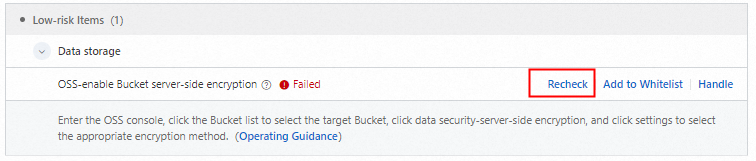
The check now shows as Passed, which indicates that the risk has been resolved.
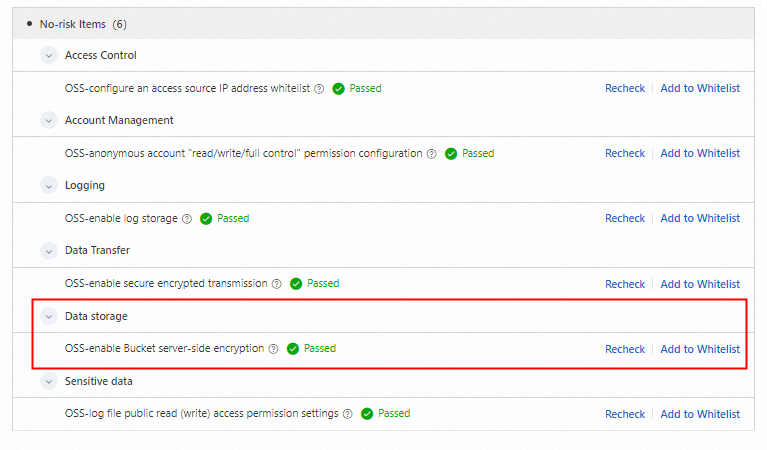
You can follow the same process to remediate all risk items and improve the security configuration compliance of your OSS bucket.
Summary
Check the security configuration compliance of any new OSS bucket before you store data in it to enhance data security.
Sensitive data protection policy
Before a sensitive data discovery scan is run on an OSS bucket, DSC marks the OSS-Check public read/write permissions for buckets that store sensitive data baseline check as Passed by default. To keep your OSS bucket compliant after you store data in it, you can create a sensitive data discovery task to periodically scan the bucket. If sensitive data is found, DSC runs the OSS-Check public read/write permissions for buckets that store sensitive data baseline check, allowing you to promptly remediate the risk.
For more information about sensitive data discovery tasks, see Scan for sensitive data by using a discovery task.
The free edition of Data Security Center provides 5 GB of free OSS sensitive data discovery capacity per month. If this quota does not meet your business needs, you can purchase a paid edition of Data Security Center. For more information, see Purchase Data Security Center.
Whitelist management
If a check result for a specific asset can be safely ignored, go to the Asset Risk tab. In the Actions column for the asset, click Add to Whitelist to add the asset to the whitelist for that check item.
The free edition of Data Security Center does not support whitelist management. To use this feature, you must purchase an Enterprise Edition instance of Data Security Center.