OpenSearch Vector Search Edition lets you receive alert notifications in DingTalk groups. To receive alert notifications in a DingTalk group, you need to only add the webhook URL of a DingTalk chatbot to the details panel of alert contacts, without the need to modify alert rules. This topic describes how to configure a DingTalk chatbot to receive alert notifications in a DingTalk group.
Create a DingTalk chatbot
Install DingTalk for PC and create a DingTalk group to receive alert notifications.
-
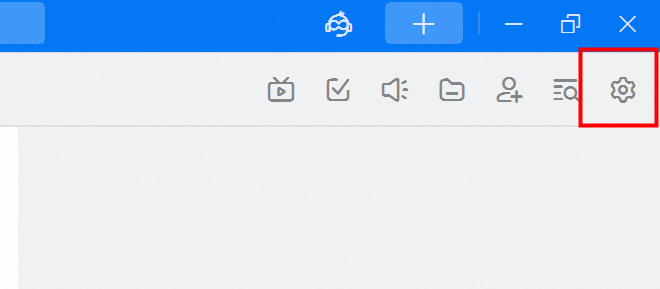
Run the DingTalk client on a PC, go to the DingTalk group to which you want to add an alert chatbot, and then click the Group Settings icon in the upper-right corner.
-
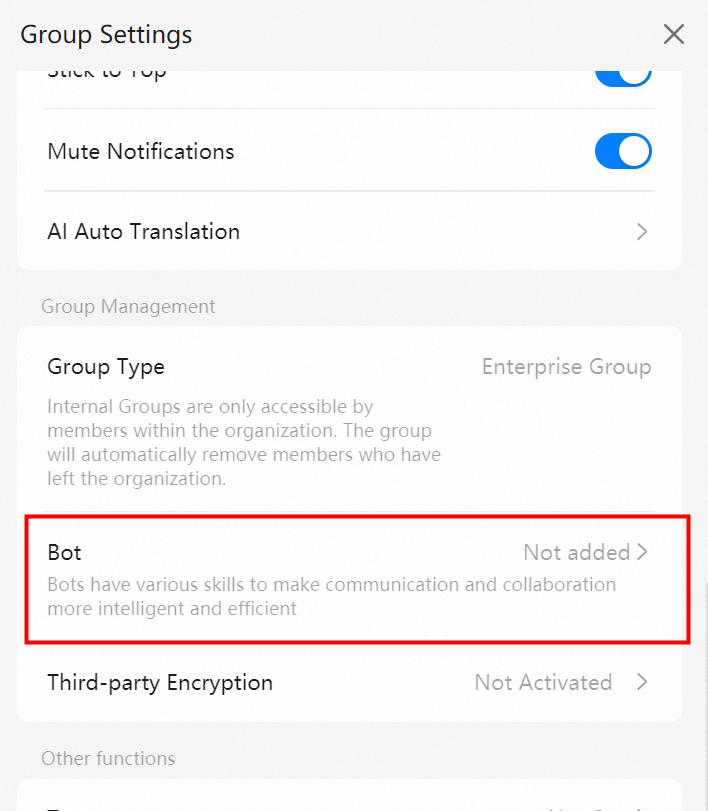
On the Group Settings panel, click Bot.
-
In the Robot Management panel, click Add Robot.

-
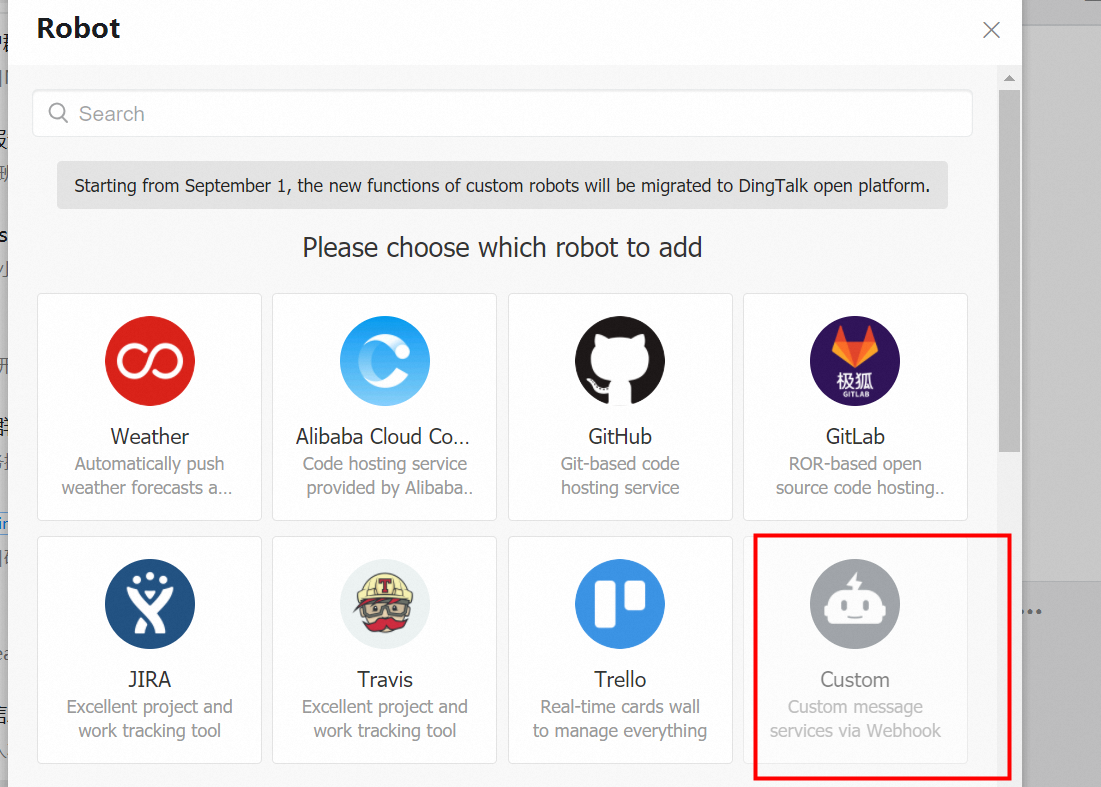
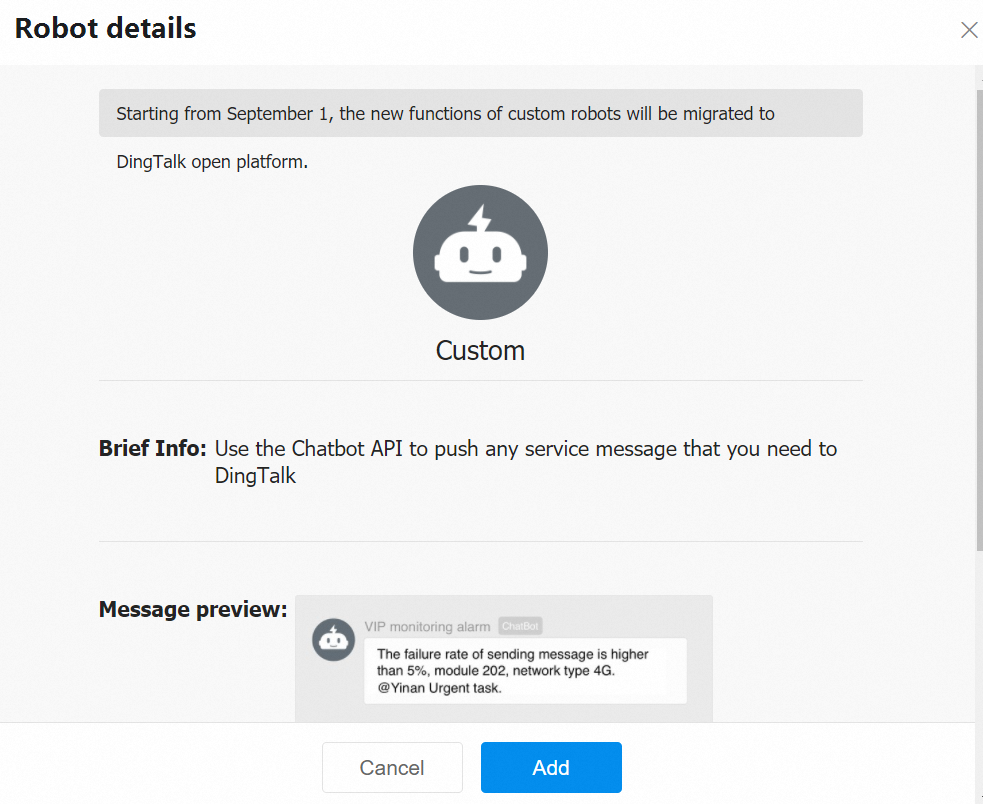
In the Robot dialog box, click Add Robot, choose the chatbot that you want to add. In this example, a custom chatbot is added.
-
Enter a custom name for the robot, such as Alibaba Cloud ES Monitoring.

-
In the Security Settings section, select Custom Keywords and add the Alibaba Cloud EMON keyword.

-
Select the Terms of Service and click Finish.

-
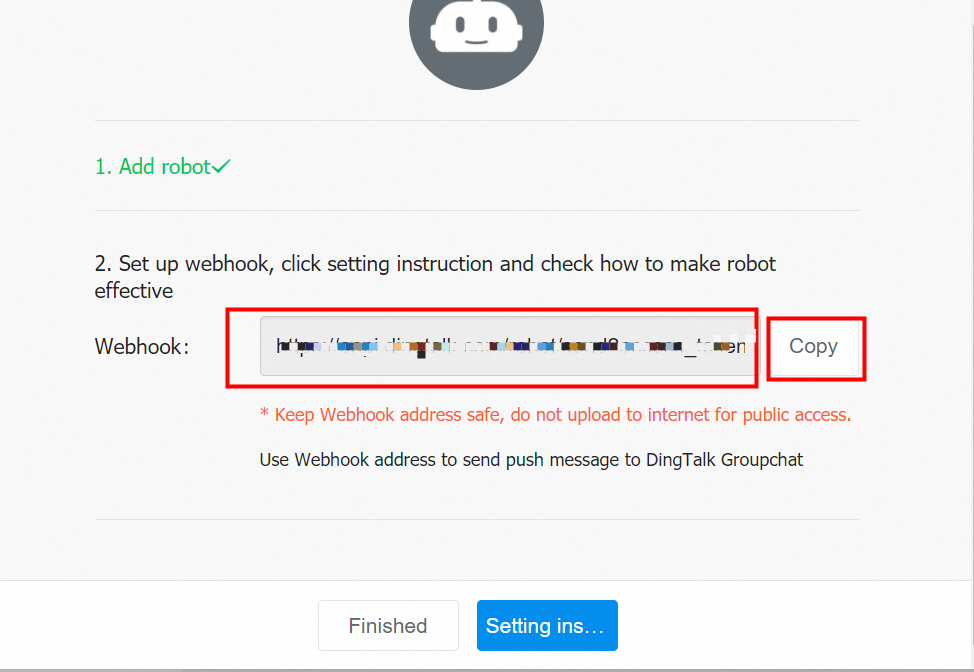
To the right of Webhook, click Copy to copy the webhook URL for later use.
-
After the robot is added, the DingTalk group receives the following message.

Add a DingTalk group alert
Navigate to Alert Management > Contact Management. Create a new contact or edit an existing contact, and enter the webhook URL that you obtained from the DingTalk chatbot.
Receive alerts in the group

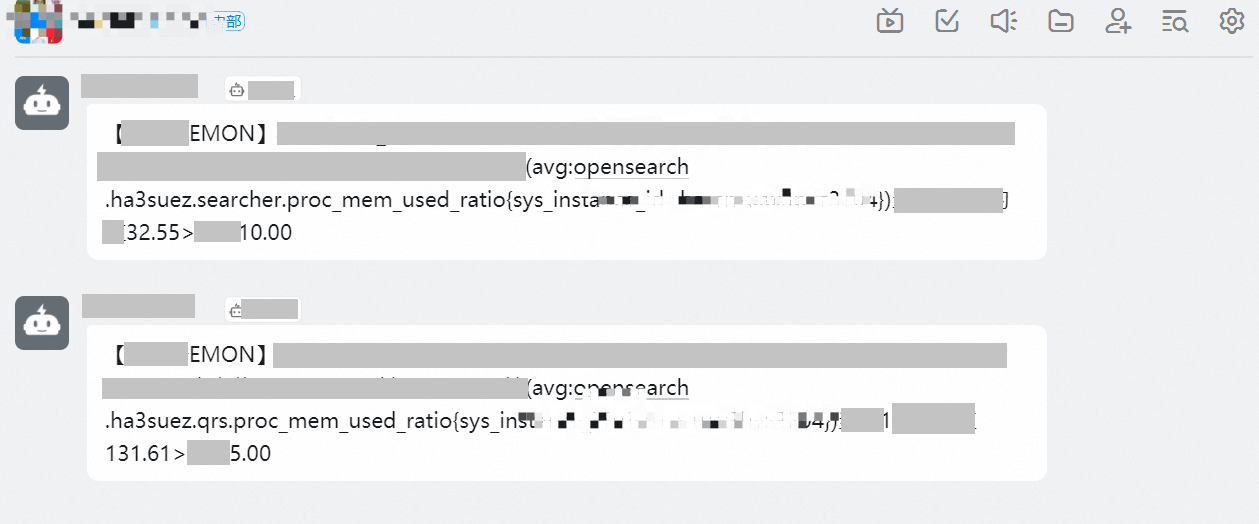
After you complete the configuration and enable alerts, the DingTalk group receives alert notifications: