Build a keyword search system for product catalogs that supports multi-attribute search, category filtering, query analysis, and relevance ranking. After completing this tutorial, you will have a working search prototype that accepts keyword queries, filters results by category and price, corrects misspelled queries, and ranks results by relevance.
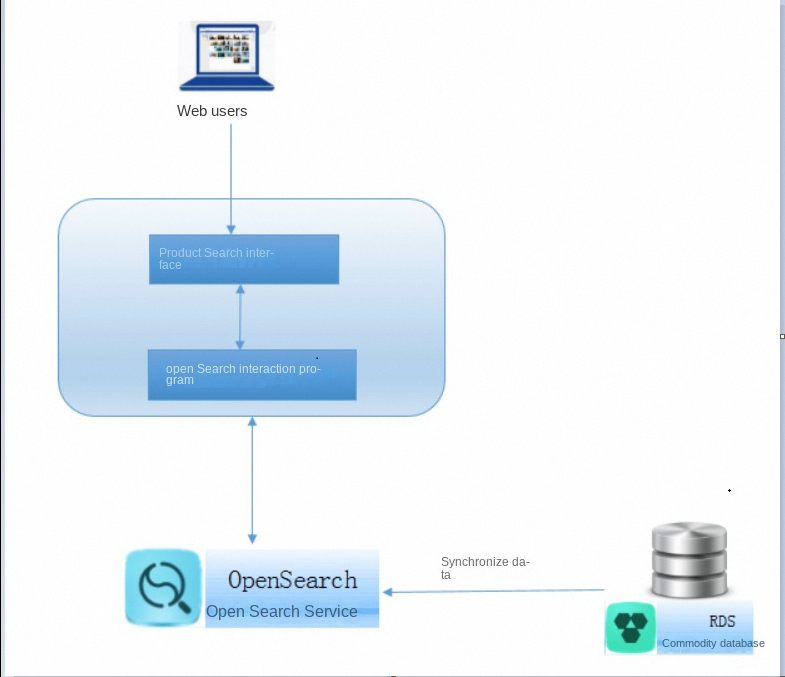
Prerequisites
Before you begin, make sure you have:
An Alibaba Cloud account with an AccessKey pair. The Open Search application requires an AccessKey pair for authentication.
(Optional) An AccessKey pair for a RAM user, if you plan to delegate access. For details, see Access authorization rules.
(Optional) An ApsaraDB RDS for MySQL instance with product data, if you plan to use a database as your data source
Step 1: Create an application
E-commerce search involves multiple related tables, such as a product table and a pricing table. Select an advanced application that supports joining of multiple tables.
Log on to the Open Search console. In the left-side navigation pane, click Instance Management. On the Instance Management page, click Create Instance. In the upper-left corner of the page, set the edition to OpenSearch Industry Algorithm Edition, and then select the target region in the top navigation bar.
Select the application type. Choose an advanced application that supports joining of multiple tables. For a comparison of application types, see Comparison between standard applications and advanced applications.
Configure the application parameters.
This tutorial uses the following parameter values:
Product Edition: Industry Algorithm Edition
Product Type: pay-as-you-go
Region and Zone: China (Hangzhou)
Industry Type: E-commerce Industry
Cluster Preferences: Exclusive Cluster - General-purpose
Parameter Description Product Type Billing method: subscription or pay-as-you-go. For details, see Billing methods. Region and Zone China: Shenzhen, Qingdao, Beijing, Zhangjiakou, Hangzhou, Shanghai, and Hong Kong. Asia Pacific: Singapore. Europe & Americas: Germany (Frankfurt) and US (Virginia). Application Name Accepts digits, letters, and underscores (_). Must start with a letter. Maximum 30 characters. Cannot be changed after creation. Application Type Advanced application or standard application. Cluster Preferences Specification types: shared general-purpose, shared computing, shared storage, exclusive general-purpose, exclusive computing, and exclusive storage. For details, see What is OpenSearch? Storage Capacity and Computing Resources Set quotas based on your workload. The number of logical computing units (LCUs) equals the number of queries per second (QPS) multiplied by the LCUs consumed per query. To view per-query LCU consumption, purchase a shared general-purpose instance and run a search test.
Step 2: Define the application schema
Open Search offers four ways to define your application schema:
| Method | Best for |
|---|---|
| Manually define an application schema | Full control over every field and type |
| Use a template to define an application schema | Quick setup with a predefined or custom template |
| Upload a file to define an application schema | Bootstrapping from an existing JSON data file. Open Search parses the file and generates an initial schema. Redefine field types after generation. |
| Use a data source to define an application schema | Syncing data from ApsaraDB RDS, MaxCompute, or PolarDB. The source table schema generates the initial application schema, reducing manual work and errors. |
If you use Alibaba Cloud storage services such as MaxCompute, ApsaraDB RDS, or PolarDB, specify them as data sources in the Open Search console for automatic data synchronization. The following steps use an ApsaraDB RDS data source as an example. For more information, see Configure an ApsaraDB RDS for MySQL data source.
Connect to the data source
Enter the database connection details.
In the Connect to Database dialog box, enter the RDS Instance ID, Database Name, Username, and Password, and then click Connect.
Select the data source
Choose the tables to import.
In the Select Data Source dialog box, click the RDS tab. Set Select Database to opensearch (the connected instance is rm-bp1pgu04tn0ia280e). In the Select Table section, add product_1 and price_detail_1 to the selected list, and then click OK.
Configure the table schema
This example uses two tables:
Primary table: the commodity table (product catalog)
Secondary table: the commodity price table
The primary key ID of the commodity price table is associated with the foreign key ID of the commodity table.
When you define the application schema, the primary table product_1 contains the following 15 fields:
category_name(category name, TEXT)image_url(LITERAL_ARRAY)description(product description, TEXT)brand_name(brand name, TEXT)thumbnail_url(LITERAL_ARRAY)title(product title, TEXT)is_onsale(INT)url(LITERAL)brand_id(LITERAL)series_id(LITERAL)sold_num(sales volume, INT)category_id(INT)onsale_time(listing time, INT)price(DOUBLE)series_name(TEXT)
For each field, you can configure the primary key, field tag, field type, and the join to a secondary table.
The secondary table price_detail_1 (data source opensearch:price_detail_1) defines the following four fields:
discount_price, type DOUBLEpid, type INT, set as the primary keysale_price, type DOUBLEact_price, type DOUBLE
Define the index schema
Add all searchable fields from the commodity table and commodity price table to an index list named "default". This enables queries such as query=default:"keyword".
Set the industry to E-commerce and the template to General. The index field list contains the following index configurations:
default(default index): contains the fieldscategory_name,description,brand_name,title,create_by, andupdate_by. Analyzer: Industry - E-commerce general analyzercategory_name(category name index): Analyzer: Industry - E-commerce general analyzercategory_id: Analyzer: Keywordseries_name: Analyzer: Chinese - general analyzerbrand_name: Analyzer: Chinese - general analyzerid: Analyzer: Keywordtitle(title index): Analyzer: Industry - E-commerce general analyzerseller_id: Analyzer: Keywordbrand_id: Analyzer: Keywordseries_id: Analyzer: Keyword
The analyzer affects search results. Choose the analysis method carefully. For details, see Built-in analyzers.
Enable data synchronization
Configure automatic data synchronization so that updates in the data source are automatically pushed to Open Search.
On the data source configuration page, both the product_1 and price_detail_1 tables are associated with the same ApsaraDB RDS instance, and the Automatic Data Synchronization switch is turned on.
Finalize the application
Click Completed. On the Application Details page, the application status shows that initialization is in progress.
Step 3: Upload data
When you use an ApsaraDB RDS data source, full data import starts automatically during index creation. Monitor the import progress on the Application Details page.
Alternatively, upload data through Open Search APIs or SDKs. For details, see API overview and SDK overview.
Step 4: Test search queries
After data upload completes, run a search test. The Open Search console provides a built-in search test page. For programmatic access, use the Open Search APIs or SDKs.
For search syntax details, see Initiate search requests and query clause.
On the search test page, select the test_han_indexes application and the offline application environment. Enter query=title:'裙子' and set the config clause to start:0.
Step 5: Configure query analysis
Query analysis processes queries before retrieval to improve search quality. Long-tail queries may return few results, and queries with spelling errors or Chinese Pinyin may return no results. Query analysis addresses these issues. For more information, see Query analysis and Perform searches based on relevance.
Open Search provides the following query analysis features:
| Feature | What it does | Example |
|---|---|---|
| Stop word | Filters out meaningless words such as punctuation and modal particles. | Query "Running Man!" -- the exclamation mark is filtered out. |
| Spelling correction | Corrects definite spelling errors automatically. For possible errors, the original query is used. | "Alipapa" is corrected to "Alibaba". |
| Word weight | Evaluates term importance and assigns weights. Low-importance terms may be excluded from retrieval. | Query "Open Search is good or not" -- retrieves documents containing "Open Search". |
| Synonym | Expands queries with synonyms from the built-in synonym library and semantic models. Can be combined with word weight for better results. | "KFC" also retrieves "Kentucky Fried Chicken". |
| Named entity recognition (NER) | Identifies semantic entities in queries and assigns category priorities. | "Nike Slim Dress" -- "Nike" (brand, medium priority), "Slim" (style, low priority), "Dress" (category, high priority). |
Example: Set up spelling correction
The following steps show how to configure a spelling correction rule.
Create an intervention dictionary
In the Open Search console, go to Search Algorithm Center > Retrieval Configuration. Click Dictionary Management.
Click Create. In the Create Query Analysis Dictionary panel, enter a dictionary name, set Dictionary Type to Spelling Correction, and click Save. In this example, set Name to
dic_error.In the dictionary list, find your dictionary and click Manage Entries. The entry management page shows the dictionary details, including its name, dictionary type, creation time, and number of entries. To add entries, click Add Intervention Entry or Add Entries in Batches.
Click Add Intervention Entry to create an entry.
In the Add Intervention Entry dialog box, specify the following information:
Query: the search term to correct, for example
连衣群Corrected Word: the correct term, for example
连衣裙Intervention Type: select Add or Block
Click Save. The entry appears in the intervention entry list. The list shows the Query, Corrected Word, Intervention Type, Modified At, Status, and Actions columns, and provides an Enter Query search box for filtering entries. In this example, the incorrect query
连衣群is corrected to连衣裙, the intervention type is Add, and the status is Effective.
Create a query analysis rule
Go to Search Algorithm Center > Retrieval Configuration. Click Query Analysis Rule Configuration.
Click Create. In the Create Rule panel, set Intervention Dictionaries to the spelling correction dictionary you created (for example,
dic_error). In the same panel, entertest_erroras the rule name. The name can contain digits, letters, and underscores (_), must start with a lowercase letter, and cannot exceed 16 characters. Set the target application totest_han_indexesin the online application environment, set the index scope to title and the industry type to E-commerce, and select Spelling Correction in the feature section. Select System Built-in Dictionary as the dictionary source, and then click OK to create the rule.
Test and apply the rule
On the Query Analysis Rule Configuration page, click Search Test in the Actions column to verify the correction behavior. The rule list shows the query analysis name
test_error, the type Custom, the target indextitle, the industry E-commerce, and the included feature Spelling Correction.After verification, click Index Orientation and set the rule as the default query analysis rule.
On the search test page, select the index, set the parameter
qp=test_error, and enter the querytitle:'连衣群', which contains a deliberate spelling error. Click Search. The console shows a prompt that results are returned for连衣裙with the option to search for连衣群instead, the query is automatically corrected to(title:"连衣裙"), and products matching连衣裙are returned.After the rule is set as the default, the query analysis name in the rule list changes to
[Default]test_error, which is displayed in red because the rule is not published yet, and the Default column shows Yes. To revert, click Cancel Default Rule in the Actions column.
Step 6: Configure sort expressions
Sort expressions control how search results are ranked. You can specify sort expressions in the query clause to sort results. Open Search uses a two-phase ranking approach: rough sort (first-phase ranking) narrows down candidates, and fine sort (second-phase ranking) determines final order.
For details, see Configure sort expressions.
Create a rough sort expression
In the Open Search console, go to Search Algorithm Center > Sort Configuration to open the Policy Management page.
Click Create to add a rough sort expression. Select representative fields such as text score and timeliness score. Rough sort significantly affects search performance, so choose fields carefully.
In the basic information step, select the Target Application and its environment, and enter a Policy Name. The name must be 1 to 30 characters in length, start with a letter, and can contain uppercase letters, lowercase letters, digits, and underscores (_). Set Type to Expression, and then click Next.
In the sort configuration step, set Scoring Feature to
static_bm250and Weight to1, and then click Finish.
Create a fine sort expression
Add a fine sort expression for text relevance scoring.
On the basic information page of the Create Policy wizard, enter a Policy Name, set Application Scope to Fine Sort, set Type to Expression, and then click Next to go to the sort configuration step.
In the sort expression editor, enter text_relevance(title), and then click Finish.
Compare sort results
On the Search Test page, compare the results of a standard query with a query that applies the sort expression.
Select the test_han_indexes index and set the application type to Online Application. Enter query=title:'裙子' and set the config clause to start:0. The page shows the results of two fine sort policies side by side so that you can verify the effect of your fine sort configuration.
Step 7: Add drop-down suggestions and category prediction
Drop-down suggestions
Drop-down suggestions help users find queries faster as they type, reducing input effort in e-commerce search. For setup instructions, see Drop-down suggestions.
Category prediction
Category prediction identifies the product category that a search query most likely targets. For setup instructions, see Category prediction.
Step 8: Control result diversity and filtering
Distinct clauses
When multiple products from a single vendor score highly, they may dominate the results page. Distinct clauses enforce diversity so that results include products from multiple vendors. For details, see Distinct clauses.
Filter clauses
Filter clauses let users narrow results by attribute ranges, such as price. For details, see Filter clauses.
The following Java code shows how to filter by price range:
if(!lowPrice.equals("")){
  queryElement.addFilter("price>=" + lowPrice);
}
if(!highPrice.equals("")){
  queryElement.addFilter("price<=" + highPrice);
}
What you built
After completing these steps, your e-commerce search prototype supports:
Multi-attribute keyword search across joined tables
Query analysis with spelling correction, stop words, synonyms, and named entity recognition
Two-phase relevance ranking with rough sort and fine sort expressions
Drop-down suggestions and category prediction
Result diversity with distinct clauses and price filtering with filter clauses
Open Search provides search APIs and SDKs so you can integrate these capabilities into your application without building and maintaining a custom search infrastructure.
Next steps
API overview -- integrate search into your application
SDK overview -- use language-specific SDKs
Query analysis -- explore additional query processing features
Configure sort expressions -- fine-tune result ranking