Background information
A password is required when you create a Cloud Assistant script and run the script on one or more Elastic Compute Service (ECS) instances. If you write the script in plaintext, a password leak may occur. If you use Key Management Service (KMS) to encrypt the password, you must maintain the encrypted value in the script.
To resolve this issue, CloudOps Orchestration Service (OOS) provides a simpler solution. You can create an encryption parameter in Parameter Store to maintain your password and use the encryption parameter in the Cloud Assistant script. This solution provides the following benefits:
You can prevent password leaks by maintaining the password in the encryption parameter.
You do not need to maintain plaintext passwords or encrypted password values in the script. You need to only specify the name of the referenced encryption parameter in the script.
If the password is changed, you can update only the corresponding encryption parameter without the need to modify the Cloud Assistant script or OOS template.
Prerequisites
Alibaba Cloud CLI is installed on the ECS instances on which you want to run the script. If Alibaba Cloud CLI that is installed on the ECS instances does not support the GetSecretParameter operation of OOS, upgrade Alibaba Cloud CLI to the latest version. For more information, see Linux.
The jq processor is installed on the ECS instances. Click here to download jq.
The required Resource Access Management (RAM) role is attached to the ECS instances. The RAM role must be granted the permissions to call the GetSecretParameter operation of OOS and the GetSecretValue operation of KMS.
Procedure
Step 1: Create an encryption parameter
You can create an encryption parameter in Parameter Store of the OOS console or by using Alibaba Cloud CLI.
Create an encryption parameter in Parameter Store of the OOS console
To create an encryption parameter, perform the following steps:
Log on to the OOS console. In the left-side navigation pane, click Parameter Store. On the Parameter Store page, click the Encryption Parameters tab. On the Encryption Parameters tab, click Create Encryption Parameter. For more information, see Manage encryption parameters. If you want to use a custom key, select the ID of the customer master key (CMK) from the KMS Key ID drop-down list. For more information about how to create a KMS key, see the Appendix 1: Create a KMS key section of this topic.
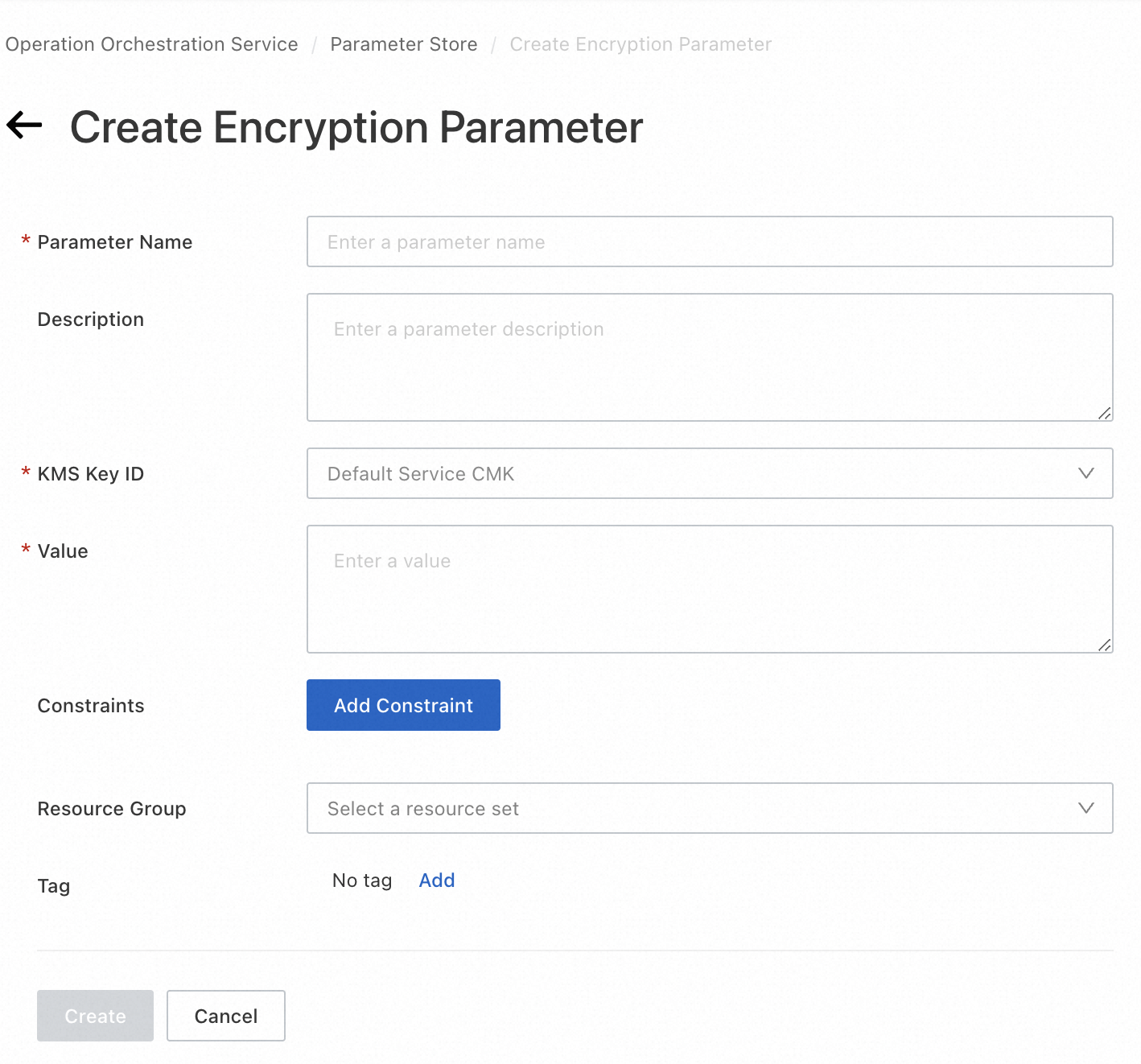
Create an encryption parameter by using Alibaba Cloud CLI
The following sample script provides an example:
aliyun oos CreateSecretParameter --Name mysql-password --Description "Encryption parameter of the database password" -- Value "SecretMySQLPassword" -- RegionId cn-hangzhou
Step 2: Use the encryption parameter in the Cloud Assistant script
In the RunCommand operation, obtain the value of the encryption parameter from the script by using Alibaba Cloud CLI and jq.
Install Alibaba Cloud CLI on Linux. If Alibaba Cloud CLI that has been installed on the ECS instances does not support the GetSecretParameter operation of OOS, upgrade Alibaba Cloud CLI to the latest version.
Install jq.
We recommend that you run the script on Alibaba Cloud CLI installed on ECS instances as a RAM role. For more information about how to configure the RAM role for the ECS instances, see Appendix 2 of this topic.
Use the value of the encryption parameter to perform other operations in the script.
ImportantTo prevent leaks of the encrypted data, do not write code to display the value of the encryption parameter in the script.
Use the following sample script:
# Obtain the value of mysql-password in the encryption parameter from Parameter Store and store the value in the db_password variable.
db_password=`aliyun oos GetSecretParameter --Name mysql-password --WithDecryption true --mode EcsRamRole --ram-role-name secret-parameter-instance-role --region cn-hangzhou |jq .Parameter.Value -r`

# Use the db_password variable to perform subsequent operations. For example, you can create a production database.
mysql -u$db_user -p$db_password -e "create database database;"
Run the preceding script by using the Batch Instance Operations feature of OOS.

Appendix 1: Create a KMS key
Log on to the KMS console.
In the upper-left corner of the page, select the region in which you want to create a KMS key.
In the left-side navigation pane, click Keys. On the page that appears, click Create Key.

Create a CMK. For more information, see Create a CMK.
Appendix 2: Create a RAM role and attach the RAM role to ECS instances
Log on to the RAM console.
In the left-side navigation pane, choose Permissions > Policies. On the Policies page, click Create Policy.
On the Create Policy page, click the JSON tab. Enter the following sample code in the policy editor to create a policy that grants the minimum permissions, and click OK.
{
    "Version": "1",
    "Statement": [
        {
            "Action": [
                "kms:GetSecretValue"
            ],
            "Resource": "*",
            "Effect": "Allow"
        },
        {
            "Action": [
                "oos:GetSecretParameter"
            ],
            "Effect": "Allow",
            "Resource": "*"
        }
    ]
}
After the policy is created, choose Identities > Roles in the left-side navigation pane. On the Roles page, click Create Role. On the Create RAM Role page, select Alibaba Cloud Service as the trusted entity and click Next.
Enter a role name and select Elastic Compute Service as the trusted service.
After the RAM role is created, click Add Permissions to RAM Role.
In the Select Policy section, click Custom Policy. Select the policy that is created in Step 3, and then click OK.
Attach the RAM role to one or more ECS instances.
To assign the RAM role to an ECS instance, log on to the ECS console, find the ECS instance, and then choose More > Instance Settings > Attach/Detach RAM Role in the Actions column. In the Attach/Detach RAM Role dialog box, select Attach for Action, select the RAM role that is created in Step 6, and then click OK.
To attach the RAM role to multiple ECS instances, specify the RAM role and the ECS instances in the ACS-ECS-BulkyAttachInstanceRamRole template.