In addition to common parameters, CloudOps Orchestration Service supports encrypted parameters. Key Management Service (KMS) encrypts the value of an encrypted parameter. This topic describes how to create, search for, and update encrypted parameters in the Parameter Store.
You can create up to 10,000 encrypted parameters in each region. The value of each parameter can be up to 4,096 characters in length.
To use encrypted parameters, you must meet the following prerequisites:
Activate Key Management Service (KMS). For more information, see Purchase a dedicated KMS instance.
Grant the required RAM permission for KMS. For more information, see Use RAM to control resource access.
Create an encrypted parameter
Log on to the CloudOps Orchestration Service.
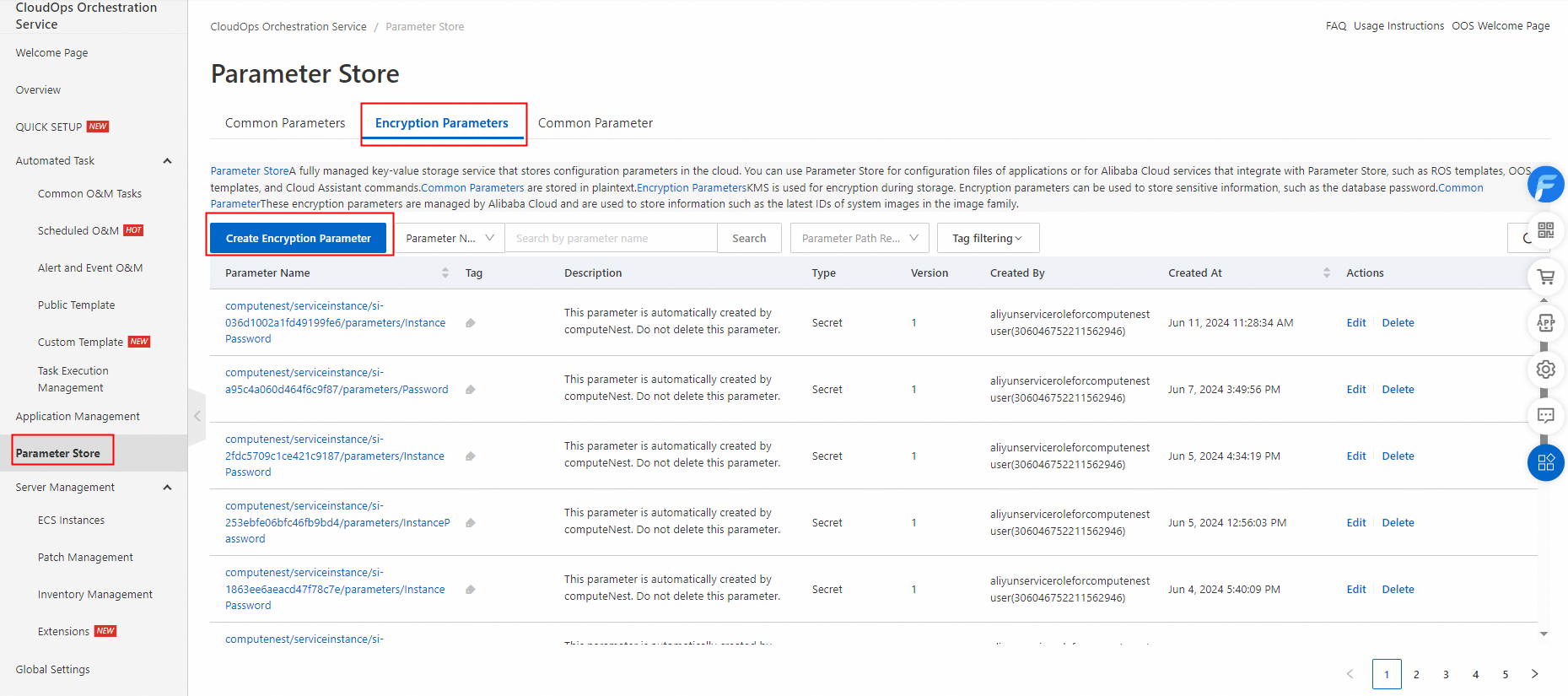
In the left-side navigation pane, choose Parameter Store. Click the Encrypted Parameters tab, and then click Create Encrypted Parameter.
On the Create Encrypted Parameter page, configure the parameter.
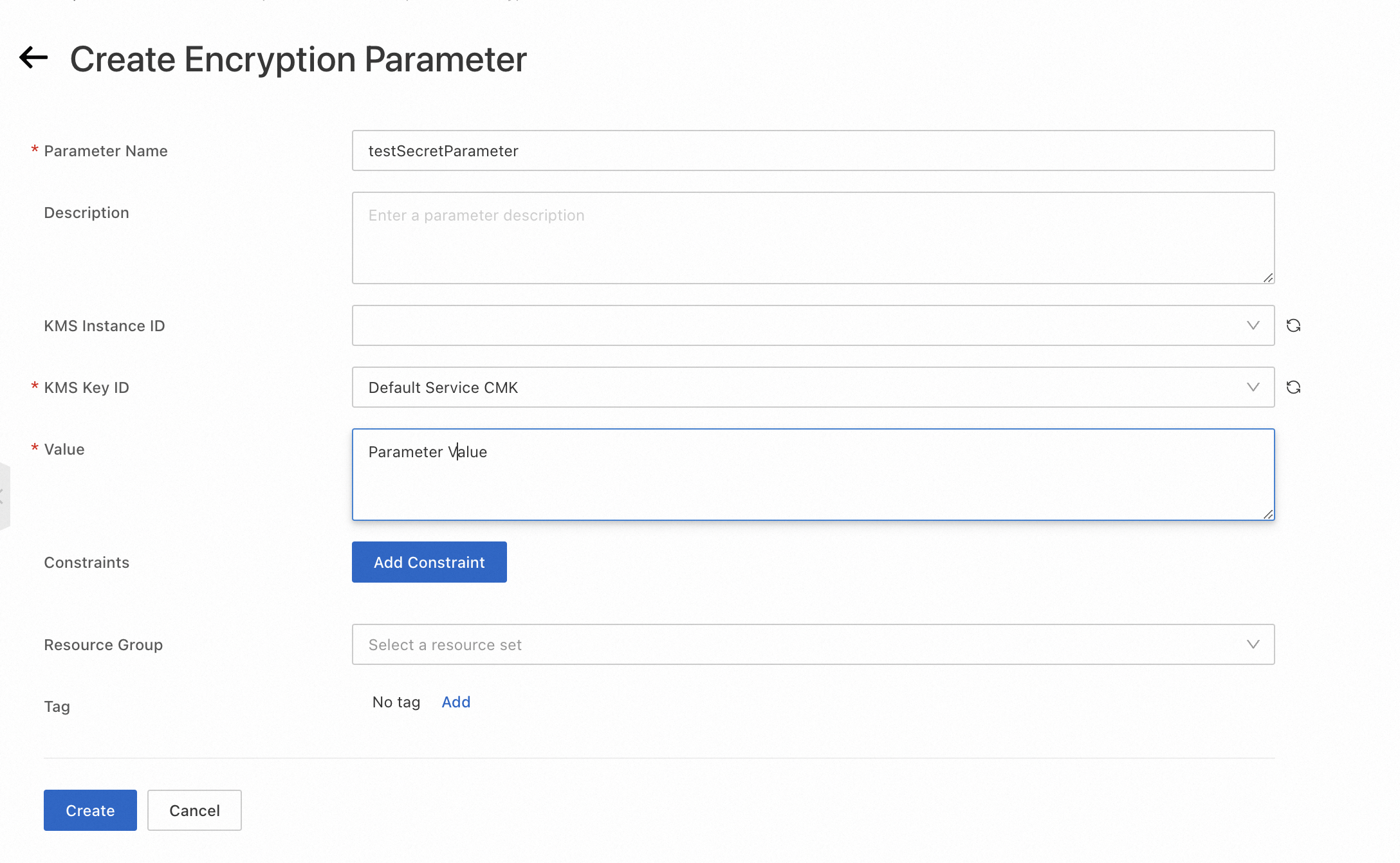
Enter a parameter name.
Enter a description for the parameter.
Enter a KMS instance ID.
If you do not set this parameter, a legacy default KMS instance is used, and you can create up to 200 encrypted parameters.
If you set this parameter, the credential quota of the specified dedicated KMS instance applies. For more information, see Purchase and enable a KMS instance.
Enter a KMS key ID. You can use the default value or enter the ID of a key that you have created. For more information, see Create a key.
Enter the parameter value.
Specify one or more constraints for the parameter value. The following types of constraints are available:
Allowed values
Regular expression
Maximum length
Minimum length
Click Create.
Search for an encrypted parameter
Log on to the CloudOps Orchestration Service.
In the left-side navigation pane, choose Parameter Store. Click the Encrypted Parameters tab, and then use the search box next to the Create Encrypted Parameter button.
In the search box, you can filter parameters by a combination of the following conditions:
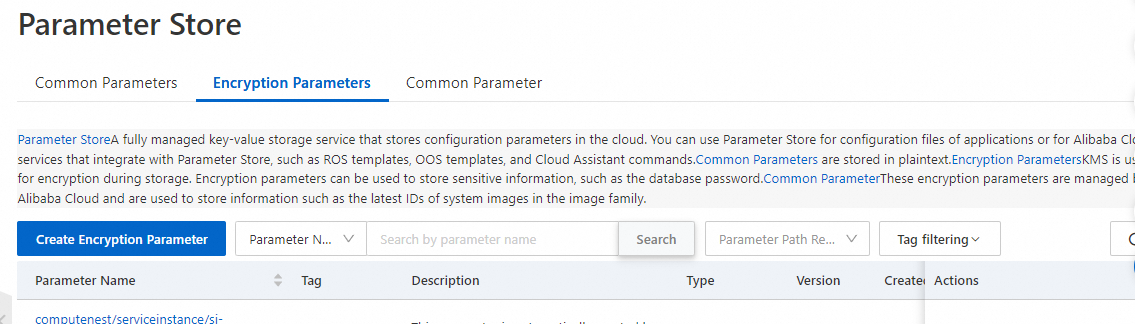
Parameter name: Fuzzy search is supported.
Path. For example, in
/parmeter/parmeter1/test, the path is/parmeter/parmeter1/.Specifies whether the search is recursive. This option is used with the parameter path. By default, the search is non-recursive. A recursive search finds all parameters that begin with the specified path. For example, the following table shows the search results for three parameters when the search path is /group1.
Parameter
Recursive
Non-recursive
/group1/team2/some_parameter
Found
Not found
/group1/team1/some_parameter
Found
Not found
/group1/some_parameter
Found
Found
Update an encrypted parameter
Log on to the CloudOps Orchestration Service.
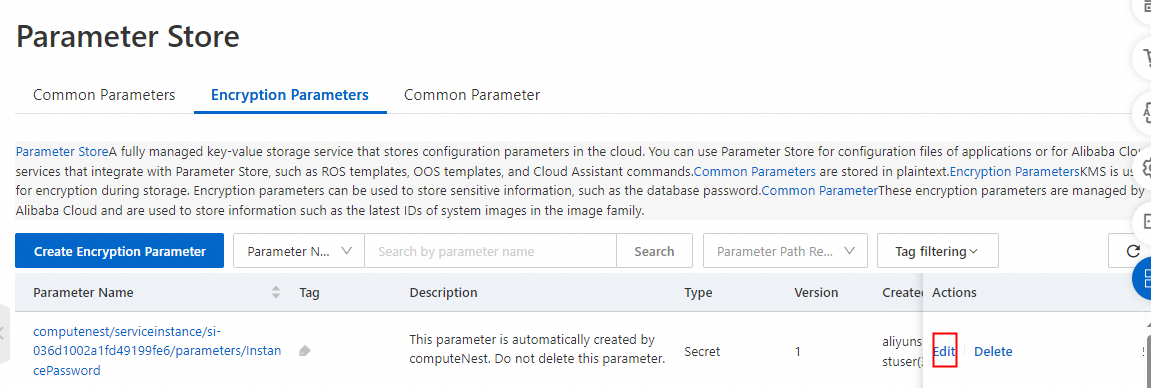
In the left-side navigation pane, choose Parameter Store. On the Encrypted Parameters tab, find the parameter that you want to update and click Edit in the Actions column.
Update the value or description as needed.
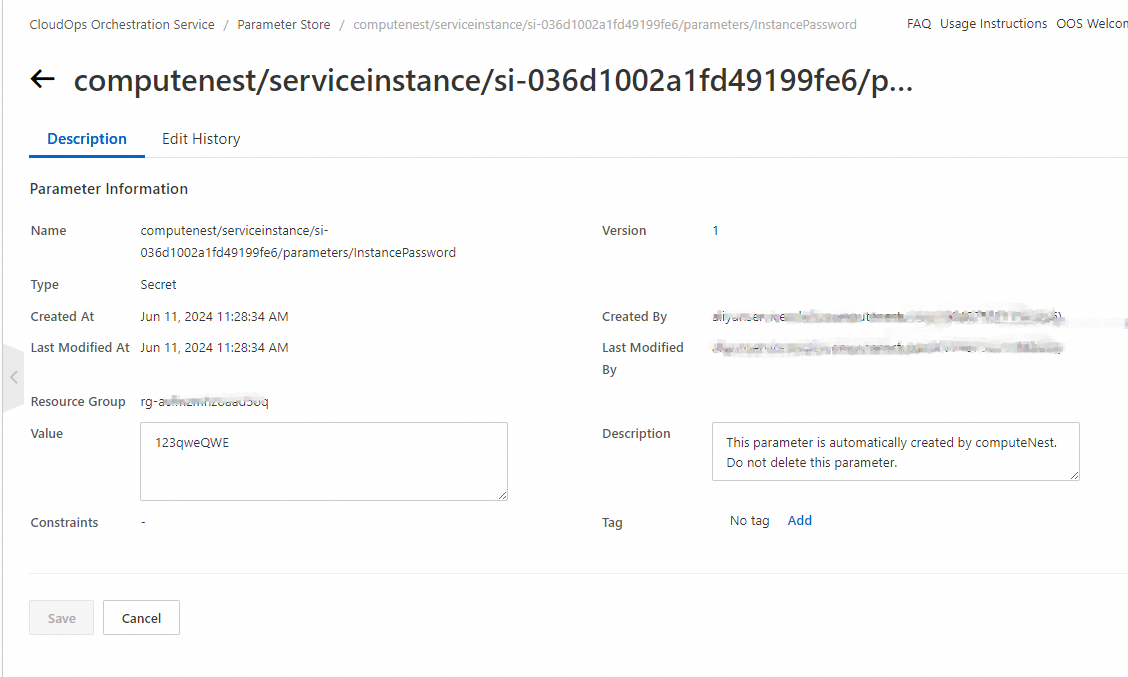
Click Save.
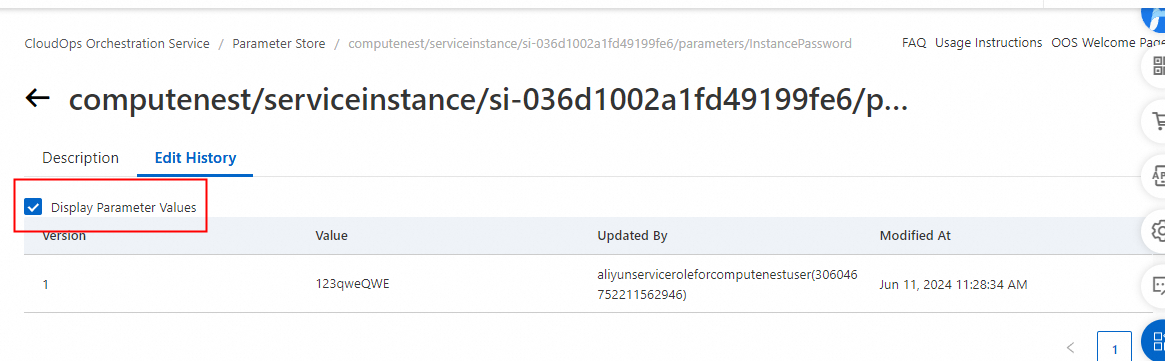
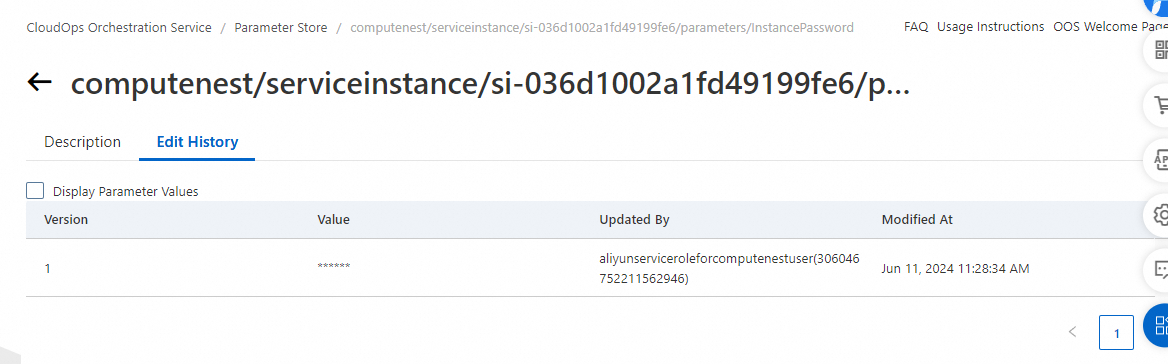
In the edit history, you can view the previous versions of the encrypted parameter.
 Important
The system retains only the 10 most recent versions of an encrypted parameter.
Click edit history and select the Display Parameter Value checkbox to view the details of an encrypted parameter.