Pull code from a Git repository and use CloudOps Orchestration Service (OOS) to build and deploy an application on a single ECS instance.
This sample template builds and deploys an application locally on a single ECS instance. If you need to publish a build artifact to a repository or deploy it to multiple ECS instances, see the following topics: Build an image and upload it to Container Registry, Build an image, upload it to Container Registry, and deploy it, Build a software package and upload it to OSS, and Build a software package, upload it to OSS, and deploy it.
Prerequisites
-
You have created an ECS instance. For more information, see Create an instance.
-
The ECS instance has access to the public network. For more information, see Enable public network access.
Template workflow

-
You specify a code source, such as OSS or Git. OOS then generates a temporary authorization link for pulling the code.
-
OOS automatically pulls the code and runs a script to build and deploy the application.
Example
Prepare the code source
This example uses a sample Spring Boot project. The code is available in Gitee and GitHub repositories. Before you start, fork the project to your own repository.
-
Gitee: Gitee sample code (Recommended for users in the Chinese mainland)
-
GitHub: GitHub sample code (Recommended for users outside the Chinese mainland)
Create a template
-
Log on to the CloudOps Orchestration Service console.
-
In the left-side navigation pane, choose , and then click Create Template.
-
In the Building and Deployment section, select local build and deploy, and then click Next.
-
On the Process Configuration tab, configure the template parameters, and then click Create Template.
-
Specify a code source to generate a temporary authorization link for pulling the code.
This example uses Gitee as the code source. Enter the Owner, Organization, repository, and branch for your repository.
Note-
If you have not authorized Alibaba Cloud to read your repositories from GitHub or Gitee, click Go to Authorization to grant access.
-
If you have already forked the sample code, your repositories are automatically listed in the repository drop-down list. Select the forked repository.

-
-
Pull, build, and deploy the application.
Select the ECS instance where you want to build and deploy the application. Set the code source to
git. The code source URL references theauthorizedUrloutput from the previous task. A sample build and deployment script is provided below. Replace it with a script suitable for your project.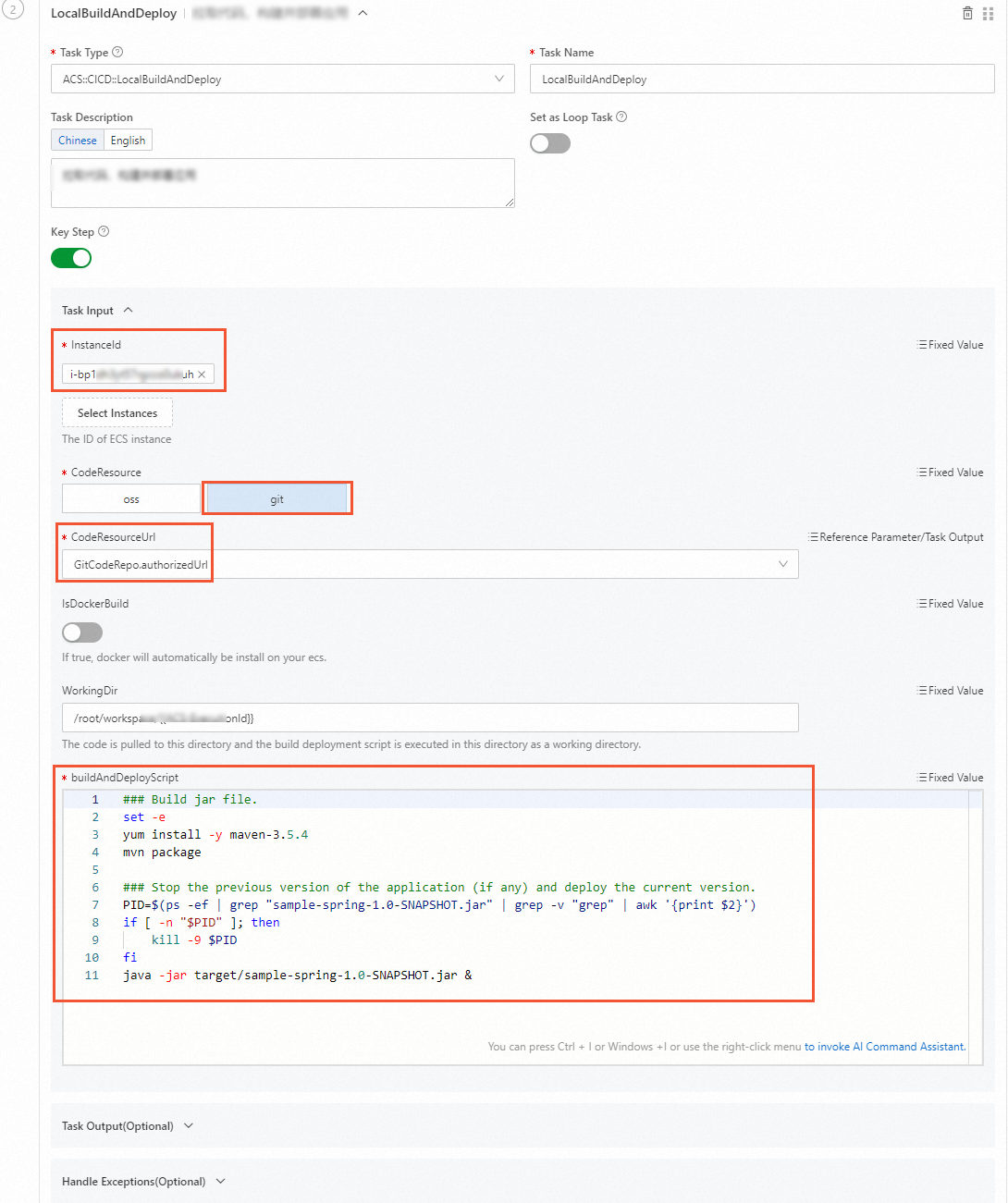
Alibaba Cloud Linux 3
### Build jar file.
set -e
yum install -y maven-3.5.4
mvn package

### Stop the previous version of the application (if any) and deploy the current version.
PID=$(ps -ef | grep "sample-spring-1.0-SNAPSHOT.jar" | grep -v "grep" | awk '{print $2}')
if [ -n "$PID" ]; then
    kill -9 $PID
fi
java -jar target/sample-spring-1.0-SNAPSHOT.jar &
Ubuntu
### Build jar file.
set -e
apt install -y maven
mvn package

### Stop the previous version of the application (if any) and deploy the current version.
PID=$(ps -ef | grep "sample-spring-1.0-SNAPSHOT.jar" | grep -v "grep" | awk '{print $2}')
if [ -n "$PID" ]; then
  kill -9 $PID
fi
java -jar target/sample-spring-1.0-SNAPSHOT.jar &
CentOS
### Build jar file. set -e yum install -y maven mvn package ### Stop the previous version of the application (if any) and deploy the current version. PID=$(ps -ef | grep "sample-spring-1.0-SNAPSHOT.jar" | grep -v "grep" | awk '{print $2}') if [ -n "$PID" ]; then kill -9 $PID fi java -jar target/sample-spring-1.0-SNAPSHOT.jar &NoteOOS pulls the code to
/root/workspace/ExecutionTaskIDand runs the build and deployment script from that directory. To use a different path, modify the script accordingly.
-
After you configure the parameters, click Create Template.
-
Execute the template
-
Log on to the CloudOps Orchestration Service console.
-
In the left-side navigation pane, choose .
-
On the custom task template page, find the template that you created and click Create an execution in the Actions column.
-
In the Basic Information step, configure the parameters and click Next: Set Parameters.
-
In the Parameter Settings step, if no changes are needed, click Next: Confirm.
-
Click Create.
On the task execution management page, a status of Successful indicates that the execution is complete.

-
Log on to the ECS console.
-
Find the ECS instance you selected and connect to it remotely.
For more information, see Log on to a Linux instance by using Workbench.
-
Run the following command to verify that the deployment succeeded.
curl http://localhost:8080/helloIf a
hellofield is returned, the deployment is successful.