Build a Docker image on an existing or temporary ECS instance and push it to ACR Personal Edition (free) or Enterprise Edition. Temporary instances are auto-released after build.
Prerequisites
-
An ECS instance with public network access is available. Create an instance, Enable the public network.
-
An ACR instance (Personal Edition or Enterprise Edition) is available. Container Registry (ACR), Differences between Personal Edition and Enterprise Edition instances, Create a Personal Edition instance.
How it works

-
When you specify a code source (OSS or Git), OOS generates a temporary URL to pull the code.
-
After building the image, OOS connects to ACR and pushes it to the specified repository.
Example
Prepare the code source
This example uses a sample Spring Boot project. The code is available in Gitee and GitHub repositories. Before you start, fork the project to your own repository.
-
Gitee: Gitee sample code (Recommended for users in the Chinese mainland)
-
GitHub: GitHub sample code (Recommended for users outside the Chinese mainland)
Create a template
-
Log on to the CloudOps Orchestration Service console.
-
In the left-side navigation pane, choose , and then click Create Template.
-
In the Building and Deployment section, select Build an image and push it to ACR, and then click Next.
-
On the Process Configuration tab, specify the template parameters, and then click Create Template.
-
Specify a code source to generate a temporary authorization link for pulling the code.
This example uses Gitee as the code source. Enter the Owner, Organization, repository, and branch for your repository.
Note-
If you have not authorized Alibaba Cloud to read your repositories from GitHub or Gitee, click Go to Authorization to grant access.
-
If you have already forked the sample code, your repositories are automatically listed in the repository drop-down list. Select the forked repository.

-
-
Build a Docker image and push it to ACR.
-
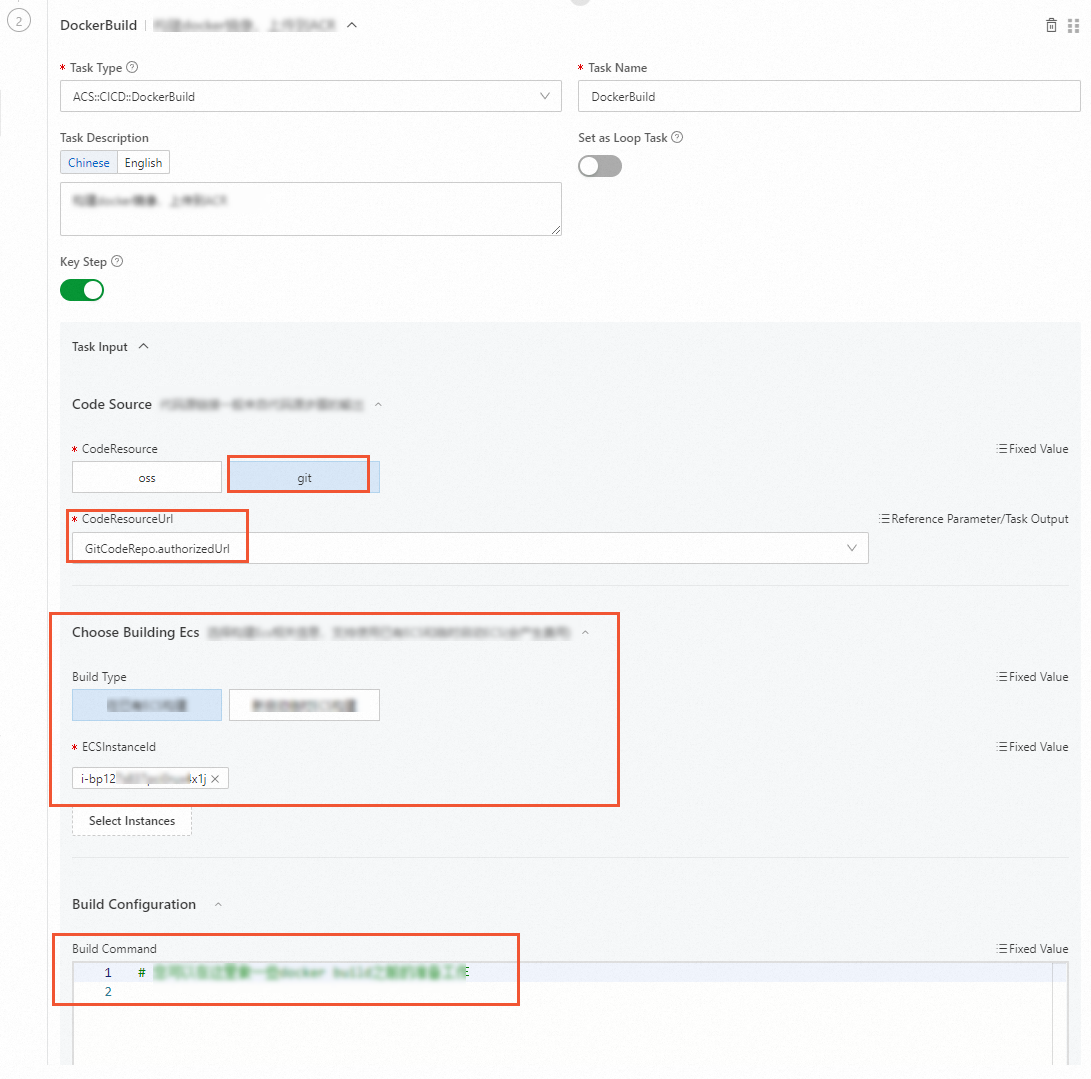
Specify the code source, select the ECS instance for the build, and then configure the build script as needed.
-
Code Source and Code Source URL: Set Code Source to
git. Code Source URL defaults toauthorizedUrlfrom the previous task. -
Select the ECS instance for the build: Choose Build on an existing ECS instance or Start a temporary ECS instance for the build.
NoteIf you select Start a temporary ECS instance for the build, the instance is billed on a pay-as-you-go basis. OOS automatically checks if Docker is installed on the ECS instance. If not, OOS installs Docker Community Edition for you.
-
Build Configurations: Optional pre-build commands. Not needed if all steps are in the Dockerfile.
-
-
Configure the Docker build and the push to an ACR repository.
OOS runs
docker build. Specify theDockerfilepath and context path.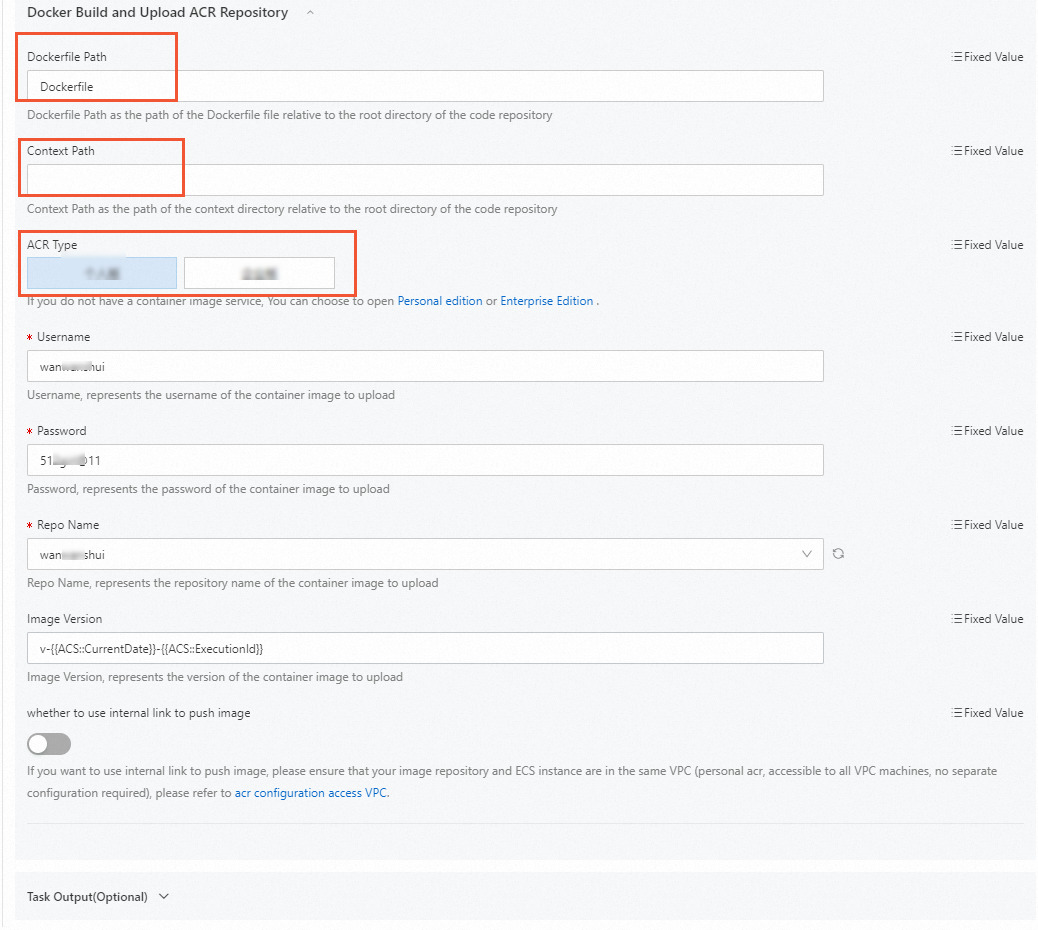
-
Dockerfile Path: Path to the Dockerfile, relative to the code repository root. For example, enter Dockerfile if it is in the root directory.

-
Context Path: Context path for
docker build, relative to the code repository root. Defaults to the Dockerfile directory if empty. -
Container Registry Type: Select the ACR edition to which you want to push the image.
Container registry type
Description
Related links
Personal Edition
Select your username, password, and target repository.
Enterprise Edition
Select the Container Registry instance ID, namespace, and repository.
Specify an image tag. The default uses the current date and execution ID. To push over the internal network, Configure access control for a VPC.
-
-
-
Click Create Template.
-
Execute the template
-
Log on to the CloudOps Orchestration Service console.
-
In the left-side navigation pane, choose .
-
On the custom task template page, find the template that you created and click Create an execution in the Actions column.
-
In the Basic Information step, configure the parameters and click Next: Set Parameters.
-
In the Parameter Settings step, if no changes are needed, click Next: Confirm.
-
Click Create.
On the task execution management page, a status of Successful indicates that the execution is complete.

-
In the Container Registry (ACR) console, verify that the image appears in the target repository.
The image is now ready for deployment.

Next steps
To rebuild from updated code, push changes to the Git repository and rerun the execution. OOS pulls the latest code, rebuilds, and pushes the image. Update the template before rerunning if needed.