Enable SMB ABE when you need to prevent users from seeing files and folders they lack permission to access. SMB ABE works with your Active Directory (AD) domain to provide fine-grained access control for shared resources on an SMB file system.
Background
Access-based enumeration (ABE) is a feature in the SMB protocol and Windows file sharing services that enables more fine-grained access control on a shared resource.
Without ABE enabled, when a user browses a network share, all files and folders are visible by default, even those the user cannot access. This can lead to excessive permissions, increasing the risk of unauthorized access, data breaches, and data tampering.
When ABE is enabled, users can only see the files and folders they have permission to access when browsing a shared resource. Content that a user does not have permission to access is hidden, even if it exists on the share. This improves data security and usability, effectively isolates data, and helps prevent data breaches and tampering.
How it works
ABE filters the enumeration of files and folders at the file system layer, ensuring that only users with the required NTFS permissions can see the corresponding resources. This method provides fine-grained access control without significantly impacting performance.
Prerequisites
You have mounted the SMB file system on a Windows client as an AD domain user.
Enable SMB ABE
Log on to the NAS console.
In the left-side navigation pane, choose .
In the upper-left corner of the page, select the resource group and region where the target file system is located.

Find the target file system and click its file system ID or click Manage.
Click the Access Control tab. In the SMB ABE section, click Disabled to enable the feature.
Example: Verify ABE functionality
This section provides an example of how to verify that SMB ABE is working correctly on a host machine joined to an Active Directory domain.
Enable SMB ABE for the target SMB file system. For instructions, see Enable SMB ABE.
Log on to a Windows client that is joined to an AD domain (for example, smbmock60.com) and has the SMB file system mounted.
Navigate to the SMB file system and create a file named
alice-only.txtand a folder namedeveryone.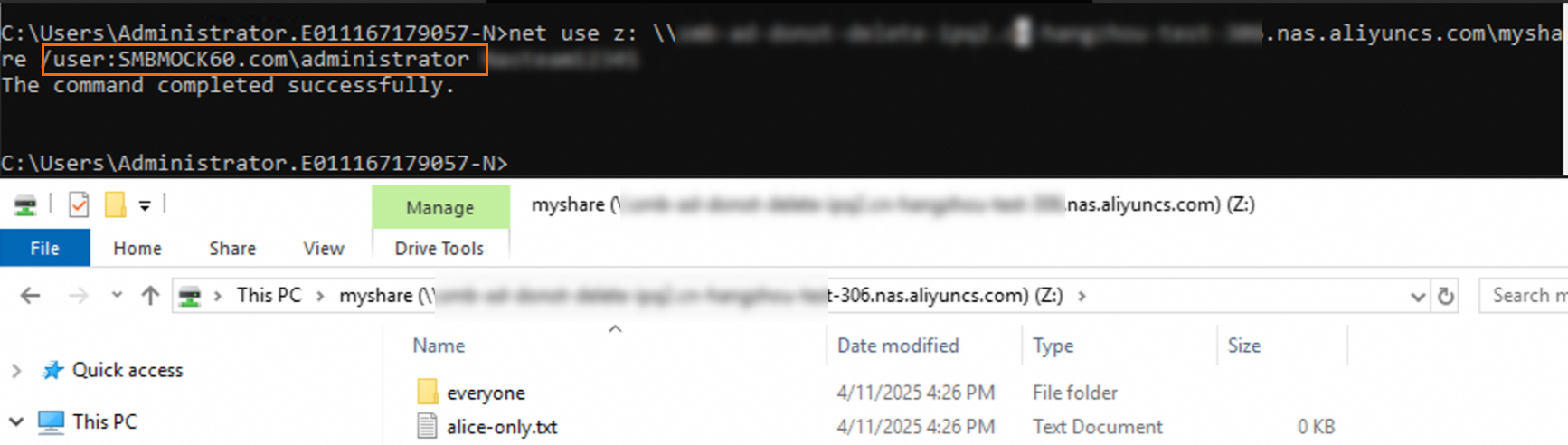
Set access permissions for the
alice-only.txtfile.This example describes how to configure permissions so that the domain user alice has full read permissions on the
alice-only.txtfile, and the domain user sam has no read permissions on thealice-only.txtfile.ImportantYou must also remove the default
Full controlpermission for the Everyone user. Otherwise, all users will still haveFull controlpermission and can see the file.The domain user alice
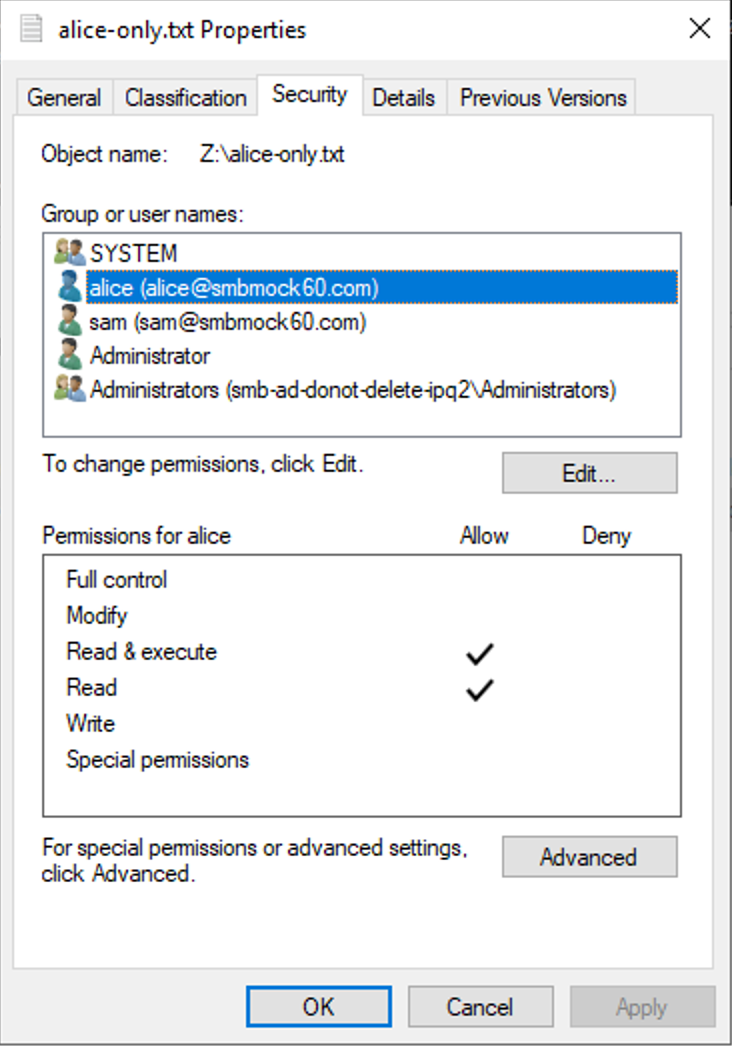
Domain user SAM
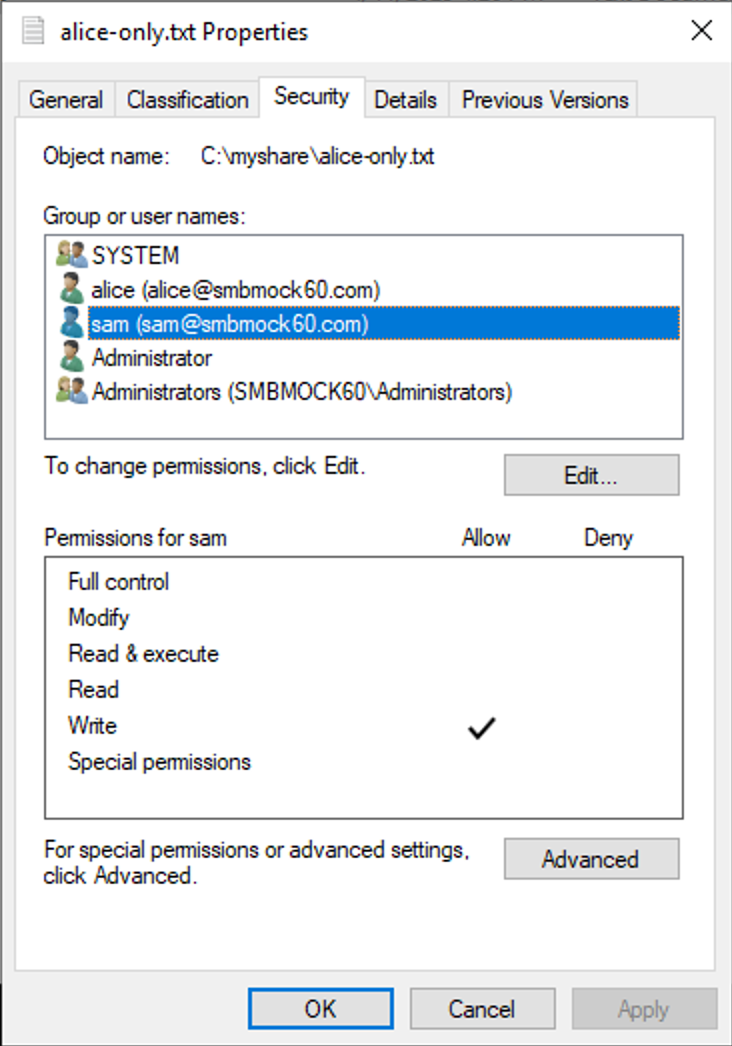
Set the access permissions for the
everyonefolder.Grant the Everyone user read and write permissions for the
everyonefolder. This makes the folder visible to all users.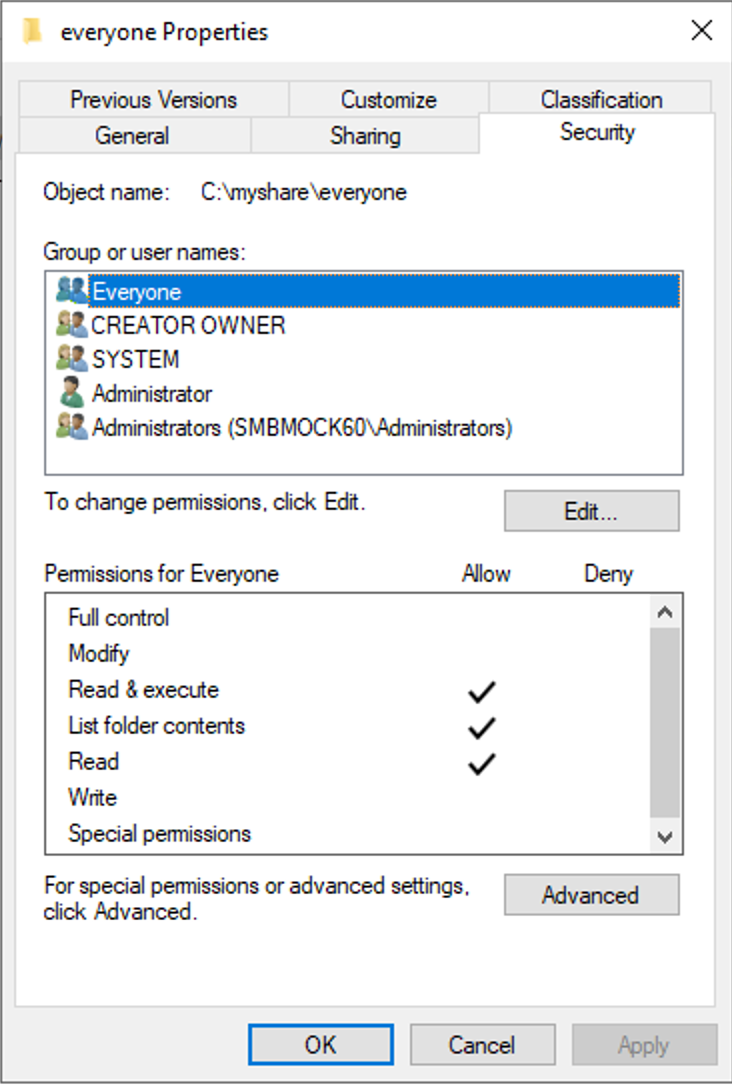
Access and view the files in the shared path as the domain users alice and sam.
Domain user alice
Mount the SMB file system as smbmock60\alice.
net use z: \\nas-mount-target.nas.aliyuncs.com\myshare /user:SMBMOCK60.com\alice <Password>Replace
nas-mount-target.nas.aliyuncs.comwith your actual NAS mount target address. Replace<Password>with the logon password for the user alice.View the files in the shared path. You can see the
alice-only.txtfile and theeveryonefolder.
Domain user sam
Mount the SMB file system as smbmock60\sam.
net use z: \\nas-mount-target.nas.aliyuncs.com\myshare /user:SMBMOCK60.com\sam <Password>Replace
nas-mount-target.nas.aliyuncs.comwith your actual NAS mount target address. Replace<Password>with the logon password for the user sam.View the files in the shared path. You can see only the
everyonefolder.
The results show that the domain user alice can see the
alice-only.txtfile and theeveryonefolder in the shared directory. However, the domain user sam cannot see thealice-only.txtfile and can see only theeveryonefolder. This verifies that the Access-based Enumeration (ABE) feature for the SMB file system is working.