The CSI plug-in supports directory quotas for General-purpose NAS subdirectories mounted via subPath, enabling you to cap capacity and improve storage utilization. When a quota is reached, you can expand the subdirectory online by increasing the PVC size without service interruption.
Prerequisites
Before you begin, ensure that you have:
-
The CSI plug-in installed in your cluster at version v1.18.8.45 or later. To upgrade, see Update csi-plugin and csi-provisioner
-
A General-purpose NAS file system with an NFS mount target. If not, create a General-purpose NAS file system
-
A mount target in the same VPC as your cluster nodes, with Status set to Active. If not, create a new mount target. For more information, see Manage mount targets
Limitations
Directory quotas are supported only for dynamically provisioned NAS volumes that meet all of the following conditions:
-
Protocol: NFS
-
NAS type: General-purpose NAS
-
Mount method: subPath
Directory quotas are not supported for statically provisioned NAS volumes or dynamically provisioned volumes mounted using the sharepath or filesystem method.
For the full list of directory quota limitations, see Directory quotas.
Example
-
Modify the following YAML content and save it as alicloud-nas-quota-sc.yaml.
apiVersion: storage.k8s.io/v1 kind: StorageClass metadata: name: alicloud-nas-quota-sc mountOptions: - nolock,tcp,noresvport - vers=3 parameters: volumeAs: subpath # Set the value to subpath. server: "0cd8b4a576-g****.cn-hangzhou.nas.aliyuncs.com" # The mount target of the General-purpose NAS file system that uses the NFS protocol. archiveOnDelete: "false" path: "/test" volumeCapacity: "true" # The dynamically provisioned volume supports the directory quota feature. provisioner: nasplugin.csi.alibabacloud.com reclaimPolicy: Delete allowVolumeExpansion: true # Enable the directory quota feature to allow expansion of dynamically provisioned volumes.NoteTo enable the directory quota feature, set
allowVolumeExpansionorvolumeCapacitytotrue. IfallowVolumeExpansionis set totrue, thevolumeCapacityparameter does not take effect, and the directory quota feature remains enabled.The following table describes key parameters. For more information, see Use NAS dynamic volumes.
Parameter
Description
parametersvolumeAsSet this parameter to
subpathto mount a subdirectory of the NAS file system as a PV. This value is required for the directory quota feature.serverThe mount target of the NAS file system. To view the mount target address, see Manage mount targets.
pathThe subdirectory of the NAS file system that is mounted. The default value is
/. For Extreme NAS file systems, the path must start with/share.volumeCapacitySpecifies whether to enable the directory quota feature.
If
allowVolumeExpansionis set totrue, this parameter does not take effect, and the quota feature remains enabled.allowVolumeExpansionAvailable only for General-purpose NAS file systems. Setting this parameter to true configures a quota for PVs dynamically provisioned by the StorageClass.
-
Create the StorageClass.
kubectl apply -f alicloud-nas-quota-sc.yaml
Verify the result
-
Write 10 GiB of data to the /data directory mounted by the StatefulSet in Step 2.
dd if=/dev/zero of=10G.txt bs=1M count=10000 -
After 5 to 15 minutes, check the quota details of the subdirectory.
-
Log on to the NAS console.
-
In the left-side navigation pane, choose .
-
Find the file system and click the
 icon in the Actions column. Then, click Quota Management.
 -
On the Quota Management page, click Manage Quotas in the Actions column.
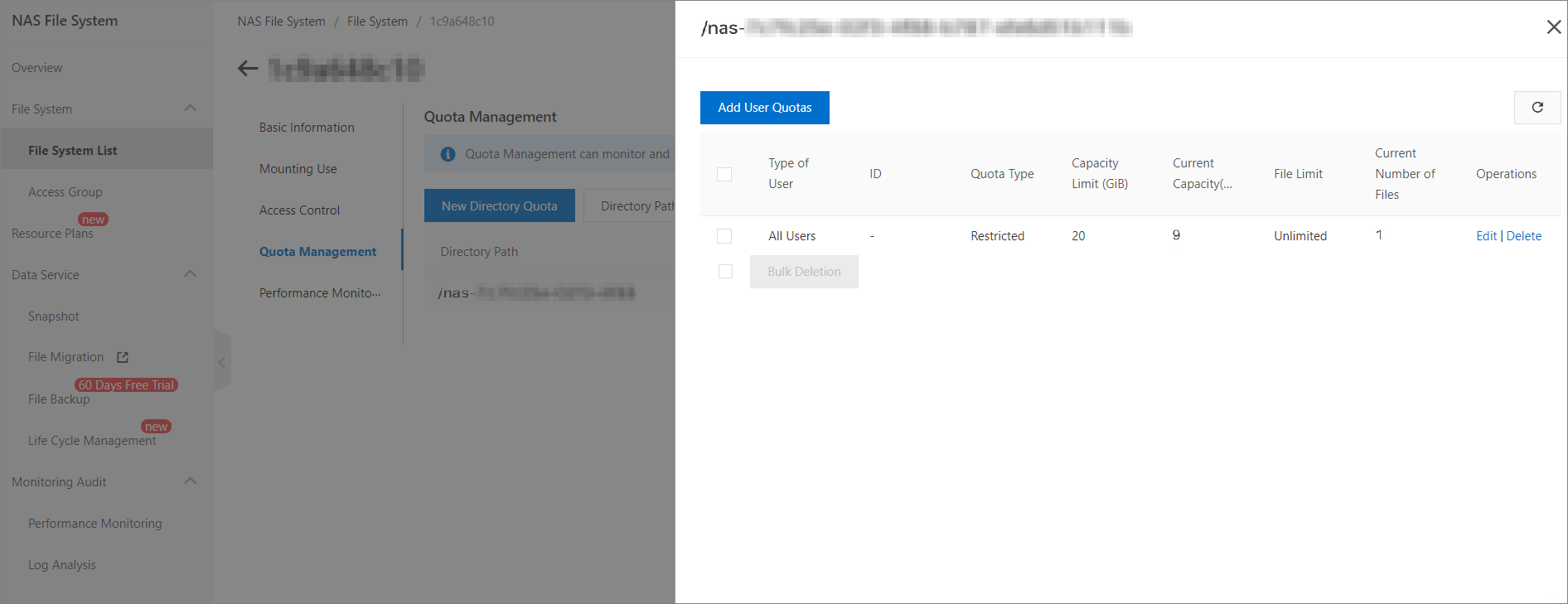
The subdirectory has a quota limit of 20 GiB with 9 GiB currently used.
When the 20 GiB quota is reached, further writes return the
Disk quota exceedederror.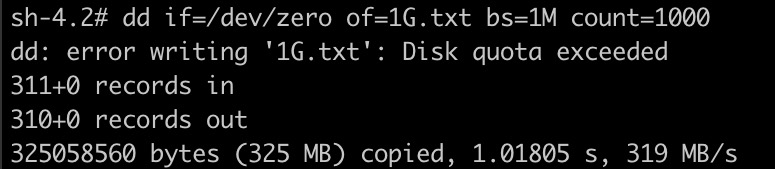
-
-
When the quota is reached, expand the volume online.
-
Expand the volume:
NoteVolume expansion does not interrupt running services.
kubectl patch pvc nas-pvc-0 -p '{"spec":{"resources":{"requests":{"storage":"30Gi"}}}}' -
Query PV information:
kubectl get pvExpected output:
NAME CAPACITY ACCESS MODES RECLAIM POLICY STATUS CLAIM STORAGECLASS REASON AGE nas-63c37cc2-b21e-4b56-b26f-**** 30Gi RWX Delete Bound default/nas-pvc-0 alicloud-nas-quota-sc 25m23s -
Query PVC information:
kubectl get pvcExpected output:
NAME       STATUS   VOLUME                         CAPACITY  ACCESS MODES   STORAGECLASS            AGE
nas-pvc-0  Bound   nas-63c37cc2-b21e-4b56-b26f-****   30Gi      RWX        alicloud-nas-quota-sc   25m10s
-