To prevent data loss or damage, we recommend that you use Cloud Backup to back up all directories and files in your Extreme NAS file system. Cloud Backup allows you to configure flexible backup policies to back up data to the cloud. You can view and restore data at any time. This topic describes how to back up the data of an Extreme NAS file system by using the on-premises NAS backup feature.
Prerequisites
Cloud Backup is activated. You are not charged for activating Cloud Backup. If you use the NAS backup feature of Cloud Backup, you are charged for the storage usage of backup vaults. For more information, see Billing of the NAS backup feature.
An Extreme NAS file system is created. For more information, see Create an Extreme NAS file system in the NAS console (only NFS).
An Elastic Compute Service (ECS) instance is created. For more information, see Create and manage an ECS instance by using the ECS console (express version).
The ECS instance and the mount target of the Extreme NAS file system must reside in the same virtual private cloud (VPC).
Background information
You cannot back up Extreme NAS file systems by using the File Storage NAS backup feature of Cloud Backup. You can back up Extreme NAS file systems by using the on-premises NAS backup feature.
Backup jobs consume resources such as CPU and memory and affect the performance of your ECS instance. We recommend that you create a dedicated ECS instance to run backup tasks. You are charged for the newly created ECS instance. The fees are included into your ECS bills. For more information, see Instance type billing.
Step 1: Install a Cloud Backup client
Before you back up data, you must install a Cloud Backup client on the ECS instance. For more information, see Download and activate an Cloud Backup client for Linux.
Step 2: (Optional) Configure the Cloud Backup client
You can configure the Cloud Backup client to accelerate the execution of backup tasks. Perform the following steps:
Log on to the ECS instance.
Change the maximum number of concurrent tasks on the Cloud Backup client to 2. We recommend that you set the value to 8 or smaller. The larger the value, the more resources are consumed. We recommend that you set a reasonable value.
A backup job may be divided into multiple tasks. You can use the configclustertaskfetchernum parameter to specify the maximum number of tasks that are concurrently executed on the Cloud Backup client.
The default value of the configclustertaskfetchernum parameter is 1.
Set the value of the configclustertaskfetchernum parameter in the hbrclient.yaml file to 2. We recommend that you do not set the parameter to a value greater than 8.
configclustertaskfetchernum: 2NoteOn Linux, the hbrclient.yaml file is located at the following path: /opt/alibabacloud/hbrclient/conf.
Restart the Cloud Backup service. Note that running tasks are affected if you restart the Cloud Backup service.
Run the
systemctl restart hbrclientcommand to restart the Cloud Backup service.
Step 3: Create a backup plan to periodically back up the Extreme NAS file system
After you create a backup plan, the first backup job performs a full backup and subsequent backup jobs perform incremental backups.
Log on to the Cloud Backup console.
In the left-side navigation pane, choose .
On the NAS Backup page, click Local NAS.
In the top navigation bar, select a region.
On the Local NAS tab, click NAS Backup Wizard.
In the Create Backup Plan panel, perform the following steps:
Configure the backup source. Configure the key parameters as described in the following table and use the default settings of other parameters. Then, click Next.
Parameter
Description
Backup NAS Instance
Select Add NAS Instance.
NAS Type
Select Others.
NAS Instance Name
The name of the NAS file system that you want to back up.
NAS Network Address
The IP address or domain name of the NAS file system. You can obtain the domain name from the mount target of the Extreme NAS file system, for example,
00005*****y.cn-hangzhou.extreme.nas.aliyuncs.com.NAS Shared Directory
The shared directory of the NAS file system, for example, /share. For more information about how to query the NAS shared directory, see Query NAS shared directories
Protocol Type
Select NFS.
Advanced Settings
Click Set Mount Parameters. Select vers from the drop-down list and set the value to 3 to use the NFSv3 protocol to mount the file system.
Configure a client group and click Next.
Set Backup Client Group to Create Backup Client Group. Specify Client Group Name and select the ECS instance on which you have installed the Cloud Backup client in Step 1: Install a Cloud Backup client.
Change the data network of the client group to VPC.
Click Settings in the Actions section of the Cloud Backup client.
In the Client Settings dialog box, set Data Network to VPC and click OK.
Configure the backup plan and click Next.
Configure the basic parameters described in the following table. Use the default settings of other parameters.
Parameter
Description
Source Paths
The path to the files that you want to back up. You can specify only one path. The path cannot contain wildcards (*).
Backup Rule
You can specify the following three backup rules:
Include All Files: All files in the source path are backed up.
Include Files or Exclude Files: You must enter the names of the files that you want to include or exclude in the Enter Paths field. Cloud Backup backs up files based on the specified rule.
The file names that you enter in the Enter Paths field are subpaths relative to the source path. Cloud Backup matches the file names based on the following rules:
If a file name that is specified in the Enter Paths field starts with a forward slash (/), Cloud Backup combines the relative path and the source path into a complete path. The backup rule is then applied to all the files and directories stored within the path.
Example 1: If the source path is /ifs/dataset and you enter /subdir/data in the Enter Paths field, the backup rule is applied to all files and directories in /ifs/dataset/subdir/data.
Example 2: If the source path is /ifs/dataset and you enter /abc* in the Enter Paths field, the backup rule is applied to all files and directories whose names are prefixed with abc in /ifs/dataset/abc.
If a file name that is specified in the Enter Paths field does not start with a forward slash (/), Cloud Backup uses the name as a condition to match files. The backup rule is applied to all files and directories that match the condition in the source path.
Example 1: If the source path is /ifs/dataset and you enter abc* in the Enter Paths field, the backup rule is applied to all files and directories whose names are prefixed with abc in /ifs/dataset.
Example 2: If the source path is /ifs/dataset and you enter abc in the Enter Path field, the backup rule is applied to all files and directories whose names are abc in /ifs/dataset.
Backup Policy
Select a proper backup policy from the drop-down list.
Cloud Backup automatically backs up data sources based on the backup policy that you configure. Backup policies help you flexibly manage data sources. A backup policy includes the following settings: backup vault encryption method, backup interval, retention period, cross-region replication policy, and automatic archiving of backup data.
If the default backup policy does not meet your requirements, you can click Create Backup Policy or Edit Policy to create or modify a backup policy.
For more information about the parameters in a backup policy, see Policy Center.
After the backup plan is created, you can view the NAS file system and the backup plan on the NAS Instance tab. Cloud Backup continuously backs up data from the Extreme NAS file system based on the backup plan.
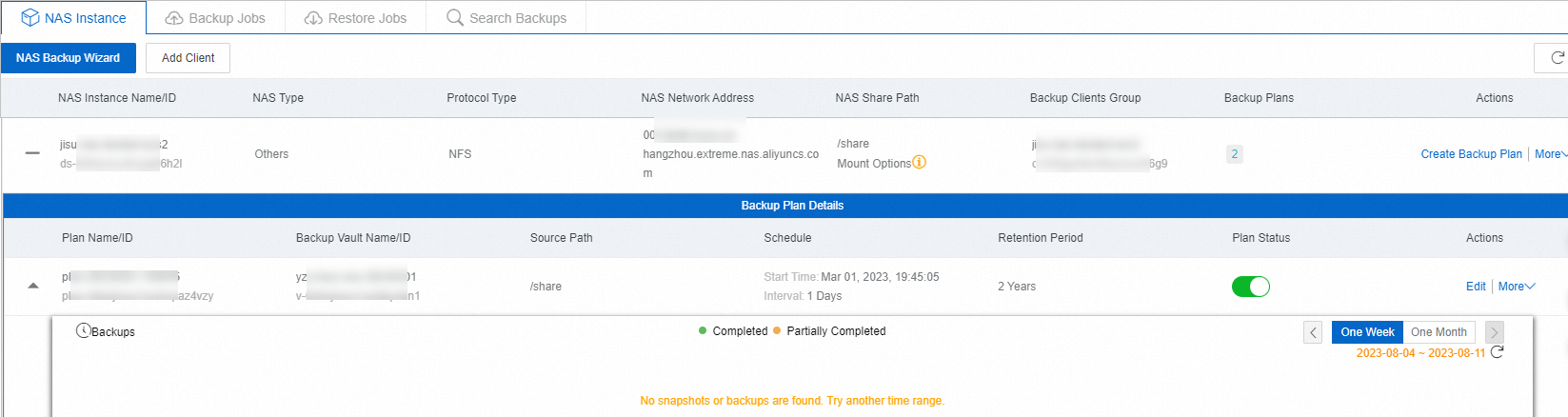
Backup is successful
When the backup execution time is reached, Cloud Backup runs the backup job. If the Status of the backup job is Completed, the backup job is completed on the current day.

You can view each backup record in the Backup History section. Later, you can restore files based on these historical backups. For more information, see Create a NAS restore job.

What to do next: Create a restore job
You can restore files that are backed up on a Cloud Backup client to an Extreme NAS file system. Perform the following steps:
On the NAS Backup - Local NAS page, select the region of the target local NAS data source. Then, click View Details next to the target data source.
NoteIf you use the legacy console, which displays Try New Version in the upper-right corner, go to the NAS Instance tab. Click the
 icon next to the target NAS instance, and then click the icon next to the backup plan to perform operations on the backup point. The operations in the legacy console are the same as those available after you click the
  icon to switch the display mode.
In the Backup History section, find the target backup point and click Restore in the Actions column.
You can also click the
icon in the upper-right corner of the backup history section to switch to the scatter chart view. Then, click the target backup point and select Restore.NoteBackup data differs between backup points. Select the backup point that meets your requirements.
In the Create Restore Job panel, configure the following parameters.
Select the files to restore, and then click Next.
Recovery rules include the following:
Include All Files: Restores all backed-up files from the source client.
Include Files or Exclude Files: You can specify files in the following ways:
Browse the backup point and select the files to restore. You can expand the file tree of the backup and select the files. Alternatively, you can enter a file name in the Search box and enable Advanced Search to filter files by Search Type, Min Size, Max Size, and Modify Time.
Enter a file list: Enter one path per line. Each path must start with the last directory of the source path.
Restore specific files
For example, if the source path is folder/test/data, to restore file.txt and abc.png from the data folder, enter the following in the file list:
/data/file.txt
/data/abc.png
Restore a specific folder
For example, if the source path is folder/test/data, to restore all files or subdirectories in the data folder, enter the following in the file list:
/data/Restore files or folders that match a wildcard character
For example, if the source path is folder/test/data, to restore files or subdirectories in the data folder that have the prefix abc, enter the following in the file list:
/data/abc*
Select a restore destination, and then click Next.
On the Restore Destination tab, select Local NAS as the destination type, and then select the target NAS instance.
Configure the restore path parameters, and then click Start to Restore.
The restore path parameters determine where the files are restored and how to handle files that have the same name in the destination.
Parameter
Description
Restore Path Type
Specify Path: Restores files to a path that you specify.
Origin Path: Restores files to their original backup path.
Destination Path
This parameter is required only when Restore Path Type is set to Specify Path. Enter the destination path.
File Conflict Policy
Specifies how to handle a file if a file with the same name already exists in the destination path.
Skip This File: Does not restore the file. The existing file in the destination path is retained.
Overwrite The File (Default): Replaces the file in the destination path with the file from the backup.
Compare update times (accurate to the second) and retain the latest version.: Compares the modification times of the backup file and the destination file, and retains the newer version.
Virus Detection During Restoration
If you enable this feature, Cloud Backup performs a virus scan on files during restoration.
When Recovery Items Contain Detected Viruses
If a virus scan is enabled, select how to handle infected files:
Do not restore the virus-infected files (You can find secure versions on the Virus Detection tab.): Skips virus-infected files and restores only clean files.
I am aware of the risks and still want to restore all the selected items: Ignores the virus scan results and restores all selected files.
After the restore job is created, you can view its progress in the Status column on the Restore Jobs tab.
NoteTo cancel an in-progress restore job, click Cancel in the Actions column and confirm the cancellation.