When distributed batch jobs fail or run slowly, identifying the problematic subtask typically requires log searches across multiple machines. The visual MapReduce model solves this by adding subtask-level observability to the standard MapReduce model. From the SchedulerX console, you can inspect each subtask's status, logs, and traces, and re-run or stop individual subtasks -- without modifying your job code.
To enable visual MapReduce, set the execution mode of a job to Visual MapReduce in the console. Your existing MapReduceJobProcessor code works without changes.
Choose between MapReduce and visual MapReduce
Visual MapReduce supports up to 1,000 subtasks with full per-subtask visibility. Standard MapReduce handles over one million subtasks but provides no subtask-level UI. Use the following table to decide which model fits your workload.
| Capability | MapReduce | Visual MapReduce |
|---|---|---|
| Maximum subtasks | > 1,000,000 | <= 1,000 |
| Task development mode | Same | Same |
| Subtask list in console | No | Yes |
| Per-subtask details (status, logs, traces, thread stacks) | No | Yes |
| Custom business labels per subtask | No | Yes |
| Stop or re-run a single subtask | No | Yes |
Choose visual MapReduce when you need to monitor, troubleshoot, or manually intervene at the subtask level. If your job produces more than 1,000 subtasks, use the standard MapReduce model.
Develop a visual MapReduce job
The following example processes multiple bank accounts in parallel. Each account runs as an independent subtask across the cluster, with custom labels for identification in the console.
Before you begin, make sure that:
SchedulerX Professional Edition is activated
The SDK version is later than 1.12.2
Step 1: Define the task object with labels
Visual MapReduce inherits all interfaces from the standard MapReduce model. To add custom business labels (such as account name, product code, or city) to the console subtask list, implement the com.alibaba.schedulerx.worker.processor.BizSubTask interface on your task objects.
| Interface | Description | Required |
|---|---|---|
public Map<String, String> labelMap() | Returns label key-value pairs displayed as filterable columns in the subtask list. | No |
Create a class that implements BizSubTask so that each subtask displays its account name in the console.
public class ParallelAccountInfo implements BizSubTask {

    /**
     * Primary key
     */
    private long id;

    private String name;

    private String accountId;

    public ParallelAccountInfo(long id, String name, String accountId) {
        this.id = id;
        this.name = name;
        this.accountId = accountId;
    }

    /**
     * Return label key-value pairs for this subtask.
     * Labels appear as filterable columns in the console subtask list.
     */
    @Override
    public Map<String, String> labelMap() {
        Map<String, String> labelMap = new HashMap();
        labelMap.put("Account name", name);
        return labelMap;
    }
}
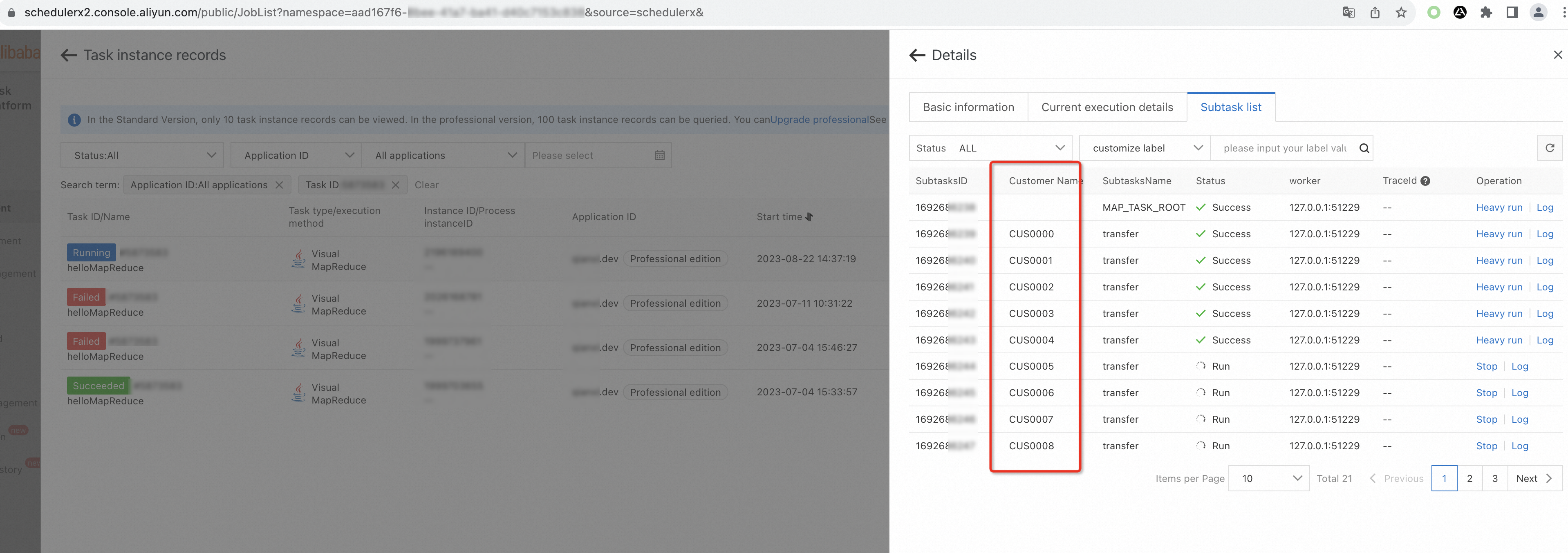
After you implement BizSubTask, the subtask list displays label columns. You can filter subtasks by label to locate a specific account.
Step 2: Implement the job processor
Extend MapReduceJobProcessor to define the root task logic (build the subtask list) and the subtask logic (process each account).
public class ParallelJob extends MapReduceJobProcessor {

    private static final Logger logger = LoggerFactory.getLogger("schedulerx");

    @Override
    public ProcessResult reduce(JobContext context) throws Exception {
        return new ProcessResult(true);
    }

    @Override
    public ProcessResult process(JobContext context) throws Exception {
        if (isRootTask(context)) {
            logger.info("Build parallel computing tasks.");
            List<ParallelAccountInfo> list = new LinkedList();
            /**
             *  Root task: build the list of subtask objects.
             *  In production, load these objects from your data source. Examples:
             *  1. Query unprocessed customer accounts from the database.
             *  2. Build a region table to distribute jobs by province, city, or district.
             *  3. Group tasks by business category (e.g., appliances, groceries, food).
             *  4. Partition tasks by time period (e.g., January, February).
             */
            for (int i = 0; i < 20; i++) {
                list.add(new ParallelAccountInfo(i, "CUS" + StringUtils.leftPad(i + "", 4, "0"),
                        "AC" + StringUtils.leftPad(i + "", 12, "0")));
            }
            return map(list, "transfer");
        } else {
            /**
             * Subtask: retrieve the task object and process it.
             */
            ParallelAccountInfo obj = (ParallelAccountInfo) context.getTask();
            // Process the account
            logger.info("Process task information: {}", JSON.toJSONString(obj));
            return new ProcessResult(true);
        }
    }
}
After you develop and deploy the job, create a scheduled task in the SchedulerX console to trigger it. See the next section for console configuration steps.
Create a visual MapReduce job in the console
Log on to the SchedulerX console. In the left-side navigation pane, click Task Management.
On the Task Management page, click Create task.
In the Create task panel, select Visual MapReduce from the Execution mode drop-down list.
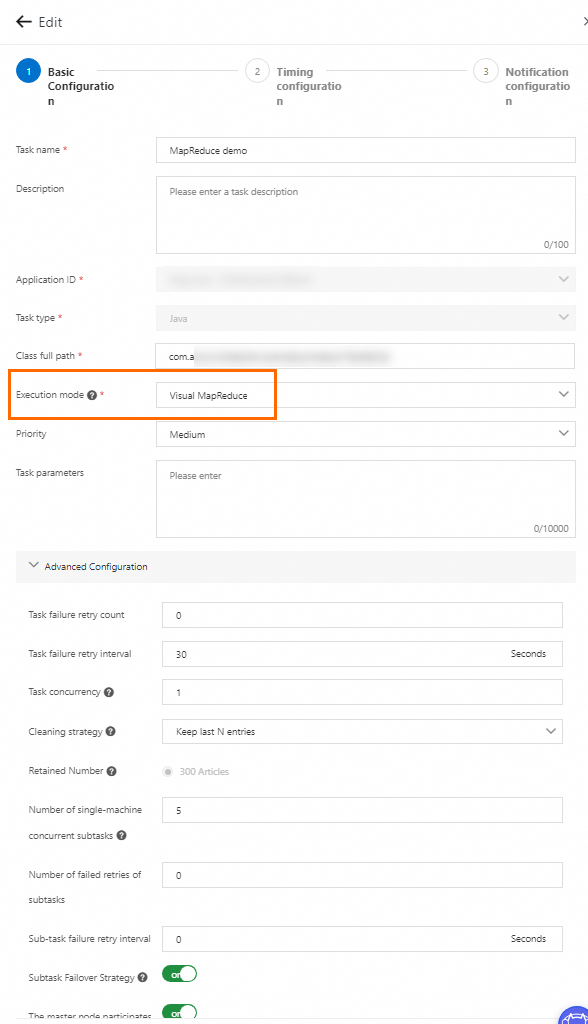
In the Advanced Configuration section, configure the following parameters. For other parameters, see Advanced parameters for job management.
Parameter Description distribution policy Polling Scheme (default): distributes subtasks evenly across workers. Best when each subtask takes roughly the same time. WorkerLoad optimal strategy: the master node auto-detects worker loads and assigns subtasks accordingly. Best when processing time varies significantly. Available for client version 1.10.14 or later. Number of single-machine concurrent subtasks The number of execution threads per worker. Default: 5. Increase for faster execution; decrease if downstream services or databases cannot handle the load. Number of failed retries of subtasks The number of retry attempts when a subtask fails. Default: 0. Sub-task failure retry interval The interval between retries, in seconds. Default: 0. Subtask Failover Strategy Whether to reassign a failed subtask to a different worker after the original worker stops. Enabling this may cause duplicate execution; make sure your subtask logic is idempotent. Available for client version 1.8.13 or later. The master node participates in the execution Whether the master node also runs subtasks. Requires at least two workers. Turn this off for jobs with a large number of subtasks. Available for client version 1.8.13 or later.
Monitor subtask execution
After a job runs, go to the Execution List page and click Details in the Operation column to access subtask-level monitoring.
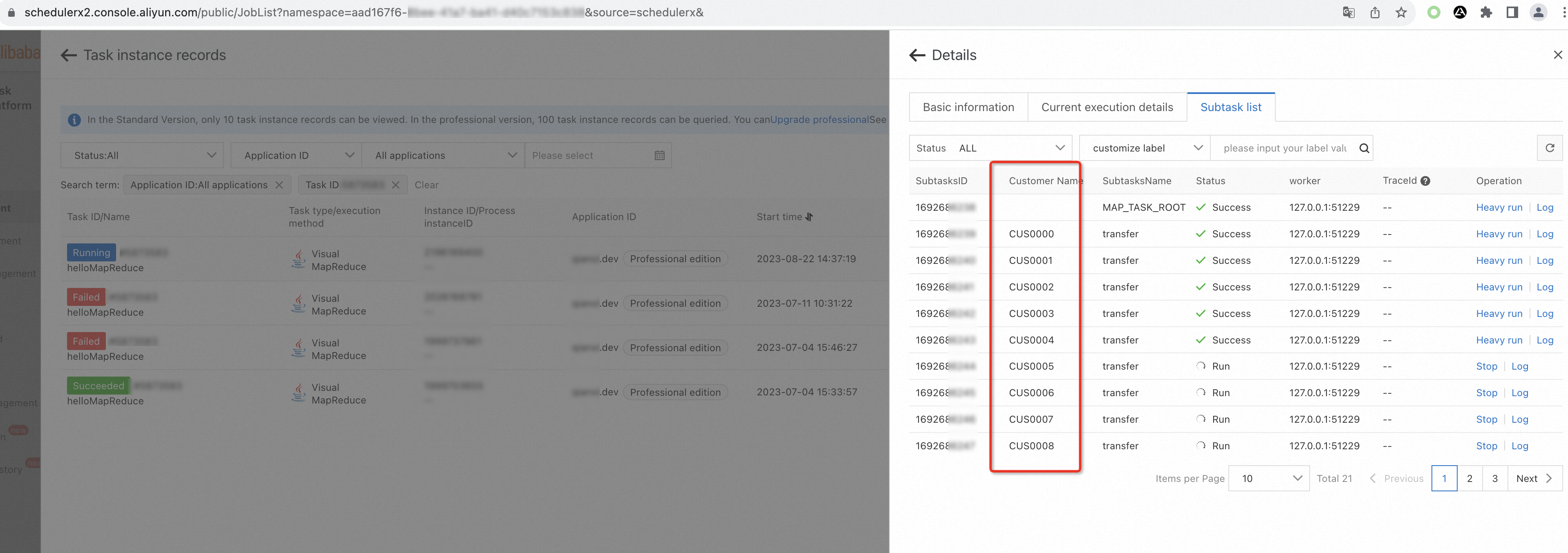
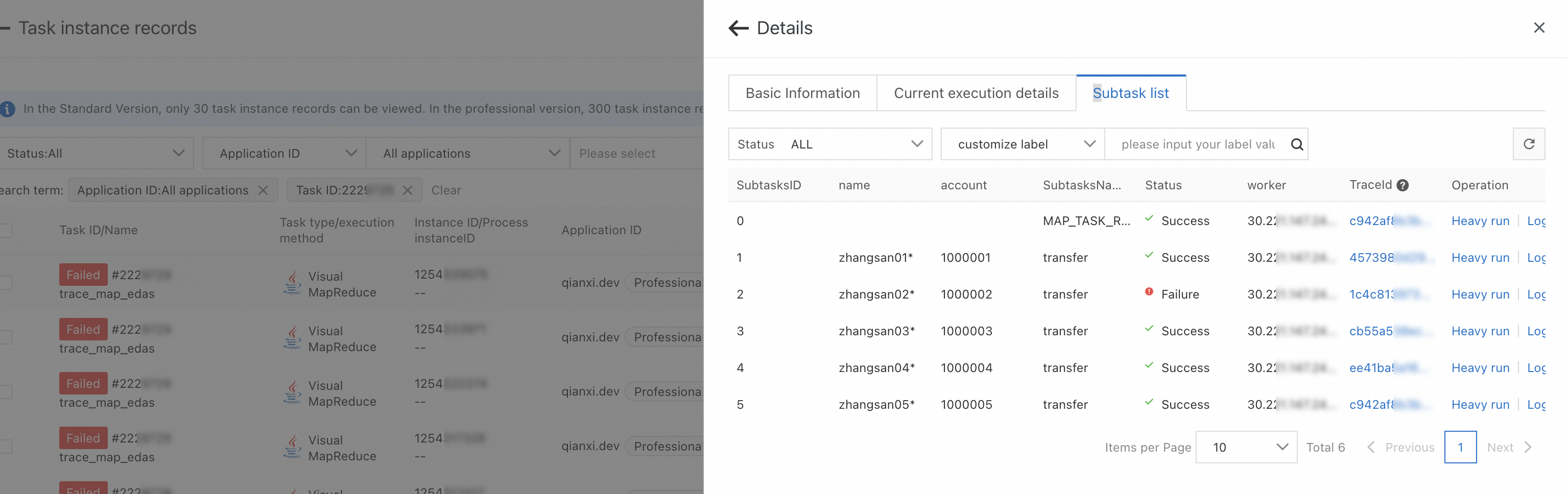
Subtask list
View the execution status of each subtask on the Subtask list tab. The list shows status, custom labels, and operation options for every subtask in the job. Use this view to get a quick overview of overall job progress and identify failed or stuck subtasks.
Subtask logs
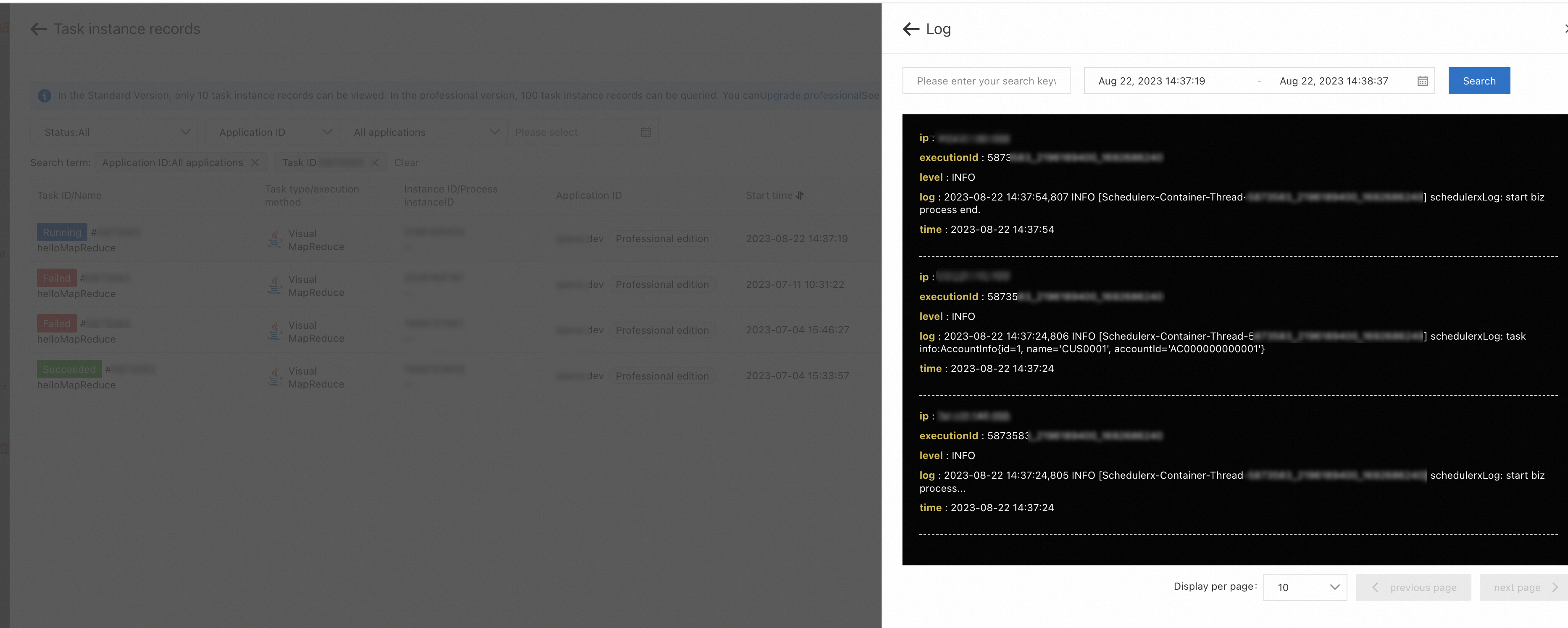
On the Subtask list tab, find the target subtask and click Log in the Operation column to view its business log. Use subtask logs to inspect the processing output or trace errors for a specific subtask without searching through centralized log files.
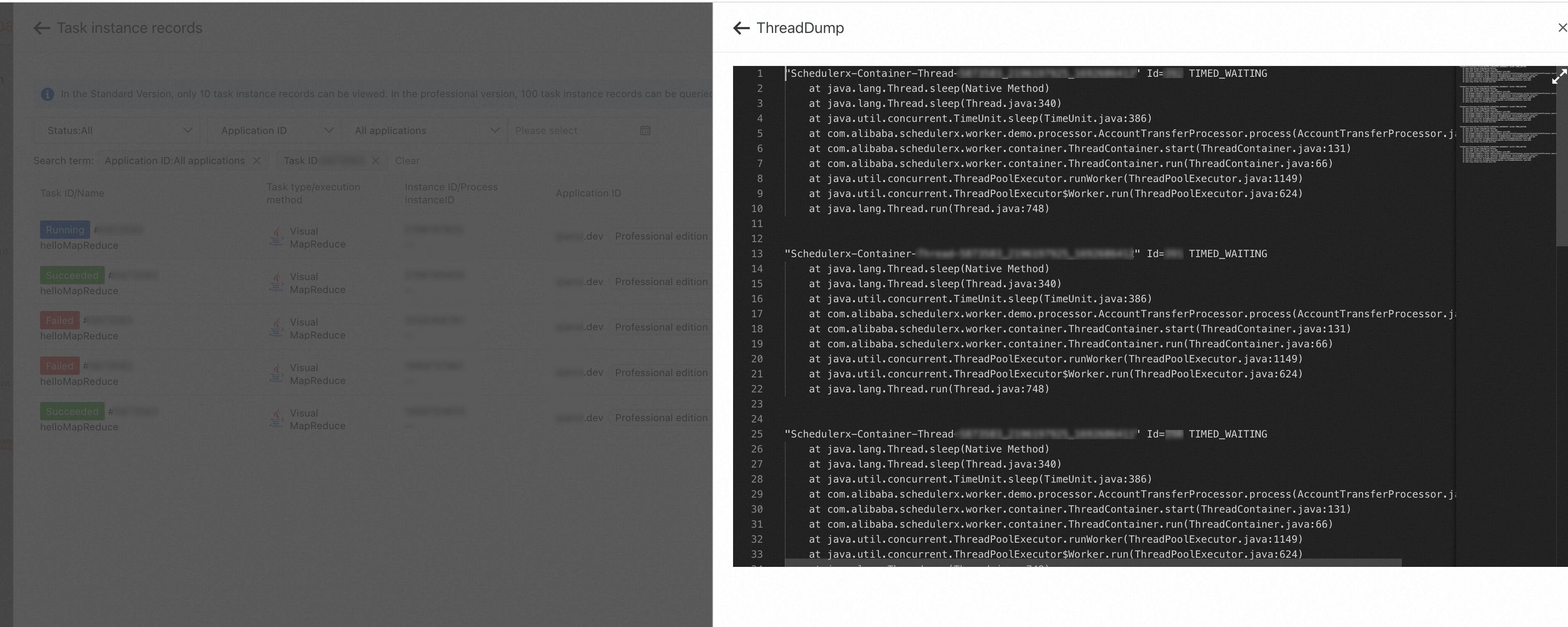
Thread dump
On the Current execution details tab, click ThreadDump to view the thread execution status of the relevant machine. Use thread dumps to diagnose subtasks that are stuck, blocked on I/O, or running longer than expected.
Trace analysis
If tracing analysis is configured, click the TraceId value for a subtask on the Subtask list tab to view its distributed trace. Use trace analysis to identify latency bottlenecks across service calls within a subtask. For setup instructions, see Integrate tracing analysis.
Limits
Size and quantity
| Limit | Value |
|---|---|
| Maximum subtasks per job | 1,000 |
| Maximum size per subtask | 64 KB |
Maximum result field of ProcessResult | 1,000 bytes |
Memory
When the reduce method is used, all subtask results are cached on the master node, which increases memory pressure. Keep subtask counts and result sizes small. If you do not need reduce, extend MapJobProcessor instead of MapReduceJobProcessor.
Idempotence
If a failover occurs, SchedulerX may run a subtask more than once. Make sure your subtask logic is idempotent.
SDK version
SDK versions 1.12.2 and earlier contain security vulnerabilities. Upgrade to a version later than 1.12.2.
Visual MapReduce requires SchedulerX Professional Edition.