Use the Execution List to view the daily execution status of your jobs and workflows. The page contains a job instance list and a workflow instance list.
View the Execution List
SchedulerX Basic Edition supports up to 10 job instance records. The Professional Edition supports up to 100.
-
Log on to the MSE SchedulerX console.
-
Log on to the EDAS console.
-
In the top navigation bar, select a region.
-
In the navigation pane on the left, click Execution List.
-
On the Execution List page, select a namespace from the namespace/ drop-down list, and then click the job instance list or workflow instance list tab.
All execution records are displayed by default.
You can filter and search execution records.
-
Filter by status: All, Successful, Failed, Running, Pool, and Waiting.
-
Search by keywords such as Application ID, Job ID, and Instance ID.
-
Filter by a time range using predefined options such as Minute, Hour/Day, Week, or Month, or select a Custom range.
-
Job instance details
-
On the job instance list tab of the Execution List page, find the job instance and click Details in the Operation column.
-
On the Job instance details page, view details on the Basic Information, Current execution details, subtasks, execution log, and Sharding details tabs.
Execution details vary by execution mode.
-
standalone: includes the Basic Information and execution log tabs.
-
broadcast: includes the Basic Information and Current execution details tabs.
-
parallel computing: includes the Basic Information, Current execution details, and subtasks tabs.
-
memory grid: includes the Basic Information and Current execution details tabs.
-
grid computing: includes the Basic Information and Current execution details tabs.
-
sharding: includes the Basic Information and Sharding details tabs.
-
-
On the subtasks tab, you can perform different operations on subtasks based on their status.
-
Waiting: Mark as Successful.
-
Failed: Rerun, Mark as Successful.
-
Running: Terminate.
-
Successful: None.
-
Workflow instance details
-
On the workflow instance list tab of the Execution List page, find the workflow instance and click the workflow instance ID link in the Actions column.
-
On the Canvas, view detailed information about the workflow.
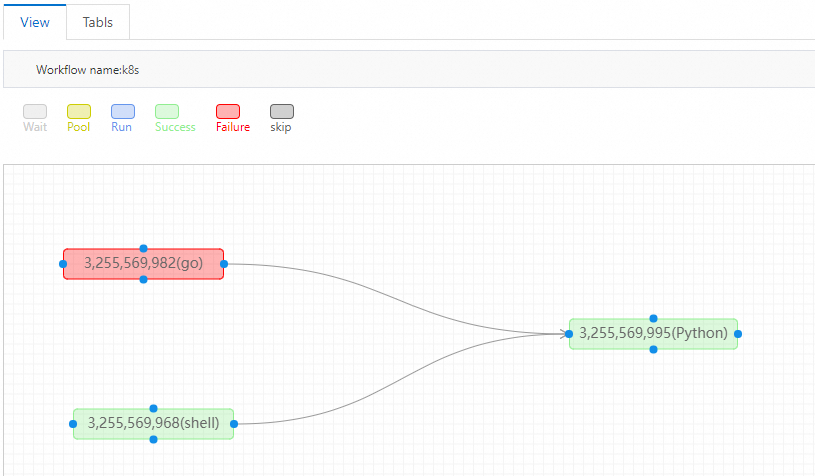
The color of each job indicates its execution status. For example, red indicates that a job has failed. As a result, its dependent jobs remain in a waiting state (gray).
-
Right-click a failed job and select Details from the shortcut menu to view the reason for the failure.
-
After you fix the issue, right-click the job again and select Rerun from the shortcut menu to run it again.
-
If the job runs successfully, the downstream jobs will start running.
-
If you do not want to run this job again, you can also select Mark as Successful from the shortcut menu. This action marks the job as successful, allowing the downstream jobs to start.
-