In a microservices architecture, feature development often requires modifying multiple services. To test these changes, each service typically has a canary environment to handle a portion of the traffic. This guide shows you how to ensure that a request, once routed to a canary environment, remains within it for the entire call chain. Even if some services in the chain lack a canary version, requests are correctly forwarded to the canary environment of the next available downstream service. By combining the flexible routing of an Alibaba Cloud Application Load Balancer (ALB) Ingress gateway and the end-to-end canary release capability of MSE Microservices Governance, you can implement this pattern without changing your application code.
Procedure

Usage notes
If you use the Flannel network plug-in, the backend Service for the ALB Ingress gateway supports only the NodePort and LoadBalancer types.
The ALB instance's vSwitch must be in the same VPC (Virtual Private Cloud) as the ACK cluster. For more information about the regions that ALB supports, see Supported regions and zones.
Use case: End-to-end canary release with domain routing
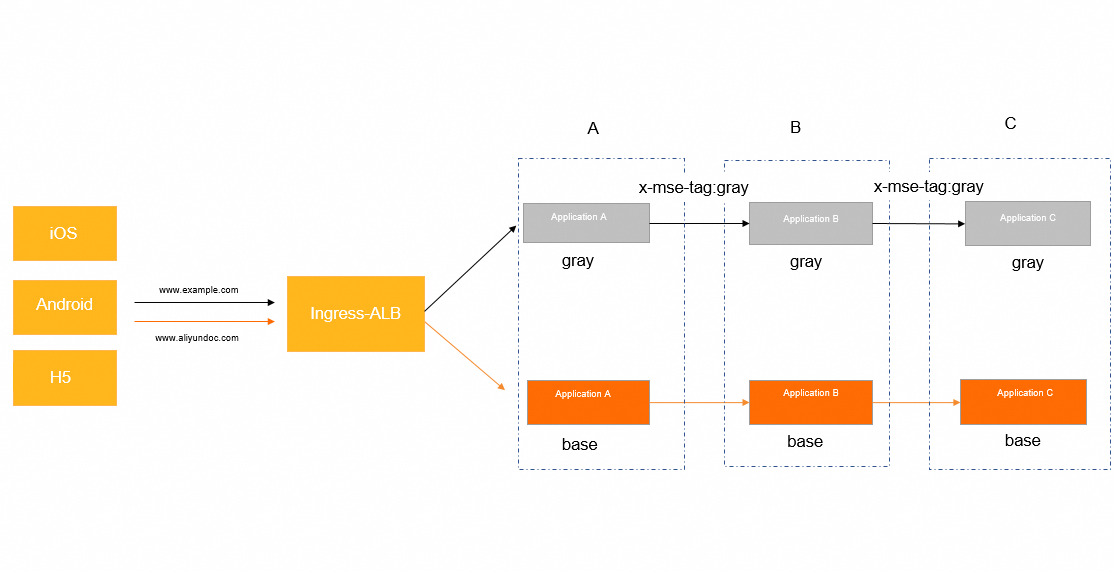
In this use case, the application architecture consists of an ALB Ingress gateway and a backend Spring Cloud microservice architecture. The backend call chain involves three services: a transaction center (Application A), a product center (Application B), and an inventory center (Application C). You can access the backend services through a client or HTML. A Nacos server is used for service discovery among these services.
You can use different domain names to distinguish between the base and canary environments. For example, you can access www.example.com to request the canary environment and access www.aliyundoc.com to request the base environment.
As shown in the following figure, the call chain is Ingress-ALB > A > B > C. Application A can be a Spring Boot application.
Before you begin
Create a Kubernetes cluster
Create a Kubernetes cluster of version 1.18 or later. For more information, see Create an ACK managed cluster or Create an ACK dedicated cluster (discontinued).
Connect to an ACK cluster with kubectl
Connect to the ACK cluster by using kubectl. For more information, see Connect to an ACK cluster using kubectl.
Install the ALB Ingress Controller component
Install the ALB Ingress Controller component for your ACK cluster. You can use either of the following methods:
When you create an ACK cluster, select ALB Ingress for the Ingress field on the Component Configuration page to install the ALB Ingress Controller component.
If you have an existing ACK cluster, you can install the ALB Ingress Controller component on the Add-ons page. For more information, see Manage add-ons.
Enable MSE Microservices Governance
On the MSE Microservices Governance activation page, activate Microservices Governance Professional Edition.
For more information about billing for MSE Microservices Governance, see Billing of MSE Microservices Governance.
-
Enable Microservices Governance for microservice applications in the Container Service for Kubernetes (ACK) cluster. You can select an appropriate method based on your business requirements. For more information, see Enable Microservices Governance for Java microservice applications in an ACK or ACS cluster.
Enable Microservices Governance for applications in an ACK namespace
-
Log on to the MSE console, and select a region in the top navigation bar.
-
In the left-side navigation pane, choose Microservices Governance > Application Governance.
-
On the Application list page, click ACK Application Access.
-
In the ACK Application Access dialog box, configure the parameters and click OK.
Set Onboarding Type to Namespace or Single Application. From the Container Cluster Namespace drop-down list, select the target namespace, such as
default. In the Governance Namespace field, enter a name for the corresponding namespace.Parameter
Description
Cluster type
Select ACK Cluster, ACK Serverless Cluster, or ACS Cluster.
NoteIf you have not authorized Container Service for Kubernetes to call MSE, click Authorize Now to grant the required permissions.
Cluster Name/ID
Select the Cluster Name/ID of the cluster that you want to connect to the MSE governance center. You can search for the cluster by keyword.
ack-onepilot
Displays the status of the ack-onepilot component. For more information about this component and how to upgrade it, see ack-onepilot component and Install and upgrade the MSE microservices governance component.
-
If ack-onepilot is not installed, the system automatically starts the installation after you select a cluster and displays the message "The installation process takes about 1 minute. Wait for a while."
If you use a RAM user and receive a permission error, log on to the Container Service for Kubernetes console. Go to the target cluster, and in the navigation pane on the left, click Add-ons. Find ack-onepilot and click Install.
-
If ack-onepilot is already installed, the UI displays the installed version, for example,
Installed 4.2.0.
Note-
You can view details about the ack-onepilot component by logging on to the Container Service for Kubernetes console, navigating to the target cluster, and choosing Operations > Add-ons.
-
After ack-onepilot is installed, it automatically injects a Java agent. This may increase application startup time by up to 10 seconds.
-
When connecting by namespace, if your target cluster is not in one of the listed regions, ensure it has public network access and can connect to acm.aliyun.com:8080: China (Qingdao), China (Hangzhou), China (Beijing), China (Shanghai), Shanghai Finance Cloud, China (Shenzhen), Hong Kong (China), Singapore, Germany (Frankfurt), Australia (Sydney), US (Silicon Valley), and US (Virginia).
Access Type
Select Namespace Access.
Cluster Namespace
Select the Cluster Namespace.
Microservices Governance Namespace
Select a Microservices Governance Namespace.
-
Enable Microservices Governance for an application
-
Log on to the MSE console, and select a region in the top navigation bar.
-
In the left-side navigation pane, choose Microservices Governance > Application Governance.
-
On the Application list page, click ACK Application Access.
-
In the ACK Application Access dialog box, configure the parameters and click OK.
Set Onboarding Type to Single Application. In the Edit Labels (YAML format) section, add the following labels under
spec.template.metadata.labelsin the application's Deployment YAML file:msePilotAutoEnable: "on"to enable microservices governance,mseNamespace: defaultto specify the MSE namespace, andmsePilotCreateAppName: "your-deployment-name"to set the application name. Replaceyour-deployment-namewith the actual Deployment name.Parameter
Description
Cluster type
Select ACK Cluster, ACK Serverless Cluster, or ACS Cluster.
NoteIf you have not authorized Container Service for Kubernetes to call MSE, click Authorize Now to grant the required permissions.
Cluster Name/ID
Select the Cluster Name/ID of the cluster that you want to connect to the MSE governance center. You can search for the cluster by keyword.
ack-onepilot
Displays the status of the ack-onepilot component. For more information about this component and how to upgrade it, see ack-onepilot component and Install and upgrade the MSE microservices governance component.
-
If ack-onepilot is not installed, the system automatically starts the installation after you select a cluster and displays the message "The installation process takes about 1 minute. Wait for a while."
If you use a RAM user and receive a permission error, log on to the Container Service for Kubernetes console. Go to the target cluster, and in the navigation pane on the left, click Add-ons. Find ack-onepilot and click Install.
-
If ack-onepilot is already installed, the UI displays the installed version, for example,
Installed 4.2.0.
Note-
You can view details about the ack-onepilot component by logging on to the Container Service for Kubernetes console, navigating to the target cluster, and choosing Operations > Add-ons.
-
After ack-onepilot is installed, it automatically injects a Java agent. This may increase application startup time by up to 10 seconds.
-
When connecting by namespace, if your target cluster is not in one of the listed regions, ensure it has public network access and can connect to acm.aliyun.com:8080: China (Qingdao), China (Hangzhou), China (Beijing), China (Shanghai), Shanghai Finance Cloud, China (Shenzhen), Hong Kong (China), Singapore, Germany (Frankfurt), Australia (Sydney), US (Silicon Valley), and US (Virginia).
Access Type
Select Single Application Access.
Access Procedure
Follow these steps.
Step 1: In the Container Service for Kubernetes console, navigate to the Workloads > Deployments page of your cluster and switch to your application's namespace.
Step 2: Find the target application and click Edit YAML.
Step 3: Edit the
labelsfield as shown in the following example and click Update.spec: template: metadata: labels: # Set to "on" to enable connection. The value must be enclosed in double quotation marks. msePilotAutoEnable: "on" # Specify the target governance namespace. If the namespace does not exist, it is automatically created. mseNamespace: default # Specify the application name to be displayed in MSE. The value must be enclosed in double quotation marks. msePilotCreateAppName: "your-deployment-name" -
-
Deploy the demo applications
-
Log on to the ACK console. In the left navigation pane, click Clusters.
-
On the Clusters page, click the name of your cluster. In the left navigation pane, click .
On the Stateless page, select a namespace, and then click Create from YAML. Paste the following content into the editor, and then click Create.
In this example, three applications (A, B, and C) are deployed. A base version and a canary version are deployed for each application. A Nacos Server application is also deployed for service discovery.
# Base version of application A
---
apiVersion: apps/v1
kind: Deployment
metadata:
  name: spring-cloud-a
spec:
  replicas: 2
  selector:
    matchLabels:
      app: spring-cloud-a
  template:
    metadata:
      labels:
        msePilotCreateAppName: spring-cloud-a
        app: spring-cloud-a
    spec:
      containers:
      - env:
        - name: JAVA_HOME
          value: /usr/lib/jvm/java-1.8-openjdk/jre
        image: registry.cn-hangzhou.aliyuncs.com/mse-governance-demo/spring-cloud-a:3.0.1
        imagePullPolicy: Always
        name: spring-cloud-a
        ports:
        - containerPort: 20001
        livenessProbe:
          tcpSocket:
            port: 20001
          initialDelaySeconds: 10
          periodSeconds: 30

# Canary version of application A
---
apiVersion: apps/v1
kind: Deployment
metadata:
  name: spring-cloud-a-new
spec:
  replicas: 2
  selector:
    matchLabels:
      app: spring-cloud-a-new
  strategy:
  template:
    metadata:
      labels:
        alicloud.service.tag: gray
        msePilotCreateAppName: spring-cloud-a
        app: spring-cloud-a-new
    spec:
      containers:
      - env:
        - name: JAVA_HOME
          value: /usr/lib/jvm/java-1.8-openjdk/jre
        - name: profiler.micro.service.tag.trace.enable
          value: "true"
        image: registry.cn-hangzhou.aliyuncs.com/mse-governance-demo/spring-cloud-a:3.0.1
        imagePullPolicy: Always
        name: spring-cloud-a-new
        ports:
        - containerPort: 20001
        livenessProbe:
          tcpSocket:
            port: 20001
          initialDelaySeconds: 10
          periodSeconds: 30

# Base version of application B
---
apiVersion: apps/v1
kind: Deployment
metadata:
  name: spring-cloud-b
spec:
  replicas: 2
  selector:
    matchLabels:
      app: spring-cloud-b
  strategy:
  template:
    metadata:
      labels:
        msePilotCreateAppName: spring-cloud-b
        app: spring-cloud-b
    spec:
      containers:
      - env:
        - name: JAVA_HOME
          value: /usr/lib/jvm/java-1.8-openjdk/jre
        image: registry.cn-hangzhou.aliyuncs.com/mse-governance-demo/spring-cloud-b:3.0.1
        imagePullPolicy: Always
        name: spring-cloud-b
        ports:
        - containerPort: 8080
        livenessProbe:
          tcpSocket:
            port: 20002
          initialDelaySeconds: 10
          periodSeconds: 30

# Canary version of application B
---
apiVersion: apps/v1
kind: Deployment
metadata:
  name: spring-cloud-b-new
spec:
  replicas: 2
  selector:
    matchLabels:
      app: spring-cloud-b-new
  template:
    metadata:
      labels:
        alicloud.service.tag: gray
        msePilotCreateAppName: spring-cloud-b
        app: spring-cloud-b-new
    spec:
      containers:
      - env:
        - name: JAVA_HOME
          value: /usr/lib/jvm/java-1.8-openjdk/jre
        image: registry.cn-hangzhou.aliyuncs.com/mse-governance-demo/spring-cloud-b:3.0.1
        imagePullPolicy: Always
        name: spring-cloud-b-new
        ports:
        - containerPort: 8080
        livenessProbe:
          tcpSocket:
            port: 20002
          initialDelaySeconds: 10
          periodSeconds: 30

# Base version of application C
---
apiVersion: apps/v1
kind: Deployment
metadata:
  name: spring-cloud-c
spec:
  replicas: 2
  selector:
    matchLabels:
      app: spring-cloud-c
  template:
    metadata:
      labels:
        msePilotCreateAppName: spring-cloud-c
        app: spring-cloud-c
    spec:
      containers:
      - env:
        - name: JAVA_HOME
          value: /usr/lib/jvm/java-1.8-openjdk/jre
        image: registry.cn-hangzhou.aliyuncs.com/mse-governance-demo/spring-cloud-c:3.0.1
        imagePullPolicy: Always
        name: spring-cloud-c
        ports:
        - containerPort: 8080
        livenessProbe:
          tcpSocket:
            port: 20003
          initialDelaySeconds: 10
          periodSeconds: 30

# Canary version of application C
---
apiVersion: apps/v1
kind: Deployment
metadata:
  name: spring-cloud-c-new
spec:
  replicas: 2
  selector:
    matchLabels:
      app: spring-cloud-c-new
  template:
    metadata:
      labels:
        alicloud.service.tag: gray
        msePilotCreateAppName: spring-cloud-c
        app: spring-cloud-c-new
    spec:
      containers:
      - env:
        - name: JAVA_HOME
          value: /usr/lib/jvm/java-1.8-openjdk/jre
        image: registry.cn-hangzhou.aliyuncs.com/mse-governance-demo/spring-cloud-c:3.0.1
        imagePullPolicy: IfNotPresent
        name: spring-cloud-c-new
        ports:
        - containerPort: 8080
        livenessProbe:
          tcpSocket:
            port: 20003
          initialDelaySeconds: 10
          periodSeconds: 30

# Nacos Server
---
apiVersion: apps/v1
kind: Deployment
metadata:
  name: nacos-server
spec:
  replicas: 1
  selector:
    matchLabels:
      app: nacos-server
  template:
    metadata:
      labels:
        app: nacos-server
    spec:
      containers:
      - env:
        - name: MODE
          value: standalone
        image: registry.cn-hangzhou.aliyuncs.com/mse-governance-demo/nacos-server:v2.1.2
        imagePullPolicy: Always
        name: nacos-server
      dnsPolicy: ClusterFirst
      restartPolicy: Always

# Nacos Server Service configuration
---
apiVersion: v1
kind: Service
metadata:
  name: nacos-server
spec:
  ports:
  - port: 8848
    protocol: TCP
    targetPort: 8848
  selector:
    app: nacos-server
  type: ClusterIP
Configure network settings
Configure two Kubernetes Services for the ingress application A: spring-cloud-a-base for the base version and spring-cloud-a-gray for the canary version.
apiVersion: v1
kind: Service
metadata:
  name: spring-cloud-a-base
spec:
  ports:
    - name: http
      nodePort: 32605
      port: 20001
      protocol: TCP
      targetPort: 20001
  selector:
    app: spring-cloud-a
  sessionAffinity: None
  type: NodePort

---
apiVersion: v1
kind: Service
metadata:
  name: spring-cloud-a-gray
spec:
  ports:
    - name: http
      nodePort: 31622
      port: 20001
      protocol: TCP
      targetPort: 20001
  selector:
    app: spring-cloud-a-new
  sessionAffinity: None
  type: NodePort
Step 1: Configure ALB routing
Create an AlbConfig object. For more information, see Create an AlbConfig.
ImportantEnsure that the vSwitch of the ALB instance is in the same VPC as the cluster. Otherwise, your services may be affected.
Configure an Ingress.
Copy the following content to a file named
gray-ingress.yaml.For clusters with a Kubernetes version earlier than 1.19:
apiVersion: networking.k8s.io/v1beta1
kind: Ingress
metadata:
  name: demo
  namespace: default
spec:
  ingressClassName: alb
  rules:
    - host: www.aliyundoc.com
      http:
        paths:
          - path: /a
            backend:
              serviceName: spring-cloud-a-base
              servicePort: 20001
    - host: www.example.com
      http:
        paths:
          - backend:
              serviceName: spring-cloud-a-gray
              servicePort: 20001
            path: /a
            pathType: ImplementationSpecific
For clusters with Kubernetes version 1.19 or later:
apiVersion: networking.k8s.io/v1
kind: Ingress
metadata:
  name: cafe-ingress
spec:
  ingressClassName: alb
  rules:
   - host: www.aliyundoc.com
     http:
      paths:
      # Configure the context path.
      - path: /a
        pathType: ImplementationSpecific
        backend:
          service:
            name: spring-cloud-a-base
            port:
              number: 20001
   - host: www.example.com
     http:
      paths:
      # Configure the context path.
      - path: /a
        pathType: ImplementationSpecific
        backend:
          service:
            name: spring-cloud-a-gray
            port:
              number: 20001
Run the following command:
kubectl apply -f gray-ingress.yamlRun the following command to verify that the canary Ingress resource is created and that gray-ingress has obtained the ADDRESS of the ALB.
shell@Alicloud:~$ kubectl get ing
NAME            CLASS    HOSTS                        ADDRESS                                                PORTS   AGE
cafe-ingress    alb      *                            alb-828vagckg5omzfy49n.cn-beijing.alb.aliyuncs.com     80      29h
gray-ingress    <none>   www.base.com,www.gray.com    alb-828vagckg5omzfy4yn.cn-beijing.alb.aliyuncs.com     80      28n
If no endpoint is displayed in the ADDRESS column, check the events and troubleshoot the issue by referring to the "Before you begin" section.
Step 2: Configure MSE end-to-end canary release
-
Log on to the MSE console, and select a region in the top navigation bar.
-
In the left-side navigation pane, choose Microservices Governance > Full link Grayscale.
Click Create Lane Group and Lane. If a lane group already exists, click + Create Lane Group.
In the Create Lane Group panel, configure the parameters and click OK.
Add the spring-cloud-a, spring-cloud-b, and spring-cloud-c applications to the lane group.
At the bottom of the End-to-end Canary Release page, click Create First Split Lane. In the Create Lane panel, configure the lane parameters, select the gray tag, and then click OK.
Step 3: Verify the result
Requests to
www.aliyundoc.comare routed to the base environment.# Test command curl -H"Host:www.aliyundoc.com" http://alb-828vagckg5omzfy49n.cn-beijing.alb.aliyuncs.com/a # Test result A[172.18.XX.XX] -> B[172.18.XX.XX] -> C[172.18.XX.XX]%Requests to
www.example.comare routed to the canary environment.# Test command curl -H"Host:www.example.com" http://alb-828vagckg5omzfy49n.cn-beijing.alb.aliyuncs.com/a # Test result Agray[172.18.XX.XX] -> Bgray[172.18.XX.XX] -> Cgray[172.18.XX.XX]%
In the preceding commands, alb-828vagckg5omzfy49n.cn-beijing.alb.aliyuncs.com is the ALB Ingress gateway endpoint.