Get hands-on experience with the core service governance features of MSE Microservices Governance by deploying a demo application and verifying canary release, graceful start and shutdown, and traffic protection.
Prerequisites
The Kubernetes cluster must have at least 12 cores and 24 GiB of memory.
The Kubernetes cluster network must have public network access to download the demo from GitHub.
Associate elastic IP addresses (EIPs) to expose the API server for CloudShell access.
Connect microservice applications in an ACK cluster to MSE Microservices Governance.
Install the ack-kubernetes-cronhpa-controller add-on in the ACK cluster. For more information, see Install add-ons.
If you use a RAM user, ask the Alibaba Cloud account owner to temporarily grant the
AliyunMSEFullAccesspermission. Remove the permission after you finish this tutorial. In production, grant permissions on demand. For more information about service governance authorization, see Authorize access to Microservices Governance.
Deploy the demo
Demo overview
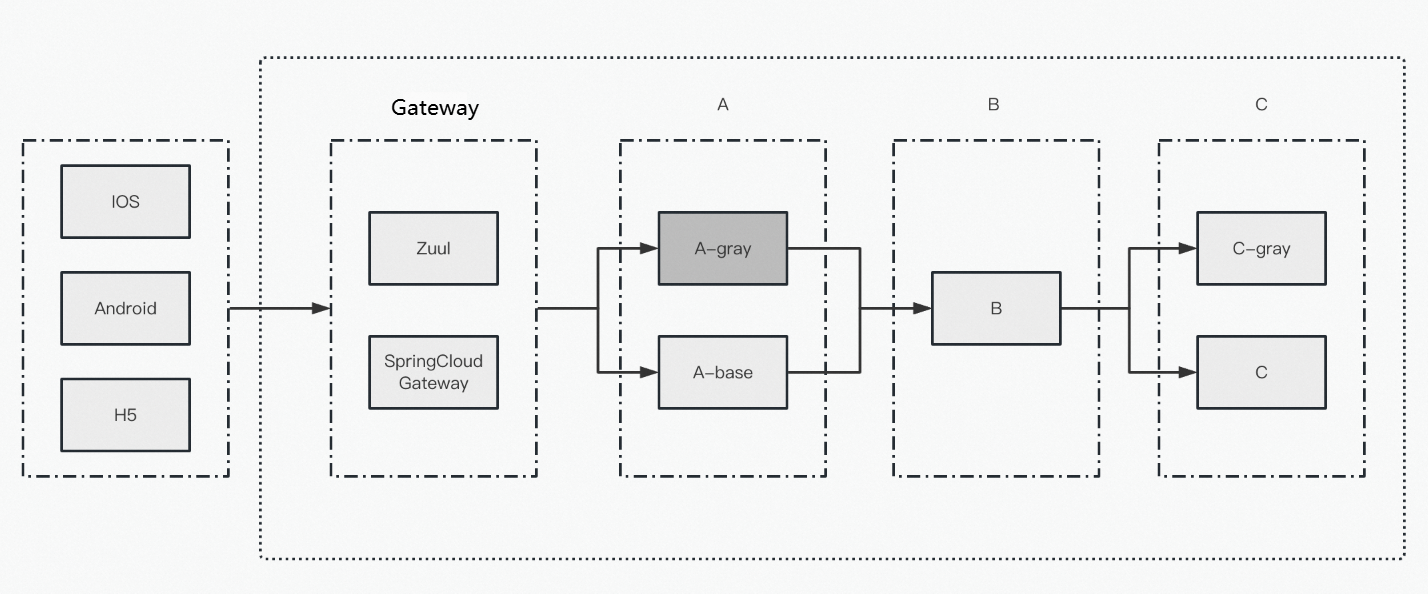
The demo uses Nacos as the registry and contains two gateways: SpringCloudGateway and Zuul. SpringCloudGateway is recommended for new projects. Zuul is provided for legacy compatibility. You can enable or disable either gateway. The default call trace is A->B->C, and both A and C have canary versions. You can get the application code from the code repository.
Application name | Service framework version | Components | Demo |
Zuul | Spring Cloud Greenwich | zuul | |
SpringCloudGateway | spring-cloud-starter-gateway 4.1.2 | spring-cloud-starter-gateway | |
A | Spring Cloud 2023.0.1 Dubbo 3.3.0 | openfeign/httpclient/rocketmq/nacos/loadbalancer | |
B | Spring Cloud 2023.0.1 Dubbo 3.3.0 | httpclient/mybatis/druid/nacos | |
C | Spring Cloud 2023.0.1 Dubbo 3.3.0 | openfeign/httpclient/nacos |
Download the demo Helm package
Download the Helm package of the demo. The Helm package and the images are updated periodically.
On the Releases page of the aliyun/alibabacloud-microservice-demo GitHub repository, find the latest version, for example, MSE Simple Demo V3.1.0. In the Assets section, click mse-simple-demo.zip to download the file.
Deploy by using CloudShell in ACK
Deploy mse-simple-demo by using CloudShell in ACK
Package the mse-simple-demo files.
Log on to the ACK cluster management console. Select the target cluster. On the Cluster information page, click Manage Cluster with Workbench.
Upload the Helm package.
On the CloudShell toolbar, click the file management icon and select Upload from the menu that appears.
Run the
unzip mse-simple-demo.zipcommand to decompress the demo.Run the
kubectl create namespace mse-democommand to create a namespace, which corresponds to--namespace.
Deploy by using Helm
Run the following Helm command to deploy mse-simple-demo.
helm upgrade mse-simple-demo mse-simple-demo \
--set mse.namespace=mse-demo \
--set gateway.springcloud=true  \
--install \
--namespace mse-demo \
--values mse-simple-demo/values.yaml
Edit the values.yaml file or use --set flags to override the following parameters:
namespace: the Kubernetes namespace to install the demo to. Optional. Usuallydefault.registry: the prefix of the container image address. If your cluster cannot pull the demo images, synchronize the demo images to an image repository in your account and change this address.images.version: the image version. The latest version is 3.1.0.mse.namespace: the microservice namespace connected to MSE Microservices Governance, which you can use to separate environments. Default value:mse-demo.nacos.host: the address of the Nacos registry. The demo automatically starts a Nacos server. To register the demo applications with a different Nacos address, configure this parameter.autoscaling: specifies whether to enable auto scaling. Default value:false. Before you enable this parameter, make sure that the kubernetes-cronhpa-controller add-on is installed in the cluster.resources.enable: specifies whether to configure the requests setting of resources. Default value:true.
Verify basic features
End-to-end canary release
Navigation path: Log on to the MSE Microservices Governance console and choose Microservices Governance > End-to-end Canary Release in the left-side navigation bar.
Create a lane group
On the End-to-end Canary Release page:
Click Create Lane Group and Lane. If a lane group already exists in the microservice namespace that you selected, click + Create Lane Group.
On the Create Lane Group page, configure the following settings and click OK.
Lane Group Name: Enter a name, for example,
demo.Entry Type: Select Java Service Gateway. You can also select Cloud Native API Gateway, MSE cloud-native gateway, or another gateway.
Lane Group Traffic Entry: Select the traffic entry application, for example,
spring-cloud-gateway.Applications in Lane Group: Select the applications involved in the lane group, for example,
spring-cloud-a,spring-cloud-b, andspring-cloud-c.
Create a lane
At the bottom of the End-to-end Canary Release page:
Click Create First Split Lane. If a lane already exists in the microservice namespace that you selected, click Create Lane.
In the Create Lane panel, configure the settings for the traffic lane and click OK.
Lane Name and Lane Tag: Set both to
gray.Confirm Matching Relationship: Include
spring-cloud-aandspring-cloud-c.Lane Status: Enabled.
Grayscale Mode: Select By Content.
Grayscale Condition: Select All of the following conditions are met, and then add a parameter row: set Parameter Type to
Parameter, Parameter toname, Condition to==, and Value toxiaoming.After the lane is created, the Traffic Allocation section of the lane group product page displays the lane information, including the lane name (
gray), the tag, the list of associated applications (spring-cloud-aandspring-cloud-c), the matching condition (param:[name]==xiaoming), and the enabling status. The QPS monitoring area above shows the number of requests and trend lines for baseline traffic and canary traffic.
Route regular requests to the baseline version
To find the SLB address of the gateway:
Log on to the Container Service for Kubernetes (ACK) console.
Go to the product page of the cluster that you created.
In the left-side navigation pane, choose Workload > Stateless.
On the Deployments page, click spring-cloud-gateway.
On the details page, click Access Method.
In the External Endpoint column of the Service section, note the IP address and port.
In a browser, visit the SLB address of the gateway and send the following requests.
Enter /A/a in the input box and click Start Calling. The returned call trace is A[192.168.100.48] [config=base] -> B -> C[192.168.100.235], in which the B node alternates between the 192.168.100.51 and 192.168.100.53 instances. This indicates that regular requests use tag-based routing with the config=base tag, and traffic is evenly distributed between the two baseline instances of B.
Request the /A/dubbo path without a canary tag (param:null) and click Start Calling. The call trace logs show that most requests are routed to baseline nodes: A[192.168.100.48] -> B[192.168.100.53] -> C[192.168.100.235]. A few requests pass through B[192.168.100.51], and one request is routed to the canary node Cgray[192.168.100.12].
Route canary requests to the canary version
Enter the URL: /A/a?name=xiaoming
2025-3-4 16:22:19 Returned Agray[192.168.100.52] [config=base] -> B[192.168.100.53] -> Cgray[192.168.100.12]
2025-3-4 16:22:20 Returned Agray[192.168.100.52] [config=base] -> B[192.168.100.53] -> Cgray[192.168.100.12]
2025-3-4 16:22:20 Returned Agray[192.168.100.52] [config=base] -> B[192.168.100.53] -> Cgray[192.168.100.12]
2025-3-4 16:22:21 Returned Agray[192.168.100.52] [config=base] -> B[192.168.100.51] -> Cgray[192.168.100.12]
2025-3-4 16:22:21 Returned Agray[192.168.100.52] [config=base] -> B[192.168.100.53] -> Cgray[192.168.100.12]
2025-3-4 16:22:22 Returned Agray[192.168.100.52] [config=base] -> B[192.168.100.51] -> Cgray[192.168.100.12]
2025-3-4 16:22:22 Returned Agray[192.168.100.52] [config=base] -> B[192.168.100.51] -> Cgray[192.168.100.12]
2025-3-4 16:22:23 Returned Agray[192.168.100.52] [config=base] -> B[192.168.100.51] -> Cgray[192.168.100.12]
2025-3-4 16:22:23 Returned Agray[192.168.100.52] [config=base] -> B[192.168.100.53] -> Cgray[192.168.100.12]
Access the /A/dubbo?name=xiaoming operation. The canary call trace log is as follows:
2025-3-4 16:23:59 Returned Agray[192.168.100.52] -> B[192.168.100.51] param:null -> Cgray[192.168.100.12] param:null
2025-3-4 16:23:59 Returned Agray[192.168.100.52] -> B[192.168.100.51] param:null -> Cgray[192.168.100.12] param:null
2025-3-4 16:24:0 Returned Agray[192.168.100.52] -> B[192.168.100.53] param:null -> Cgray[192.168.100.12] param:null
2025-3-4 16:24:1 Returned Agray[192.168.100.52] -> B[192.168.100.53] param:null -> Cgray[192.168.100.12] param:null
2025-3-4 16:24:1 Returned Agray[192.168.100.52] -> B[192.168.100.51] param:null -> Cgray[192.168.100.12] param:null
2025-3-4 16:24:2 Returned Agray[192.168.100.52] -> B[192.168.100.53] param:null -> Cgray[192.168.100.12] param:null
2025-3-4 16:24:2 Returned Agray[192.168.100.52] -> B[192.168.100.51] param:null -> Cgray[192.168.100.12] param:null
For more information, see Implement end-to-end canary release based on a self-managed Spring Cloud Gateway or Zuul gateway.
Graceful start and shutdown
Navigation path: Log on to the MSE Microservices Governance console and choose Microservices Governance > Application Governance in the left-side navigation bar. On the Applications page, click the application that you want to govern to go to the application overview page.
Configure graceful start and shutdown
In the left-side navigation bar of the application overview page, choose Traffic Governance. Some graceful start and shutdown capabilities are available by default. To use the full capabilities, enable and configure graceful start and shutdown in the console.
On the Traffic Governance page, click the Graceful Start and Shutdown tab. In the Configuration Information section, you can view the enabling status of Graceful Start and Graceful Shutdown and the Proactive Notification setting. Click Modify on the right to adjust the settings.
View events and processes
The upper part of the Graceful Start and Shutdown page displays the current settings: the enabling status of graceful start, the delayed registration duration, the small-traffic warm-up duration, the enabling status of graceful shutdown, and the status of proactive notification. On the Start/Shutdown Events tab, the event list on the left displays each event record, including the time, the node IP-PID, the event name (microservice application shutdown, microservice registration, microservice warm-up start, or microservice graceful shutdown), the framework type, and the event details. Click an event, such as microservice graceful shutdown, and the QPS line chart of the corresponding node appears on the right, where you can observe traffic decreasing smoothly from the normal level to 0 when the service is taken offline.
For more information, see Graceful Start and Shutdown.
Throttling rules
Navigation path: Log on to the MSE Microservices Governance console and choose Microservices Governance > Application Governance in the left-side navigation bar. On the Applications page, click the application that you want to govern to go to the application overview page.
Configure a throttling rule
In the left-side navigation bar of the application overview page, choose Traffic Governance. On the Traffic Governance page, choose Traffic Protection > Interface Flow Control, and then click Add Rules.
In the Configure Protection Rule step of the Add Throttling Protection Rule wizard, the information bar at the top displays the API name, the protection type, and the API type. Configure the following settings:
Enable: Turn on the switch to activate the rule.
Single-instance QPS Threshold: Set the upper limit of requests per second, for example,
5.Throttling Effect: Select Fail-fast or Wait in Queue. Fail-fast returns the default throttling message for traffic that exceeds the threshold.
Click Show Advanced Options to expand more settings. After you finish the settings, click Next to go to the configure protection behavior step.
Verify the throttling effect
In a browser, visit the SLB address of the gateway and send the following request.
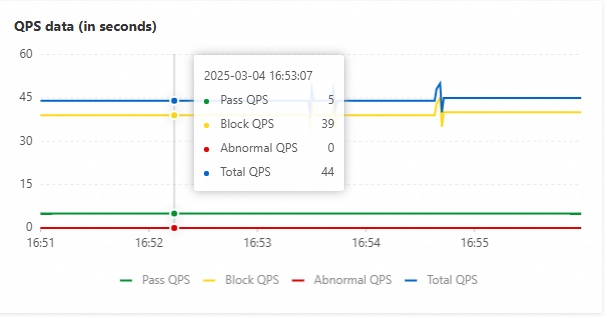
Set the URI of the request to /A/flow and click Start Calling. Most requests return Blocked by Sentinel (flow limiting), and only a few requests pass and return the Tracing Analysis service invocation trace: A[192.168.100.45][config=base] -> B[192.168.100.53] -> C[192.168.100.235].
Application A has one node and its single-instance throttling threshold is 5, so the pass-through QPS stabilizes at 5.
For more information, see What is traffic protection?.
Additional topics
Application integration
In this demo, the msePilotAutoEnable: "on" label is added explicitly to the Deployment of each application that you want to connect. In production, you can enable Microservices Governance for a namespace of a Kubernetes cluster in the MSE operations center to connect applications in bulk.
For more information, see Connect Java applications in ACK and ACS clusters to MSE Microservices Governance.
Sample requests
The following sample requests use localhost:20000 as the gateway address. Replace localhost:20000 with the SLB address and port of the gateway that you obtained earlier. You can also send these requests from inside the gateway pod.
Configure auto scaling for the demo
If graceful start and shutdown was not enabled during the initial deployment but you want to observe it later, enable it in the following way.
To use the detailed graceful start and shutdown features, log on to the Container Service for Kubernetes (ACK) console, go to the cluster information page, choose Operations Management > Add-ons in the left-side navigation bar, search for
cronhpain the search box, and then click Install.Use the following YAML to create a scheduled scaling task. The
namespacefield must match the Kubernetes namespace that you selected when you installed the Helm package.
apiVersion: autoscaling.alibabacloud.com/v1beta1
kind: CronHorizontalPodAutoscaler
metadata:
  labels:
    controller-tools.k8s.io: "1.0"
  name: cronhpa-deployment-spring-cloud-b
  namespace: mse-demo # Note: the namespace field must be the same as the k8s namespace selected during helm install
spec:
  jobs:
  - name: Scale-out
    schedule: 0 0/6 * * * *
    targetSize: 6
  - name: Scale-in
    schedule: 0 5/6 * * * *
    targetSize: 2
  scaleTargetRef:
    apiVersion: apps/v1
    kind: Deployment
    name: spring-cloud-b
Gateway auto-request configuration
Automatic sending of various requests is enabled by default. To change the configuration, log on to the Container Service for Kubernetes (ACK) console, go to the cluster information page, and choose Workload > Stateless in the navigation pane. On the Deployments page, click the spring-cloud-gateway application. On the product page, click Edit in the upper-right corner. Then, configure the following environment variables to control the automatic sending of various requests.
Environment variable key | Description | Default value |
enable.auto | Automatic traffic generation master switch | true |
enable.rpc.invoke | Switch for Dubbo requests | true |
enable.sql | Switch for database requests | true |
enable.sentinel.demo.flow | Switch for requests related to Sentinel rules: | true |
enable.gray | Switch for canary requests that use tags | false |
demo.qps | Request rate in QPS. Controls the request rate of | 20 |